
HC-05 AT Commands: Full List & Pairing Configuration Tutorial
The HC-05 AT commands pairing setup process trips up nearly every beginner who works with Bluetooth modules for the first time — and it is completely understandable. The HC-05 is the most popular Bluetooth serial module in India, yet its AT command mode is poorly documented across most tutorials. In this guide we give you the complete AT command list, explain every important parameter, and walk you through pairing two HC-05 modules together in master-slave mode — the foundation of countless Arduino wireless projects.
HC-05 Module Overview
The HC-05 is a classic SPP (Serial Port Profile) Bluetooth 2.0 module based on the CSR BC417 or similar chipset. Unlike the HC-06 (which is slave-only), the HC-05 can be configured as both master and slave — making it the preferred choice when you need two microcontrollers to talk directly to each other without a smartphone in the loop.
Technical highlights:
- Bluetooth version: 2.0 + EDR (Enhanced Data Rate)
- Default baud rate: 9600 bps (data mode), 38400 bps (AT mode)
- Operating voltage: 3.3V logic, 3.6–6V supply (most breakout boards have a 3.3V regulator)
- Default name: HC-05
- Default PIN: 1234 or 0000
- Range: Up to 10 metres (Class 2)
- Current: ~30 mA (paired), ~8 mA (standby)
The module operates in two modes: Data Mode (normal Bluetooth serial communication) and AT Command Mode (configuration). You must enter AT mode to change the name, PIN, baud rate, or set master/slave role.
Entering AT Command Mode
This is where most beginners go wrong. There are two AT mode entry methods:
Method 1: Hold the KEY button before powering up (38400 baud AT mode)
- Disconnect power from the HC-05 module
- Press and hold the small KEY/EN button on the module
- While holding, apply power (connect VCC)
- Release the button after 2 seconds
- The LED will blink slowly (once every 2 seconds) — this confirms AT mode
- Set your Serial Monitor to 38400 baud, Both NL & CR
- Type
ATand press Send — you should get backOK
Method 2: Drive KEY/EN pin HIGH during power-up (also 38400 baud)
Connect the KEY pin to 3.3V (not 5V!) before applying power. Useful when integrating AT mode switching into a project programmatically.
Method 3: Mini AT mode (same baud as data mode)
Some HC-05 firmware versions support AT commands at the data-mode baud rate when the KEY pin is held high after power-up. This method is less reliable — use Method 1 for guaranteed entry.
Critical Serial Monitor settings: 38400 baud + “Both NL & CR” line ending. The “Both NL & CR” setting is essential — without it, every command returns ERROR.
Essential AT Commands Reference
Here are the commands you will use most often for basic configuration:
| Command | Description | Response |
|---|---|---|
AT |
Test connection | OK |
AT+NAME? |
Query current name | +NAME:HC-05 |
AT+NAME=ZboticBT |
Set device name | OK |
AT+PSWD? |
Query PIN/password | +PSWD:1234 |
AT+PSWD=4321 |
Set new PIN | OK |
AT+UART? |
Query baud rate | +UART:9600,0,0 |
AT+UART=115200,0,0 |
Set baud to 115200 | OK |
AT+ROLE? |
Query role (0=slave, 1=master) | +ROLE:0 |
AT+ROLE=1 |
Set as master | OK |
AT+ADDR? |
Get Bluetooth MAC address | +ADDR:xxxx:yy:zzzzzz |
AT+RESET |
Soft reset module | OK |
AT+ORGL |
Reset to factory defaults | OK |
Full AT Command List
Here is the complete reference for advanced configuration:
| Command | Function |
|---|---|
AT+VERSION? |
Firmware version |
AT+CLASS? |
Device class of service |
AT+IAC? |
Inquiry access code |
AT+INQM=0,5,9 |
Inquiry mode (standard, max 5 devices, 9 sec) |
AT+INQ |
Initiate Bluetooth device search (master mode) |
AT+PAIR=addr,timeout |
Pair with a device address |
AT+LINK=addr |
Connect to a paired device |
AT+BIND=addr |
Bind (auto-connect) to a specific address |
AT+CMODE=0 |
Connect only to bound address (0) or any (1) |
AT+ADCN? |
Authenticated device count |
AT+MRAD? |
Most recently used device address |
AT+STATE? |
Current module state |
AT+ENSNIFF=addr |
Enable sniff mode (low power) |
AT+DISCSNIFF=addr |
Disable sniff mode |
Pairing Two HC-05 Modules (Master-Slave Setup)
This is the most powerful use-case: pairing two HC-05 modules so they automatically connect to each other whenever powered on, without any smartphone or PC involved. Perfect for robot control systems, wireless sensor-to-display links, and Arduino-to-Arduino communication.
Step 1: Configure the Slave Module
- Enter AT mode on the first module (the slave)
- Set role to slave:
AT+ROLE=0 - Set connection mode to any device:
AT+CMODE=1 - Get its MAC address:
AT+ADDR?— note down the response (e.g.+ADDR:2016:1:200507) - Set baud rate to match your sketch:
AT+UART=9600,0,0 - Reset:
AT+RESET
Step 2: Configure the Master Module
- Enter AT mode on the second module (the master)
- Set role to master:
AT+ROLE=1 - Set inquiry mode:
AT+INQM=0,5,9 - Convert the slave address from
2016:1:200507to colon-separated:2016,1,200507 - Bind to the slave:
AT+BIND=2016,1,200507 - Set connect mode to fixed address only:
AT+CMODE=0 - Set same baud rate:
AT+UART=9600,0,0 - Reset:
AT+RESET
After both modules restart, the master will automatically search for and connect to the slave. Both LEDs will blink rapidly during pairing and then synchronise to a 2-blink-pause pattern when connected.
Arduino Wiring & Serial Code
For AT command configuration, connect the HC-05 to Arduino using a software serial passthrough sketch:
// HC-05 TX → Arduino Pin 10
// HC-05 RX → Arduino Pin 11 (via voltage divider: 1kΩ + 2kΩ for 3.3V)
// HC-05 VCC → 5V, GND → GND, KEY → 3.3V (for AT mode)

#include <SoftwareSerial.h>
SoftwareSerial BTSerial(10, 11); // RX, TX

void setup() {
  Serial.begin(38400);   // PC Serial Monitor baud
  BTSerial.begin(38400); // HC-05 AT mode baud
  Serial.println("AT Mode - Type commands:");
}

void loop() {
  if (BTSerial.available())
    Serial.write(BTSerial.read());
  if (Serial.available())
    BTSerial.write(Serial.read());
}
Important voltage warning: The HC-05 RX pin expects 3.3V logic. Always use a voltage divider (1kΩ + 2kΩ) or a logic level converter between Arduino’s 5V TX and HC-05 RX. The TX pin from HC-05 is safe to connect directly to Arduino RX as 3.3V is within the threshold.
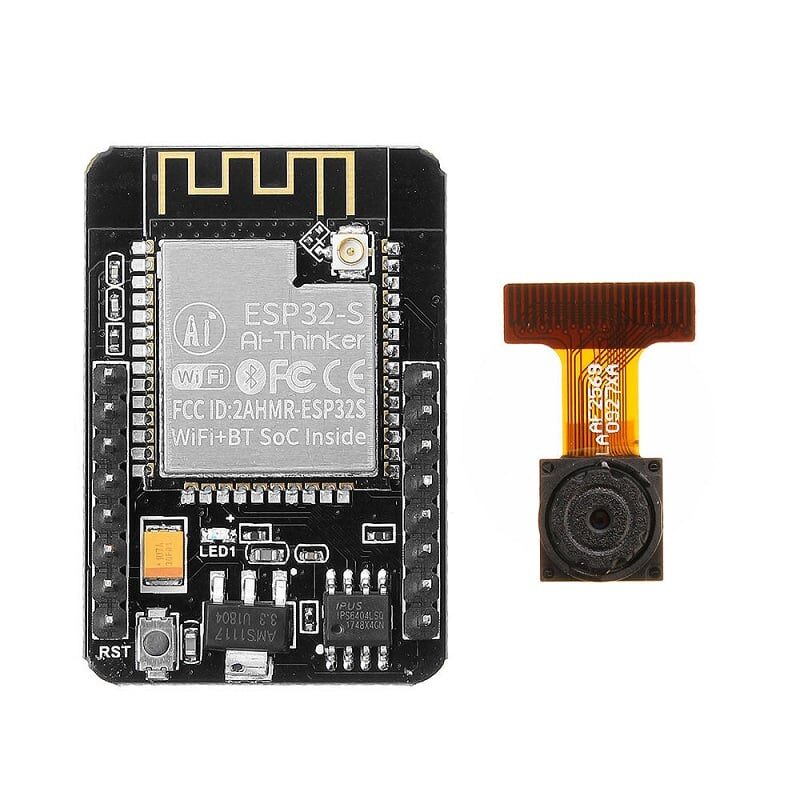
Ai Thinker ESP32 CAM Development Board (WiFi + Bluetooth)
Upgrade from HC-05 to the ESP32 CAM for dual-mode WiFi and BLE on a single board. Ideal when you need both Bluetooth and camera functionality in one project.
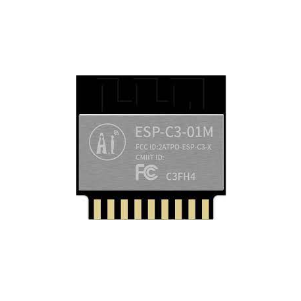
Ai Thinker ESP32-C3-01M Wi-Fi + BLE Module
Modern BLE 5.0 + WiFi 4 in a tiny footprint module. A cost-effective upgrade over classic HC-05 for new projects requiring reliable bidirectional communication.
Common Errors & Fixes
AT command returns ERROR
Almost always a Serial Monitor line-ending issue. Make absolutely sure you have selected “Both NL & CR” in the Arduino IDE Serial Monitor dropdown (bottom right). The module needs both carriage return (CR) and newline (LF) to terminate commands.
LED blinks fast, not slow — not entering AT mode
Fast blinking means the module is in data mode trying to connect. The slow 2-second blink confirms AT mode. Power off, hold KEY for 2+ seconds before powering on again. Some clone modules require a longer button press — try 3–4 seconds.
Module powers on but not discoverable
If you have previously bound the master to a specific slave address using AT+CMODE=0, it will only connect to that address and won’t appear discoverable to other devices. Reset to AT+CMODE=1 and AT+ORGL if needed.
Characters are garbled in data mode
Baud rate mismatch between the HC-05’s AT+UART setting and your SoftwareSerial.begin() call. Enter AT mode, run AT+UART? to find the actual baud, and match your sketch to it.
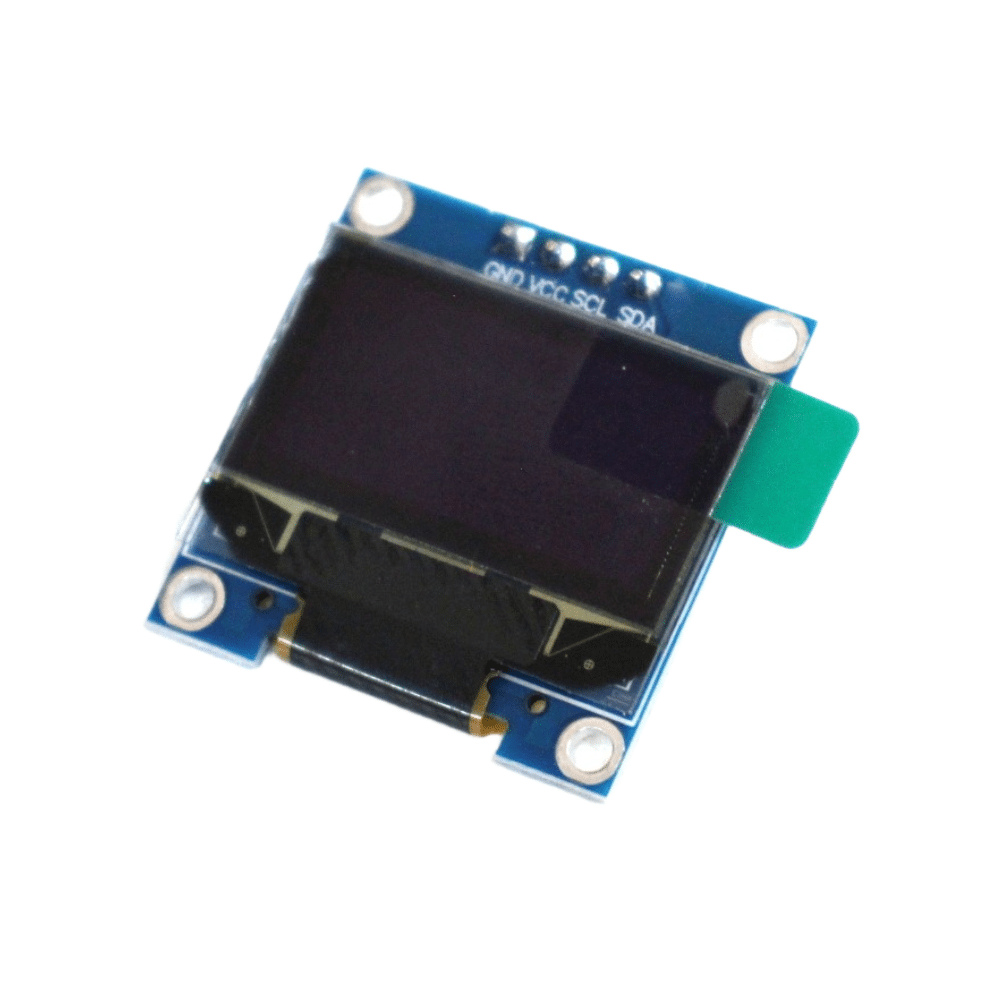
0.96 Inch I2C OLED LCD Module (White SSD1306)
Add a small display to your HC-05 receiver project to show incoming data, connection status, and sensor readings in real time.
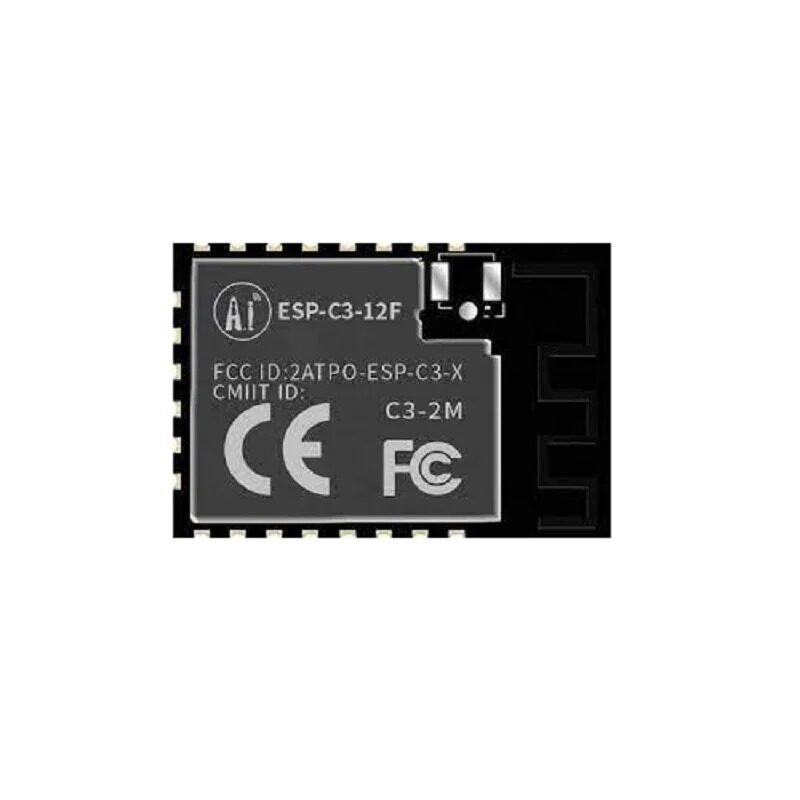
Ai-Thinker ESP32-C3-12F Wi-Fi + BLE Module
Feature-rich ESP32-C3 with 4MB flash and external antenna support. Use this for projects where HC-05 range or BLE 5.0 features are needed.
Frequently Asked Questions
What is the default PIN for HC-05?
The default PIN is 1234 on most HC-05 modules. Some older or clone variants use 0000. You can verify and change it using AT+PSWD? and AT+PSWD=newpin in AT command mode.
What is the difference between HC-05 and HC-06?
HC-05 can operate as both master and slave, supports a full AT command set, and can initiate connections. HC-06 is slave-only with a limited command set (name, PIN, baud only). Choose HC-05 when you need Arduino-to-Arduino communication without a smartphone.
Can I use HC-05 with a smartphone?
Yes. In slave mode, HC-05 appears as a classic Bluetooth serial device. Use apps like Serial Bluetooth Terminal (Android) or Bluetooth Serial Monitor. Note that iOS does not support classic Bluetooth SPP — you need BLE modules (HC-08, HM-10, or ESP32 BLE) for iPhone.
My HC-05 does not respond to AT+NAME= — it says ERROR
Some firmware versions use AT+NAME= while others use AT+NAME: notation. Try both. Also ensure you are in full AT mode (slow LED blink) at 38400 baud with Both NL & CR line endings selected.
How do I reset HC-05 to factory settings?
Enter AT command mode and send AT+ORGL. This restores all factory defaults including the name (HC-05), PIN (1234), baud rate (9600), and role (slave). Follow with AT+RESET to apply.
Get Your HC-05 and Start Building
Zbotic carries Bluetooth modules, ESP32 boards, relay modules, and displays at competitive Indian prices. Everything you need for wireless Arduino projects, shipped fast to your doorstep.






Add comment