
Arduino GLCD Library: Graphical LCD 128×64 KS0108 Tutorial
If you want to add a crisp, monochrome graphical display to your Arduino project, the GLCD library for Arduino with a 128×64 KS0108 display is one of the most capable solutions available to hobbyists and students in India. Unlike simple character LCDs, a graphical LCD lets you draw shapes, custom fonts, icons, and even basic animations — making it perfect for oscilloscopes, weather stations, menu-driven interfaces, and data loggers. In this tutorial, we will walk you through everything: understanding the KS0108 controller, wiring the 128×64 GLCD to your Arduino, installing the GLCD library, and writing real code.
What Is the KS0108 and 128×64 GLCD?
The KS0108 is a classic dot-matrix LCD controller chip used in 128×64 graphical LCD modules. The display contains 128 columns and 64 rows of pixels, giving you 8,192 individually addressable dots. These panels operate at 5V logic, use a parallel interface (8-bit data bus + 6 control lines), and have an onboard contrast potentiometer. The backlight is typically blue or green with a white or yellow LED.
What makes the KS0108 unique is that it divides the 128-column display into two 64×64 halves, each controlled by a separate chip select pin (CS1 and CS2). The Arduino communicates with both chips simultaneously to render full-width graphics. This architecture was the industry standard in the 1990s and early 2000s, and millions of these panels are still in circulation — making them affordable and widely available in India for under ₹200.
Popular 128×64 KS0108 modules you’ll find in Indian markets include the JHD12864 series and generic Chinese clones, all of which are compatible with the Arduino GLCD library.
GLCD vs Character LCD: Which Should You Use?
The classic 16×2 or 20×4 character LCD is still the go-to for simple text output, but it cannot display graphics, custom icons, or data visualizations. Here is a quick comparison:
| Feature | 16×2 Character LCD | 128×64 GLCD (KS0108) |
|---|---|---|
| Pixels | Fixed character blocks | 8,192 addressable |
| Graphics | No | Yes |
| Interface | 4-bit or 8-bit parallel / I2C | 8-bit parallel |
| Arduino Pins Used | 6–10 | 13–14 |
| India Price (approx) | ₹80–120 | ₹150–250 |
If your project only shows text readings (temperature, humidity, sensor values), a character LCD with I2C backpack is simpler. If you need menus, waveforms, bar graphs, or images — the GLCD is the right choice.
Components Needed
- Arduino Uno or Mega (Uno works fine for this project)
- 128×64 KS0108 Graphical LCD module
- 10k potentiometer (for contrast adjustment)
- Jumper wires (male-to-male)
- Breadboard
- USB cable for programming
- Optional: sensor module for data display (temperature, humidity, etc.)
To enhance your GLCD projects with real sensor data, here are some great sensor modules available at Zbotic:

DHT11 Digital Relative Humidity and Temperature Sensor Module
Perfect for displaying live temperature and humidity readings on your GLCD. Single-wire interface, easy to use with Arduino.

LM35 Temperature Sensor
Analog temperature sensor ideal for plotting real-time temperature graphs on the 128×64 GLCD display using Arduino.
Wiring the 128×64 KS0108 to Arduino
The KS0108 GLCD has either 18 or 20 pins depending on the module. Below is the standard wiring for an Arduino Uno:
| GLCD Pin | Name | Arduino Uno Pin |
|---|---|---|
| 1 | VSS (GND) | GND |
| 2 | VDD (5V) | 5V |
| 3 | V0 (Contrast) | 10k pot wiper |
| 4 | RS (D/I) | Pin 8 |
| 5 | R/W | Pin 11 |
| 6 | E (Enable) | Pin 13 |
| 7–14 | DB0–DB7 (Data) | Pins 2–7, A4, A5 |
| 15 | CS1 | Pin 9 |
| 16 | CS2 | Pin 10 |
| 17 | RST (Reset) | Pin A3 |
| 18 | BLA (Backlight +) | 5V (via 10–100Ω resistor) |
| 19 | BLK (Backlight −) | GND |
Important: The contrast pot connects with one end to 5V, the other to GND, and the wiper to pin 3 (V0) of the GLCD. Adjust until the pixels become visible.
Installing the GLCD Library
The most popular library for KS0108-based GLCDs on Arduino is the openGLCD library (formerly known as the GLCD library by Michael Margolis). It supports multiple display types, custom fonts, and hardware-accelerated drawing.
Step 1 — Download the library: Go to the Arduino IDE Library Manager (Sketch → Include Library → Manage Libraries) and search for “openGLCD”. Alternatively, download the ZIP from the GitHub repository at github.com/hexagon5un/openGLCD.
Step 2 — Install via ZIP: In Arduino IDE, go to Sketch → Include Library → Add .ZIP Library and select the downloaded file.
Step 3 — Configure pin mapping: The openGLCD library uses a configuration file located at libraries/openGLCD/config/ks0108-Arduino.h. Open this file and verify the pin assignments match your wiring. The default config matches the wiring table above.
Step 4 — Test with example sketch: Go to File → Examples → openGLCD → HelloWorld. Upload to your Arduino and you should see text on the GLCD.
If you are using an Arduino Mega instead of Uno, use the ks0108-Mega.h config file, which maps the data bus to Mega-specific ports for faster performance.
Basic GLCD Code Examples
Here are some practical code snippets to get you started:
Hello World with openGLCD
#include <openGLCD.h>

void setup() {
  GLCD.Init();
  GLCD.SelectFont(System5x7);
  GLCD.ClearScreen();
  GLCD.CursorTo(0, 0);
  GLCD.print("Hello, India!");
  GLCD.CursorTo(0, 1);
  GLCD.print("Zbotic GLCD Demo");
}

void loop() {
  // Nothing here
}
Drawing Shapes and Lines
#include <openGLCD.h>

void setup() {
  GLCD.Init();
  GLCD.ClearScreen();

  // Draw a rectangle
  GLCD.DrawRect(10, 10, 50, 30, BLACK);

  // Draw a circle
  GLCD.DrawCircle(90, 32, 20, BLACK);

  // Draw a line
  GLCD.DrawLine(0, 0, 127, 63, BLACK);
}

void loop() {}
Real-time DHT11 Sensor Data on GLCD
#include <openGLCD.h>
#include <DHT.h>

#define DHTPIN A0
#define DHTTYPE DHT11
DHT dht(DHTPIN, DHTTYPE);

void setup() {
  GLCD.Init();
  GLCD.SelectFont(System5x7);
  dht.begin();
}

void loop() {
  float temp = dht.readTemperature();
  float hum  = dht.readHumidity();

  GLCD.ClearScreen();
  GLCD.CursorTo(0, 0);
  GLCD.print("Temp: ");
  GLCD.print(temp, 1);
  GLCD.print(" C");
  GLCD.CursorTo(0, 1);
  GLCD.print("Hum: ");
  GLCD.print(hum, 0);
  GLCD.print(" %");
  delay(2000);
}
Advanced Project Ideas with GLCD
Once you are comfortable with the basics, the 128×64 GLCD opens up a world of project possibilities:
- Mini Oscilloscope: Sample an analog signal on A0 and plot the waveform across the 128-pixel width. This is one of the most popular GLCD projects and is very impressive at maker fairs.
- Weather Station Dashboard: Combine DHT11/DHT20 and BMP280 sensors to show temperature, humidity, and barometric pressure simultaneously on the screen.
- Menu-Driven Interface: Use GLCD text rendering and two push buttons to build a scrollable menu system for device settings or mode selection.
- Game Boy Clone: Simple games like Snake, Pong, or Tetris are very achievable at 128×64 resolution. The display refreshes fast enough for smooth gameplay at 30fps.
- Voltmeter/Ammeter Display: Connect an ACS712 current sensor and display real-time current draw with a bar-graph indicator rendered on the GLCD.

BMP280 Barometric Pressure and Altitude Sensor
Measure pressure and altitude to display on your GLCD weather station. I2C or SPI interface, works great with Arduino Uno.
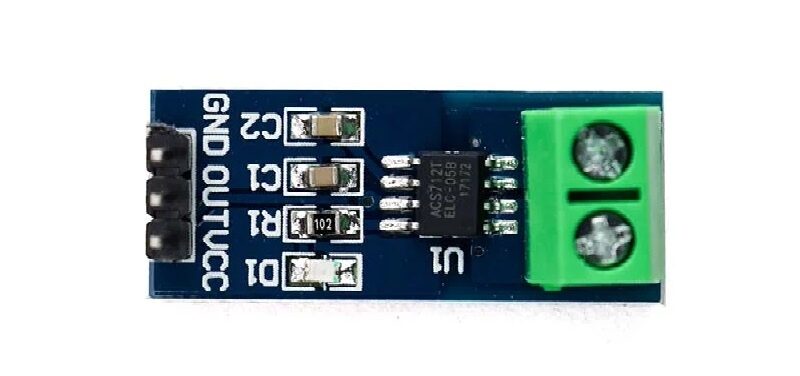
5A Range Current Sensor Module ACS712
Monitor current in real time and visualize it as a bar graph or live plot on your GLCD display project.
Troubleshooting Common GLCD Issues
- Blank screen with backlight on: Usually a contrast issue. Adjust the 10k pot slowly until pixels appear. If nothing appears, recheck D/I (RS) and E (Enable) connections.
- Only half the screen works: CS1/CS2 pins are swapped or one is floating. Confirm both are connected to the correct Arduino pins.
- Garbage/random pixels: Data bus lines (DB0–DB7) may have loose connections. Check each wire individually.
- Library compile errors: Ensure you are using openGLCD version 0.9.0 or later. Older GLCD library versions have compatibility issues with Arduino IDE 1.8+/2.x.
- Display works but is very slow: You may have wrong port mapping in the config file. On Arduino Uno, the data bus should map to a single port register for maximum speed. Use the
ks0108-Arduino.hdefault config. - Flipped or mirrored display: Some clone modules have CS1/CS2 logic inverted. Try swapping the two chip select pins in the config file.
Frequently Asked Questions
Can I use a 128×64 GLCD with Arduino Nano?
Yes, the Arduino Nano has the same ATmega328P as the Uno and the same pin structure. The wiring is identical — just use the same pin numbers. The GLCD library configuration for Uno also works on Nano.
Is the KS0108 GLCD compatible with 3.3V systems like ESP8266 or Raspberry Pi?
The KS0108 operates at 5V logic, so it is not directly compatible with 3.3V systems without level shifting. For 3.3V microcontrollers, consider using SPI-based GLCD modules instead (like those with ST7565 or UC1701X controllers) which are available in both 3.3V and 5V versions.
How many pins does the GLCD use on Arduino?
A standard KS0108 GLCD uses 13 digital pins on Arduino (8 data + 5 control). This leaves only 7 pins free on an Uno, so plan your project carefully. An Arduino Mega is recommended when you also need multiple sensors.
Can I display images/bitmaps on the GLCD?
Yes! The openGLCD library supports bitmap images stored in PROGMEM (program flash). Convert your image to a monochrome 1-bit bitmap using tools like LCD Image Converter or GIMP, then export it as a C array and include it in your sketch.
What fonts are available in the openGLCD library?
The library ships with several built-in fonts: System5x7 (small), Arial14, fixedstep, Stang (large), and more. You can also use the LCD Image Converter tool to create custom fonts for regional Indian language characters.
Ready to Build Your GLCD Project?
The 128×64 KS0108 GLCD combined with the Arduino openGLCD library is a powerful, affordable display solution for Indian makers and students. Whether you’re building a weather station, oscilloscope, or a retro game — the GLCD has the resolution and speed to make it happen.
Pick up your sensors and components at Zbotic.in — India’s maker-friendly electronics store with fast delivery and genuine components.





Add comment