
TFT Display Custom Fonts: Using GFX Library with Arduino
If you have ever tried to display text on a TFT display with Arduino and felt frustrated by the blocky default font, you are not alone. Learning how to use a tft display custom font gfx arduino setup opens up a whole new world of professional-looking projects. The Adafruit GFX library makes it surprisingly straightforward to render crisp, scalable, and custom fonts on any TFT screen — whether it is a small 1.8-inch SPI module or a larger 3.5-inch ILI9341-based panel. This guide walks Indian makers through everything from library setup to rendering multi-size text, with working code you can adapt right away.
Why Custom Fonts Matter on TFT Displays
The default 5×7 bitmap font built into most TFT libraries is functional but looks dated. For product prototypes, smart home dashboards, IoT monitors, and gadgets you want to show off, professional typography makes a huge difference. Custom fonts let you display larger numerals for sensor readouts that are legible from across the room, use proportional fonts that save horizontal space, and render bold, italic, and condensed variants. The Adafruit GFX library stores fonts in program memory (PROGMEM), so they do not eat into your valuable SRAM. A 24-point font with the full ASCII set typically uses 3-5 KB of flash, well within the limits of an Arduino Uno (32 KB) or ESP32 (4 MB).
Adafruit GFX Library Overview
The Adafruit GFX library is a universal 2D graphics primitives library. It is not tied to any specific display driver — instead, it provides a base class that hardware-specific libraries (like Adafruit_ILI9341, Adafruit_ST7735, or MCUFRIEND_kbv) inherit from. This means once you learn GFX, your knowledge transfers across virtually every TFT panel.
Key GFX methods relevant to fonts: setFont() switches between built-in and custom fonts; setTextSize() scales the font; setTextColor() sets foreground and optional background colour; setCursor() positions the text baseline; print() and println() render text; and getTextBounds() calculates the bounding box before drawing, which is crucial for centring text.
GFX fonts use a glyph-based approach: each character stores its bitmap, width, height, and advance width individually. This enables proportional spacing and allows you to include only the characters you actually need, saving flash space.
Required Hardware and Wiring
For this tutorial we use a 2.4-inch ILI9341 TFT SPI module paired with an Arduino Uno or Nano. The same principles apply to ST7735, ST7789, HX8347, and other GFX-compatible drivers.
| TFT Pin | Arduino Uno | Note |
|---|---|---|
| VCC | 5V or 3.3V | Check your module voltage |
| GND | GND | |
| CS | D10 | Chip Select |
| RESET | D9 | Display Reset |
| DC/RS | D8 | Data/Command |
| MOSI | D11 | SPI MOSI |
| SCK | D13 | SPI Clock |
| LED | 3.3V via 100 ohm | Backlight |
For ESP32-based builds (recommended for IoT projects), use the standard VSPI or HSPI pins. The ESP32 also has enough flash to store multiple large fonts simultaneously.
Installing Libraries in Arduino IDE
Open Arduino IDE, go to Sketch → Include Library → Manage Libraries, and install: Adafruit GFX Library by Adafruit, and Adafruit ILI9341 (or the driver for your specific panel). If using MCUFRIEND shields, also install MCUFRIEND_kbv by David Prentice.
After installation, you will find a Fonts/ folder inside the GFX library directory. This folder already contains dozens of ready-to-use fonts including FreeSans, FreeMono, FreeSerif in sizes 9, 12, 18, and 24 points. These cover most basic use cases without any additional font generation.
To use a pre-included font, add this near the top of your sketch:
#include <Adafruit_GFX.h>
#include <Adafruit_ILI9341.h>
#include <Fonts/FreeSansBold18pt7b.h>

Adafruit_ILI9341 tft = Adafruit_ILI9341(10, 8, 9);

void setup() {
  tft.begin();
  tft.fillScreen(ILI9341_BLACK);
  tft.setFont(&FreeSansBold18pt7b);
  tft.setTextColor(ILI9341_WHITE);
  tft.setCursor(10, 40);
  tft.print("Zbotic!");
  tft.setFont(); // reset to built-in
}
Generating Custom Font Files
For project-specific needs — a custom brand font, a larger size, or special symbols — you need to generate your own font header file. The Adafruit GFX library ships with a fontconvert utility that converts any TrueType font. On Ubuntu/Debian:
sudo apt install libfreetype6-dev
cd ~/Arduino/libraries/Adafruit_GFX_Library/fontconvert
make
./fontconvert /usr/share/fonts/truetype/dejavu/DejaVuSans.ttf 24 > MyFont24pt7b.h
For Windows users, several online tools convert TTF/OTF fonts to Adafruit GFX format via a browser interface. Upload your .ttf file, choose size, select character range, and download the .h file. Drop this file into your sketch folder and include it directly.
To reduce font file size, restrict the character range. If you only need numerals and a colon for a clock display:
./fontconvert DejaVuSans.ttf 36 48 58 # chars 48('0') to 58(':')This shrinks a 36pt font from ~8 KB down to under 2 KB — critical for memory-constrained Uno projects.

LM35 Temperature Sensors
Analog temperature sensor perfect for Arduino TFT dashboard projects. Linear 10mV/degree-C output, works directly with Arduino ADC — no library needed.

DHT11 Temperature and Humidity Sensor Module
Popular dual-sensor module for temperature and humidity — ideal pairing with a TFT display to build a weather station on a budget.
Writing the Arduino Code
Below is a complete working example that displays a large sensor readout using a custom font, then switches back to the built-in font for smaller labels. This pattern is used in almost every practical TFT dashboard project.
#include <SPI.h>
#include <Adafruit_GFX.h>
#include <Adafruit_ILI9341.h>
#include <Fonts/FreeSansBold24pt7b.h>
#include <Fonts/FreeSans9pt7b.h>

Adafruit_ILI9341 tft = Adafruit_ILI9341(10, 8, 9);

void printCentered(const char* text, int y, uint16_t color) {
  int16_t x1, y1; uint16_t w, h;
  tft.getTextBounds(text, 0, y, &x1, &y1, &w, &h);
  tft.setCursor((tft.width() - w) / 2, y);
  tft.setTextColor(color);
  tft.print(text);
}

void drawDashboard(float temp, float humidity) {
  tft.fillScreen(0x1082);
  tft.fillRect(0, 0, 320, 30, ILI9341_ORANGE);
  tft.setFont(&FreeSans9pt7b);
  tft.setTextColor(ILI9341_WHITE);
  tft.setCursor(8, 21);
  tft.print("WEATHER STATION");
  char buf[10];
  snprintf(buf, sizeof(buf), "%.1f C", temp);
  tft.setFont(&FreeSansBold24pt7b);
  printCentered(buf, 110, ILI9341_CYAN);
  snprintf(buf, sizeof(buf), "%.0f%%", humidity);
  tft.setFont(&FreeSansBold24pt7b);
  printCentered(buf, 195, ILI9341_GREEN);
  tft.setFont(&FreeSans9pt7b);
  printCentered("Humidity", 220, 0xAD55);
}

void setup() { tft.begin(); tft.setRotation(1); drawDashboard(28.5, 65.0); }
void loop() {}
The getTextBounds() call before printing is the key technique for centring text. It calculates the exact pixel width of the rendered string for the current font and size, letting you compute the correct X position.

BMP280 Barometric Pressure Sensor Module
Add altitude and pressure readings to your TFT display project. I2C/SPI interface, 3.3V operation, extremely accurate for weather station builds.
Advanced Tips: Multi-Size and PROGMEM
You can include as many font headers as your flash allows and switch between them with repeated setFont() calls. The pattern for a professional dashboard is: large bold font for primary values, medium regular for secondary data, and the built-in font (passed as NULL) for debug output. Remember that each setFont() call changes the cursor baseline interpretation — always reset your cursor after a font change.
All Adafruit GFX font data is stored in PROGMEM automatically by the generated header files. On AVR Arduinos (Uno, Nano, Mega), this keeps SRAM free for your program variables. On ESP32 and SAMD boards, PROGMEM is effectively a no-op but causes no harm.
For smooth text on coloured backgrounds, use the background colour parameter: setTextColor(foreground, background). This fills the glyph bounding box with the background colour, preventing bleed-through from previously drawn content. To avoid flicker when updating values, do not call fillScreen() — instead overwrite only the specific region where the value changes using this two-colour approach.
If you are on an ESP32, consider the TFT_eSPI library by Bodmer as an alternative. It supports VLW smooth font format with antialiasing, dramatically improving text quality. Font files are stored on SPIFFS/LittleFS and streamed at runtime for commercial-quality display output.
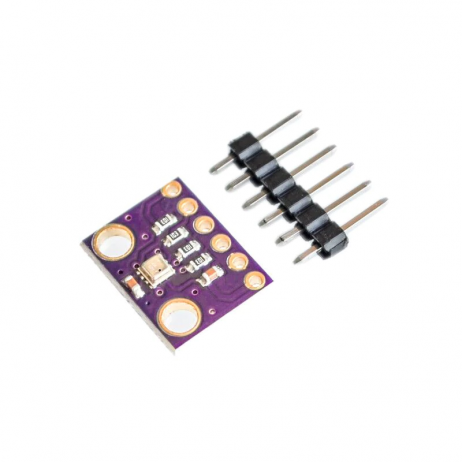
GY-BME280-3.3 Atmospheric Pressure Sensor Module
BME280 combines temperature, humidity, and pressure in a single I2C module. Great for environmental monitoring displayed on TFT screens.
Frequently Asked Questions
Q1: My custom font text appears much lower than expected. Why?
GFX custom fonts position text by baseline (the imaginary line characters sit on), not by the top-left corner as the built-in font does. For a 24pt font, the baseline is roughly 30-35 pixels below the top of the tallest character. Set setCursor(x, 40) rather than setCursor(x, 0) or your first line will be partially off-screen.
Q2: Can I use Hindi or Devanagari fonts with Adafruit GFX?
Adafruit GFX only supports single-byte character codes (ASCII 0-255). Devanagari Unicode characters are multi-byte and require a more capable rendering engine. For Indian language support, look into LVGL (Light and Versatile Graphics Library) with an appropriate font, or display pre-rendered bitmap images of text using drawBitmap().
Q3: How much flash does a custom font use?
A full ASCII range FreeSans at 9pt uses about 1.5 KB, 12pt around 2 KB, 18pt around 3.5 KB, and 24pt around 5-6 KB. Restricting the character range (numerals only) reduces these figures by 70-80%. An Arduino Uno with 32 KB flash can comfortably hold 4-5 medium-sized fonts alongside your sketch.
Q4: Why does text flicker when I update values on the display?
Flickering happens when you clear the whole screen with fillScreen() before redrawing. Instead, use setTextColor(foreground, background) with matching background colour — this fills glyph cells with the background on each draw, effectively erasing the old character in a single pass without clearing the whole display.
Q5: Does Adafruit GFX work with ST7789 and ST7735 displays too?
Yes. Any display with an Adafruit driver library (ST7735, ST7789, SSD1306, HX8357, etc.) inherits from Adafruit_GFX and supports all the same font features. The setFont(), getTextBounds(), and PROGMEM font headers work identically across all of them.
Ready to Build Your TFT Display Project?
Zbotic stocks a wide range of display modules, sensors, and Arduino boards with fast shipping across India. From 1.44-inch SPI TFTs to large 3.5-inch touch panels, we have everything you need.






Add comment