
If you want to build a stunning scrolling display, a scoreboard, or an animated clock, interfacing an RGB LED matrix P3 32×64 Raspberry Pi setup is one of the most rewarding projects for Indian hobbyists and makers. The P3 HUB75 64×32 panel packs 2,048 RGB LEDs into a compact grid and, when driven by a Raspberry Pi, gives you a full-colour, programmable display at a very affordable price. This guide walks you through everything — hardware, wiring, software, and real code examples — so you can get pixels lighting up in under an hour.
What Is a P3 RGB LED Matrix Panel?
The “P3” in P3 RGB LED matrix refers to the pixel pitch — the distance between adjacent LED centres, which is 3 mm. This gives you a dense, high-resolution display compared to P5 or P10 panels that are commonly used for outdoor signage. A 32×64 P3 panel measures roughly 192 mm × 96 mm and operates at 5 V. Each pixel contains three sub-LEDs (red, green, blue) that can be individually controlled to produce millions of colours through PWM-based multiplexing.
These panels use the HUB75 interface, a 16-pin connector that carries row address signals (A, B, C, D, E), RGB data lines for upper and lower half panels, latching signals, output enable, and clock. Because the panels are designed for fast multiplexing (scanning at 1/16 or 1/32 duty cycle), you need a microcontroller or SBC (single-board computer) that can toggle GPIO at high speed — making the Raspberry Pi an excellent choice.
P3 32×64 panels are widely available in India for ₹600–₹1,200 each and can be chained to create larger displays. For example, two panels side by side give you a 32×128 display.
Components You Need
Before you start soldering and coding, gather the following:
- Raspberry Pi (Pi 3B+, Pi 4, or Pi Zero 2 W recommended)
- P3 HUB75 32×64 RGB LED Matrix Panel (1 or more)
- 5 V, 4 A (minimum) power supply — a good quality SMPS is essential
- 16-pin IDC ribbon cable (usually included with the panel)
- Jumper wires and a breadboard or custom adapter PCB
- Optional: Active cooling for Raspberry Pi (GPIO toggling is CPU-intensive)
For additional sensors you might add to your project — such as displaying temperature data — consider these popular choices from Zbotic:

LM35 Temperature Sensors
Analog temperature sensor with 10 mV/°C output — perfect for displaying live temperature readings on your LED matrix scoreboard or weather display.

DHT11 Temperature and Humidity Sensor Module
Digital sensor providing both temperature and humidity — ideal for weather station projects displayed on your P3 RGB panel.
Wiring the HUB75 Connector to Raspberry Pi
The HUB75 connector pinout is standardised across most P3 panels. Here is the standard wiring to Raspberry Pi GPIO (BCM numbering):
| HUB75 Pin | Signal | RPi GPIO (BCM) |
|---|---|---|
| 1 | R1 | GPIO 5 |
| 2 | G1 | GPIO 13 |
| 3 | B1 | GPIO 6 |
| 5 | R2 | GPIO 12 |
| 6 | G2 | GPIO 16 |
| 7 | B2 | GPIO 23 |
| 9 | A | GPIO 22 |
| 10 | B | GPIO 26 |
| 11 | C | GPIO 27 |
| 12 | D | GPIO 20 |
| 13 | CLK | GPIO 17 |
| 14 | LAT (STB) | GPIO 21 |
| 15 | OE | GPIO 18 |
Important: P3 panels operate at 5 V logic levels. While most Raspberry Pi GPIO pins are 3.3 V tolerant for input, they output 3.3 V. Most HUB75 panels accept 3.3 V data signals without level shifting — but if you see dim or incorrect colours, add a 74HCT245 level shifter between the Pi and the panel.
Power the panel separately from the Pi. At full white, a 32×64 P3 panel draws up to 20 W (4 A at 5 V). Use a dedicated 5 V/5 A SMPS and connect GND between the Pi and the panel power supply.
Software Setup: rpi-rgb-led-matrix Library
The most reliable library for driving HUB75 panels on Raspberry Pi is rpi-rgb-led-matrix by Henner Zeller. It handles the precise GPIO timing required for the display’s multiplexing in a dedicated thread.
Install the library on your Raspberry Pi (running Raspberry Pi OS):
# Update your system first
sudo apt update && sudo apt upgrade -y

# Install build dependencies
sudo apt install -y git python3-dev python3-pip build-essential

# Clone the library
git clone https://github.com/hzeller/rpi-rgb-led-matrix.git
cd rpi-rgb-led-matrix

# Build C++ library and Python bindings
make build-python PYTHON=$(which python3)
sudo make install-python PYTHON=$(which python3)

# Build the demos
make -C examples-api-use
After building, test with the included demo. Run as root (required for GPIO DMA access):
sudo ./examples-api-use/demo
  --led-rows=32
  --led-cols=64
  --led-slowdown-gpio=4
  -D 0
The --led-slowdown-gpio flag is critical — set it to 1 for Pi 3, 2–4 for Pi 4 depending on your panel. If colours look garbled, increase this value.
Code Examples: Scrolling Text and Images
Here is a Python script that scrolls a colourful message across your P3 panel:
#!/usr/bin/env python3
import time
import sys
from rgbmatrix import RGBMatrix, RGBMatrixOptions, graphics

# Configuration
options = RGBMatrixOptions()
options.rows = 32
options.cols = 64
options.chain_length = 1
options.parallel = 1
options.hardware_mapping = 'regular'
options.gpio_slowdown = 4  # Increase if flickering on Pi 4

matrix = RGBMatrix(options=options)
offscreen = matrix.CreateFrameCanvas()

font = graphics.Font()
font.LoadFont("../fonts/7x13.bdf")

text_color = graphics.Color(255, 100, 0)  # Orange
pos = offscreen.width
message = "Namaste India! Zbotic LED Matrix Demo"

try:
    while True:
        offscreen.Clear()
        length = graphics.DrawText(offscreen, font, pos, 20, text_color, message)
        pos -= 1
        if pos + length < 0:
            pos = offscreen.width
        offscreen = matrix.SwapOnVSync(offscreen)
        time.sleep(0.03)
except KeyboardInterrupt:
    matrix.Clear()
    print("Display cleared.")
Run the script with: sudo python3 scrolling_text.py
To display images, use the Pillow library:
from PIL import Image
from rgbmatrix import RGBMatrix, RGBMatrixOptions

# ... (options setup as above)
matrix = RGBMatrix(options=options)

# Load and resize image to fit panel
img = Image.open("logo.png").convert("RGB")
img = img.resize((64, 32), Image.LANCZOS)
matrix.SetImage(img)
time.sleep(10)
matrix.Clear()
Power Supply and Current Requirements
Underpowering your P3 panel is the most common cause of display issues in India. The panel’s current draw depends directly on what is displayed:
- All pixels off: ~0.3 A
- 25% brightness, mixed colours: ~1.5 A
- Full white, maximum brightness: ~3.5–4 A
Always use a power supply rated at least 5 V/5 A for a single 32×64 panel. For chained panels, multiply accordingly. Use thick wire (at least 18 AWG) for power connections to avoid voltage drops that cause colour shifting.
A practical tip: Most beginner projects run at 30–50% PWM brightness, which reduces power draw significantly and is still very visible in indoor environments.
DHT20 Temperature and Humidity Sensor
I2C-based sensor in SIP package — excellent for a Raspberry Pi weather station displayed on your RGB matrix with accurate readings.
Advanced Project Ideas
Once your P3 panel is working, the possibilities are endless. Here are some projects well suited for Indian makers:
1. Real-Time Cricket Scoreboard
Pull live match data from the Cricbuzz API and display scrolling scores on the matrix. Use Python’s requests library to fetch scores every 30 seconds and update the display continuously. Perfect for offices or chai shops during IPL season!
2. Weather + Air Quality Display
Combine the Raspberry Pi with a DHT20 or BMP280 sensor to show real-time temperature, humidity, and pressure. Add OpenAQI API data for AQI readings — very relevant for Indian cities like Delhi and Mumbai.
3. Crypto/Stock Price Ticker
Use the Yahoo Finance or CoinGecko API to build a scrolling stock/crypto ticker. Show NIFTY 50 stocks or Bitcoin/Ethereum prices in a professional orange-and-white colour scheme.
4. Network Status Dashboard
Display Pi’s IP address, CPU temperature, RAM usage, and network traffic speed on startup — useful for home servers and Raspberry Pi clusters.

BMP280 Barometric Pressure and Altitude Sensor
Highly accurate I2C/SPI sensor measuring temperature, pressure and altitude — ideal for an environmental display project with your RGB matrix panel.
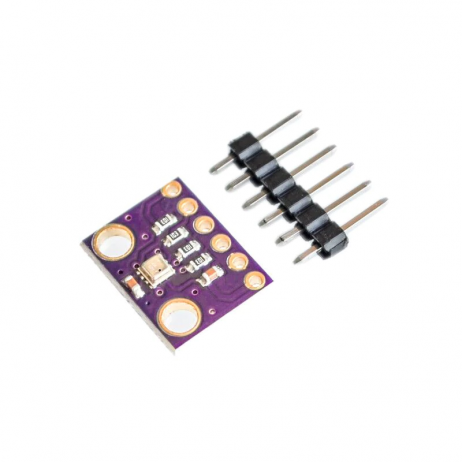
GY-BME280 Precision Altimeter and Pressure Sensor
Bosch BME280 sensor covering temperature, humidity, and pressure in one compact module — the ultimate weather sensor for your LED matrix display projects.
Frequently Asked Questions
Q1: Can I use a Raspberry Pi Zero W for the P3 RGB LED matrix?
Yes, but with limitations. The Pi Zero W has a single-core 1 GHz ARM CPU, which struggles to maintain smooth refresh rates at full brightness. You may notice flickering at high brightness levels. The Pi Zero 2 W is a much better choice — it has a quad-core CPU and handles the matrix display without issues.
Q2: How many P3 panels can I chain together?
With a Raspberry Pi 4 and the rpi-rgb-led-matrix library, you can chain up to 4 panels in series (giving 32×256 resolution) and drive up to 3 chains in parallel. Practical limits depend on your power supply and the --led-slowdown-gpio setting. Most makers comfortably use 2–4 panels.
Q3: Why is my display flickering or showing wrong colours?
This is almost always caused by one of three issues: insufficient power supply (use 5 V/5 A minimum), GPIO slowdown not set correctly (increase --led-slowdown-gpio), or loose ribbon cable connections. Check all three systematically.
Q4: Does the rpi-rgb-led-matrix library work on Raspberry Pi 5?
Yes, with some caveats. Raspberry Pi 5 uses a different GPIO chip (RP1), which requires a modified version of the library. Check the GitHub repository for the latest Pi 5 compatibility notes and set --led-slowdown-gpio=2 or higher.
Q5: How do I display Hindi/Devanagari text on the LED matrix?
The rpi-rgb-led-matrix library uses BDF bitmap fonts. You need a Devanagari BDF font file. One approach is to use Pillow to render text using a TTF font (like Noto Sans Devanagari) into an image, then display that image on the matrix using SetImage(). This gives full Unicode support.
Ready to Build Your LED Matrix Display?
The P3 32×64 RGB LED matrix with Raspberry Pi is one of the most visually impressive and affordable display projects you can build. Whether it is a cricket scoreboard, weather station, or crypto ticker, your options are limitless.
Explore sensors, microcontrollers, and display modules at Zbotic.in — India’s trusted electronics components store with fast shipping and competitive prices. Happy making!






Add comment