
Learning to create OLED animation scrolling fade Arduino effects transforms your project from a static data display into something visually impressive. Whether you are building a smart clock, a fitness tracker, a game, or an IoT dashboard, smooth animations make your embedded UI look professional. The 0.96-inch SSD1306 OLED display, despite its small 128×64 pixel canvas, is capable of remarkable visual effects when driven correctly. This guide covers everything from basic hardware scrolling to custom software fade effects and sprite animation — with complete, tested Arduino code.
Hardware Setup: OLED Wiring for Animation Projects
For animation projects, using I2C at 400 kHz (Fast Mode) is critical — the standard 100 kHz gives you about 7 full-frame updates per second on a 128×64 OLED, while 400 kHz pushes this to around 25 fps. For SPI OLEDs, frame rates can reach 60+ fps.
I2C wiring (Arduino Uno/Nano):
OLED VCC  → Arduino 3.3V (or 5V if module has onboard regulator)
OLED GND  → Arduino GND
OLED SDA  → Arduino A4 (SDA)
OLED SCL  → Arduino A5 (SCL)
After wiring, add this line in setup() to enable 400 kHz I2C:
Wire.setClock(400000); // Must be called BEFORE display.begin()
Library Setup: Adafruit SSD1306 and U8g2
Two main libraries dominate Arduino OLED animation projects:
Adafruit SSD1306 + Adafruit GFX — easiest to learn, great for text, shapes, and bitmaps. Uses a full framebuffer (1024 bytes for 128×64). Install via Arduino Library Manager: search “Adafruit SSD1306” and install both the SSD1306 library and the GFX dependency.
U8g2 — lower RAM usage options (page mode), supports more display drivers, excellent font library. Better for complex font rendering. Install via Library Manager: search “U8g2”.
For most animation tutorials in this guide, we use Adafruit SSD1306 as it is the most widely available in India and has the most community examples.
#include <Wire.h>
#include <Adafruit_GFX.h>
#include <Adafruit_SSD1306.h>

#define SCREEN_WIDTH 128
#define SCREEN_HEIGHT 64
#define OLED_RESET    -1
#define SCREEN_ADDRESS 0x3C

Adafruit_SSD1306 display(SCREEN_WIDTH, SCREEN_HEIGHT, &Wire, OLED_RESET);

void setup() {
  Wire.begin();
  Wire.setClock(400000);
  if (!display.begin(SSD1306_SWITCHCAPVCC, SCREEN_ADDRESS)) {
    Serial.println(F("SSD1306 allocation failed"));
    for(;;); // Don't proceed if display not found
  }
  display.clearDisplay();
  display.display();
}
Hardware Scrolling: SSD1306 Built-in Commands
The SSD1306 has built-in horizontal and diagonal scroll commands executed in hardware — no CPU cycles required. This is perfect for news tickers, status messages, and marquee effects.
// Horizontal left scroll — entire display
void scrollLeft() {
  display.startscrollleft(0x00, 0x0F); // start page, end page
  // 0x00 to 0x0F = all 8 pages (rows 0-63)
}

// Horizontal right scroll
void scrollRight() {
  display.startscrollright(0x00, 0x0F);
}

// Diagonal scroll (left + up)
void scrollDiagLeft() {
  display.startscrolldiagleft(0x00, 0x07);
}

// Stop all scrolling
void stopScroll() {
  display.stopscroll();
}

void loop() {
  display.clearDisplay();
  display.setTextSize(2);
  display.setTextColor(SSD1306_WHITE);
  display.setCursor(0, 24);
  display.println(F("ZBOTIC.IN"));
  display.display();

  scrollLeft();
  delay(4000);
  stopScroll();
  delay(1000);

  scrollRight();
  delay(4000);
  stopScroll();
  delay(1000);
}
Important: Hardware scrolling only scrolls the framebuffer content. You must call display.display() to write content to the display before calling the scroll command. Calling display.display() while hardware scrolling is active stops the scroll — use stopscroll() first if you need to update content.
Software Scrolling Text: Pixel-Precise Control
For more control over scroll speed, direction, and text content, software scrolling gives you pixel-perfect animation:
#include <Wire.h>
#include <Adafruit_GFX.h>
#include <Adafruit_SSD1306.h>

#define SCREEN_WIDTH 128
#define SCREEN_HEIGHT 64
Adafruit_SSD1306 display(SCREEN_WIDTH, SCREEN_HEIGHT, &Wire, -1);

const char* scrollText = "  Zbotic.in - Electronics for Indian Makers  ";
int textWidth;
int scrollX;

void setup() {
  Wire.setClock(400000);
  display.begin(SSD1306_SWITCHCAPVCC, 0x3C);
  display.clearDisplay();
  display.setTextSize(2);
  display.setTextColor(SSD1306_WHITE);
  display.setTextWrap(false); // Critical for scrolling!

  // Calculate text width: 12 pixels per char at size 2
  textWidth = strlen(scrollText) * 12;
  scrollX = SCREEN_WIDTH; // Start off right edge
}

void loop() {
  display.clearDisplay();
  display.setCursor(scrollX, 24); // Vertically centered
  display.print(scrollText);
  display.display();

  scrollX -= 2; // Scroll speed: decrease for faster
  if (scrollX < -textWidth) {
    scrollX = SCREEN_WIDTH; // Reset to right side
  }

  delay(20); // ~50 fps target
}
For smooth vertical scrolling (useful for multi-line text or credits):
const char* lines[] = {
  "Temperature: 28C",
  "Humidity: 65%",
  "Pressure: 1013 hPa",
  "Air Quality: Good",
  "Wind: 12 km/h"
};
const int numLines = 5;
int scrollY = SCREEN_HEIGHT;

void loop() {
  display.clearDisplay();
  display.setTextSize(1);
  display.setTextColor(SSD1306_WHITE);

  for (int i = 0; i = -8 && y <= SCREEN_HEIGHT) { // Only draw visible lines
      display.setCursor(0, y);
      display.println(lines[i]);
    }
  }
  display.display();

  scrollY -= 1;
  if (scrollY < -(numLines * 10)) scrollY = SCREEN_HEIGHT;
  delay(30);
}
Fade In and Fade Out Effects
The SSD1306 has a hardware contrast (brightness) control that we can use to create true fade effects. Contrast ranges from 0 (darkest) to 255 (brightest):
void fadeIn(const char* message, int y, int textSize) {
  display.clearDisplay();
  display.setTextSize(textSize);
  display.setTextColor(SSD1306_WHITE);
  display.setCursor(0, y);
  display.print(message);
  display.display();

  // Fade in: contrast 0 → 255
  for (int contrast = 0; contrast = 0; contrast -= 5) {
    display.ssd1306_command(SSD1306_SETCONTRAST);
    display.ssd1306_command(contrast);
    delay(10);
  }
  display.clearDisplay();
  display.display();
  // Restore full contrast for next operation
  display.ssd1306_command(SSD1306_SETCONTRAST);
  display.ssd1306_command(0xFF);
}

void loop() {
  fadeIn("Hello India!", 28, 2);
  delay(2000);
  fadeOut();
  delay(500);

  fadeIn("Zbotic.in", 28, 2);
  delay(2000);
  fadeOut();
  delay(500);
}
Tip: Combining fade with scroll creates a professional “message appear, scroll, then fade” sequence popular in smart home displays and digital badges.
Sprite Animation: Moving Icons and Characters
Sprite animation involves drawing bitmap images at changing coordinates. The SSD1306 at 128×64 can animate small 16×16 or 32×32 pixel sprites smoothly.
Step 1: Convert your image to a bitmap array. Use the online tool at image2cpp (image2cpp) to convert a black-and-white PNG to a C byte array.
// Example: 16x16 pixel WiFi icon (simplified)
const unsigned char wifiIcon[] PROGMEM = {
  0x00, 0x00, // Row 1
  0x07, 0xE0, // Row 2
  0x1F, 0xF8, // Row 3
  0x3C, 0x3C, // Row 4
  0x73, 0xCE, // Row 5
  0xE1, 0x87, // Row 6
  0x00, 0x00,
  0x01, 0x80,
  0x07, 0xE0,
  0x0C, 0x30,
  0x00, 0x00,
  0x00, 0x00,
  0x01, 0x80,
  0x03, 0xC0,
  0x01, 0x80,
  0x00, 0x00
};

// Bouncing sprite animation
int spriteX = 0;
int spriteY = 0;
int velX = 2;
int velY = 1;

void loop() {
  display.clearDisplay();

  // Draw sprite at current position
  display.drawBitmap(spriteX, spriteY, wifiIcon, 16, 16, SSD1306_WHITE);

  display.display();

  // Update position
  spriteX += velX;
  spriteY += velY;

  // Bounce off edges
  if (spriteX = SCREEN_WIDTH - 16) velX = -velX;
  if (spriteY = SCREEN_HEIGHT - 16) velY = -velY;

  delay(20);
}
Multi-frame sprite animation — show alternating frames for walking characters, spinning icons, or blinking indicators:
// Array of 3 frame bitmaps (8x8 pixels each)
const unsigned char frames[3][8] PROGMEM = {
  {0x18, 0x3C, 0x7E, 0xFF, 0xFF, 0x7E, 0x3C, 0x18}, // Frame 1: filled
  {0x18, 0x24, 0x42, 0x81, 0x81, 0x42, 0x24, 0x18}, // Frame 2: outline
  {0x00, 0x18, 0x3C, 0x7E, 0x7E, 0x3C, 0x18, 0x00}  // Frame 3: smaller
};

int currentFrame = 0;
unsigned long lastFrameTime = 0;
const int frameInterval = 150; // ms between frames

void loop() {
  unsigned long now = millis();
  if (now - lastFrameTime >= frameInterval) {
    currentFrame = (currentFrame + 1) % 3;
    lastFrameTime = now;
  }

  display.clearDisplay();
  display.drawBitmap(60, 28, frames[currentFrame], 8, 8, SSD1306_WHITE);
  display.display();
}
Animated Progress Bars and Loading Indicators
Progress bars and loading spinners are the most commonly requested animations for sensor display projects:
// Animated progress bar
void drawProgressBar(int x, int y, int width, int height, int progress) {
  // progress: 0-100
  display.drawRect(x, y, width, height, SSD1306_WHITE); // Border
  int fillWidth = map(progress, 0, 100, 0, width - 4);
  display.fillRect(x + 2, y + 2, fillWidth, height - 4, SSD1306_WHITE); // Fill
}

// Spinning loader (4 states)
const char spinChars[] = {'|', '/', '-', '\'};
int spinIdx = 0;

void drawSpinner(int x, int y) {
  display.setCursor(x, y);
  display.setTextSize(2);
  display.print(spinChars[spinIdx]);
  spinIdx = (spinIdx + 1) % 4;
}

// Dot loader: ... . .. ...
int dotCount = 0;
void drawDotLoader(int x, int y) {
  display.setCursor(x, y);
  display.setTextSize(1);
  for (int i = 0; i <= dotCount; i++) display.print('.');
  dotCount = (dotCount + 1) % 4;
}

void loop() {
  display.clearDisplay();

  display.setTextSize(1);
  display.setTextColor(SSD1306_WHITE);
  display.setCursor(0, 0);
  display.print(F("Sensor Reading"));

  static int progress = 0;
  drawProgressBar(0, 20, 128, 12, progress);
  progress = (progress + 2) % 101;

  display.setCursor(54, 36);
  display.print(progress);
  display.print("%");

  drawSpinner(108, 48);

  display.display();
  delay(50);
}
Performance Tips for Smooth Animation
Getting smooth animation on an Arduino’s limited resources requires a few key techniques:
- Use millis() instead of delay().
delay()blocks all other code. Millis-based timing lets you read sensors, update variables, and animate simultaneously — essential for real projects. - Minimize display.clearDisplay() calls. Only clear areas that change. Use
display.fillRect()to erase just the changed region before redrawing. - Store bitmaps in PROGMEM. The PROGMEM keyword stores byte arrays in flash memory instead of RAM, saving precious SRAM for your variables.
- Enable 400 kHz I2C. As mentioned earlier, this nearly quadruples your maximum frame rate on I2C OLEDs.
- Avoid Serial.print() during animation. Serial output can introduce timing jitter. Use it only for debugging, disabled in final code.
- Use SPI OLED for fast animation. If you need 30+ fps for games or graphics, use a 4-wire SPI SSD1306 module — 8 MHz SPI gives ~70 fps at full frame. The I2C version tops at ~25 fps in Fast Mode.

DHT11 Digital Relative Humidity and Temperature Sensor Module
Bring your OLED animations to life with real data. Pair DHT11 with an animated progress bar or scrolling display to show live temperature and humidity readings on your OLED project.

LM35 Temperature Sensor
A simple analog temperature sensor perfect for OLED thermometer projects. Use the analog reading to drive an animated bar graph or animated thermometer sprite on your OLED display.

BMP280 Barometric Pressure and Altitude Sensor
Display animated altitude and pressure readings on your OLED. Create scrolling multi-parameter displays showing BMP280 temperature, pressure, and calculated altitude on a 128×64 OLED.
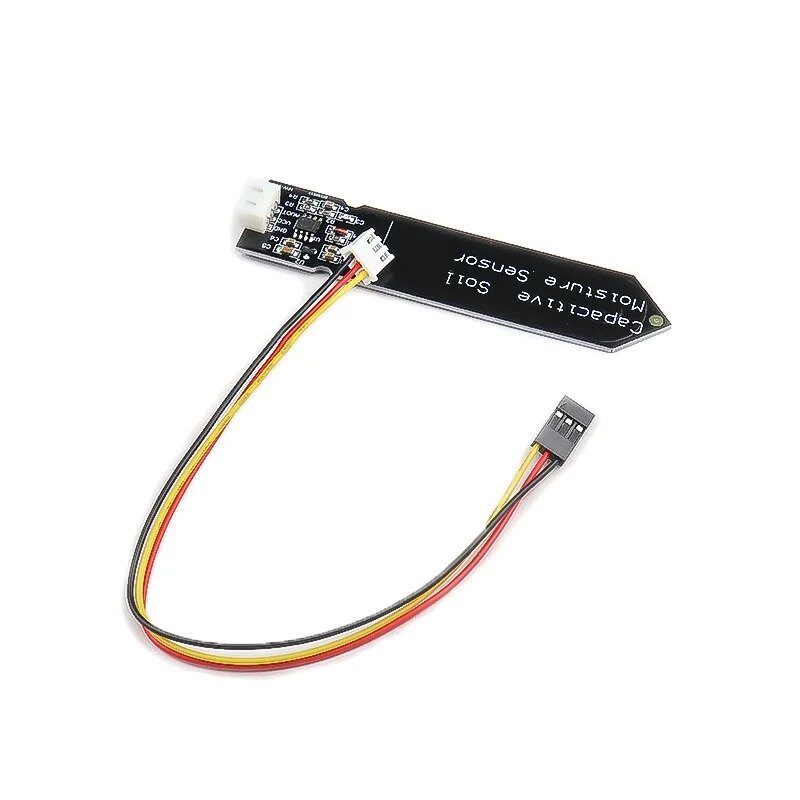
Capacitive Soil Moisture Sensor
Visualize soil moisture levels with an animated OLED display. Use the sensor reading to drive a dynamic bar graph or plant-health icon that updates smoothly on your SSD1306 screen.
Recommended Products from Zbotic

DHT20 SIP Packaged Temperature and Humidity Sensor
A modern I2C-native temperature and humidity sensor ideal for OLED animation projects. Read data non-blockingly using millis() and animate scrolling readouts on your SSD1306 OLED.
Frequently Asked Questions
Why does my OLED animation flicker?
Flickering is almost always caused by calling display.clearDisplay() immediately followed by display.display() — there is a brief moment where the display shows blank. Minimize this by only clearing regions that change, or by using a double-buffering approach where you build the next frame fully before calling display.display() once. Also ensure you are running I2C at 400 kHz.
How do I create a waveform animation on OLED?
Use display.drawLine() or display.drawPixel() to plot sine wave values. Precompute a 128-element lookup table with sin() values scaled to 0–63 during setup(). In loop(), shift the starting index each frame to create a scrolling wave effect. With millis-based timing and no delay(), this runs smoothly at 20+ fps.
Can I animate bitmaps stored on an SD card?
Yes, but accessing SD card data is slow (SPI at 4 MHz vs internal flash at near-zero latency). The practical approach is to store small sprite frames in PROGMEM for fast animation, and use the SD card only for loading static images at startup or when switching screens. Trying to stream bitmap data from SD for animation will result in choppy frame rates.
Does the hardware scroll work with all OLED drivers?
The hardware horizontal scroll commands (startscrollleft, startscrollright) are specific to the SSD1306 and SSD1309 drivers. The SH1106 (used in many 1.3-inch OLEDs) does not support hardware scrolling — you must use software scrolling instead with the SH1106 driver library.
Is the U8g2 library better than Adafruit SSD1306 for animation?
For text-heavy animations and when running low on RAM (e.g., on an Arduino Uno with 2KB SRAM), U8g2’s page-buffer mode is more memory efficient than Adafruit’s full framebuffer. However, page-buffer mode means you cannot do per-pixel manipulation easily. For sprite animation and waveform drawing, Adafruit SSD1306’s full framebuffer approach is simpler to code and debug.
Get All Your Display Components at Zbotic
Zbotic.in is your one-stop shop for OLED displays, Arduinos, sensors, and everything you need to bring your animation projects to life. Fast shipping to all major Indian cities.





Add comment