
MatrixPortal M4: Large LED Matrix Displays with Adafruit
The Adafruit MatrixPortal M4 is a purpose-built controller board that makes driving large LED matrix panels simpler than ever before. Whether you want to build a scrolling scoreboard, an office status display, a retro pixel art clock, or a dynamic announcement board, the MatrixPortal M4 combined with Adafruit’s LED matrix panels gives Indian makers a powerful, compact, and Internet-connected solution. This guide covers everything you need to know about the MatrixPortal M4 LED matrix setup — from hardware overview and wiring to CircuitPython code and creative project ideas.
What Is the MatrixPortal M4?
The Adafruit MatrixPortal M4 is a compact controller board specifically designed to plug directly into the back of standard 32×32 or 64×32 HUB75 LED matrix panels. At its heart is the ATSAMD51J19 microcontroller — the same powerful Cortex-M4 chip found in Adafruit’s Grand Central M4 board — running at 120 MHz with hardware floating-point support and 512 KB flash memory.
Key Features
- ATSAMD51J19 @ 120 MHz — Cortex-M4F with hardware FPU
- 512 KB flash, 192 KB RAM — plenty for CircuitPython and image data
- Built-in ESP32 Wi-Fi co-processor — for Internet connectivity without a separate module
- HUB75 connector — plugs directly onto standard LED matrix panel headers
- USB-C for power and programming
- LiPoly battery connector for portable operation
- 4 MB SPI flash for file storage
- Two user buttons + NeoPixel status LED
- STEMMA QT connector for I2C sensors (no soldering)
The MatrixPortal M4 runs CircuitPython — Adafruit’s beginner-friendly Python variant for microcontrollers. This means you can prototype and deploy code by simply editing a code.py file on the USB drive that appears when you connect the board — no compile/upload cycle needed. This is a game-changer for rapid iteration, especially for Indian students and makers learning embedded programming.
Understanding HUB75 LED Matrix Panels
HUB75 is the de facto standard interface for RGB LED matrix panels used in large scoreboards, stage lighting, and advertising displays. The panels consist of an array of RGB LEDs driven by shift register chains, controlled via a parallel data bus.
Common Panel Sizes
| Size | Resolution | Typical Use |
|---|---|---|
| 32×32 panel | 32×32 pixels | Pixel art, icons, clock face |
| 64×32 panel | 64×32 pixels | Scrolling text, scores, weather |
| 64×64 panel | 64×64 pixels | Large dashboards, animations |
| 2x 64×32 chained | 128×32 pixels | Scrolling banners, scoreboards |
LED Pitch (P-Rating)
Panels are rated by their pixel pitch — the distance between LED centres:
- P2: 2mm pitch — very high density, used for close-up indoor displays
- P3: 3mm pitch — common indoor display grade
- P4: 4mm pitch — medium density
- P5: 5mm pitch — visible from several metres away
- P10: 10mm pitch — outdoor scoreboards, visible from 10+ metres
For most maker projects (clock, weather display, office announcements), a 64×32 P4 or P5 panel is a great balance of size, brightness, and price.
Power Requirements
LED matrix panels are power-hungry. A single 64×32 P4 panel at full white brightness draws up to 4A at 5V (20W). For typical content with mixed colours, expect 1–2A. Always use a dedicated 5V power supply rated for at least 4A per panel — do not power panels from the MatrixPortal’s USB port alone.
Hardware Setup and Wiring
The MatrixPortal M4 is designed for near-zero wiring. Here is the complete setup:
- Identify the HUB75 connector on the back of your LED matrix panel (a 16-pin IDC connector)
- Plug the MatrixPortal M4 directly into this connector — the board is keyed, so it only fits one way
- Connect a 5V power supply to the screw terminals on the MatrixPortal (GND and 5V). Use at least 18 AWG wire for the power connections
- Connect the MatrixPortal to your computer via USB-C for programming
Power Wiring Tip
The MatrixPortal M4 routes the 5V from its screw terminals to both the LED panel and the microcontroller via a diode. This means a single 5V supply powers everything. However, for large multi-panel installations, connect power directly to each panel’s power input and only share GND with the MatrixPortal.
STEMMA QT Sensors
The STEMMA QT (JST-SH 4-pin) connector on the MatrixPortal M4 provides I2C at 3.3V. Connect compatible sensors like the BME280 (temperature/humidity/pressure) or AHT20 with a STEMMA QT cable — no breadboard or soldering required. This is ideal for a weather display panel.
CircuitPython Setup
Step 1: Install CircuitPython
Download the latest CircuitPython UF2 firmware for the MatrixPortal M4 from circuitpython.org. Double-press the reset button on the MatrixPortal to enter bootloader mode (a drive named MATRIXM4BOOT appears), then drag the UF2 file onto that drive. The board reboots and a CIRCUITPY drive appears.
Step 2: Install Required Libraries
Download the CircuitPython library bundle from the Adafruit website and copy these libraries to the CIRCUITPY/lib folder:
adafruit_matrixportal/— the main MatrixPortal libraryadafruit_portalbase/— base portal libraryadafruit_esp32spi/— Wi-Fi communicationadafruit_requests.mpy— HTTP requestsadafruit_display_text/— text renderingneopixel.mpy
Step 3: Create secrets.py
Create a secrets.py file on the CIRCUITPY drive with your Wi-Fi credentials:
secrets = {
    "ssid": "Your_WiFi_Name",
    "password": "Your_WiFi_Password",
    "timezone": "Asia/Kolkata",
    "aio_username": "",
    "aio_key": "",
}
Basic Code: Text Scrolling and Pixel Drawing
Hello World — Scrolling Text
import time
import board
from adafruit_matrixportal.matrix import Matrix
from adafruit_display_text.label import Label
import terminalio

matrix = Matrix()
display = matrix.display

font = terminalio.FONT
color = 0xFF6600  # Orange, like Zbotic!

label = Label(font, text="Namaste India! ", color=color)
label.x = display.width    # Start off-screen right
label.y = display.height // 2
display.show(label)

while True:
    label.x -= 1
    if label.x < -len(label.text) * 6:
        label.x = display.width
    time.sleep(0.02)
Drawing Individual Pixels
import displayio
import board
from adafruit_matrixportal.matrix import Matrix

matrix = Matrix()
display = matrix.display

# Create a pixel canvas
bitmap = displayio.Bitmap(display.width, display.height, 3)
palette = displayio.Palette(3)
palette[0] = 0x000000  # Black (background)
palette[1] = 0xFF0000  # Red
palette[2] = 0x00FF00  # Green

tile_grid = displayio.TileGrid(bitmap, pixel_shader=palette)
group = displayio.Group()
group.append(tile_grid)
display.show(group)

# Draw the Indian flag tricolour stripes
for x in range(display.width):
    for y in range(0, 10):    # Saffron
        bitmap[x, y] = 1
    for y in range(11, 21):   # White (background)
        bitmap[x, y] = 0
    for y in range(22, 32):   # Green
        bitmap[x, y] = 2
Displaying Bitmap Images
Store a BMP file on the CIRCUITPY drive and display it:
import displayio
from adafruit_matrixportal.matrix import Matrix

matrix = Matrix()
display = matrix.display

# Load a 64x32 BMP file
bitmap, palette = displayio.load_palette("/images/logo.bmp")
tile_grid = displayio.TileGrid(bitmap, pixel_shader=palette)
group = displayio.Group()
group.append(tile_grid)
display.show(group)

import time
time.sleep(60)  # Show for 1 minute
Wi-Fi Connected Projects
The MatrixPortal M4’s built-in ESP32 Wi-Fi co-processor opens up a huge range of Internet-connected display applications. The adafruit_matrixportal library handles Wi-Fi, JSON parsing, and data display with minimal code.
Live Time Display (IST)
import time
import board
from adafruit_matrixportal.matrixportal import MatrixPortal

portal = MatrixPortal(status_neopixel=board.NEOPIXEL, debug=True)

# Fetch IST time from worldtimeapi.org
portal.add_text(
    text_font="/fonts/6x10.bdf",
    text_position=(2, 16),
    text_color=0xFFFFFF,
    scrolling=False
)

portal.set_background(0x000044)  # Dark blue

while True:
    try:
        # Fetch current time for Asia/Kolkata
        value = portal.fetch(
            "http://worldtimeapi.org/api/timezone/Asia/Kolkata",
            json_path=[["datetime"]]
        )
        time_str = value[0][11:16]  # Extract HH:MM
        portal.set_text(time_str, 0)
    except Exception as e:
        print(f"Error: {e}")
    time.sleep(60)
Live Cricket Score Display
Use a cricket API (like cricapi.com or a similar service) to fetch live match scores and scroll them across your LED matrix. Display team names, current score, overs, and wickets — perfect for IPL season.
Stock Price Ticker
Fetch NSE/BSE stock prices via a financial API and display them as a scrolling ticker with green (up) and red (down) colour coding — just like you see on financial news channels.
Chaining Multiple Panels
The MatrixPortal M4 can drive chained panels for a larger display surface. Connect panels in a chain using the HUB75 output connector of one panel to the HUB75 input of the next.
Software Configuration
from adafruit_matrixportal.matrix import Matrix

# Two 64x32 panels chained horizontally = 128x32 total
matrix = Matrix(
    width=128,
    height=32,
    bit_depth=4,
    tile_double_buffer=False
)
display = matrix.display
The MatrixPortal M4 supports driving up to about 256×32 or 128×64 pixels depending on the bit depth (colour quality) setting. Higher bit depth gives smoother gradients but requires more CPU time for the scan loop.
Bit Depth Trade-off
- bit_depth=1: 8 colours — maximum refresh rate, good for text
- bit_depth=2: 64 colours — balanced for icons and simple graphics
- bit_depth=4: 4096 colours — smooth gradients, moderate refresh
- bit_depth=6: 262K colours — near full colour, may flicker on large panels
Indian Maker Project Ideas
1. Office Status Board
Mount a 64×32 panel at your office entrance. Display who is in the office, current meeting room availability, and today’s agenda — all fetched from Google Calendar API or a Google Sheet.
2. Cricket Scoreboard
Build a 128×32 (two-panel) scrolling scoreboard for your society or school. Display live IPL or Test match scores via a cricket API, automatically scrolling team names, scores, overs, and wickets.
3. Diwali Pixel Art Lamp
Create animated pixel art — diyas, fireworks, rangoli patterns — on a 64×64 matrix display. Use pre-designed BMP animation frames stored in the 4 MB SPI flash.
4. Train Arrival Display
Use the Indian Railways API to show live arrival/departure times for your local station. A 128×32 display can show two trains at once with platform numbers and delay information.
5. Air Quality Monitor
Combine the MatrixPortal M4 with a STEMMA QT air quality sensor and display real-time AQI with colour-coded zones on the matrix — green, yellow, orange, red — clearly visible across a room.
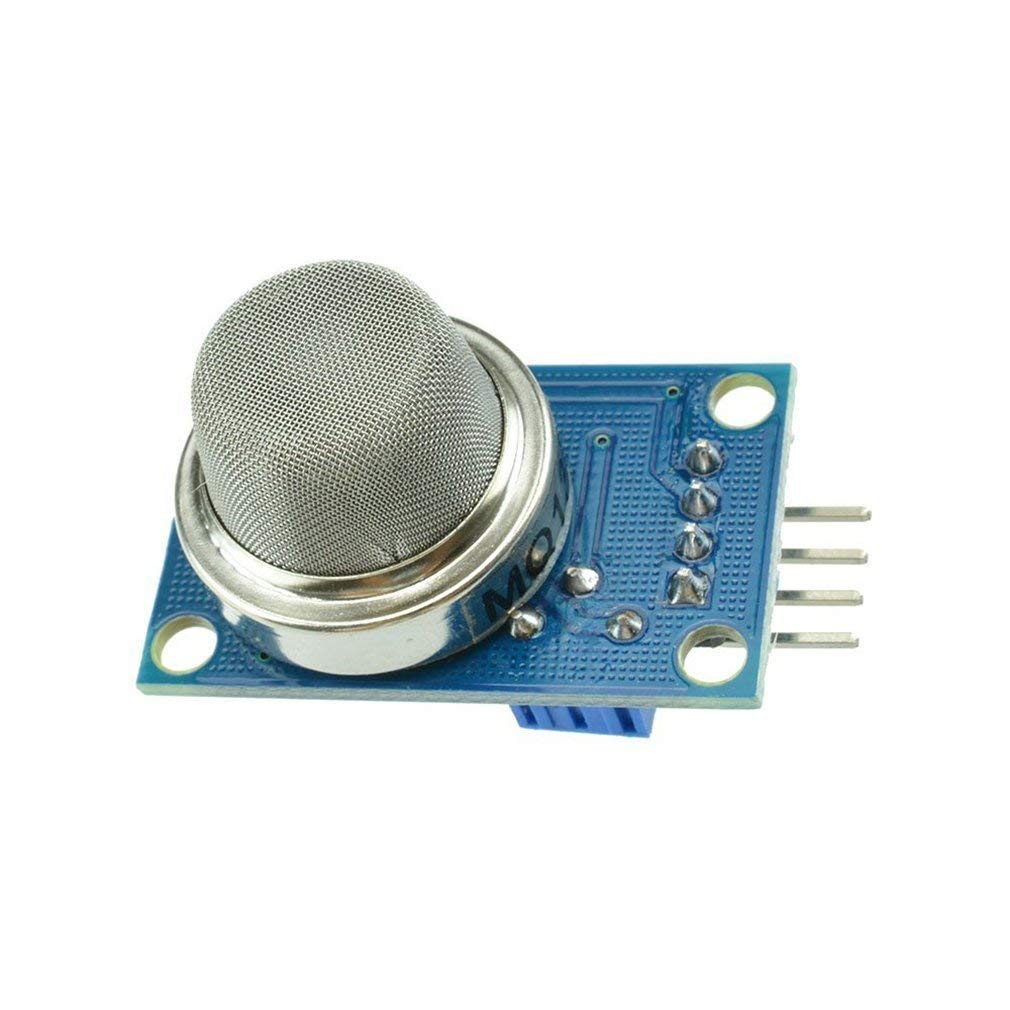
MQ-135 Air Quality / Gas Detector Sensor
Monitor indoor air quality and display a colour-coded AQI reading on your MatrixPortal LED matrix display. Alert your household when air quality degrades.

LM35 Temperature Sensor
Add a temperature display to your LED matrix dashboard. Simple analog output makes it easy to read room temperature and display it on a large matrix panel.

DHT20 SIP Temperature and Humidity Sensor
I2C sensor compatible with STEMMA QT — plug-and-play with MatrixPortal M4 for a no-solder temperature and humidity LED matrix display project.
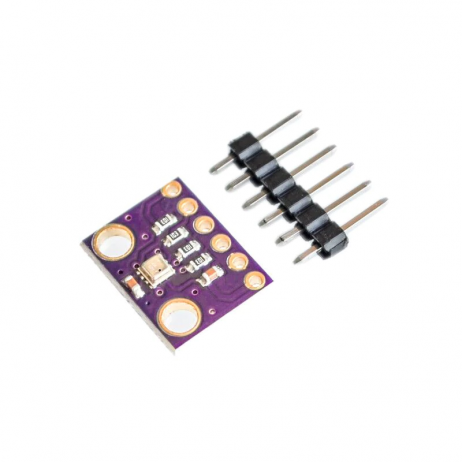
GY-BME280-3.3 Precision Altimeter & Weather Sensor
Three-in-one temperature, humidity, and pressure sensor for a comprehensive weather display on your MatrixPortal LED matrix panel.
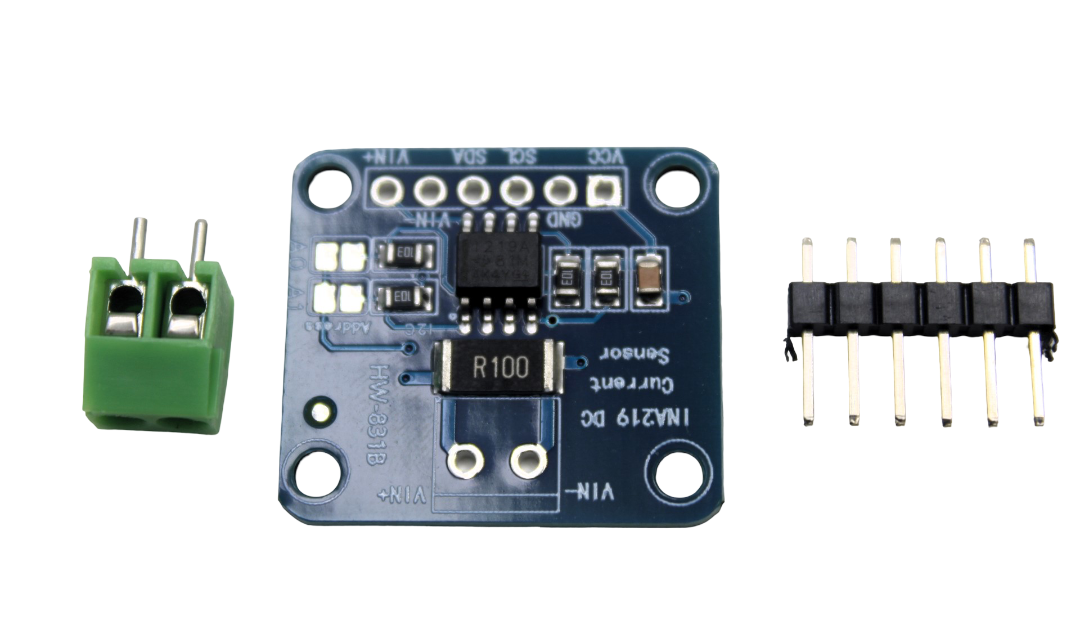
INA219 I2C Current / Power Monitor
Monitor solar panel or battery current and display real-time power generation data on a MatrixPortal LED matrix dashboard for your home energy monitor.
Frequently Asked Questions
Q1: Can the MatrixPortal M4 drive a 64×64 LED matrix panel?
Yes, 64×64 panels are supported but require additional configuration. A 64×64 panel is actually two 64×32 panels stacked internally. Set the Matrix width to 64 and height to 64 in your code. Be aware that 64×64 at bit_depth=6 may show some flicker — bit_depth=4 is more stable and still gives 4096 colours.
Q2: Does the MatrixPortal M4 work with Arduino IDE or only CircuitPython?
Both are supported. CircuitPython is the primary and easiest option (Adafruit’s MatrixPortal Arduino library also exists). The Arduino library uses the Adafruit Protomatter library for the RGB matrix and supports C++ code. However, most tutorials and library support is richer for CircuitPython.
Q3: How many panels can I chain on a single MatrixPortal M4?
In practice, the MatrixPortal M4 reliably drives up to about 256 total columns (e.g., four 64×32 panels in a row = 256×32). Beyond that, the refresh rate drops noticeably. For larger installations, you need multiple MatrixPortal boards or a dedicated FPGA-based controller.
Q4: Can I use HUB75 panels from local Indian suppliers with the MatrixPortal M4?
Yes, most HUB75 panels from local Indian suppliers and Chinese imports work with the MatrixPortal M4. The most common issue is with some HUB75E panels (5-address-line variant used for 64×64 panels) — ensure your panel uses the standard HUB75 pinout. Check the Adafruit MatrixPortal troubleshooting guide if you see incorrect colours or missing rows.
Q5: What is the difference between MatrixPortal M4 and MatrixPortal S3?
The MatrixPortal S3 is the newer model based on the ESP32-S3 chip. It has more RAM, native USB support, and improved Wi-Fi — but runs CircuitPython on the main chip (no separate ESP32 co-processor). For most projects either works well, but the S3 is preferred for more complex UI or faster Wi-Fi applications.
Build Your LED Matrix Display Project Today
Find sensors, LED modules, and display components for all your MatrixPortal and maker projects at Zbotic.in — India’s trusted electronics components store.







Add comment