
An ESP32 TFT calendar and task display is a practical productivity tool that sits on your desk and shows you what matters most — the date, current time, upcoming tasks, and live sensor data — all on a colourful screen without touching your phone. For Indian students, engineers, and makers working from home, a dedicated always-on dashboard reduces the constant distraction of checking phones or computers. This guide covers building a complete productivity dashboard from scratch, using an ESP32 microcontroller and a TFT display, synced over WiFi.
Project Overview and Features
This project targets the 3.5-inch ILI9488 or ILI9341 TFT displays (320×480 or 320×240 pixels) paired with an ESP32. The finished dashboard displays:
- Current time (12/24-hour, synced via NTP) with IST offset
- Current date and day of week in large, easy-to-read text
- Monthly calendar grid with today highlighted
- Up to 5 upcoming tasks/reminders stored in flash memory
- Live temperature and humidity from a DHT sensor
- WiFi signal strength indicator
- Battery percentage (if running on LiPo)
The display refreshes the clock every second, sensor data every 30 seconds, and calendar/tasks on a daily NTP re-sync at midnight. No cloud dependency for task storage — tasks are saved in ESP32’s NVS (Non-Volatile Storage) flash, so they survive reboots and power cuts — something every Indian maker who deals with frequent power outages will appreciate.
Optional extensions (covered in the guide): Google Tasks API integration for cloud sync, a pushbutton to cycle between screens, or a rotary encoder for task input.
Hardware Components Required
- ESP32 DevKit V1 (38-pin or 30-pin version)
- TFT Display — 3.5-inch ILI9488 (320×480) or 2.8-inch ILI9341 (240×320); SPI interface preferred
- DHT20 or DHT11 sensor for temperature and humidity
- 2 tactile push buttons (for task navigation)
- Micro USB power supply or 3.7V LiPo + TP4056
- Jumper wires, breadboard or custom PCB
- 3D-printed or acrylic enclosure (optional)
For a desk stand, a 45-degree angled 3D-printed base makes the display much more readable — search for “ESP32 TFT desk stand” on Thingiverse for printable designs. Many FabLab and makespace communities across India now offer 3D printing services affordably.

DHT20 SIP Packaged Temperature and Humidity Sensor
High-accuracy I2C sensor for your desk dashboard’s temperature and humidity widget. No pull-up resistor required — connects directly to ESP32 I2C pins.
Designing the Dashboard Layout
Good dashboard design starts on paper. For a 3.5-inch 320×480 landscape display, a well-organized layout looks like this:
+--------------------------------------------------+
| WEDNESDAY, 11 MARCH 2026         [WiFi] [28°C]  |
+--------------------------------------------------+
|           12:45:30 PM IST                        |
+--------------------------------------------------+
|   MARCH 2026                                     |
|  Mo Tu We Th Fr Sa Su                            |
|   2  3  4  5  6  7  8                            |
|   9 10[11]12 13 14 15                            |
|  16 17 18 19 20 21 22                            |
|  23 24 25 26 27 28 29                            |
|  30 31                                           |
+--------------------------------------------------+
|  TASKS                                           |
|  > Submit project report          (due: today)   |
|  > Review PCB design                             |
|  > Order components from Zbotic                  |
+--------------------------------------------------+
|  Humidity: 62%     Pressure: 1013 hPa            |
+--------------------------------------------------+
Use the TFT_eSPI library (by Bodmer) for ESP32 TFT projects — it is significantly faster than Adafruit GFX for filled rectangles and coloured text, and supports hardware SPI with DMA on ESP32. Install it via Arduino Library Manager or PlatformIO.
For Indian locale, use the IST offset of UTC+5:30 = 19800 seconds. Configure this in NTP setup.
NTP Time Sync for Accurate Clock
The ESP32 has an internal RTC (Real Time Clock) that drifts about 3 seconds per day without correction. NTP sync every hour keeps it accurate to milliseconds. The ESP32 Arduino core includes NTP support built in:
#include <WiFi.h>
#include "time.h"

const char* ntpServer    = "in.pool.ntp.org"; // Indian NTP pool
const long  gmtOffset    = 19800;             // UTC+5:30 = 5*3600+30*60
const int   daylightOffset = 0;               // India has no DST

void syncTime() {
  configTime(gmtOffset, daylightOffset, ntpServer);
  struct tm timeinfo;
  if (!getLocalTime(&timeinfo)) {
    Serial.println("NTP sync failed");
    return;
  }
  // timeinfo now has current IST time
  Serial.printf("%02d:%02d:%02dn",
    timeinfo.tm_hour, timeinfo.tm_min, timeinfo.tm_sec);
}

void getFormattedTime(char* buf) {
  struct tm t;
  getLocalTime(&t);
  snprintf(buf, 20, "%02d:%02d:%02d %s",
    t.tm_hour % 12 == 0 ? 12 : t.tm_hour % 12,
    t.tm_min, t.tm_sec,
    t.tm_hour >= 12 ? "PM" : "AM");
}
Use in.pool.ntp.org as the NTP server for faster response from Indian NTP servers. For redundancy, configure two servers: configTime(offset, dst, "in.pool.ntp.org", "time.google.com").
The internal RTC continues ticking while WiFi is off. Re-sync once per hour by reconnecting WiFi briefly, calling configTime(), and disconnecting again — this minimises WiFi power draw while keeping time accurate.
Drawing the Monthly Calendar Grid
Drawing a calendar programmatically requires Zeller’s congruence (or the equivalent) to find the weekday of the 1st of each month, plus knowledge of days-per-month including leap years. Here is the core logic:
int daysInMonth(int month, int year) {
  int days[] = {31,28,31,30,31,30,31,31,30,31,30,31};
  if (month == 2 && (year%4==0 && (year%100!=0 || year%400==0)))
    return 29;
  return days[month-1];
}

// Get day-of-week for 1st of month (0=Sun...6=Sat)
// Using Tomohiko Sakamoto's algorithm
int firstWeekday(int year, int month) {
  static int t[] = {0,3,2,5,0,3,5,1,4,6,2,4};
  if (month < 3) year--;
  return (year + year/4 - year/100 + year/400 + t[month-1] + 1) % 7;
}

void drawCalendar(int year, int month, int today) {
  int startDay = firstWeekday(year, month); // 0=Sun
  int numDays  = daysInMonth(month, year);
  const char* dayNames = "Su Mo Tu We Th Fr Sa";

  // Draw day headers at y=130
  // Draw day numbers starting from correct column
  // Highlight today with filled orange rectangle
}
To highlight today, use tft.fillRect() with your brand colour (orange for Zbotic style!) before drawing the number in black. Draw inactive days (last/next month) in a dim grey colour.
Task List: Storage and Display
ESP32’s NVS (Non-Volatile Storage) provides a key-value store that survives power cuts — perfect for task persistence without external EEPROM or SD card. Use the Preferences library (built into ESP32 Arduino core):
#include <Preferences.h>
Preferences prefs;

void saveTask(int slot, const char* task) {
  prefs.begin("tasks", false);
  char key[8];
  snprintf(key, sizeof(key), "t%d", slot);
  prefs.putString(key, task);
  prefs.end();
}

String loadTask(int slot) {
  prefs.begin("tasks", true); // read-only
  char key[8];
  snprintf(key, sizeof(key), "t%d", slot);
  String val = prefs.getString(key, "");
  prefs.end();
  return val;
}

void drawTasks() {
  for (int i = 0; i  0) {
      tft.setCursor(10, 340 + i*22);
      tft.print("> " + task);
    }
  }
}
For task input without a keyboard, consider a simple serial command interface over USB: open the Serial Monitor, type TASK:0:Submit project report to set task 0. This is quick and doesn’t require any additional hardware. Alternatively, implement a minimal web server on the ESP32 (using ESPAsyncWebServer) that serves a simple HTML form for task input from your phone — very useful for Indian homes where everyone shares the same WiFi.

DHT11 Digital Relative Humidity and Temperature Sensor Module
Add temperature and humidity readings to your desk dashboard. Budget-friendly and widely available across India — a perfect starter sensor for this project.
Adding Live Sensor Data Widgets
The bottom strip of the dashboard shows live sensor readings. Connect your DHT20 (I2C) to GPIO 21 (SDA) and GPIO 22 (SCL). The BMP280 can share the same I2C bus with a different address (0x76 or 0x77):
#include "DHT20.h"
#include <Adafruit_BMP280.h>

DHT20 dht20;
Adafruit_BMP280 bmp;

void updateSensors() {
  dht20.read();
  float temp = dht20.getTemperature();
  float hum  = dht20.getHumidity();
  float pres = bmp.readPressure() / 100.0F; // hPa

  // Erase old sensor data area
  tft.fillRect(0, 440, 480, 40, TFT_BLACK);

  // Draw new values
  tft.setCursor(10, 448);
  tft.setTextColor(TFT_CYAN);
  tft.printf("%.1f C  %.0f%%  %.0f hPa", temp, hum, pres);
}
Update sensors every 30 seconds — DHT20 has a minimum 2-second between-read requirement, and BMP280 is fast enough for any interval. Display the last known values while the 30-second countdown runs, refreshing only the sensor strip (not the whole screen) to avoid unnecessary TFT write cycles.
For even more data, add an ACS712 current sensor to monitor your home’s power consumption — the ESP32 ADC reads its 0–5V output (via voltage divider), and you can show daily kWh usage on your dashboard. Very practical for Indian homes where electricity bills are a real concern.
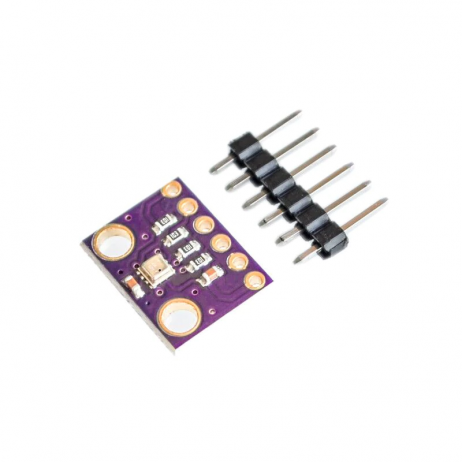
GY-BME280-3.3 Precision Altimeter Atmospheric Pressure Sensor Module
Add pressure readings to your dashboard — falling pressure means rain is coming. Shares I2C bus with the display, no extra GPIO pins required.
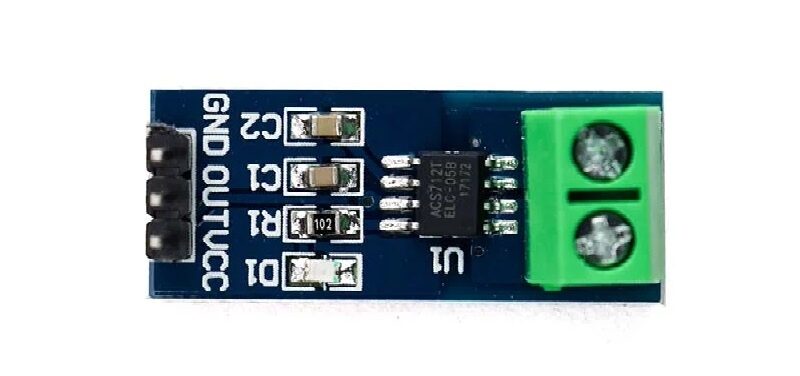
5A Range Current Sensor Module ACS712
Monitor home appliance power consumption on your dashboard. The ACS712 5A variant is ideal for low-power device monitoring from ESP32 ADC.
Frequently Asked Questions
Q: Can this project work without a WiFi connection?
Yes, but you will lose NTP time sync and any cloud-based features. Use a DS3231 RTC module (I2C) as a battery-backed hardware clock. The dashboard will show accurate time indefinitely as long as the RTC coin cell is alive, and task storage via NVS works completely offline.
Q: Which TFT library should I use — TFT_eSPI or Adafruit GFX?
TFT_eSPI is recommended for ESP32 productivity dashboards. It uses hardware SPI with DMA, supports many display controllers (ILI9341, ILI9488, ST7789), and renders filled rectangles and text 3–5x faster than Adafruit GFX. The setup requires editing a config file (User_Setup.h) with your exact GPIO pins.
Q: How do I handle daylight saving time for India?
India (IST) does not observe daylight saving time (DST), so the daylight offset in configTime() is always 0. Set gmtOffset = 19800 (5 hours 30 minutes = 5×3600 + 30×60) and daylightOffset = 0.
Q: The TFT display flickers when updating the clock every second. How do I fix this?
Only redraw the changed parts. For the clock, erase just the clock text area with fillRect() filled black, then redraw the time. Do not call clearDisplay() or a full-screen fill every second — that causes visible flicker. Structure your code to track which screen regions need updating.
Q: Can I sync tasks with Google Tasks or Notion?
Yes — use ESP32’s HTTPClient to query Google Tasks API (REST) with an OAuth 2.0 token, or the Notion API with an integration token. Refresh the task list once per hour. The implementation is more involved (handling HTTPS certificates, OAuth refresh), but several complete tutorials exist on GitHub for ESP32 Google Tasks integration.
Build Your Productivity Dashboard Today
All sensors and modules mentioned in this guide are available at Zbotic with fast shipping to your doorstep across India. Stop checking your phone constantly — build a dedicated desk dashboard that works for you.







Add comment