
Table of Contents
- Why Cura Settings Make or Break Your Print
- Setting Up Your Printer Profile in Cura
- Quality Settings: Layer Height and Line Width
- Walls, Top and Bottom Layers
- Infill: Pattern, Density and When to Use Each
- Temperature Settings for PLA, PETG and ABS
- Speed Settings Explained
- Retraction: Eliminating Stringing
- Supports and Build Plate Adhesion
- Saving and Sharing Custom Profiles
- Frequently Asked Questions
Why Cura Settings Make or Break Your Print
Cura is a free, open-source slicer developed by Ultimaker and used by millions of 3D printing enthusiasts worldwide. It converts your 3D model — a digital STL or OBJ file — into a G-code file that your printer can execute layer by layer. Think of it as the translator between your idea and the physical object.
The reason so many beginners struggle with print quality is not the printer itself — it is the slicer settings. A perfectly calibrated Ender 3 with wrong slicer settings will produce terrible prints. Conversely, a budget printer with dialled-in Cura settings can produce surprisingly clean results.
Cura has over 400 settings if you count every parameter. That is overwhelming for a beginner. This guide focuses on the 20 or so settings that actually matter in everyday printing, what they do, and what values to start with for the most common filament types.
Setting Up Your Printer Profile in Cura
When you launch Cura for the first time, it asks you to add a printer. Most popular printers — Ender 3, Ender 3 V2, Prusa i3, Bambu Lab, Artillery Sidewinder — are available as pre-built profiles. Select yours and Cura will pre-fill the build volume, nozzle diameter, and basic machine settings.
If your printer is not listed, choose Custom FDM Printer and manually enter:
- X/Y/Z dimensions (your printer’s build volume)
- Heated bed: yes or no
- Nozzle diameter: 0.4 mm for most printers
- Filament diameter: 1.75 mm for most modern printers
- Start/End G-code: copy from your printer manufacturer’s documentation
Getting the start and end G-code right is important. The start code typically homes all axes, heats the bed and nozzle, and performs a purge line before the print begins. Without this, your printer may crash or start printing without proper temperatures.
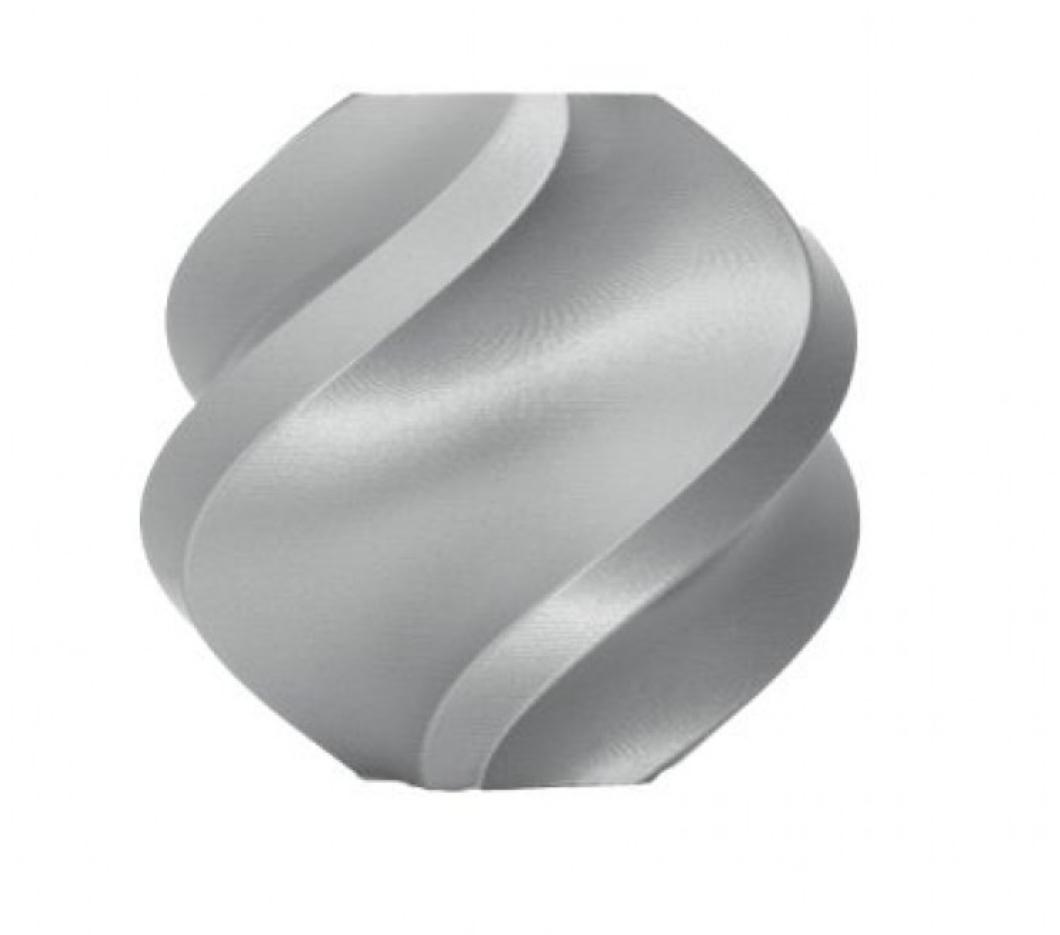
Bambu Lab PLA Filament Silver — 1.75mm with Reusable Spool
High-quality PLA with consistent diameter tolerance — ideal for dialling in Cura settings without fighting inconsistent extrusion from the filament itself.
Quality Settings: Layer Height and Line Width
Layer Height
Layer height is the thickness of each printed slice. It is the most visible quality setting — a lower layer height creates smoother surfaces with more detail, but takes much longer to print.
- 0.1 mm: Fine detail. Use for figurines, miniatures, jewellery. 3x slower than 0.3 mm.
- 0.2 mm: The standard setting. Excellent balance of quality and speed for most functional parts.
- 0.3 mm: Faster prints. Visible layers. Good for structural or prototype parts where looks do not matter.
A general rule: layer height should be between 25% and 75% of your nozzle diameter. With a 0.4 mm nozzle, that means 0.1-0.3 mm. Going outside this range creates adhesion problems between layers.
Line Width
Line width is typically set to match your nozzle diameter (0.4 mm for most printers). Increasing it slightly to 0.42-0.45 mm can improve layer adhesion and surface quality. You can do this without changing the physical nozzle. Going too wide causes under-extrusion artefacts.
Initial Layer Height
Set the first layer height to 0.2-0.3 mm regardless of the rest of your print. A thicker first layer is more forgiving of minor bed-levelling imperfections and adheres better to the build surface.
Walls, Top and Bottom Layers
Wall Count (Line Count)
Walls are the vertical shells of your print. More walls mean stronger parts. For decorative prints, 2 walls is enough. For functional parts that will experience stress or load, use 3-4 walls. For fully structural parts, match wall count to the part’s required strength.
Top and Bottom Layers
These seal the top and bottom surfaces of your print. The default of 4 layers at 0.2 mm height means 0.8 mm of solid material. For most prints this is adequate. If you see holes or gaps in the top surface, increase this to 5-6 layers.
Top Surface Skin Layers
This advanced setting (under Shell in the Custom view) adds extra passes over the final top layer for a smoother finish. One additional layer can significantly improve the appearance of flat top surfaces, especially when printing at 0.2-0.3 mm layer height.
Infill: Pattern, Density and When to Use Each
Infill is the internal structure printed inside your model. It affects strength, print time, and filament consumption dramatically.
Infill Density
- 0-10%: Hollow. Very fast, minimal filament. Used for decorative objects with no load requirements.
- 15-20%: Standard. Good for most non-structural prints. Default for most hobby printing.
- 30-50%: Strong. For functional parts, enclosures, brackets, and anything that will be handled regularly.
- 80-100%: Solid. Extremely strong. Use for load-bearing parts, jigs, or anything under constant stress.
Infill Pattern
Cura offers many infill patterns. The best all-rounder patterns are:
- Grid: Fast, simple, strong in vertical direction. Good default.
- Gyroid: Strong in all directions, excellent for flexible prints. Slightly slower than grid.
- Honeycomb: Classic pattern, aesthetically pleasing, good strength-to-weight ratio.
- Lines: Fastest to print. Weakest. Use only for display models.
- Cubic: Good all-direction strength, faster than gyroid.
For most functional prints, gyroid at 20% gives an excellent strength-to-print-time ratio and is the default recommendation.
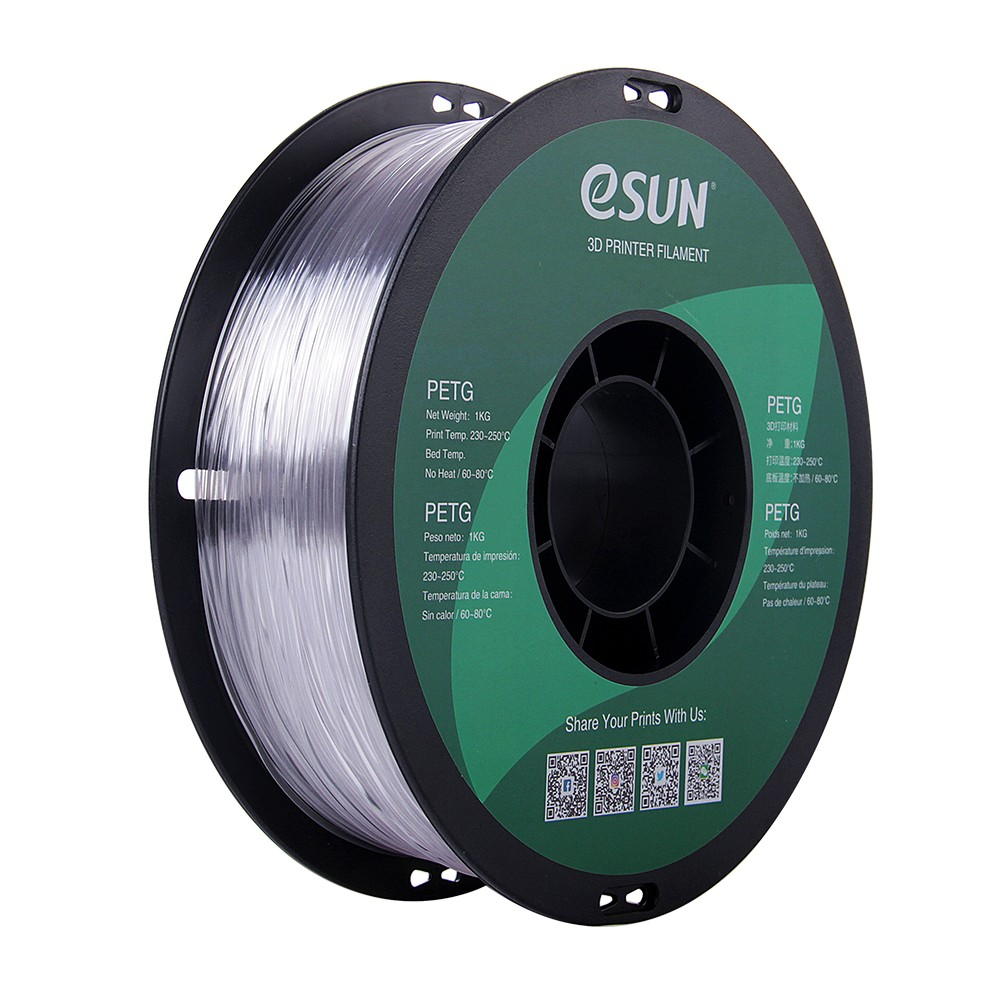
eSUN PETG 1.75mm 3D Printing Filament 1kg – Clear
PETG requires slightly different Cura settings than PLA — this eSUN spool is an excellent choice to practice PETG calibration with consistent results.
Temperature Settings for PLA, PETG and ABS
Temperature is one of the most impactful settings in Cura. Too cold and layers do not bond well. Too hot and you get stringing, blobbing, and poor surface quality.
PLA
- Nozzle: 195-215 degrees C (start at 200 degrees C)
- Bed: 50-65 degrees C (60 degrees C is a safe default)
- Enclosure: Not required
- Cooling: 100% fan from layer 2
PETG
- Nozzle: 230-250 degrees C (start at 240 degrees C)
- Bed: 70-85 degrees C (80 degrees C recommended)
- Enclosure: Not required but beneficial
- Cooling: 30-50% fan (PETG does not like excessive cooling)
ABS
- Nozzle: 230-250 degrees C
- Bed: 100-110 degrees C
- Enclosure: Strongly recommended to prevent warping
- Cooling: 0-20% fan
Always check the manufacturer’s recommended temperature range printed on the filament spool. Different brands have different formulations, so treat these as starting points to tune from, not absolute values.
Speed Settings Explained
Cura has separate speed settings for different print operations. This is one area where beginners often go wrong — either printing everything too fast or not realising some operations need to be slower.
- Print speed: 50-60 mm/s is a good all-around speed. Faster speeds reduce print time but can introduce vibration artefacts and weaken layer bonds.
- Initial layer speed: Always set to half your print speed or lower (25 mm/s). The first layer must adhere properly — rushing it causes adhesion failures.
- Travel speed: 120-150 mm/s. The speed when the nozzle moves without extruding. Faster is fine here.
- Infill speed: Can be 20-30% faster than print speed since infill is not visible.
- Outer wall speed: Should be 50-75% of inner wall speed for better surface quality.
- Support speed: Can match or exceed print speed since supports are temporary.
Retraction: Eliminating Stringing
Stringing — thin filament threads between parts of your print — is caused by oozing from the nozzle during travel moves. Retraction pulls the filament back slightly before travel to reduce oozing.
Retraction Distance
- Bowden setups (e.g., Ender 3 stock): 4-7 mm
- Direct drive setups: 1-3 mm
Retraction Speed
40-60 mm/s is the safe range for most setups. Too fast can strip filament in the extruder gears.
Combing Mode
Enable combing mode in Cura (under Travel). This setting makes the nozzle travel over printed areas rather than crossing open air when possible, reducing the chance of visible stringing.
Minimum Travel Before Retraction
Set to 1.5-2 mm. Retracting for very short travel moves wears out the extruder gears faster than needed without meaningfully reducing stringing.
0.4mm Stainless Steel Nozzle Cleaning Needle (Pack of 10)
When wrong retraction settings cause partial clogs, these cleaning needles restore flow quickly. A must-have pack for any active 3D printer user.
Supports and Build Plate Adhesion
When Do You Need Supports?
Any overhang greater than about 45-50 degrees from vertical will need support material unless you orient the model differently. Bridges (horizontal spans) up to about 50-60 mm can print unsupported on a well-tuned printer.
Support Types in Cura
- Normal: Straight columns. Easier to remove, slightly less stable for complex overhangs.
- Tree: Organic branching support. Less contact area with the model = cleaner supported surfaces. Preferred for complex organic shapes.
Support Overhang Angle
Default is 50 degrees. Lower this to 45 for difficult overhangs. Higher (55-60) reduces support material but may cause print failures on steep overhangs.
Build Plate Adhesion
- None: For large flat prints on a well-levelled bed.
- Skirt: A line printed around the model without contact. Primes the nozzle and lets you check bed level before the model starts.
- Brim: Extends the first layer outward around the model. Dramatically improves adhesion for tall or narrow parts that tend to tip or warp.
- Raft: A thick sacrificial base printed under the entire model. Use for very poor bed adhesion situations. Hard to remove cleanly.
Saving and Sharing Custom Profiles
Once you have tuned settings for a specific filament and model type, save them as a named profile. In Cura, click the profile dropdown at the top, then Manage Profiles and Create Profile. Give it a descriptive name like Ender3-PLA-0.2mm-quality or Ender3-PETG-functional.
Profiles can be exported as .curaprofile files and shared with other users or backed up to cloud storage. Many 3D printing communities and filament brands publish ready-made Cura profiles for their filaments — always try the manufacturer’s recommended profile first before tweaking.
Frequently Asked Questions
What is the best layer height for a 0.4 mm nozzle?
0.2 mm is the most widely used layer height for a 0.4 mm nozzle. It gives a good balance of surface quality and print speed. Use 0.1 mm for fine detail and 0.3 mm when speed matters more than appearance.
How do I fix holes in the top surface of my print?
Increase the number of top layers to 5-6. Also check that your infill density is at least 15% — very sparse infill does not support the top surface adequately. Finally, check that your extrusion multiplier (flow rate) is not set below 100%.
Why does my print warp off the bed?
Warping is most common with ABS and large PLA prints. Solutions: increase bed temperature by 5 degrees C, add a brim in Cura, apply a thin layer of glue stick or hairspray to the bed, and reduce fan speed for the first few layers.
What does the flow rate or extrusion multiplier setting do?
It scales the amount of filament extruded up or down as a percentage. 100% is the default. If you see gaps between lines, increase to 102-105%. If lines are overlapping and the surface looks rough, decrease to 95-98%. Proper e-steps calibration matters more than adjusting flow rate.
Is Cura compatible with all 3D printers?
Cura works with the vast majority of FDM (fused deposition modelling) printers that use G-code. It has built-in profiles for Creality, Prusa, Ultimaker, Artillery, Anycubic, Bambu Lab, and many more. Proprietary slicers from Bambu (Bambu Studio) and Prusa (PrusaSlicer) are optimised for their respective printers but are also based on open-source code.
Get the filament that makes calibration easy. Browse our curated range of PLA, PETG, and ABS filaments at Zbotic’s 3D Printing store — all available with India-wide delivery.







Add comment