
The Azure IoT Hub ESP32 tutorial space has grown dramatically as Indian engineering teams and startups look beyond hobby projects toward enterprise-grade cloud deployments. Microsoft Azure IoT Hub is a fully managed service that acts as a central message hub for bidirectional communication between your IoT devices and the cloud. In this guide, we will walk through every step — from creating an Azure account and IoT Hub, to connecting your ESP32, sending telemetry data, and receiving cloud-to-device commands — all explained in practical terms for the Indian maker community.
Why Choose Azure IoT Hub for ESP32 Projects?
India’s industrial IoT sector is booming. From smart manufacturing plants in Pune to agricultural monitoring systems in Maharashtra, companies are choosing Azure IoT Hub for its enterprise features, India-region data centers (Central India, South India), and the large ecosystem of Azure services that can process and visualize IoT data.
Key reasons to choose Azure IoT Hub for your ESP32 project:
- Scale without infrastructure: Azure IoT Hub handles millions of devices without you managing servers.
- Bidirectional communication: Send telemetry up to the cloud AND receive commands down to devices.
- Device Twins: Synchronize device state with a JSON document stored in the cloud.
- Security: Per-device SAS tokens or X.509 certificates — no shared secrets.
- Free tier: 8,000 messages/day free — more than enough to prototype and demo your project.
- Integration: Connect directly to Azure Stream Analytics, Azure Functions, Power BI, and more for data processing and visualization.
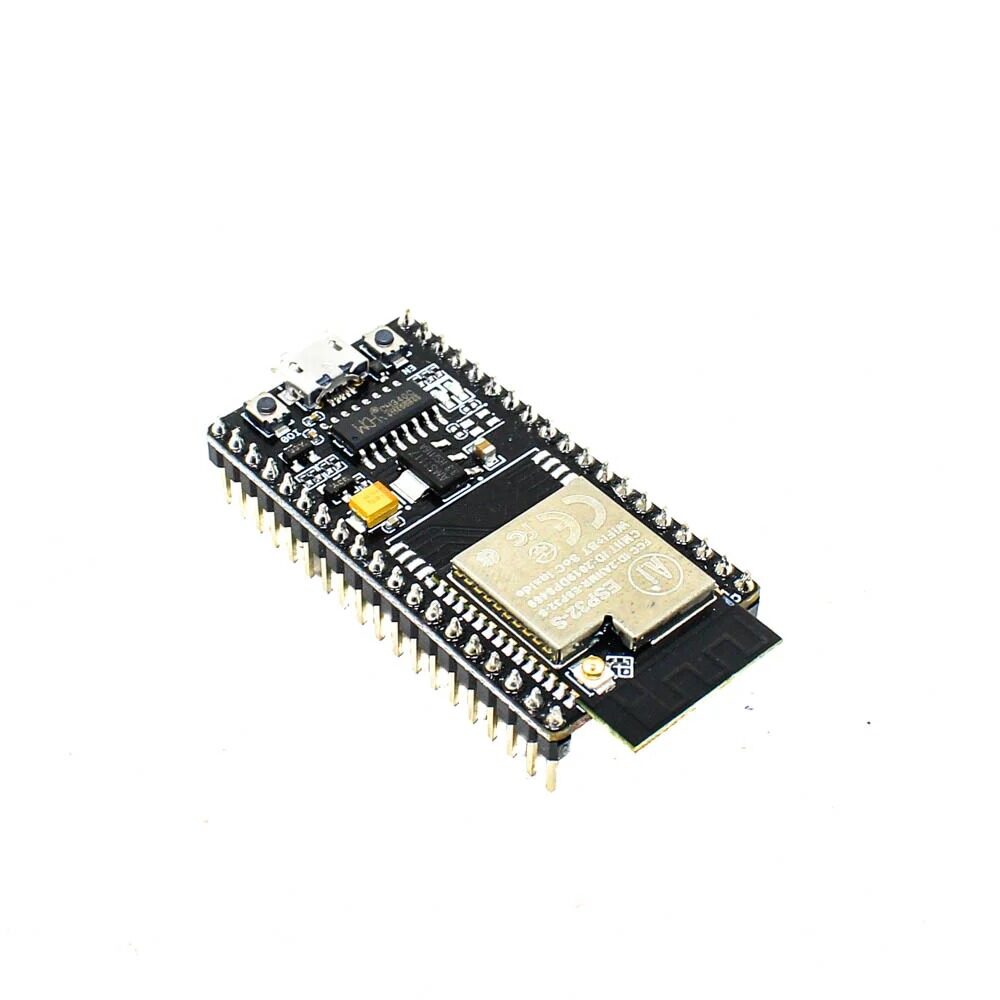
Ai Thinker NodeMCU-32S-ESP32 Development Board – IPEX Version
The NodeMCU-32S is an ideal board for Azure IoT Hub integration — dual-core 240MHz processor, 4MB flash, built-in Wi-Fi, and full Arduino IDE compatibility.
Setting Up Azure IoT Hub
Follow these steps to create your Azure IoT Hub and register your ESP32 device:
Step 1: Create an Azure Account
Visit azure.microsoft.com and sign up. New accounts get a 12-month free tier plus $200 credits. You can pay in Indian Rupees (INR) via credit/debit card.
Step 2: Create an IoT Hub
- In the Azure Portal, click “Create a resource” and search for “IoT Hub”.
- Select your subscription and create or select a Resource Group (e.g., “esp32-projects”).
- Choose a region — Central India (Pune) or South India (Chennai) for lowest latency from India.
- Name your hub (e.g., “zbotic-esp32-hub”) — this becomes your hostname.
- Select the Free tier (F1) for development: 8,000 messages/day, 400KB per message, 0.5MB total daily limit.
- Click Review + Create, then Create. Deployment takes about 2-3 minutes.
Step 3: Register Your ESP32 Device
- In your IoT Hub, navigate to Devices in the left menu.
- Click + Add Device.
- Enter a Device ID (e.g., “esp32-sensor-01”) — this uniquely identifies your physical device.
- Choose Symmetric key authentication and check Auto-generate keys.
- Click Save.
- Click on the device name and copy the Primary Connection String — you will need this for your ESP32 code.
The connection string looks like this:
HostName=zbotic-esp32-hub.azure-devices.net;DeviceId=esp32-sensor-01;SharedAccessKey=BASE64KEY==Preparing Your ESP32 Arduino Environment
Connecting an ESP32 to Azure IoT Hub requires handling TLS/SSL encryption (Azure mandates HTTPS/MQTTS). We will use the AzureIoTHub library along with the ArduinoMqttClient library.
Required Libraries (Install via Arduino Library Manager)
- Azure SDK for C Arduino — search for “azure-sdk-for-c”
- ArduinoMqttClient — by Arduino
- WiFiClientSecure — included with ESP32 Arduino core
- ArduinoJson — by Benoit Blanchon (for JSON telemetry)
Alternatively, many makers use the MQTT protocol directly with the PubSubClient library, which gives more control. We will demonstrate that approach below as it is more educational.

DHT11 Digital Relative Humidity and Temperature Sensor Module
A perfect sensor to pair with your ESP32 Azure IoT Hub project. Send real temperature and humidity telemetry to the cloud with this affordable and reliable sensor.
Connecting ESP32 to Azure via MQTT
Azure IoT Hub supports MQTT over TLS on port 8883. The authentication uses a Shared Access Signature (SAS token) derived from your device’s primary key. Here is the connection structure:
- MQTT Broker:
{your-hub-name}.azure-devices.net - Port: 8883 (TLS)
- Client ID: Your Device ID
- Username:
{hub-name}.azure-devices.net/{device-id}/?api-version=2021-04-12 - Password: SAS token (time-limited, generated from your key)
Here is a complete connection sketch using PubSubClient:
#include <WiFi.h>
#include <WiFiClientSecure.h>
#include <PubSubClient.h>
#include <ArduinoJson.h>

// WiFi credentials
const char* ssid = "YourWiFiSSID";
const char* password = "YourWiFiPass";

// Azure IoT Hub settings
const char* iothub_host = "zbotic-esp32-hub.azure-devices.net";
const char* device_id = "esp32-sensor-01";
// Generate SAS token at: https://docs.microsoft.com/azure/iot-hub/iot-hub-mqtt-support
const char* sas_token = "SharedAccessSignature sr=...";

// MQTT Topics
const char* telemetry_topic = "devices/esp32-sensor-01/messages/events/";
const char* c2d_topic = "devices/esp32-sensor-01/messages/devicebound/#";

WiFiClientSecure wifiClient;
PubSubClient mqttClient(wifiClient);

void callback(char* topic, byte* payload, unsigned int length) {
  Serial.print("Message from cloud: ");
  for (int i = 0; i < length; i++) {
    Serial.print((char)payload[i]);
  }
  Serial.println();
}

void connectMQTT() {
  String username = String(iothub_host) + "/" + device_id + "/?api-version=2021-04-12";
  mqttClient.setServer(iothub_host, 8883);
  mqttClient.setCallback(callback);

  while (!mqttClient.connected()) {
    Serial.println("Connecting to Azure IoT Hub...");
    if (mqttClient.connect(device_id, username.c_str(), sas_token)) {
      Serial.println("Connected!");
      mqttClient.subscribe(c2d_topic);
    } else {
      Serial.printf("Failed, rc=%d. Retrying in 5s...n", mqttClient.state());
      delay(5000);
    }
  }
}

void setup() {
  Serial.begin(115200);
  WiFi.begin(ssid, password);
  while (WiFi.status() != WL_CONNECTED) delay(500);
  Serial.println("WiFi Connected");
  wifiClient.setInsecure(); // For testing only - use proper cert in production
  connectMQTT();
}

void loop() {
  if (!mqttClient.connected()) connectMQTT();
  mqttClient.loop();
}
Sending Sensor Telemetry to Azure
Once connected, sending telemetry is a simple MQTT publish. Azure IoT Hub accepts any payload format, but JSON is the standard for downstream processing:
void sendTelemetry(float temperature, float humidity) {
  StaticJsonDocument<200> doc;
  doc["deviceId"] = device_id;
  doc["temperature"] = temperature;
  doc["humidity"] = humidity;
  doc["timestamp"] = millis();

  char payload[200];
  serializeJson(doc, payload);

  if (mqttClient.publish(telemetry_topic, payload)) {
    Serial.println("Telemetry sent: " + String(payload));
  } else {
    Serial.println("Failed to send telemetry");
  }
}

// In loop():
// sendTelemetry(25.6, 68.2);
// delay(30000); // Send every 30 seconds
You can monitor incoming messages in the Azure Portal under your IoT Hub’s Overview blade, which shows a real-time message count graph. For deeper inspection, install the Azure IoT Tools extension in VS Code — it lets you monitor device telemetry in real time directly from your editor.

BMP280 Barometric Pressure and Altitude Sensor I2C/SPI Module
Add pressure and altitude data to your Azure IoT Hub telemetry stream. Perfect for weather stations and industrial environment monitoring projects.
Receiving Cloud-to-Device Messages
One of Azure IoT Hub’s most powerful features is sending commands FROM the cloud TO individual devices. This enables remote configuration, firmware triggers, and actuator control:
void callback(char* topic, byte* payload, unsigned int length) {
  String message = "";
  for (int i = 0; i < length; i++) {
    message += (char)payload[i];
  }

  Serial.println("Cloud-to-Device message: " + message);

  // Parse JSON command
  StaticJsonDocument<200> doc;
  DeserializationError error = deserializeJson(doc, message);
  if (error) return;

  String command = doc["command"].as<String>();
  if (command == "LED_ON") {
    digitalWrite(LED_BUILTIN, HIGH);
  } else if (command == "LED_OFF") {
    digitalWrite(LED_BUILTIN, LOW);
  } else if (command == "SET_INTERVAL") {
    int newInterval = doc["value"];
    // Update reporting interval in NVS
  }
}
To send a command from the Azure Portal: navigate to your device → Message to Device → enter your JSON payload → Send. Your ESP32 will receive it within milliseconds.
Frequently Asked Questions
Does Azure IoT Hub work with the ESP8266?
Technically yes, but the ESP8266 lacks the processing power and RAM to handle TLS 1.2 connections reliably at scale. The ESP32 with its 520KB RAM is far better suited. For new projects, always choose ESP32 for Azure connectivity.
How much does Azure IoT Hub cost for an Indian startup?
The Free tier (F1) is truly free — 8,000 messages/day at no cost, forever (not just a trial). For a small product with 100 devices sending data every 10 minutes, you would send 100 × 144 = 14,400 messages/day, requiring the S1 tier at approximately ₹1,300/month for up to 400,000 messages/day.
How do I generate a SAS token for my ESP32?
The easiest method is using the Azure IoT Explorer tool (Windows/Mac) or the az iot hub generate-sas-token command in Azure CLI. SAS tokens are time-limited (typically 24h to 1 year) — for production, implement token refresh logic in your firmware.
Can I use Azure IoT Hub with FreeRTOS on ESP32?
Yes. Microsoft maintains the Azure SDK for Embedded C which is designed for microcontrollers. It runs on top of FreeRTOS and has been validated on ESP32. This is the approach recommended for production firmware rather than the Arduino library wrappers.
What happens if my ESP32 loses internet connection?
Implement reconnection logic in your firmware. Store telemetry locally in NVS or SPIFFS during disconnection, then batch-upload when connectivity is restored. Azure IoT Hub supports a session queue for offline devices when using MQTT with persistent sessions.
Build Your Azure IoT Project with Quality Hardware
Zbotic.in provides the ESP32 boards, sensors, and accessories you need to build production-ready Azure IoT Hub projects. Browse our curated range of IoT components with fast delivery across India.





Add comment