
If you have been using an OLED display in a long-running project, you may have noticed a ghostly permanent image forming on the screen — that is OLED display burn-in, and prevention is critical to extending the life of your display. Whether you are running a 24/7 temperature monitor, a home automation dashboard, or a clock display with your Arduino or Raspberry Pi, understanding how OLED pixel degradation works and how to prevent it will save you money and frustration. This guide explains the science behind burn-in and gives you practical, code-ready strategies to protect your display.
What Is OLED Burn-In and Why Does It Happen?
OLED (Organic Light-Emitting Diode) displays produce light by passing electric current through organic compounds. Each pixel contains separate red, green, and blue sub-pixels made of different organic materials. The key word here is organic — these compounds degrade over time as they emit light, and they degrade faster under higher brightness and longer use.
Burn-in occurs when certain pixels are used significantly more than others. If your display permanently shows a static interface — say, a temperature reading with fixed labels on the left side — those label pixels emit light continuously at the same intensity for thousands of hours. Meanwhile, areas showing a blinking value may vary more. Over time, the heavily-used pixels degrade and their maximum luminance decreases. When the display finally shows a uniform colour, you can see the ghost of the old interface because those pixels are dimmer.
This is distinct from image retention (temporary ghosting that disappears after the display shows different content) — true burn-in is permanent. However, image retention is the early warning sign that burn-in is developing.
The most affected colours are blue and red organic compounds, which have shorter lifespans than green. In practice, white pixels (all three sub-pixels lit) age the fastest. This is particularly relevant for monochrome OLED modules (like the common SSD1306 0.96″ I2C display used in Indian maker projects) where every lit pixel ages at the same rate.
How Fast Does OLED Burn-In Occur?
The lifespan of an OLED display is typically measured as the time to reach 50% of initial brightness (T50). For most hobbyist-grade OLED modules (SSD1306, SSD1309, SH1106):
- At full brightness (contrast 255): T50 ≈ 5,000–10,000 hours (~2–4 years of 24/7 use)
- At 50% brightness (contrast 128): T50 ≈ 15,000–25,000 hours (~6–11 years)
- At 25% brightness (contrast 64): T50 ≈ 40,000+ hours
The relationship is not linear — halving brightness roughly triples lifespan. This makes brightness reduction the single most effective burn-in prevention strategy.
For projects running continuously — like clocks, weather stations, or alarm panels — even a moderate brightness reduction dramatically extends display life. Indian conditions add another consideration: higher ambient temperatures accelerate organic compound degradation, so manage heat carefully.

DHT20 SIP Temperature and Humidity Sensor
Perfect sensor for a long-running OLED weather station — its I2C interface frees up pins and its stable readings mean fewer screen updates, reducing pixel stress.
Brightness Control: The Single Biggest Factor
Reducing display brightness is the most impactful thing you can do. Most OLED controllers support a contrast/brightness register. For the SSD1306 (the most common OLED in Indian maker kits), brightness is controlled by the setContrast() command:
#include <Wire.h>
#include <Adafruit_GFX.h>
#include <Adafruit_SSD1306.h>

#define SCREEN_WIDTH 128
#define SCREEN_HEIGHT 64
Adafruit_SSD1306 display(SCREEN_WIDTH, SCREEN_HEIGHT, &Wire, -1);

void setup() {
  display.begin(SSD1306_SWITCHCAPVCC, 0x3C);

  // Reduce brightness significantly — range is 0-255
  // Default is 127 or 255. Set to 30-50 for long-running projects
  display.ssd1306_command(SSD1306_SETCONTRAST);
  display.ssd1306_command(40);  // ~15% brightness — very readable indoors
}
For ambient-light adaptive brightness, add a light sensor (LDR) and adjust contrast dynamically:
void adjustBrightness() {
  int lightLevel = analogRead(A0);  // LDR on A0
  // Map light level to contrast: dark room = low brightness
  int contrast = map(lightLevel, 0, 1023, 10, 150);
  display.ssd1306_command(SSD1306_SETCONTRAST);
  display.ssd1306_command(contrast);
}
This approach is used in commercial products — smartphones dim their OLED screens in dark environments both to save battery and to extend display life.
Pixel Shifting and Display Inversion
Pixel shifting moves the entire display content by a few pixels periodically, ensuring that no single physical pixel is always lit. Even a shift of 1–2 pixels distributes wear more evenly across the display over time.
#define SHIFT_INTERVAL 300000  // Shift every 5 minutes
#define MAX_SHIFT 3

int shiftX = 0, shiftY = 0;
unsigned long lastShift = 0;

void loop() {
  if (millis() - lastShift > SHIFT_INTERVAL) {
    // Move display by ±1-3 pixels
    shiftX = random(-MAX_SHIFT, MAX_SHIFT + 1);
    shiftY = random(-MAX_SHIFT, MAX_SHIFT + 1);
    lastShift = millis();
  }

  display.clearDisplay();
  display.setCursor(shiftX, shiftY);
  display.println("Temp: 28.5C");
  display.display();
}
The SSD1306 also supports hardware pixel shifting via the SSD1306_SET_DISPLAY_OFFSET command, which is more efficient than re-rendering the entire frame in software.
Display inversion is another effective technique. Inverting the display (white pixels become black and vice versa) periodically equalises wear between lit and dark pixels:
bool inverted = false;
unsigned long lastInvert = 0;

void loop() {
  // Invert display every 30 minutes
  if (millis() - lastInvert > 1800000UL) {
    inverted = !inverted;
    display.invertDisplay(inverted);
    lastInvert = millis();
  }
}
LM35 Temperature Sensors
Low-cost analog temperature sensor that updates slowly and smoothly — ideal for OLED displays since gradual value changes reduce pixel stress compared to rapidly flashing readings.
Screen Saver Strategies in Code
A screen saver activates after a period of inactivity, preventing static image burn-in. Here is a practical implementation with a motion or button trigger to wake the display:
#define SAVER_TIMEOUT 300000  // 5 minutes
#define WAKE_BUTTON 2         // Button on pin 2

unsigned long lastActivity = 0;
bool saverActive = false;

void checkActivity() {
  if (digitalRead(WAKE_BUTTON) == LOW) {
    lastActivity = millis();
    if (saverActive) {
      saverActive = false;
      display.ssd1306_command(SSD1306_DISPLAYON);
    }
  }

  if (!saverActive && millis() - lastActivity > SAVER_TIMEOUT) {
    saverActive = true;
    display.clearDisplay();
    display.display();
    display.ssd1306_command(SSD1306_DISPLAYOFF);  // Full display off
  }
}

void runScreenSaver() {
  // Moving dot screen saver
  static int dotX = 0, dotY = 0;
  static int velX = 2, velY = 1;

  display.clearDisplay();
  display.fillCircle(dotX, dotY, 3, WHITE);
  display.display();

  dotX += velX;
  dotY += velY;
  if (dotX >= 128 || dotX = 64 || dotY <= 0) velY = -velY;
  delay(50);
}
The screen saver here serves dual purpose: it provides a visually interesting display while keeping pixels active in different areas, rather than showing the same static layout.
Display Sleep Mode
The most effective burn-in prevention is simply turning the display off when not needed. OLED controllers have a hardware sleep/display-off mode that cuts power to the display panel entirely:
// Turn display completely off (zero power to OLED panel)
display.ssd1306_command(SSD1306_DISPLAYOFF);

// Turn display back on
display.ssd1306_command(SSD1306_DISPLAYON);

// For U8g2 library:
u8g2.setPowerSave(1);  // Sleep
u8g2.setPowerSave(0);  // Wake
This is different from displaying a black screen — a black screen still powers the OLED panel and maintains the scan circuitry, causing some pixel aging. DISPLAYOFF actually cuts power to the emission circuits.
For projects like bedside clocks (common in Indian homes), sleep the display from 11 PM to 6 AM — that is 7 hours of zero aging per day, extending display life by nearly 30%.

DHT11 Temperature and Humidity Sensor Module
For a time-scheduled OLED display project, pair with a DHT11 for real-time temperature and humidity data — only wake the display when someone is nearby.
Layout Design to Minimise Burn-In Risk
How you design your display content is just as important as the techniques above. Here are layout design principles for long-lived OLED displays:
1. Avoid Permanent Static Elements
Fixed labels like “Temperature:” or “Humidity:” that never change are prime candidates for burn-in. Alternatives:
- Rotate between different screen layouts every few minutes
- Use icons instead of text labels and rotate them
- Show the data value only, without labels, and add a splash screen explaining what is shown when the user presses a button
2. Use Dark Backgrounds
On a monochrome OLED, use black backgrounds with white text rather than white backgrounds with black text. Fewer pixels lit = less degradation overall. This is why most OLED clock projects use white-on-black.
3. Avoid Fine Lines and Borders
Thin permanent borders around your display content leave permanent thin lines of wear. If you must use borders, make them dashed or rotating.
4. Limit Text Size
Large bold text covers many pixels in a fixed pattern. Use size-1 text where possible, and vary the position between screen refreshes using the pixel shift technique.
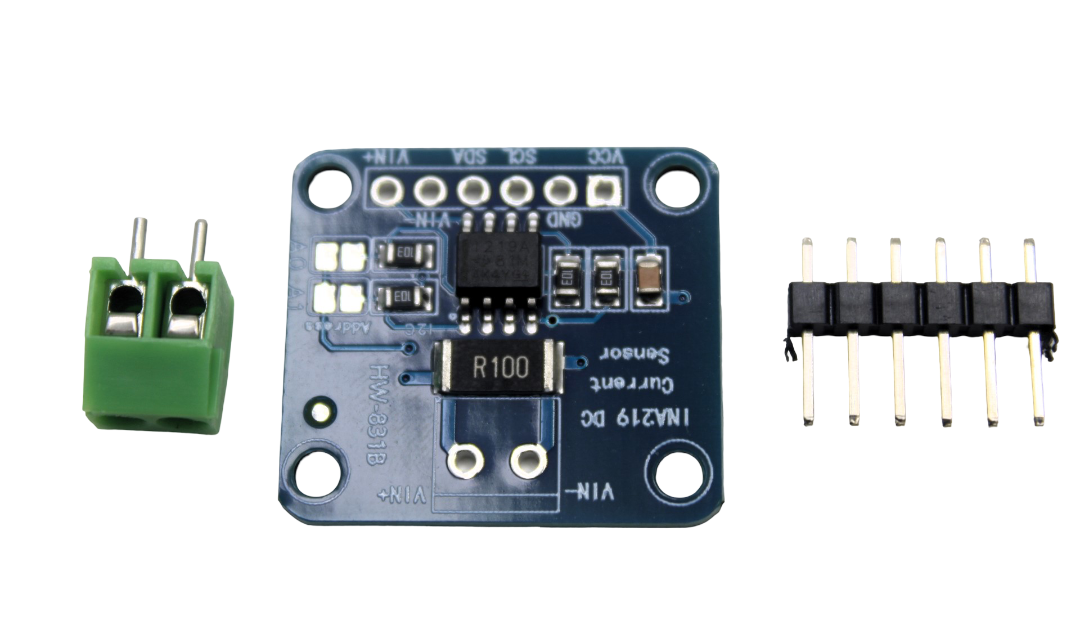
INA219 I2C Bi-directional Current and Power Monitor
Monitor the actual current drawn by your OLED display to verify brightness settings are saving power — perfect for optimising battery-powered OLED projects.
Frequently Asked Questions
Q1: Is OLED burn-in reversible?
True burn-in (permanent pixel degradation) is not reversible — the organic compounds have physically degraded. However, image retention (temporary ghosting) can often be cleared by displaying a white screen at full brightness for several minutes, or running pixel cycling patterns. If the ghost disappears after some time, it was image retention, not true burn-in.
Q2: Do OLED displays from Chinese hobby kits burn in faster than branded displays?
Generally yes. Hobbyist-grade SSD1306 modules use lower-cost organic materials and thinner deposition. They also default to maximum contrast (255) out of the box. Reduce contrast immediately when you start any long-running project. For comparison, smartphone OLED panels have much longer lifespans due to higher-quality materials and sophisticated drive algorithms.
Q3: Does displaying a screensaver protect against burn-in?
A moving screensaver distributes wear across the display and prevents any single pattern from dominating — this significantly reduces burn-in risk compared to a static display. However, it does not eliminate aging entirely. Combining a screensaver with reduced brightness and periodic sleep modes is the best approach.
Q4: How do I add a PIR sensor to auto-sleep my OLED display?
Connect a PIR motion sensor to a digital input pin. When motion is detected, turn the display on and reset the inactivity timer. When no motion is detected for your timeout period, put the display to sleep with SSD1306_DISPLAYOFF. This is the most practical auto-sleep solution for wall-mounted displays in Indian homes.
Q5: My OLED has a yellowish tint in a band at the top — is this burn-in?
This is actually a design feature on many 0.96″ OLED modules, not burn-in. Many two-colour OLED modules deliberately use yellow/amber for the top rows and blue for the rest — they are two separate OLED layers. Uniform blue-only or white-only 0.96″ displays do exist; check the module specification before purchasing if colour uniformity matters.
Protect Your OLED Investment
With a few simple coding techniques — lower brightness, pixel shifting, screen sleep, and thoughtful layout design — you can extend your OLED display life from 2 years to 10+ years of continuous operation. Apply these strategies from day one of your project.
Find OLED display modules, sensors, and all your electronics components at Zbotic.in — trusted by thousands of Indian makers with fast delivery and competitive prices.







Add comment