
Building an ESP32 ePaper weather display with OpenWeatherMap integration is one of the most satisfying weekend projects you can tackle as a maker. Unlike bright LCD screens, ePaper displays are readable in direct sunlight, consume almost zero power when static, and give your project a clean, newspaper-like aesthetic that looks great on any desk or wall. In this guide, we walk through every step — from hardware selection to final code — so you can have live weather data from any Indian city displayed on your own low-power panel.
Why ePaper for a Weather Display?
ePaper (electronic paper) displays work by physically moving charged pigment particles between black and white states. Once an image is drawn, it stays there forever with zero power draw — the display only consumes energy during an update. This makes it perfect for a weather station that refreshes every 15–30 minutes.
Compare this to a TFT LCD: a 2.8-inch TFT consumes roughly 40–60mA continuously. A 2.9-inch ePaper module draws about 26mA only during a refresh cycle that lasts 2–3 seconds, then drops to under 0.01mA. If you pair this with ESP32 deep sleep (which brings the microcontroller down to ~10µA), a 1000mAh LiPo battery can power your weather display for weeks between charges.
ePaper also has excellent viewing angles — almost 180 degrees — and is perfectly readable under Indian summer sunlight without any backlight washout. For a wall-mounted or window-sill weather station, these properties are unbeatable.
Hardware You Need
For this project you will need:
- ESP32 development board (ESP32-WROOM-32 or ESP32 DevKit V1)
- ePaper display — 2.9-inch (296×128 px) or 4.2-inch (400×300 px) module with SPI interface; Waveshare-compatible panels work well
- Temperature & humidity sensor — DHT11, DHT20, or BME280 for local readings
- Jumper wires, breadboard or custom PCB
- 3.7V LiPo battery + TP4056 charger module (for portable version)
- A 3D-printed or laser-cut enclosure (optional but looks great)
The ePaper module communicates over SPI, so you only need 6 wires plus power. Make sure your chosen panel has an onboard voltage regulator for 3.3V logic; most Waveshare modules do.

DHT11 Digital Relative Humidity and Temperature Sensor Module
A popular, affordable sensor for measuring indoor temperature and humidity. Perfect for adding local readings alongside OpenWeatherMap outdoor data.

BMP280 Barometric Pressure and Altitude Sensor I2C/SPI Module
Add barometric pressure to your weather display. The BMP280 also estimates altitude — great for Indian cities at varying elevations.
Setting Up OpenWeatherMap API
OpenWeatherMap (OWM) offers a free tier that allows up to 1,000 API calls per day — more than enough for a weather display refreshing every 15 minutes (that’s only 96 calls per day). Here’s how to set it up:
- Go to openweathermap.org and create a free account.
- Navigate to API Keys in your profile and copy your default key (or generate a new one).
- Test the endpoint in your browser:
https://api.openweathermap.org/data/2.5/weather?q=Mumbai,IN&appid=YOUR_KEY&units=metric - The response is JSON. The fields you need:
main.temp,main.humidity,weather[0].description,wind.speed,main.pressure.
For Indian cities, use the city name with ,IN suffix (e.g., Pune,IN, Bengaluru,IN, Jaipur,IN). Alternatively, use a city ID for more accuracy — OWM provides a city list JSON you can search offline.
The free tier gives you current weather plus 5-day/3-hour forecasts. The One Call API 3.0 (1,000 free calls/day) adds hourly forecasts, UV index, and weather alerts — worth using if your ePaper is large enough to show a week’s outlook.
Wiring the ePaper to ESP32
Most 2.9-inch SPI ePaper modules have these pins: VCC, GND, DIN (MOSI), CLK (SCK), CS, DC, RST, BUSY. Here is the standard connection to an ESP32 DevKit:
| ePaper Pin | ESP32 GPIO |
|---|---|
| VCC | 3.3V |
| GND | GND |
| DIN (MOSI) | GPIO 23 |
| CLK (SCK) | GPIO 18 |
| CS | GPIO 5 |
| DC | GPIO 17 |
| RST | GPIO 16 |
| BUSY | GPIO 4 |
Connect your DHT11 data pin to GPIO 26, with a 10kΩ pull-up resistor between data and 3.3V. If you are using a BMP280 over I2C, connect SDA to GPIO 21 and SCL to GPIO 22.
Important: Do not drive the ePaper with 5V logic directly — it is a 3.3V device. The ESP32 is natively 3.3V, so this is not an issue, but if you try this on an Arduino Uno you will need a level shifter.
Arduino Code Walkthrough
You will need these libraries in Arduino IDE:
- GxEPD2 by ZinggJM — the most capable ePaper library for Arduino/ESP32
- ArduinoJson by Benoit Blanchon — for parsing OWM JSON response
- Adafruit GFX — graphics primitives used by GxEPD2
- DHT sensor library — for DHT11/DHT22
The program flow is straightforward:
- Wake from deep sleep (or power on)
- Connect to WiFi
- Fetch weather JSON from OWM API via
HTTPClient - Parse JSON: temperature, humidity, description, wind speed
- Read local DHT11 sensor
- Clear ePaper display and draw layout
- Print weather data using GxEPD2 text functions
- Disconnect WiFi, put ESP32 into deep sleep for 15 minutes
#include <GxEPD2_BW.h>
#include <WiFi.h>
#include <HTTPClient.h>
#include <ArduinoJson.h>
#include <DHT.h>

#define DHTPIN 26
#define DHTTYPE DHT11
DHT dht(DHTPIN, DHTTYPE);

const char* ssid     = "YOUR_WIFI";
const char* password = "YOUR_PASS";
const char* apiKey   = "YOUR_OWM_KEY";
const char* city     = "Mumbai,IN";

void setup() {
  Serial.begin(115200);
  dht.begin();
  WiFi.begin(ssid, password);
  while (WiFi.status() != WL_CONNECTED) delay(500);

  String url = "http://api.openweathermap.org/data/2.5/weather?q="
               + String(city) + "&appid=" + apiKey + "&units=metric";
  HTTPClient http;
  http.begin(url);
  int httpCode = http.GET();

  if (httpCode == 200) {
    String payload = http.getString();
    DynamicJsonDocument doc(2048);
    deserializeJson(doc, payload);
    float temp  = doc["main"]["temp"];
    int   hum   = doc["main"]["humidity"];
    String desc = doc["weather"][0]["description"].as<String>();
    float wind  = doc["wind"]["speed"];

    float localTemp = dht.readTemperature();
    float localHum  = dht.readHumidity();

    // Initialize display and draw weather info
    // (GxEPD2 init + drawing code here)
  }
  WiFi.disconnect(true);
  esp_deep_sleep(15 * 60 * 1000000ULL); // 15 minutes
}
For the display drawing portion, use display.setCursor(), display.setFont(), and display.print() from GxEPD2. For a polished look, use custom bitmap weather icons (sunny, rainy, cloudy) drawn with display.drawBitmap().
Adding Local Temperature Sensors
The OpenWeatherMap data gives you outdoor weather for your city, but your indoor environment can differ significantly — especially during Indian summers when ACs run constantly. Adding a local sensor lets you show both: “Outside: 38°C | Inside: 24°C.”
The DHT11 is the most beginner-friendly choice — it reads temperature and humidity over a single data line with no pull-down resistors needed on most breakout boards. Accuracy is ±2°C, which is fine for a weather display.
For better accuracy, the DHT20 uses I2C (no single-wire timing issues), has ±0.5°C accuracy, and is more reliable in humid Indian climates. The BME280 is the premium choice — it adds barometric pressure readings which you can use to predict rain (falling pressure = incoming rain).

DHT20 SIP Packaged Temperature and Humidity Sensor
High-accuracy I2C temperature and humidity sensor. More reliable than DHT11 in the high-humidity conditions common across Indian coastal cities.
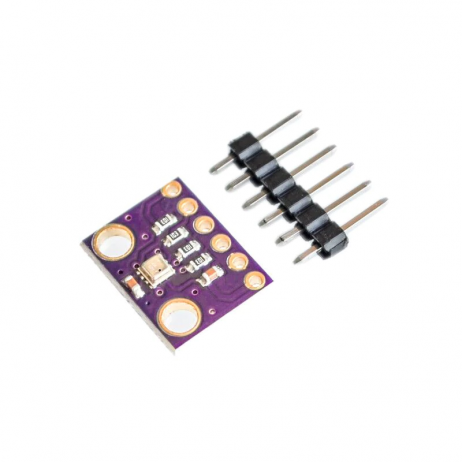
GY-BME280-3.3 Precision Altimeter Atmospheric Pressure Sensor Module
Combines temperature, humidity, and barometric pressure in one compact I2C module. Ideal for a comprehensive local weather station display.
Deep Sleep for Battery Operation
The real power of this project comes when you run it on battery with ESP32 deep sleep. In deep sleep, the ESP32 draws roughly 10µA. Combined with an ePaper display drawing 0µA when static, your total idle consumption is almost nothing.
The key is using esp_sleep_enable_timer_wakeup() with a timer in microseconds. A 15-minute interval (900,000,000 µs) is a good balance between freshness and battery life. With a standard 1000mAh LiPo:
- Active phase (WiFi on, fetching data, refreshing display): ~200mA for ~5 seconds = 0.28mAh per cycle
- Sleep phase (15 min): 0.01mA × 0.25h = 0.0025mAh
- Total per cycle: ~0.28mAh
- Battery life: 1000 ÷ 0.28 × 15 min ≈ 36 days
In practice, WiFi connection overhead and sensor reads add some time, so expect 2–3 weeks realistically — still impressive. Use RTC memory (RTC_DATA_ATTR) to store variables that survive deep sleep, such as a fail counter or last-known weather data for display if WiFi is unavailable.
One important note: ePaper displays should not be left with a partially refreshed screen for extended periods. Always complete the display refresh before entering deep sleep, and call display.hibernate() to put the display controller into its lowest power mode.

LM35 Temperature Sensors
Classic analog temperature sensor with linear 10mV/°C output. Use as an additional verification sensor or for outdoor probe placement in your weather station build.
Frequently Asked Questions
Q: Which ePaper size is best for a weather display?
A 2.9-inch display (296×128 px) fits temperature, humidity, and a short description. For a full 7-day forecast with icons, go for 4.2-inch (400×300 px) or 7.5-inch (800×480 px). Larger panels cost more and take longer to refresh (~4–8 seconds for a full update).
Q: Can I use this project without the internet?
Yes — remove the OWM fetch code and rely entirely on your local DHT11/BME280 sensor. You lose cloud weather data but gain a standalone sensor display that works anywhere without WiFi.
Q: How often can I refresh the ePaper without damaging it?
Most ePaper panels are rated for millions of refresh cycles with no degradation. However, very frequent full refreshes (every 1–2 minutes) can cause ghosting over time. Stick to 10–15 minute intervals or use partial refresh if your display supports it.
Q: The display shows garbled output. What is wrong?
Check your SPI wiring — especially the DC and CS pins. Ensure you have the correct GxEPD2 display class for your exact panel model (e.g., GxEPD2_290_T94 for Waveshare 2.9″ V2). Also confirm you are using 3.3V, not 5V.
Q: Is OpenWeatherMap reliable for Indian cities in tier-2 and tier-3 locations?
OWM has reasonable coverage for most Indian cities. For rural or remote locations, you may find the nearest city has slightly different conditions. Pairing OWM with a local BME280 gives you the best of both worlds — API data for the forecast, local sensor for current ground truth.
Ready to Build Your ESP32 Weather Display?
Get all the sensors and components you need from Zbotic — India’s trusted source for electronics components with fast shipping across all major cities. Whether you are in Mumbai, Delhi, Bengaluru, or Pune, your parts arrive quickly so you can start making.







Add comment