
If you want to add a professional-looking touch interface to your Arduino project, the Nextion HMI display is one of the best options available today. Unlike simple character LCDs or basic OLEDs, a Nextion HMI display communicates over UART (serial) and handles all the graphics rendering internally — your Arduino only sends short commands and receives touch events. This makes it surprisingly easy to build dashboards, control panels, and interactive menus. In this guide, you’ll learn everything about the nextion hmi display arduino uart workflow: from wiring and Nextion Editor setup to real Arduino code.
What is a Nextion HMI Display?
Nextion is a series of resistive touch TFT LCD displays made by ITEAD Studio. The key feature that sets them apart from ordinary displays is the onboard ARM Cortex-M0 microcontroller. This processor runs a proprietary operating system that handles all screen rendering, touch detection, and GUI logic independently. Your Arduino (or ESP32, Raspberry Pi, etc.) talks to it purely over a simple UART serial interface at 9600 baud by default.
This split-processing architecture means your main controller is free from the heavy task of drawing pixels. You design your UI visually in the Nextion Editor on your PC, upload it to the display via microSD card, and then at runtime your Arduino just sends ASCII commands like t0.txt="Hello" to update text labels or receives 4-byte packets when the user taps a button.
Available screen sizes range from 2.4 inches (240×320) all the way up to 7 inches (800×480). For most Arduino hobby projects, the 3.5-inch (480×320) or 4.3-inch (480×272) versions are a sweet spot between cost and visibility.
Nextion Display Variants & Sizes
Nextion offers three product lines:
- Basic (NX series): Entry-level, resistive touch, no RTC or additional flash. Best for learning and simple projects.
- Enhanced (NX…K series): Adds GPIO pins, RTC, and larger flash (32MB). Can store audio and more complex assets.
- Intelligent (P series): Highest-end variant with more RAM, faster CPU, and support for animations. Intended for industrial use.
For Indian makers on a budget, the Basic 2.4″ or 3.5″ Nextion covers 95% of hobbyist needs. The UART protocol is identical across all variants, so skills transfer directly.
Key specs to know:
- Operating voltage: 5V DC (power pins) — logic is 3.3V tolerant on TX/RX
- Communication: TTL UART, default 9600 baud
- Connector: 4-pin header — GND, VCC (5V), TX, RX
- Storage: Built-in flash (4MB on basic); UI loaded via microSD
Wiring Nextion to Arduino via UART
Wiring is refreshingly simple. The Nextion has a 4-pin connector:
| Nextion Pin | Arduino Uno/Nano | Notes |
|---|---|---|
| GND | GND | Common ground |
| VCC | 5V | Must supply 5V @ 500mA+ |
| TX | D2 (SoftwareSerial RX) | Nextion sends data here |
| RX | D3 (SoftwareSerial TX) | Arduino sends commands here |
Important: Use SoftwareSerial on pins D2/D3 so the hardware UART (D0/D1) stays free for Serial Monitor debugging. On Arduino Mega or ESP32, use one of the hardware UARTs (Serial1, Serial2) for more reliable high-speed communication.
Power note: Never power the Nextion display from the Arduino’s 5V pin when both are powered by USB — the display can draw up to 800mA and will cause brownouts. Use a separate 5V 2A supply for the display, sharing only ground with the Arduino.
Designing UI in Nextion Editor
The Nextion Editor (free download from nextion.tech) is a Windows drag-and-drop UI designer. Here’s the basic workflow:
- Create a new project — select your display model and orientation (portrait/landscape).
- Add pages — each page is an independent screen. You can switch between them with the
pagecommand. - Drag widgets — Text boxes (
t0), buttons (b0), sliders, gauges, progress bars, and images. Each widget has a unique component ID. - Set events — click the “Touch Release” event on a button and write Nextion code like
printh 65 01 00 FF FF FFto send a custom byte when tapped. - Compile & upload — compile creates a
.tftfile. Copy it to a blank microSD (FAT32 formatted), insert into Nextion, power on, and it flashes automatically.
Widgets are addressed by their object name (e.g., t0 for the first text box) and attribute (e.g., .txt for text, .val for numeric value, .bco for background color).
Arduino Code: Sending & Receiving Data
Install the ITEADLIB_Arduino_Nextion library via Library Manager or use simple SoftwareSerial with manual command strings. Here’s a clean example using the manual approach:
#include <SoftwareSerial.h>

SoftwareSerial nextion(2, 3); // RX=D2, TX=D3

void sendCommand(const char* cmd) {
  nextion.print(cmd);
  nextion.write(0xFF);
  nextion.write(0xFF);
  nextion.write(0xFF);
}

void setup() {
  Serial.begin(9600);
  nextion.begin(9600);
  delay(500);
  sendCommand("page 0");          // Switch to page 0
  sendCommand("t0.txt="Hello!""); // Set text label
}

void loop() {
  // Check for touch events from Nextion
  if (nextion.available() >= 7) {
    if (nextion.read() == 0x65) {  // Touch event header
      byte page = nextion.read();
      byte comp = nextion.read();
      byte event = nextion.read(); // 0=press, 1=release
      nextion.read(); nextion.read(); nextion.read(); // 0xFF terminators
      Serial.print("Button "); Serial.print(comp);
      Serial.println(" tapped!");
      // Update sensor value on display
      sendCommand("n0.val=42"); // Set numeric widget
    }
  }
}
Every command sent to Nextion must end with three 0xFF bytes — this is the termination sequence the display firmware expects. Forgetting these is the most common beginner mistake.
For reading sensor data (like a DHT11 temperature), you simply format it as a command string:
// Display temperature from DHT sensor
char buf[30];
sprintf(buf, "t1.txt="%d C"", (int)temperature);
sendCommand(buf);
Practical Project Ideas
Here are some projects Indian makers love building with Nextion displays:
- Home Weather Station: Connect a DHT20 or BME280 sensor to Arduino and display live temperature, humidity, and pressure on a Nextion dashboard with gauge widgets.
- Smart Energy Monitor: Use an ACS712 current sensor to measure appliance current and show readings on a Nextion bar graph updated every second.
- Greenhouse Controller: Soil moisture sensor + relay control, all manageable through a Nextion touch panel with ON/OFF buttons and live readings.
- Inventory Display: Warehouse or workshop label display showing stock counts, updated wirelessly via ESP32 over Wi-Fi with touch-to-confirm buttons.
- CNC Status Panel: Show axis positions, feed rate, and spindle speed on a Nextion while the main controller handles motion.
Recommended Products from Zbotic
Pair your Nextion display with these sensors and components from Zbotic for the best results:

DHT11 Digital Relative Humidity and Temperature Sensor Module
A classic sensor for weather station projects. Read temperature and humidity with a single data pin and display live values on your Nextion screen.

BMP280 Barometric Pressure and Altitude Sensor I2C/SPI Module
Add barometric pressure and altitude readings to your HMI weather dashboard. Works over I2C, freeing up UART exclusively for the Nextion display.

20A Range Current Sensor Module ACS712
Perfect for building an energy monitor with Nextion HMI. Measures AC/DC current up to 20A and feeds analog readings to Arduino for display on the touch screen.
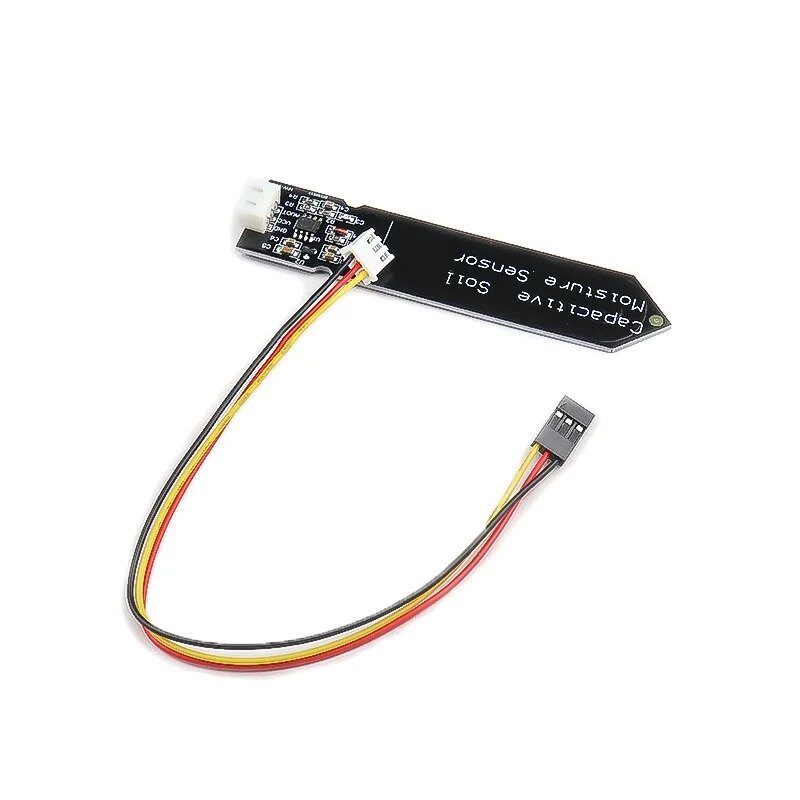
Capacitive Soil Moisture Sensor
Build a smart plant monitor — display soil moisture percentage on a Nextion gauge widget and set threshold alerts with on-screen buttons to trigger a relay/pump.

DHT20 SIP Packaged Temperature and Humidity Sensor
An upgrade over DHT11 with I2C interface and better accuracy. Ideal for professional-looking Nextion HMI dashboards with precise environmental monitoring.
Frequently Asked Questions
Can I use a Nextion display with ESP32 or ESP8266?
Absolutely. ESP32 is actually a better choice than Arduino Uno for Nextion projects because it has multiple hardware UARTs (use Serial1 or Serial2), faster processing, and Wi-Fi for IoT dashboards. Connect Nextion TX/RX to the ESP32’s UART1 pins (GPIO16/17) for rock-solid communication.
What baud rate does the Nextion display use?
The default baud rate is 9600 bps. You can change it by sending baud=115200 followed by three 0xFF bytes, and the change takes effect immediately. Higher baud rates are recommended when sending frequent sensor updates or switching pages rapidly.
How do I upload a UI design to the Nextion?
Compile your design in Nextion Editor to generate a .tft file. Copy this file (alone, no other files) to a blank microSD card formatted as FAT32. Insert the card into the Nextion’s microSD slot, power the display on, and it will flash automatically — the progress bar appears on screen. Remove the card after flashing.
Can the Nextion display work standalone without a microcontroller?
Yes, for simple displays or animations. You can write Nextion’s built-in scripting language to run timers, animate widgets, and cycle through pages entirely within the display. However, for reading sensors or IoT connectivity, you still need a microcontroller like Arduino or ESP32 over UART.
Why does my Nextion show garbage text or not respond to commands?
The most common causes are: (1) Missing the three 0xFF terminator bytes after each command — always required. (2) Baud rate mismatch between Arduino and Nextion. (3) TX/RX crossed incorrectly — Nextion TX connects to Arduino RX, and vice versa. (4) Insufficient power — the display needs a dedicated 5V supply, not the Arduino’s regulated pin.
Explore display modules, sensors, and Arduino-compatible boards at Zbotic.in — India’s go-to store for electronics components with fast shipping across Mumbai, Delhi, Bangalore, and beyond.







Add comment