
Waveshare E-Ink HAT: Raspberry Pi Digital Signage Project
A Waveshare e-ink HAT on Raspberry Pi is one of the most elegant solutions for building low-power digital signage that looks stunning even in direct Indian sunlight. Unlike LCD or TFT displays that wash out outdoors and consume power continuously, e-ink (also called e-paper) displays only draw current when the image changes — meaning a Pi Zero W running on a small battery can update a digital notice board every few minutes and run for days. In this project guide, we will walk you through setting up a Waveshare e-ink HAT on Raspberry Pi, installing drivers, writing Python code to render text and images, and building a fully functional digital signage system for offices, shops, classrooms, or homes.
Why E-Ink for Digital Signage?
E-ink displays use microcapsules filled with black and white (or coloured) particles suspended in fluid. When an electric field is applied, particles migrate to the top or bottom, creating visible pixels. Once the image is set, no power is needed to maintain it — this is called bistability and is the defining characteristic of e-paper technology.
For digital signage applications, this means:
- Ultra-low power: A 4.2″ Waveshare e-ink panel draws less than 10mA during refresh and essentially 0mA when displaying a static image. A TFT of the same size draws 80–200mA continuously.
- Sunlight readable: E-ink works like paper — the display is actually easier to read in bright outdoor sunlight, unlike LCDs that become invisible.
- No flicker, no glare: E-ink is as easy on the eyes as printed paper, making it ideal for public-facing signage that people look at for extended periods.
- Crisp monochrome text: At 212 DPI (dots per inch) on a 4.2″ Waveshare panel, text looks almost as sharp as a laser-printed page.
The tradeoff is refresh rate: a full-screen refresh takes 2–5 seconds and causes a brief black flash (called “ghosting clear”). This makes e-ink unsuitable for video or fast-updating content, but perfect for signage that updates every few minutes.
Waveshare E-Ink HAT Models Compared
Waveshare produces over 20 different e-ink HATs for Raspberry Pi. Here are the most popular for signage projects:
| Model | Size | Resolution | Colours | Best For |
|---|---|---|---|---|
| 2.13″ HAT | 2.13″ | 250×122 | B&W | Pi Zero W badge/label |
| 4.2″ HAT | 4.2″ | 400×300 | B&W | Office signage, notices |
| 5.83″ HAT | 5.83″ | 600×448 | B&W | Dashboard, weather board |
| 7.5″ HAT | 7.5″ | 800×480 | B&W or B&W&R | Shop window signage |
| 13.3″ HAT | 13.3″ | 1600×1200 | 4-grey | Large office board |
For most signage projects in India, the 4.2″ (400×300) or 7.5″ (800×480) HAT offers the best balance of display area, cost, and ease of use. The 7.5″ B&W&R (Black, White, Red) version adds a third red colour for eye-catching headers — ideal for retail signage.
Hardware Setup: Connecting HAT to Raspberry Pi
The Waveshare e-ink HAT is a true GPIO HAT — it plugs directly onto the Raspberry Pi’s 40-pin GPIO header. No wiring required! Just align the HAT’s connector with the Pi’s GPIO pins and press down firmly.
The HAT communicates via SPI (pins: MOSI GPIO10, MISO GPIO9, SCLK GPIO11, CE0 GPIO8) plus three additional GPIO pins for control signals (RST, DC, BUSY). All of these are pre-mapped in the Waveshare library — you don’t need to configure them manually.
Enable SPI on Raspberry Pi OS:
- Run
sudo raspi-configin terminal - Navigate to Interface Options → SPI → Enable
- Reboot:
sudo reboot
Compatible Raspberry Pi models: Zero W, Zero 2W, Pi 3B, Pi 3B+, Pi 4B (all versions). The 4.2″ HAT also works with Pi 5 with minor driver tweaks.

DHT11 Temperature & Humidity Sensor Module
Add real-time temperature and humidity to your e-ink signage display. Connect via GPIO and show live readings on the e-paper screen.
Installing Waveshare Drivers on Raspberry Pi OS
Waveshare provides an official Python library on GitHub. Here’s the installation process:
# Update package lists
sudo apt update && sudo apt upgrade -y

# Install dependencies
sudo apt install python3-pip python3-pil python3-numpy -y
pip3 install RPi.GPIO spidev

# Clone the Waveshare e-Paper library
git clone https://github.com/waveshare/e-Paper.git
cd e-Paper/RaspberryPi_JetsonNano/python/

# Install the library
pip3 install .
The library is organised by display model — look in the examples/ folder for the demo script matching your HAT (e.g., epd4in2_demo.py for the 4.2″ model). Run the demo to verify your installation:
cd examples
python3 epd4in2_demo.py
Python Basics: Drawing Text and Images on E-Ink
Waveshare’s Python library uses the Pillow (PIL) image library to compose content in memory, then sends the final image buffer to the display. This means you can use any PIL drawing operation — text, lines, shapes, and images — to create your signage layout.
from waveshare_epd import epd4in2
from PIL import Image, ImageDraw, ImageFont
import time

# Initialise display
epd = epd4in2.EPD()
epd.init()
epd.Clear()

# Create a blank image (white background)
image = Image.new('1', (epd.width, epd.height), 255)
draw = ImageDraw.Draw(image)

# Load a font (use default if TrueType not available)
try:
    font_large = ImageFont.truetype('/usr/share/fonts/truetype/dejavu/DejaVuSans-Bold.ttf', 36)
    font_small = ImageFont.truetype('/usr/share/fonts/truetype/dejavu/DejaVuSans.ttf', 20)
except:
    font_large = ImageFont.load_default()
    font_small = font_large

# Draw content
draw.rectangle([(0, 0), (400, 60)], fill=0)          # Black header bar
draw.text((10, 12), "ZBOTIC MAKER LAB", font=font_large, fill=255)  # White text on black
draw.text((10, 80), "Today's Workshop: Arduino for Beginners", font=font_small, fill=0)
draw.text((10, 115), "Time: 10:00 AM - 1:00 PM", font=font_small, fill=0)
draw.text((10, 150), "Room: Lab 3, Ground Floor", font=font_small, fill=0)

# Draw a horizontal divider line
draw.line([(0, 170), (400, 170)], fill=0, width=2)

draw.text((10, 185), "Next session: PCB Design Basics", font=font_small, fill=0)
draw.text((10, 220), "Date: Saturday, 10:00 AM", font=font_small, fill=0)

# Push to display
epd.display(epd.getbuffer(image))

# Put display to sleep (saves power)
time.sleep(2)
epd.sleep()
Building the Digital Signage System
A complete digital signage system needs to update content automatically. Here’s how to build one that pulls data from a simple JSON file and refreshes on a schedule:
import json, time, requests
from waveshare_epd import epd4in2
from PIL import Image, ImageDraw, ImageFont

SIGNAGE_URL = "https://your-server.com/signage.json"
REFRESH_INTERVAL = 300  # seconds (5 minutes)

font_h = ImageFont.truetype('/usr/share/fonts/truetype/dejavu/DejaVuSans-Bold.ttf', 32)
font_b = ImageFont.truetype('/usr/share/fonts/truetype/dejavu/DejaVuSans.ttf', 18)

def render_signage(data):
    epd = epd4in2.EPD()
    epd.init()
    image = Image.new('1', (400, 300), 255)
    draw = ImageDraw.Draw(image)

    # Header
    draw.rectangle([(0,0),(400,55)], fill=0)
    draw.text((10, 10), data.get('title', 'Notice'), font=font_h, fill=255)

    # Body lines
    y = 70
    for line in data.get('lines', []):
        draw.text((10, y), line, font=font_b, fill=0)
        y += 28

    epd.display(epd.getbuffer(image))
    epd.sleep()

while True:
    try:
        resp = requests.get(SIGNAGE_URL, timeout=10)
        data = resp.json()
        render_signage(data)
    except Exception as e:
        print(f"Error: {e}")
    time.sleep(REFRESH_INTERVAL)
To automate this at boot, create a systemd service:
# /etc/systemd/system/eink-signage.service
[Unit]
Description=E-Ink Digital Signage
After=network.target

[Service]
ExecStart=/usr/bin/python3 /home/pi/signage.py
Restart=always
User=pi

[Install]
WantedBy=multi-user.target
Advanced Features: Weather, Calendar, and QR Codes
- Live weather: Use the OpenWeatherMap free API (available in India) to fetch current temperature and conditions, then render a weather widget on the e-ink display using custom bitmap icons.
- Google Calendar integration: Use the Google Calendar API to pull today’s events and display them as a daily schedule on a 5.83″ or 7.5″ HAT.
- QR code display: Generate QR codes with the
qrcodePython library and display them as part of your signage — perfect for menus, wifi passwords, or event registration links at maker fairs. - Partial refresh: Waveshare HATs support partial screen updates (updating only a region without a full black flash). Use this to update just the time/temperature widget without refreshing the entire screen.
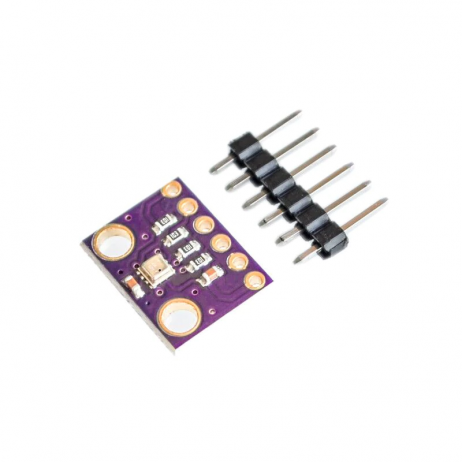
GY-BME280 Atmospheric Pressure, Temperature & Humidity Sensor
Add a complete environmental sensor to your Raspberry Pi e-ink signage — display temperature, humidity, and pressure all on the e-paper screen.

LM35 Temperature Sensor
A simple analog temperature sensor to monitor room temperature, ideal for displaying ambient conditions on your Raspberry Pi e-ink signage board.
Power Optimisation Tips for Battery Operation
- Use Pi Zero 2W: The Zero 2W draws only 0.4W at idle, versus 3–7W for a Pi 4. For battery-powered signage, the Zero 2W is the best choice.
- Reduce refresh frequency: Refreshing every 5–10 minutes instead of every minute cuts total power consumption by 60–80%.
- Disable HDMI: Run
tvservice -oat startup to disable the HDMI output, saving about 25mA. - Use systemd suspend between updates: Put the Pi into a low-power suspend state between refreshes, waking it via a hardware RTC (DS3231) alarm for the next update.
- Power the display separately: Use a USB power bank with pass-through charging so the display keeps running during power cuts — essential for Indian installations.
Frequently Asked Questions
Can I run a Waveshare e-ink HAT with Raspberry Pi 5?
Yes, but with caveats. Raspberry Pi 5 uses a different GPIO architecture that requires updated SPI configuration. Waveshare provides Pi 5-specific driver updates on their wiki. Most 4.2″ and 7.5″ models now have Pi 5 support in the latest library version.
How long does a full-screen refresh take on a 7.5″ e-ink display?
A full refresh on a 7.5″ Waveshare panel typically takes 3–5 seconds, including the black clearing flash. Partial refreshes are faster (0.3–0.5 seconds) but are only supported on certain models and can lead to ghosting if overused.
Can e-ink displays work in Indian summer temperatures (45°C+)?
Standard Waveshare e-ink panels are rated for 0°C to 50°C operating temperature, so they are safe for Indian summer conditions indoors. For direct outdoor use, ensure the enclosure provides shade from direct sunlight, as display temperatures can exceed 50°C in harsh conditions.
Is the e-ink display readable without a backlight in a dark room?
No — e-ink displays are reflective and require ambient light to be readable, just like paper. Waveshare offers some e-ink HAT models with a built-in front light accessory. Alternatively, add a small white LED strip in the enclosure for low-light reading.
Can I display Hindi or regional Indian language text on the e-ink display?
Yes, by using a TrueType font that supports Devanagari or the target script (e.g., Noto Sans Devanagari). Pillow (PIL) renders any TTF font correctly. Download the Google Noto fonts, install them on the Pi, and specify the font path in your Python script.
Build Your E-Ink Signage Board Today
The Waveshare e-ink HAT plus Raspberry Pi combination is the ultimate low-power, high-visibility digital signage solution for Indian makers, educators, and businesses. It looks professional, works in bright sunlight, and can run for days on a small power bank.
Find all the sensors, modules, and components you need for your project at Zbotic.in — India’s trusted maker electronics store.







Add comment