
Touchscreen calibration for TFT displays using the XPT2046 resistive touch controller is an essential skill for any maker building an Arduino touchscreen project. Without proper calibration, taps land in the wrong place and your UI becomes frustrating and unusable. This comprehensive guide covers the XPT2046 hardware, calibration mathematics, a complete working calibration sketch, and tips for building responsive touch UIs on Indian maker budgets.
How Resistive Touchscreens Work
A resistive touchscreen consists of two flexible conductive layers separated by tiny spacer dots. The bottom layer is glass coated with Indium Tin Oxide (ITO); the top layer is a flexible polyester film also coated with ITO. When you press the screen, the two layers make electrical contact at the touch point.
The XPT2046 (and its predecessor ADS7843) measures touch position by applying a voltage across each axis in turn and measuring the resulting voltage divider output with a built-in 12-bit ADC:
- To measure X: apply Vcc to one edge of the X-axis and GND to the other, measure the voltage at the contact point
- To measure Y: apply Vcc to one edge of the Y-axis and GND to the other, measure the voltage at the contact point
- To measure pressure: apply Vcc/GND to one pair of plates and measure the resistance — lower resistance = harder press
The raw ADC values range from 0 to 4095 (12-bit) and do NOT directly correspond to pixel coordinates. This mismatch is why calibration is essential — it maps raw XPT2046 ADC values to display pixel coordinates through a linear transformation.
Resistive vs capacitive touch: Resistive touch (XPT2046) is pressure-activated, works with any stylus including a fingernail, is accurate without calibration for single-touch, and costs much less than capacitive variants. Capacitive touch (GT911, FT6236) requires conductive fingertip contact, supports multi-touch, and does not need calibration but costs 3–5× more.
XPT2046 Touch Controller Overview
The XPT2046 is a 4-wire resistive touch screen controller with a built-in 12-bit SAR ADC, a 2.5 V internal reference, and SPI interface. It was designed specifically to pair with TFT displays and shares the SPI bus using a dedicated CS pin.
Key specifications:
- ADC resolution: 12 bits (0–4095)
- Interface: 4-wire SPI (DCLK, DIN, DOUT, CS) — max 2.5 MHz
- Supply voltage: 2.2 V to 3.6 V (3.3 V typical)
- Pressure measurement: yes (Z1, Z2 pins)
- Temperature measurement: yes (dual diode method)
- Interrupt output: PENIRQ (goes LOW when touch detected)
- Acquisition time: 3 µs per coordinate
The XPT2046 is physically identical to the TI ADS7846 — they share the same pinout, register map, and SPI protocol. Any ADS7846 library will work with an XPT2046.
Most 2.4-inch and 2.8-inch ILI9341 TFT modules include an XPT2046 (or STMPE610 on Adafruit shields) soldered directly to the back of the PCB. The touch CS pin is brought out separately from the display CS pin, allowing independent control of each device.
Wiring XPT2046 to Arduino
On integrated TFT+touch modules, the touch controller shares the SPI bus (SCK, MOSI, MISO) with the display. Only the CS pin is separate.
| XPT2046 Pin | Arduino Uno Pin | Notes |
|---|---|---|
| VCC | 3.3 V | Do NOT use 5 V |
| GND | GND | Common ground |
| CLK (DCLK) | D13 (SCK) | Shared with TFT SCK |
| DIN (MOSI) | D11 (MOSI) | Shared with TFT MOSI |
| DO (MISO) | D12 (MISO) | XPT2046 only (TFT is write-only) |
| CS (T_CS) | D3 | Separate from TFT CS |
| IRQ (PENIRQ) | D2 (optional) | Touch interrupt, can poll instead |
Important: The XPT2046 operates at 3.3 V. On a 5 V Arduino, the SPI signals (SCK, MOSI, CS) must go through a level shifter — or use the 10 kΩ + 20 kΩ resistor voltage divider trick. Many integrated TFT modules already include level shifters, so check your module’s datasheet before adding external components.
Library Setup and Raw Readings
The most widely used library for XPT2046 in Arduino is XPT2046_Touchscreen by Paul Stoffregen (author of the Teensy platform). Install it from the Arduino Library Manager by searching “XPT2046_Touchscreen”.
#include <SPI.h>
#include <XPT2046_Touchscreen.h>

#define TOUCH_CS  3
#define TOUCH_IRQ 2

XPT2046_Touchscreen ts(TOUCH_CS, TOUCH_IRQ);

void setup() {
  Serial.begin(115200);
  ts.begin();
  ts.setRotation(1); // match display rotation
}

void loop() {
  if (ts.touched()) {
    TS_Point p = ts.getPoint();
    Serial.print("Raw X: "); Serial.print(p.x);
    Serial.print(" Raw Y: "); Serial.print(p.y);
    Serial.print(" Z (pressure): "); Serial.println(p.z);
  }
}
Upload this sketch and open the Serial Monitor. Touch the four corners of your display and record the raw X and Y values. You will need these values to compute the calibration constants in the next section.
Typical raw value ranges (actual values vary per module):
- X range: ~200 (left edge) to ~3900 (right edge)
- Y range: ~200 (top edge) to ~3800 (bottom edge)
- Pressure Z: 0 when not touched, 500–3000 when touched
Calibration Mathematics
Calibration maps raw ADC coordinates (Xraw, Yraw) to display pixel coordinates (Xpixel, Ypixel) using a linear transformation. For most resistive screens, a two-point linear map is sufficient:
// Two-point calibration formula:
// Xpixel = (Xraw - Xmin) * display_width  / (Xmax - Xmin)
// Ypixel = (Yraw - Ymin) * display_height / (Ymax - Ymin)

// For ILI9341 in landscape (320x240):
#define TOUCH_XMIN  200    // raw X at left edge
#define TOUCH_XMAX  3900   // raw X at right edge
#define TOUCH_YMIN  200    // raw Y at top edge
#define TOUCH_YMAX  3800   // raw Y at bottom edge
#define DISPLAY_W   320
#define DISPLAY_H   240

int16_t mapToPixelX(int16_t rawX) {
  return map(rawX, TOUCH_XMIN, TOUCH_XMAX, 0, DISPLAY_W - 1);
}

int16_t mapToPixelY(int16_t rawY) {
  return map(rawY, TOUCH_YMIN, TOUCH_YMAX, 0, DISPLAY_H - 1);
}
For higher accuracy — especially important for small buttons in a UI — use a three-point affine transformation that can correct for rotation offset, scale differences, and shear. The TFT_eSPI library includes a built-in calibration method calibrateTouch() that computes a 6-parameter affine matrix automatically.
Complete Calibration Sketch
This sketch guides the user through a three-point calibration procedure and prints the resulting calibration constants to Serial. Store these constants in EEPROM for persistence across power cycles.
#include <SPI.h>
#include <Adafruit_ILI9341.h>
#include <XPT2046_Touchscreen.h>
#include <EEPROM.h>

#define TFT_CS  10
#define TFT_DC   9
#define TFT_RST  8
#define TOUCH_CS  3
#define TOUCH_IRQ 2

Adafruit_ILI9341  tft(TFT_CS, TFT_DC, TFT_RST);
XPT2046_Touchscreen ts(TOUCH_CS, TOUCH_IRQ);

struct CalibData {
  int16_t xMin, xMax, yMin, yMax;
} cal;

void waitForTouch(int16_t &rx, int16_t &ry) {
  while (!ts.touched()) delay(10);
  delay(50); // debounce
  TS_Point p = ts.getPoint();
  rx = p.x; ry = p.y;
  while (ts.touched()) delay(10); // wait for release
}

void drawCrosshair(int16_t x, int16_t y) {
  tft.fillScreen(ILI9341_BLACK);
  tft.drawFastHLine(x - 15, y, 30, ILI9341_WHITE);
  tft.drawFastVLine(x, y - 15, 30, ILI9341_WHITE);
  tft.drawCircle(x, y, 5, ILI9341_RED);
  tft.setTextColor(ILI9341_YELLOW);
  tft.setTextSize(1);
  tft.setCursor(5, 5);
  tft.print("Touch the crosshair");
}

void setup() {
  Serial.begin(115200);
  tft.begin(); tft.setRotation(1);
  ts.begin(); ts.setRotation(1);

  int16_t rx, ry;
  // Top-left corner
  drawCrosshair(20, 20);
  waitForTouch(rx, ry);
  cal.xMin = rx; cal.yMin = ry;

  // Bottom-right corner
  drawCrosshair(299, 219);
  waitForTouch(rx, ry);
  cal.xMax = rx; cal.yMax = ry;

  // Save to EEPROM
  EEPROM.put(0, cal);

  tft.fillScreen(ILI9341_BLACK);
  tft.setTextColor(ILI9341_GREEN);
  tft.setTextSize(2);
  tft.setCursor(20, 100);
  tft.print("Calibration done!");

  Serial.println("Calibration values:");
  Serial.print("xMin="); Serial.print(cal.xMin);
  Serial.print(" xMax="); Serial.print(cal.xMax);
  Serial.print(" yMin="); Serial.print(cal.yMin);
  Serial.print(" yMax="); Serial.println(cal.yMax);
}

void loop() {
  if (ts.touched()) {
    TS_Point p = ts.getPoint();
    int16_t px = map(p.x, cal.xMin, cal.xMax, 0, 319);
    int16_t py = map(p.y, cal.yMin, cal.yMax, 0, 239);
    px = constrain(px, 0, 319);
    py = constrain(py, 0, 239);
    tft.fillCircle(px, py, 4, ILI9341_CYAN);
  }
}
Building a Responsive Touch UI
Defining Touch Zones
Instead of pixel-perfect hit-testing, define rectangular zones with generous padding (minimum 44×44 pixels per button — Apple’s HIG recommendation, equally valid for touchscreens). Store zones as structs:
struct TouchZone {
  int16_t x, y, w, h;
  const char* label;
  void (*onPress)();
};

bool hitTest(TouchZone &zone, int16_t px, int16_t py) {
  return (px >= zone.x && px < zone.x + zone.w &&
          py >= zone.y && py < zone.y + zone.h);
}
Debouncing Touch
Require the Z (pressure) value to exceed a threshold before registering a touch. A value of Z < 400 typically means noise rather than intentional contact. Add a minimum time between touch events (100–200 ms) to prevent accidental double-taps:
const int16_t Z_THRESHOLD   = 400;
const uint32_t DEBOUNCE_MS  = 150;
uint32_t       lastTouchMs  = 0;

void processTouches(TouchZone* zones, uint8_t count) {
  if (!ts.touched()) return;
  TS_Point p = ts.getPoint();
  if (p.z < Z_THRESHOLD) return;
  uint32_t now = millis();
  if (now - lastTouchMs < DEBOUNCE_MS) return;
  lastTouchMs = now;

  int16_t px = map(p.x, cal.xMin, cal.xMax, 0, 319);
  int16_t py = map(p.y, cal.yMin, cal.yMax, 0, 239);
  for (uint8_t i = 0; i < count; i++) {
    if (hitTest(zones[i], px, py)) {
      zones[i].onPress();
      break;
    }
  }
}
Visual Feedback
Always provide immediate visual feedback on touch: invert the button color for 80–100 ms before executing the action. This makes the UI feel fast and responsive even if the action itself takes time to complete.
LVGL for Advanced UIs
For more complex interfaces — multiple screens, sliders, progress bars, keyboard input — the LVGL library provides a complete GUI framework. It runs well on ESP32 with ILI9341 and XPT2046. LVGL handles calibration internally through its touchpad driver layer, where you supply the calibrated pixel coordinates from your XPT2046 reading.
Recommended Products from Zbotic
Complete your touchscreen TFT project with these sensors and modules available from Zbotic with fast delivery across India:

LM35 Temperature Sensor
Build a touchscreen thermostat controller. Read temperature from LM35 and display it on a TFT with touch buttons to set alarm thresholds — a great applied project for XPT2046 calibration.

DHT11 Temperature & Humidity Sensor Module with LED
Display live temperature and humidity on your TFT touchscreen. Touch buttons to switch between Celsius/Fahrenheit and toggle an alarm — a classic HMI project for beginners.

BMP280 Barometric Pressure & Altitude Sensor
Add pressure and altitude readings to your TFT touchscreen weather station. The BMP280 shares the I2C bus, keeping wiring clean while the TFT uses SPI.
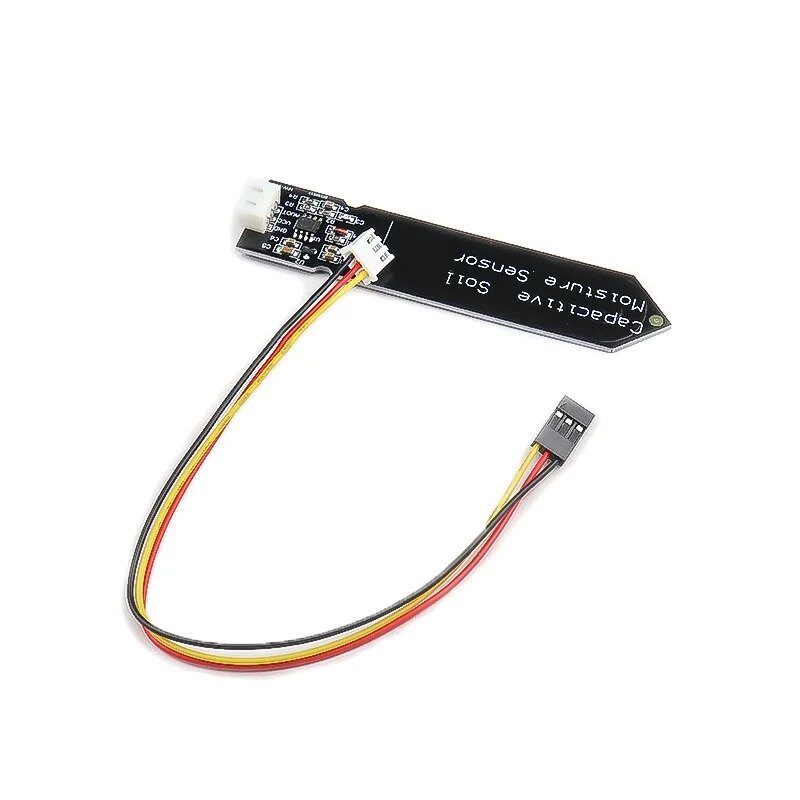
Capacitive Soil Moisture Sensor
Create a touchscreen irrigation controller: display soil moisture on the TFT and use touch buttons to manually trigger a water pump relay — a practical smart garden project.
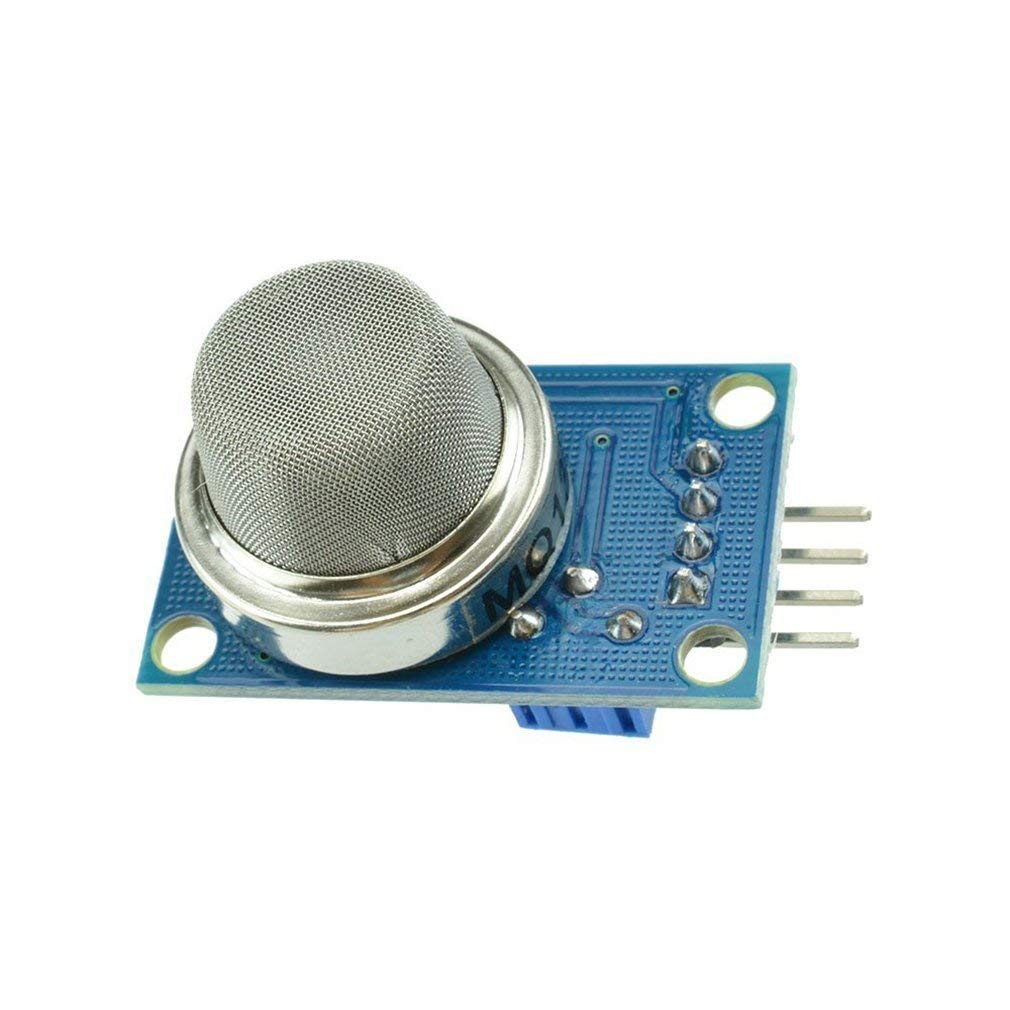
MQ-135 Air Quality / Gas Sensor
Build a touchscreen air quality monitor with color-coded alerts. Touch to switch between CO2, VOC, and raw analog views on your calibrated TFT display.
Frequently Asked Questions
Q: My touch coordinates are perfectly mirrored or rotated. How do I fix it?
This is a display-touch rotation mismatch. Call ts.setRotation() with the same value as tft.setRotation(). If it is still mirrored, try values 0, 1, 2, 3 on the touch library until the coordinates align. Some modules require swapping X and Y: int16_t temp = px; px = py; py = temp; and recalibrating.
Q: How do I save calibration values so I do not have to calibrate every power cycle?
Store the four calibration values (xMin, xMax, yMin, yMax) in EEPROM using EEPROM.put(address, cal). On startup, read them back with EEPROM.get(address, cal). Check validity with a magic number: write a known value at address 0 after calibration, and if it is not present at startup, run the calibration procedure again.
Q: Why is my touch sometimes triggering when I have not touched it?
Noise pickup on the touch ribbon cable causes phantom touches. Fix it by: (1) setting a higher pressure threshold (Z > 600 instead of > 400), (2) averaging 5 readings and using the median, (3) keeping the touch ribbon cable away from high-frequency signals (SPI clock lines), and (4) ensuring a good common ground between Arduino and display module.
Q: What is the difference between XPT2046 and STMPE610?
Both are resistive touch controllers, but they use different interfaces. XPT2046 uses 4-wire SPI and can share the TFT SPI bus. STMPE610 uses I2C (or SPI on some variants) and includes an interrupt output, GPIO expander, and ADC — making it more feature-rich but also more complex to configure. Adafruit’s TFT shields use STMPE610; most Chinese TFT modules use XPT2046.
Q: Can I use resistive touch on a 3.5-inch or 5-inch TFT?
Yes. Larger TFT modules (3.5 inch ILI9488, 4-inch SSD1963, 5-inch RA8875) typically include a resistive touch overlay driven by XPT2046 or ADS7846. The calibration process is identical — record raw corner values, compute the linear map to display pixel coordinates. Larger screens are easier to calibrate accurately because the touch zones are bigger.
Ready to Build Your Touchscreen Project?
Zbotic stocks TFT display modules, Arduino boards, sensors, and all the components you need for touchscreen projects. Fast delivery across India with genuine parts at competitive prices.






Add comment