Zbotic Logo Zbotic Logo
  • Home
  • Shop
  • Sale
  • 3D Print Service
  • PCB Service
  • B2B
  • Blogs
  • Contact Us
0 0

View Wishlist Add all to cart

0 0
0 Shopping Cart
Shopping cart (0)
Subtotal: ₹0.00

View cartCheckout

  • Shop
  • About Us
  • Contact Us
  • Reseller
  • Blogs
020 69134444
1800 209 0998
[email protected]
Help Desk
Facebook Twitter Instagram Linkedin YouTube
Zbotic Logo Zbotic Logo
0 0

View Wishlist Add all to cart

0 0
0 Shopping Cart
Shopping cart (0)
Subtotal: ₹0.00

View cartCheckout

All departments
  • 3D Print Service
  • 3D Printer
  • Batteries & Chargers
  • Development Boards
  • Drone Parts
  • EBike parts
  • Sensor Modules
  • Electronic Components
  • Electronic Modules
  • IoT and Wireless
  • Mechanical Parts and Workbench Tools
  • Motors & Drivers & Pumps & Actuators
  • DIY and Robot Kits
  • Show more
  • Home
  • Shop
  • Sale
  • 3D Print Service
  • PCB Service
  • B2B
  • Blogs
  • Contact Us
Return to previous page
Home Arduino & Microcontrollers

Self-balancing robot with MPU6050 accelerometer from Arduino

Self-balancing robot with MPU6050 accelerometer from Arduino

February 4, 2023 /Posted by / 0

We will use Arduino to build a self-balancing robot for this robotics project. We can learn how to control the motors and the concept of balancing in this. It’s too easy to use.

When I started building this project, I realized how difficult it was to build. When building this project, there are a lot of things to think about, like which motors, wheels, chassis, battery position, and gyroscope sensor to use. I chose some simple components to make this project easy to build after researching all of the criteria.

The MPU6050 accelerometer is used in this project. It interfaces with the Arduino and sends analog signals on the x, y, and z axes to the Arduino. Self-balancing robot with MPU6050 accelerometer from Arduino.

How does a self-balancing robot work?

The Self-Balancing Robot is an automated two-wheeler that can keep its balance and prevent falling to the ground. This is similar to other typical self-balancing robots with two wheels, like the Segway. Using the movement of the wheels and body along the motor’s axis, it maintains balance.

Project
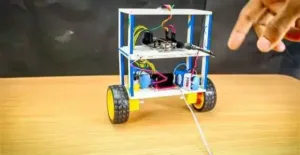
Self Balancing Robot Using Arduino

Circuit Diagram

self balancing robot

Components Required

  • Arduino
  • Geared DC motors (x2)
  • L298N Motor Driver Module
  • MPU6050 Accelerometer
  • Two Wheels (x2)
  • 3.7V Lithium-Ion Battery (x4)
  • Connecting Wires
  • Foam Sheet

Parts for the Self-Aligning Robot Project

Arduino

Because it is easy to use, I have used the Arduino Uno microcontroller here. You could also use an Arduino Nano or an Arduino Mini, but I’d still recommend sticking with the Arduino Uno because it doesn’t need a breadboard to set up connections and can easily fit into a small chassis.
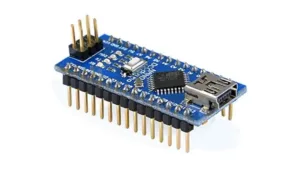
arduino nano

Motors

A stepper motor will unquestionably be the most suitable motor for a self-balancing robot. However, I have used a DC geared motor to keep things simple. Yes, having a stepper motor is not required; These low-cost DC geared motors, which are yellow in color, are also compatible with the bot.
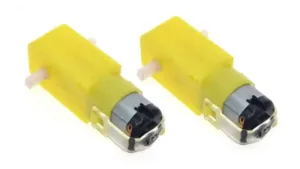
bo motors

Motor Driver

You can use either an L293D driver module or the L298N driver module if you’ve chosen DC geared motors. Their jobs are similar. L298N is more powerful than L293D, but in that case, we can use any of them. The difference is that L298N is stronger. The L298N motor driver was my choice.
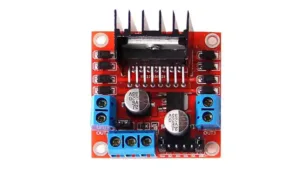
motor driver

Wheels

It was difficult for me to determine that the issue was with my wheels. Therefore, ensure that the floor you are using is well-gripped by your wheels. Pay close attention because your grip should never permit your wheels to skitter on the ground.
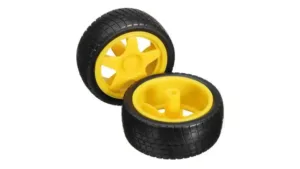
bo motor wheels

Accelerometer

The best choice of accelerometer and gyroscope sensor for this project is the MPU6050.
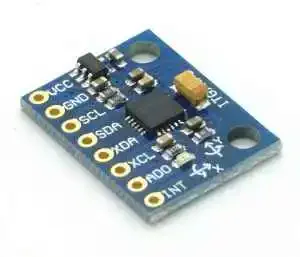
MPU6050 Module

Self Balancing Robot Parts Assembly

part-1

First, we need a foam sheet for making the chassis of the robot.
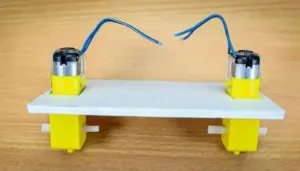
part-2

Next, we need to attach both the DC geared motors with the foam sheet.
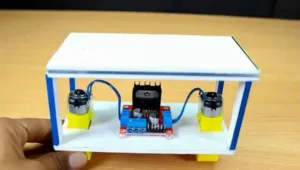
part-3

Connect all the motors with the L298N motor driver and set it in the chassis.
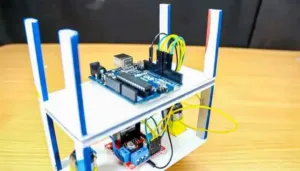
part-4

Next, connect the Arduino board to the chassis.
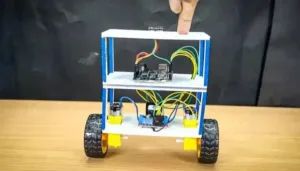
part-5

Finally, attach the MPU6050 accelerometer to the top of the chassis. And also attach both wheels to the chassis.

Connexon of the Circuit

Using Arduino, connecting this self-balancing robot is fairly simple. We only need to connect the motors using the Motor Driver Module and interface the MPU6050 accelerometer with the Arduino. The 9V battery powers the entire setup.

The 12V terminal and the Vin pin, respectively, provide the Arduino and L298N Motor Driver Module with direct power. The ATmega IC and MPU6050 will be powered by the Arduino board’s onboard regulator, which will change the input voltage from 9V to 5V. The DC motors can operate from 5V to 12V, but we will be connecting the battery’s 9V positive wire to the Motor Driver Module’s 12V input terminal. With this, 9V will be used to run the motors.

The MPU6050 and L298N Motor Driver Module are connected to Arduino in the following self-balancing robot connection chart. Self-balancing robot with MPU6050 accelerometer from Arduino.

  • MPU6050 Vcc pin to +5V pin of Arduino Nano
  • GND pin of Arduino Nano to MPU6050 ground pin
  • Arduino Nano A5 pin to MPU6050 SCL pin
  • MPU6050 SDA pin to A4 pin of Arduino Nano
  • MPU6050 INT pin to D2 pin of Arduino Nano
  • L298N IN1 pin to D6 pin of Arduino Nano
  • IN2 pin to D9 pin of Arduino Nano
  • IN3 pin to D10 pin of Arduino Nano
  • IN4 pin to D11 pin of Arduino Nano

Circuit Design Using PCB Software

After testing all of the self-balancing robot’s features on a breadboard, I designed the PCB to make the circuit small and professional-looking. I build a small Arduino Nano for that PCB purpose. I will go over each step of designing and ordering a PCB for our project in detail.
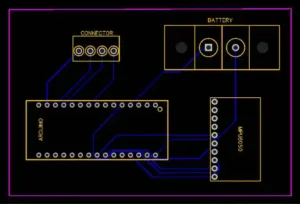
Self Balancing Robot PCB

Check out this link for Gerber file Self Balancing Robot Gerber File.

Order PCB From Zbotic

The PCB prototype board was ordered from the website www.Zbotic.in. Zbotic is a manufacturer of flexible PCBs, SMD stencils, prototypes for printed circuit boards (PCBs), and PCB assembly in China. They process more than 2100 PCB orders per day and ship to more than 170 nations worldwide. It appears that Zbotic provides excellent customer service and pricing in a single serving.

The PCB has a fantastic thickness and excellent quality. As a maker and customer, I find Zbotic service to be equally remarkable. This article will provide a step-by-step guide on how to place an order for a PCB from Zbotic, as well as details on the helpful support staff and user-friendly website features that contribute to what makes Zbotic the ideal business and brand for electronic hobbyists.

Features

1. PCB prototyping and manufacturing

They are not only producing FR-4 and Aluminum boards, but also advanced PCB like Rogers, HDI, Flexible and Rigid-Flex boards, at a very reasonable price. Self-balancing robot with MPU6050 accelerometer from Arduino.

2. PCB assembly

SMT & THT assembly starts from only $30 with a free stencil and free worldwide shipping. The components can be sourced and provided by Zbotic, or by clients themselves.

3. Layout and design

Partnering with quality service providers to offer design services.

4. Open source community

Student sponsorship shared PCB projects and so on.

5. 3D Printing & CNC

On-demand Production and Rapid Prototyping in as Fast as 1 Day Leading the Digital Manufacturing Revolution.

Working Principle of Self Balancing Robot

Once you have the necessary hardware for this self-balancing robot project, you can upload the code to your Arduino board. Since we are utilizing a 9V battery, extreme caution is required. Verify the connections. Therefore, in the event that your robot experiences a few minor impacts, double check for short circuits and guarantee that the terminals will not come into contact. Open your serial monitor and power on your module. If your Arduino was able to successfully communicate with the MPU6050 and everything is working as expected, you should see the screen below. The value of the output will be zero if the robot is perfectly balanced. The MPU6050 sensor’s current value is the input value.

I recommend leaving your Arduino cable connected to the robot during the initial stages of PID so that you can easily monitor input and output values and easily correct and upload your program for Kp, Ki, and Kd values.

I hope this will help you construct your own self-balancing robot.

Arduino Code

For establishing this code of self balancing robot, we need two libraries. The library is developed by Br3ttb and Jrowberg respectively. Before proceeding download their libraries from the following link and add them to your Arduino lib directory.

Arduino-PID-Library

MPU6050 Library

Next for the Arduino code for the self balancing robot

#include “I2Cdev.h”
#include <PID_v1.h>
#include “MPU6050_6Axis_MotionApps20.h”
MPU6050 mpu;
// MPU control/status vars
bool dmpReady = false;// set true if DMP init was successful
uint8_t mpuIntStatus;// holds actual interrupt status byte from MPU
uint8_t devStatus;// return status after each device operation (0 = success, !0 = error)
uint16_t packetSize;// expected DMP packet size (default is 42 bytes)
uint16_t fifoCount;// count of all bytes currently in FIFO
uint8_t fifoBuffer[64]; // FIFO storage buffer
// orientation/motion vars
Quaternion q;// [w, x, y, z]         quaternion container
VectorFloat gravity;// [x, y, z]            gravity vector
float ypr[3];// [yaw, pitch, roll]   yaw/pitch/roll container and gravity vector
/*****Tune these 4 values for your ROBOT*****/
double setpoint= 176; //set the value when the robot is perpendicular to ground using serial monitor.
//Read the project documentation on circuitdiagrams.in to learn how to set these values
double Kp = 21; //Set this first
double Kd = 0.8; //Set this secound
double Ki = 140; //Set this third
/******End of values setting*********/
double input, output;
PID pid(&input, &output, &setpoint, Kp, Ki, Kd, DIRECT);
volatile bool mpuInterrupt = false;// indicates whether MPU interrupt pin has gone high
void dmpDataReady()
{
mpuInterrupt = true;
}
void setup() {
Serial.begin(115200);
// initialize device
Serial.println(F(“Initializing I2C devices…”));
mpu.initialize();
// verify connection
Serial.println(F(“Testing device connections…”));
Serial.println(mpu.testConnection() ? F(“MPU6050 connection successful”) : F(“MPU6050 connection failed”));
// load and configure the DMP
devStatus = mpu.dmpInitialize();
// supply your own gyro offsets here, scaled for min sensitivity
mpu.setXGyroOffset(220);
mpu.setYGyroOffset(76);
mpu.setZGyroOffset(–85);
mpu.setZAccelOffset(1688);
// make sure it worked (returns 0 if so)
if (devStatus == 0)
{
// turn on the DMP, now that it’s ready
Serial.println(F(“Enabling DMP…”));
mpu.setDMPEnabled(true);
// enable Arduino interrupt detection
Serial.println(F(“Enabling interrupt detection (Arduino external interrupt 0)…”));
attachInterrupt(0, dmpDataReady, RISING);
mpuIntStatus = mpu.getIntStatus();
// set our DMP Ready flag so the main loop() function knows it’s okay to use it
Serial.println(F(“DMP ready! Waiting for first interrupt…”));
dmpReady = true;
// get expected DMP packet size for later comparison
packetSize = mpu.dmpGetFIFOPacketSize();
//setup PID
pid.SetMode(AUTOMATIC);
pid.SetSampleTime(10);
pid.SetOutputLimits(–255, 255);
}
else
{
// ERROR!
// 1 = initial memory load failed
// 2 = DMP configuration updates failed
// (if it’s going to break, usually the code will be 1)
Serial.print(F(“DMP Initialization failed (code “));
Serial.print(devStatus);
Serial.println(F(“)”));
}
//Initialise the Motor outpu pins
pinMode (6, OUTPUT);
pinMode (9, OUTPUT);
pinMode (10, OUTPUT);
pinMode (11, OUTPUT);
//By default turn off both the motors
analogWrite(6,LOW);
analogWrite(9,LOW);
analogWrite(10,LOW);
analogWrite(11,LOW);
}
void loop() {
// if programming failed, don’t try to do anything
if (!dmpReady) return;
// wait for MPU interrupt or extra packet(s) available
while (!mpuInterrupt && fifoCount < packetSize)
{
//no mpu data – performing PID calculations and output to motors    
pid.Compute();
//Print the value of Input and Output on serial monitor to check how it is working.
Serial.print(input); Serial.print(” =>”); Serial.println(output);
if (input>150 && input<200){//If the Bot is falling
if (output>0) //Falling towards front
Forward(); //Rotate the wheels forward
else if (output<0) //Falling towards back
Reverse(); //Rotate the wheels backward
}
else //If Robot not falling
Stop(); //Hold the wheels still
}
// reset interrupt flag and get INT_STATUS byte
mpuInterrupt = false;
mpuIntStatus = mpu.getIntStatus();
// get current FIFO count
fifoCount = mpu.getFIFOCount();
// check for overflow (this should never happen unless our code is too inefficient)
if ((mpuIntStatus & 0x10) || fifoCount == 1024)
{
// reset so we can continue cleanly
mpu.resetFIFO();
Serial.println(F(“FIFO overflow!”));
// otherwise, check for DMP data ready interrupt (this should happen frequently)
}
else if (mpuIntStatus & 0x02)
{
// wait for correct available data length, should be a VERY short wait
while (fifoCount < packetSize) fifoCount = mpu.getFIFOCount();
// read a packet from FIFO
mpu.getFIFOBytes(fifoBuffer, packetSize);
// track FIFO count here in case there is > 1 packet available
// (this lets us immediately read more without waiting for an interrupt)
fifoCount -= packetSize;
mpu.dmpGetQuaternion(&q, fifoBuffer); //get value for q
mpu.dmpGetGravity(&gravity, &q); //get value for gravity
mpu.dmpGetYawPitchRoll(ypr, &q, &gravity); //get value for ypr
input = ypr[1] * 180/M_PI + 180;
}
}
void Forward() //Code to rotate the wheel forward
{
analogWrite(6,output);
analogWrite(9,0);
analogWrite(10,output);
analogWrite(11,0);
Serial.print(“F”); //Debugging information
}
void Reverse() //Code to rotate the wheel Backward  
{
analogWrite(6,0);
analogWrite(9,output*–1);
analogWrite(10,0);
analogWrite(11,output*–1);
Serial.print(“R”);
}
void Stop() //Code to stop both the wheels
{
analogWrite(6,0);
analogWrite(9,0);
analogWrite(10,0);
analogWrite(11,0);
Serial.print(“S”);
}
Tags: Arduino, Self-balancing robot with accelerometer from Arduino, Self-balancing robot with MPU6050 accelerometer from Arduino
Share Post
  • Facebook
  • Linkedin
  • Whatsapp
Gesture Mouse – Controll...
Gesture Mouse - Controlling Computer With a Glove
zbotic Robotics Projects
Robotics Projects

Related posts

Svg%3E
Read more

Arduino Batch Programming: Flash Multiple Boards Quickly

April 1, 2026 0
Table of Contents Introduction Components and Hardware Setup Wiring Diagram and Connections Complete Code with Explanation Customization and Improvements Troubleshooting... Continue reading
Svg%3E
Read more

Arduino Based Radar System with Ultrasonic Sensor

April 1, 2026 0
Table of Contents Introduction Components and Hardware Setup Wiring Diagram and Connections Complete Code with Explanation Customization and Improvements Troubleshooting... Continue reading
Svg%3E
Read more

Arduino Automatic Plant Monitor: Sunlight, Moisture, Temperature

April 1, 2026 0
Table of Contents Introduction Components and Hardware Setup Wiring Diagram and Connections Complete Code with Explanation Customization and Improvements Troubleshooting... Continue reading
Svg%3E
Read more

Arduino Lie Detector: GSR Sensor Polygraph Project

April 1, 2026 0
Table of Contents Introduction Components and Hardware Setup Wiring Diagram and Connections Complete Code with Explanation Customization and Improvements Troubleshooting... Continue reading
Svg%3E
Read more

Arduino Metal Detector: Build a Treasure Finder

April 1, 2026 0
Table of Contents Introduction Components and Hardware Setup Wiring Diagram and Connections Complete Code with Explanation Customization and Improvements Troubleshooting... Continue reading

Add comment Cancel reply

Your email address will not be published. Required fields are marked

Facebook Twitter Instagram Pinterest Linkedin Youtube

Get the latest deals and more.

Download on Google Play Download on the App Store

Call us: 020 69134444 / 1800 209 0998

Monday - Saturday 09:30 AM - 06:00 PM
For Technical Supports Email: [email protected]
For Sales / Enquiries Email: [email protected]

  • My Account

    • Cart

    • Wishlist

    • Checkout

    • My Orders

    • Track Order

    • My Account

  • Information

    • FAQs

    • Blogs

    • Career

    • About Us

    • Contact Us

    • Payment Options

  • Policies

    • Privacy Policy

    • Terms & Conditions

    • GST Input Tax Credit

    • Shipping Return Policy

    • E-Waste Collection Points

    • Our Sitemap

© Zbotic.in is registered trademark of Moxie Supply Pvt Ltd – All Rights Reserved
Login
Use Phone Number
Use Email Address
Not a member yet? Register Now
Reset Password
Use Phone Number
Use Email Address
Register
Already a member? Login Now