
Table of Contents
- What Is the HX711 and How Does It Work?
- Load Cell Basics: Strain Gauges and Wheatstone Bridges
- Choosing the Right Load Cell
- Wiring HX711 to Arduino: Step-by-Step
- Library Installation
- Calibration: The Critical Step
- Complete Weight Scale Code
- Adding an OLED Display
- Adding a Tare Button
- Using Multiple Load Cells
- Troubleshooting and Accuracy Tips
- Frequently Asked Questions
Building a digital weighing scale from scratch is one of the most satisfying Arduino projects you can complete. It combines analog sensor physics with precise digital signal processing and gives you a working instrument with measurable, real-world accuracy. The combination of a load cell and HX711 amplifier is the standard approach for hobbyist weight measurement, and for good reason: it is affordable, accurate, and well-supported by Arduino libraries.
This step-by-step guide takes you from zero to a fully working, calibrated digital scale with an OLED display and a tare button. By the end, you will understand not just how to wire the components, but why each step matters — knowledge that applies to any load cell project from kitchen scales to industrial belt weighers.
What Is the HX711 and How Does It Work?
The HX711 is a precision 24-bit analog-to-digital converter (ADC) designed specifically for weigh scale and industrial control applications. It was developed by AVIA Semiconductor and has become the dominant load cell interface IC in the maker community. The key features that make it so well-suited for weight measurement are:
- 24-bit resolution: With a full-scale range spanning 16.7 million counts, the HX711 can detect extremely small weight changes — theoretically down to fractions of a gram on a 10 kg scale
- Built-in instrumentation amplifier: Load cells output millivolt-level signals (typically 1–3 mV per volt of excitation). The HX711 provides programmable gain (64× or 128× on channel A, 32× on channel B) to amplify this to a useful level
- Integrated voltage regulator: The AVDD pin provides regulated excitation voltage to the load cell, eliminating the need for a separate precision reference
- Serial interface: Data is read via a simple two-wire protocol (not I2C or SPI, but a proprietary clocked serial interface) using just 2 GPIO pins
- Built-in noise rejection: Selectable input data rate (10 Hz or 80 Hz) with internal noise filtering
The HX711 outputs 24-bit signed integers representing the analog voltage at its inputs. By subtracting a baseline (tare) reading and dividing by a calibration factor, you convert these raw counts to grams or kilograms.
Load Cell Basics: Strain Gauges and Wheatstone Bridges
Before wiring anything, understanding how a load cell works helps you choose the right one, wire it correctly, and diagnose problems.
Strain gauges: A strain gauge is a serpentine metal foil pattern bonded to a flexible substrate. When the substrate stretches or compresses (mechanical strain), the foil pattern deforms, changing its electrical resistance — typically by a few ohms out of a nominal 120 Ω or 350 Ω. This tiny resistance change is the raw signal from a load cell.
The Wheatstone bridge: Four strain gauges are arranged in a Wheatstone bridge configuration: two gauges on the tension side of the mechanical structure (resistance increases under load) and two on the compression side (resistance decreases). This arrangement cancels out temperature drift (since all four gauges are at the same temperature) and doubles the output signal compared to a single gauge.
The bridge produces a differential output voltage proportional to the applied force:
Vout = Vexc × (GF × ε) / 2
Where GF is the gauge factor and ε is the strain. In practical terms, a typical load cell produces about 1–3 mV of output per volt of excitation voltage at full rated load — which is why the HX711’s high-gain amplifier is essential.
Load cell wire colours: Most load cells have 4 wires:
- Red: Excitation+ (E+ or VCC)
- Black: Excitation− (E− or GND)
- White: Signal+ (A+ or Sig+)
- Green (or Blue): Signal− (A− or Sig−)
Some load cells add a yellow wire as a shield/ground — connect this to GND if present.
Choosing the Right Load Cell
Load cells come in different mechanical configurations and capacity ratings. The most common types for hobbyist projects:
Bar (bending beam) load cells: The most common type for small-capacity scales (100 g – 50 kg). The load cell is a solid aluminium bar that flexes under load. The 4 strain gauges are mounted on the bar’s top and bottom surfaces. These are the kind used in kitchen scales and postal scales.
Capacity selection:
- 1 kg: Very high resolution for small items — powders, small electronics, jewellery
- 5–10 kg: Kitchen scale, letter scale, parts counting
- 20–50 kg: Luggage scale, postal scale, general weighing
- 50–200 kg: Body weight scale (bathroom scale)
Rule of thumb: Choose a capacity 20–30% above your maximum expected load to avoid overloading and permanently damaging the load cell. Never exceed the rated capacity — load cells can be destroyed by overloading, and they will not recover.
Sensitivity specification: Given in mV/V — typically 1.0, 2.0, or 3.0 mV/V. A 2.0 mV/V load cell excited at 5 V produces 10 mV full-scale differential output, which the HX711 amplifies to the full ADC range.
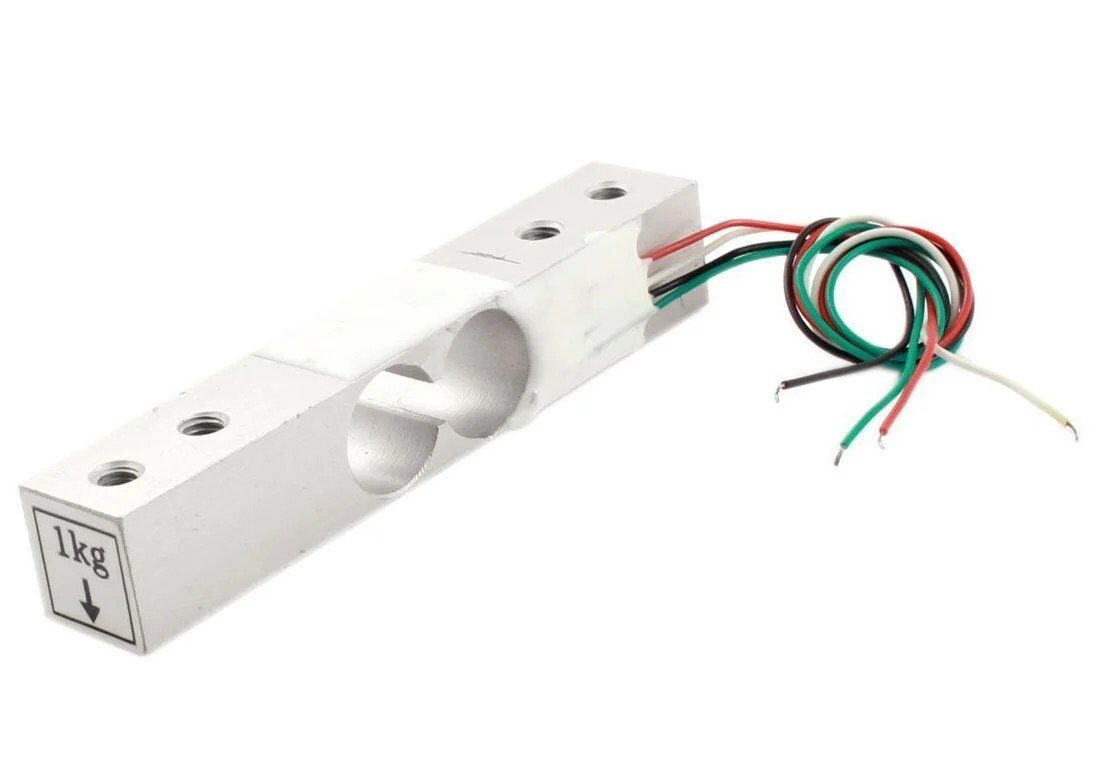
1Kg Load Cell – Electronic Weighing Scale Sensor
Perfect for precision small-item weighing projects — full Wheatstone bridge with 4-wire output, compatible with HX711.
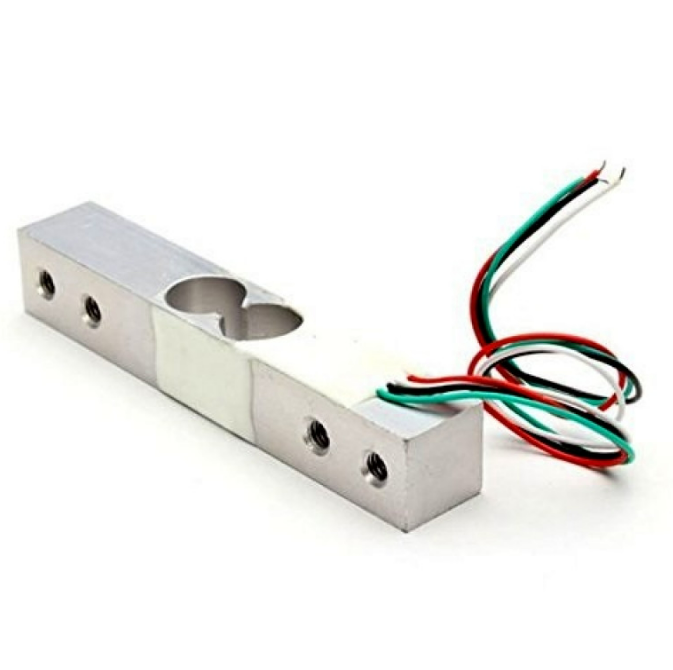
10Kg Load Cell – Electronic Weighing Scale Sensor
Ideal for kitchen scales, postal scales, and general-purpose weighing up to 10 kg with excellent linearity.
Wiring HX711 to Arduino: Step-by-Step
The HX711 module has two sets of terminals: one for the load cell and one for the Arduino.
Step 1: Connect the load cell to the HX711
| Load Cell Wire | HX711 Terminal |
|---|---|
| Red (E+) | E+ (or VCC) |
| Black (E−) | E− (or GND) |
| White (A+) | A+ (or Sig+) |
| Green/Blue (A−) | A− (or Sig−) |
Step 2: Connect the HX711 module to Arduino
| HX711 Pin | Arduino Uno/Nano |
|---|---|
| VCC | 5 V |
| GND | GND |
| DT (DOUT) | Digital Pin 3 |
| SCK | Digital Pin 2 |
The DT and SCK pins can connect to any digital GPIO — the library bit-bangs the protocol in software. Pins 2 and 3 are commonly used but are not required.
Physical mounting of the load cell: For a bar load cell, you must fix one end (the base) to a rigid surface and apply the load to the other end (the load platform). Most bar load cells have two mounting holes at each end — use all four for correct and stable operation. Incorrect mounting is the single most common source of calibration problems: if the load cell flexes in any direction other than the intended one, readings will be wrong.
Library Installation
The most widely used and well-maintained HX711 library is HX711 by Bogdan Necula and Andreas Motl (also known as bogde/HX711 on GitHub). Install via Arduino Library Manager:
- Sketch → Include Library → Manage Libraries
- Search for HX711
- Install “HX711 Arduino Library” by Bogdan Necula
This library provides tare, calibration, power-down, and averaged reading functions that make building a scale straightforward.
Calibration: The Critical Step
Calibration converts raw HX711 ADC counts to actual weight units. It is the most important step and must be done correctly for accurate readings. Here is a calibration sketch:
#include <HX711.h>

const int DOUT_PIN = 3;
const int SCK_PIN  = 2;

HX711 scale;

void setup() {
  Serial.begin(9600);
  scale.begin(DOUT_PIN, SCK_PIN);

  Serial.println("HX711 Calibration Sketch");
  Serial.println("Remove all weight from the scale. Press ENTER.");
  while (Serial.available() <= 0) {}  // wait for user
  Serial.read();

  scale.tare();  // reset to zero
  Serial.println("Tare done. Place a known weight. Press ENTER.");
  while (Serial.available() <= 0) {}
  Serial.read();

  long rawReading = scale.get_units(10);  // average of 10 readings
  Serial.print("Raw reading: "); Serial.println(rawReading);
  Serial.print("Known weight in grams: ");
  // Enter the known weight in grams in your Serial Monitor
  while (Serial.available() <= 0) {}
  float knownWeight = Serial.parseFloat();

  float calibrationFactor = rawReading / knownWeight;
  Serial.print("Calibration factor: "); Serial.println(calibrationFactor);
  Serial.println("Save this value in your main sketch!");
}

void loop() {}
Write down the calibration factor printed to Serial Monitor — you will use it in your main sketch. For best calibration accuracy:
- Use a known weight that is 50–80% of the load cell’s rated capacity (e.g. a 500 g calibration weight on a 1 kg load cell)
- If you do not have calibration weights, use a clearly labelled commercial product (sealed water bottle, packet of rice) — though factory-stamped weights give better accuracy
- Take the average of 10 readings rather than a single sample
- Perform calibration at room temperature; recalibrate if ambient temperature changes significantly
Complete Weight Scale Code
With the calibration factor in hand, here is the full working scale sketch:
#include <HX711.h>

const int DOUT_PIN = 3;
const int SCK_PIN  = 2;

// Replace with your calibration factor from the calibration sketch:
const float CALIBRATION_FACTOR = 420.5;

HX711 scale;

void setup() {
  Serial.begin(9600);

  scale.begin(DOUT_PIN, SCK_PIN);
  scale.set_scale(CALIBRATION_FACTOR);
  scale.tare();  // zero out with no load

  Serial.println("Scale ready. Place items to weigh.");
}

void loop() {
  if (scale.is_ready()) {
    float weight = scale.get_units(5);  // average of 5 readings

    if (weight < 0) weight = 0;  // clamp negative (noise near zero)

    Serial.print("Weight: ");
    Serial.print(weight, 1);   // 1 decimal place
    Serial.println(" g");
  } else {
    Serial.println("HX711 not ready.");
  }

  delay(500);
}
Upload this sketch, open Serial Monitor at 9600 baud. With nothing on the scale, readings should be 0.0 g (or very close — within ±1 g is normal). Place objects on the scale and observe accurate weights. The get_units(5) function averages 5 raw readings before applying the calibration factor, smoothing out noise.
Adding an OLED Display
A standalone scale needs a display. Add a 0.96-inch SSD1306 I2C OLED for a clean, self-contained instrument:
OLED wiring (I2C):
- OLED VCC → Arduino 5 V (or 3.3 V)
- OLED GND → Arduino GND
- OLED SDA → Arduino A4
- OLED SCL → Arduino A5
Install the Adafruit SSD1306 and Adafruit GFX libraries. Here is the display update code to add to the loop:
#include <HX711.h>
#include <Wire.h>
#include <Adafruit_GFX.h>
#include <Adafruit_SSD1306.h>

#define SCREEN_WIDTH 128
#define SCREEN_HEIGHT 64

const int DOUT_PIN = 3;
const int SCK_PIN  = 2;
const float CALIBRATION_FACTOR = 420.5;

HX711 scale;
Adafruit_SSD1306 display(SCREEN_WIDTH, SCREEN_HEIGHT, &Wire, -1);

void setup() {
  display.begin(SSD1306_SWITCHCAPVCC, 0x3C);
  display.clearDisplay();
  display.setTextColor(WHITE);

  scale.begin(DOUT_PIN, SCK_PIN);
  scale.set_scale(CALIBRATION_FACTOR);
  scale.tare();
}

void loop() {
  float weight = scale.get_units(5);
  if (weight < 0) weight = 0;

  display.clearDisplay();

  // Title
  display.setTextSize(1);
  display.setCursor(20, 0);
  display.println("DIGITAL SCALE");

  // Weight value — large font
  display.setTextSize(3);
  display.setCursor(0, 20);
  display.print(weight, 1);

  // Unit
  display.setTextSize(2);
  display.setCursor(100, 28);
  display.println("g");

  display.display();
  delay(200);
}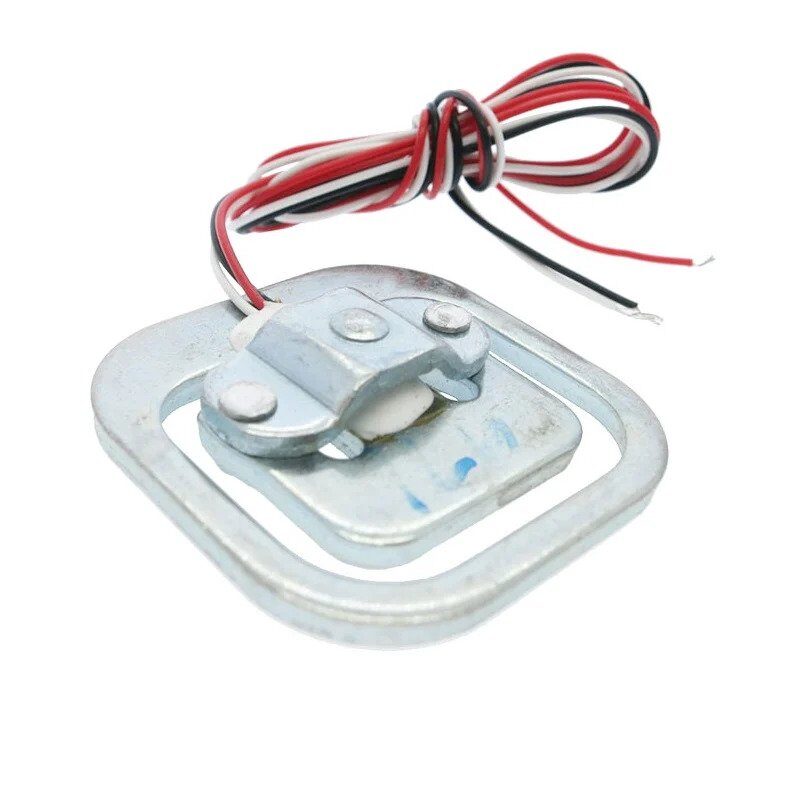
50kg Half-bridge Body Scale Load Cell Sensor
For bathroom scale or luggage scale projects — this half-bridge 50 kg cell works with HX711 for body weight measurement.
Adding a Tare Button
A physical tare button zeros the scale reading — essential for weighing items in containers. Add a momentary push button between digital pin 8 and GND, using the Arduino’s internal pull-up:
const int TARE_BTN = 8;
bool lastButtonState = HIGH;

// In setup():
pinMode(TARE_BTN, INPUT_PULLUP);

// In loop(), before reading weight:
bool currentBtn = digitalRead(TARE_BTN);
if (currentBtn == LOW && lastButtonState == HIGH) {
  scale.tare();
  // Show "TARE" on display briefly
  display.clearDisplay();
  display.setTextSize(2);
  display.setCursor(30, 24);
  display.println("TARE");
  display.display();
  delay(500);
}
lastButtonState = currentBtn;
With this addition, press the button with an empty container on the scale. The display zeros out. Then add your items — the display shows only the net weight of the contents, not the container. This is the standard tare workflow used in every professional kitchen scale.
Using Multiple Load Cells
For a platform scale (like a bathroom scale with 4 corners), you use four load cells wired together in a combined bridge:
4-cell configuration: Connect the four cells in a differential bridge: the E+ wires join together (to HX711 E+), the E− wires join together (to HX711 E−), the A+ wires of cells 1 and 3 join to HX711 A+, and the A− wires of cells 2 and 4 join to HX711 A−. This forms a composite bridge that averages the load across all four corners.
This is the standard configuration for bathroom scales and industrial platform scales. A purpose-made load cell combinator board (available as an add-on module) makes these connections cleanly with screw terminals for each cell.
For applications needing truly independent readings from multiple cells (not summed), use separate HX711 modules for each cell and run them on the same Arduino with different DOUT/SCK pins.
Troubleshooting and Accuracy Tips
Readings drift continuously (creep):
- The load cell may be under sustained mechanical stress — leave it unloaded for 30 minutes to let it recover
- Temperature changes cause drift — calibrate and use at a stable temperature
- Check that the load cell mounting screws are tight; a loose mount introduces mechanical play
Very noisy readings (jumping by 5–10 g):
- Increase the averaging count: use
scale.get_units(20)instead of 5 - Keep load cell wires away from AC power lines and motor cables — they pick up electrical interference
- Add a 100 nF capacitor between the HX711 VCC and GND pins close to the IC
- Use shielded cable from the load cell to the HX711 if possible
Readings always negative:
- The A+ and A− wires to the HX711 are swapped — swap the white and green/blue wires
Scale reads correctly but non-linearly (accurate at calibration weight, wrong elsewhere):
- Load cell may be overloaded or damaged — test with loads at multiple points (25%, 50%, 75%, 100% of capacity)
- Two-point calibration: calibrate with both a light weight and a heavy weight and use interpolation in your code
HX711 “not ready” continuously:
- Check VCC power — the HX711 needs stable 5 V
- Verify DOUT and SCK are not swapped
- The HX711 RATE pin (if exposed) controls data rate: LOW = 10 Hz, HIGH = 80 Hz. Make sure it is not floating
What accuracy is achievable? With a good quality load cell, stable temperature, and proper calibration, a homebrew Arduino HX711 scale can achieve:
- 1 kg load cell: ±0.1 g resolution, ±0.5 g accuracy
- 10 kg load cell: ±1 g resolution, ±5 g accuracy
- 50 kg load cell: ±5 g resolution, ±20 g accuracy
These are comparable to mid-range commercial scales and more than sufficient for most hobby and educational projects.
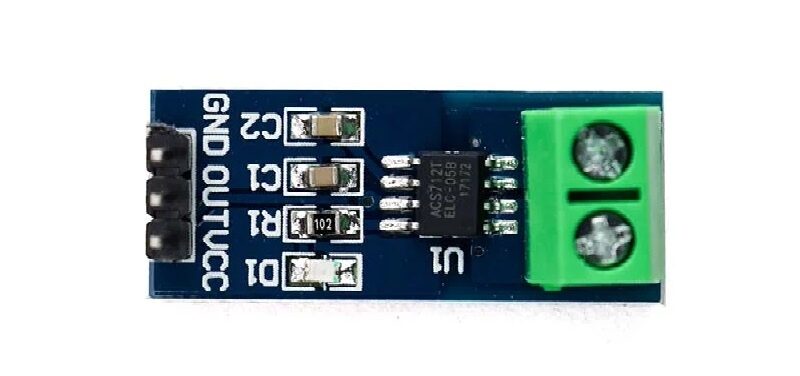
5A Range Current Sensor Module ACS712
Expand your measurement station with current sensing — combine with HX711 scale for a comprehensive data-logging system.
Frequently Asked Questions
Can I use HX711 with a half-bridge load cell?
Yes, but with reduced performance. A half-bridge cell has only 2 strain gauges instead of 4. Connect the two bridge completion resistors on the HX711 module (E+ and E− also connect to A+ and A− through the completion resistors on some modules — check your specific module schematic). Half-bridge cells have more temperature drift and less sensitivity than full-bridge cells, so full-bridge is strongly preferred for accuracy.
What is the HX711’s actual resolution — is it really 24-bit?
The ADC itself is 24-bit (16.7 million counts), but the effective resolution is limited by noise to approximately 16–18 bits in typical conditions. This corresponds to about 1000–65000 stable counts over the full scale, which is more than adequate for practical weighing applications. The 24-bit architecture gives headroom for filtering and averaging to recover more effective bits.
Why does my scale read differently after power cycling?
The calibration factor is stored in your sketch (it is a variable), so it is retained across power cycles. However, the tare (zero offset) must be re-established on each power-up with scale.tare(). If your readings are offset after power cycling but the calibration factor is correct, it means your mechanical setup is applying a different zero-state force — check that the scale platform sits freely without touching the sides of any enclosure.
Can I weigh liquids with a load cell?
Yes — load cells measure force regardless of what is applying it. A container of liquid on the platform reads correctly. For measuring liquid directly (e.g. in a tank), use an immersion-proof load cell, or mount the load cell externally and suspend the tank from it. Standard bar load cells are not waterproof — protect them from moisture.
How do I handle the slow reading rate (10 Hz or 80 Hz)?
At 10 Hz (default), you get one reading every 100 ms. If you average 5 readings, effective update rate is 2 Hz — which is fine for a display scale. For higher-speed applications (conveyor belt weighing, fast-moving process control), use the 80 Hz rate by setting the RATE pin HIGH, and reduce averaging. The HX711 data rate is set via the RATE pin (often a pad on the module, or a pin if broken out).
Is the HX711 suitable for very small weights (under 1 gram)?
With a 1 kg full-bridge load cell and averaging, you can achieve 0.1 g resolution. For sub-gram measurement, you need either a much smaller capacity load cell (100 g or 200 g rated) or a dedicated microbalance. The HX711 is capable down to 0.01 g with the right load cell — but mechanical isolation from vibration becomes critical at that resolution.
Conclusion
The HX711 and load cell combination is a remarkably capable measurement system for its price. A complete setup — load cell, HX711 module, Arduino, and OLED display — can be assembled for under ₹500, yet achieves accuracy comparable to commercial kitchen scales costing several times more.
The step-by-step process in this guide — wiring, library setup, calibration, and display integration — applies to any load cell capacity and any project scale. Once you understand the calibration factor concept and the tare workflow, you can adapt this system for postal scales, parts counters, liquid dispensers, soil compaction testers, and countless other measurement applications.
The key to a successful project is proper mechanical mounting (rigid base, clean loading), careful calibration with a known weight, and sufficient averaging to smooth electrical noise. With those three elements in place, your Arduino HX711 scale will be a genuinely useful and accurate instrument.


Add comment