
A display module blank screen is the single most frustrating issue in electronics projects — you spend hours wiring everything up, flash your code, and the display shows nothing. Whether it is an OLED SSD1306, a TFT ILI9341, an LCD 16×2, or any other display module, blank screens almost always have one of a small set of root causes. This troubleshooting guide covers every common fix, from simple wiring mistakes to firmware and library configuration issues that trip up even experienced Indian makers.
Start Here: First 5 Checks Before Anything Else
Before diving deep, run through this 2-minute checklist that resolves about 60% of all blank screen reports:
- Is the module powered? Measure VCC and GND pins with a multimeter. VCC should read 3.3V or 5V depending on the module. No voltage = power wiring problem.
- Is the correct library installed? Open the Arduino IDE Library Manager and confirm the library version is installed for your specific display driver (SSD1306, ILI9341, ST7735, etc.)
- Are you selecting the correct board in Arduino IDE? Uploading code compiled for Arduino Uno to a Nano or NodeMCU ESP8266 can cause silent failures.
- Did you call the display initialisation function? Missing
display.begin()ortft.init()in your setup() is a very common oversight. - Did you call an update/flush function? Many OLED libraries buffer content in RAM and only push it to the screen when you call
display.display()ordisplay.update(). Without this call, the display stays blank even though data was written to the buffer.
If all five pass, move to the detailed sections below.
Wiring and Connection Problems
Wiring errors cause the majority of blank screen issues, especially for beginners. Here is what to check:
SPI Displays (TFT, some OLEDs)
SPI displays need at least 5 wires: VCC, GND, SCK (clock), MOSI (data), and CS (chip select). Many also need DC (data/command) and RST (reset). Swapping any two of these renders the display non-functional:
- MOSI and SCK swapped: No output at all
- DC pin wrong: Garbled output or blank (DC=0 means command, DC=1 means data — swapped DC means the display receives data as commands)
- CS not connected: Display ignores all SPI traffic. Always connect CS to a GPIO, even if you think it doesn’t matter.
- RST not connected or always low: Display stays in reset state = blank screen. Connect RST to a GPIO or tie it HIGH through a 10kΩ resistor.
I2C Displays (OLED SSD1306)
- SDA and SCL swapped: No I2C communication. SDA is data, SCL is clock — they are NOT interchangeable.
- Missing pull-up resistors: I2C requires pull-up resistors (typically 4.7kΩ to 10kΩ) on SDA and SCL lines. Most modules include these onboard, but some bare-chip solutions require external pull-ups. Without pull-ups: I2C hangs or fails.
- Long wires causing signal degradation: Breadboard jumper wires longer than 30cm on I2C can cause intermittent communication failures. Keep I2C wiring short.
Breadboard and Connector Reliability
This is a significant issue in India: breadboards from local markets often have worn contacts that make intermittent connections — they look connected but are not. If the display works sometimes and not others, suspect a bad breadboard contact. Test by pressing down on the module’s header pins and checking if the display comes on.

LM35 Temperature Sensors
After fixing your display, try displaying live LM35 temperature readings as your first test. The analogue output is simple and reliable — great for confirming your display is truly working.
Power Supply Problems
Indian USB power supplies and cheap linear regulators often have significant ripple and voltage drop under load. Display modules are particularly sensitive:
- Voltage too low: A 3.3V display module receiving 2.8V (due to voltage drop in long wires or weak regulator) will often appear blank or show very dim content. Measure voltage at the module’s VCC pin, not at the Arduino 3.3V pin.
- Current insufficient: An Arduino Uno’s onboard 3.3V regulator (XC6206) is rated for only 50–150 mA depending on the clone. A TFT display can draw 60–80 mA — close to or exceeding this limit. Result: voltage sags, display stays blank. Fix: use a dedicated 3.3V LDO (AMS1117-3.3) powered directly from 5V.
- Power-on sequence: Some displays (especially TFT with onboard power ICs) need VCC to stabilise before receiving SPI commands. Add a 100ms delay after power-on and before calling
tft.init(). - Decoupling capacitors missing: Place a 100nF ceramic capacitor as close as possible to the module’s VCC and GND pins. This filters high-frequency noise from SPI switching that can corrupt initialisation commands.
Wrong I2C Address (OLED)
This is the #1 cause of OLED blank screens and is incredibly easy to fix once you know about it. The SSD1306 has two possible I2C addresses: 0x3C (most common, SA0 pin low) and 0x3D (SA0 pin high). If your library is initialised with the wrong address, the OLED receives no commands and stays blank.
Run an I2C scanner sketch to discover what address your device is actually using:
#include <Wire.h>
void setup() {
  Wire.begin();
  Serial.begin(9600);
  Serial.println("Scanning I2C...");
  for (byte addr = 8; addr < 127; addr++) {
    Wire.beginTransmission(addr);
    if (Wire.endTransmission() == 0) {
      Serial.print("Found device at: 0x");
      Serial.println(addr, HEX);
    }
  }
  Serial.println("Done.");
}
void loop() {}
Upload this and open Serial Monitor at 9600 baud. If you see Found device at: 0x3D, change your Adafruit SSD1306 initialisation: display.begin(SSD1306_SWITCHCAPVCC, 0x3D).
If the scanner finds nothing, the problem is in wiring or power — not the address. If it finds 0x3C but the display is still blank, move on to library configuration below.
Library Configuration Errors
Library misconfiguration silently causes blank displays with no error messages:
Adafruit SSD1306 (OLED)
- Always call
display.clearDisplay()before drawing, thendisplay.display()after — without the finaldisplay.display(), nothing appears on screen. - Ensure you pass the correct width and height:
Adafruit_SSD1306 display(128, 64, &Wire, -1);— using 32 height for a 64-pixel display (or vice versa) causes blank output. - The
display.begin()call returns a boolean. Check it:if(!display.begin(SSD1306_SWITCHCAPVCC, 0x3C)) { Serial.println("OLED init failed"); }
Adafruit GFX + TFT Libraries
- Check the hardware type:
Adafruit_ILI9341 tft = Adafruit_ILI9341(TFT_CS, TFT_DC, TFT_RST);— wrong CS, DC, or RST pin numbers cause blank screen - After
tft.begin(), calltft.fillScreen(ILI9341_BLACK);to verify the display is responding. A fully black screen is different from a blank/white backlit screen. - For ST7735-based displays: choose the correct tab colour (
INITR_BLACKTAB,INITR_GREENTAB,INITR_REDTAB) intft.initR()— wrong tab colour can cause partial or blank display.

DHT11 Digital Relative Humidity and Temperature Sensor Module
Once your display is working, prove it with a live DHT11 sensor reading. Temperature and humidity data makes for a satisfying first display project and confirms end-to-end functionality.
TFT-Specific Blank Screen Fixes
TFT displays have some unique failure modes beyond the basics:
- Unknown controller IC: Cheap Chinese TFTs sometimes use ILI9341 clones or entirely different controllers (ILI9342, ST7789). The Adafruit ILI9341 library may not initialise them correctly. Use the
TFT_eSPIlibrary (by Bodmer) which auto-detects many controller variants and is highly configurable via a config file. - SPI speed too high: Some cheap TFT modules cannot handle Arduino’s default SPI clock speed. In Adafruit ILI9341, lower the SPI frequency:
tft.begin(10000000);(10 MHz) or even4000000(4 MHz). - Backlight not enabled: Many TFT modules have a separate BL (backlight) pin that must be pulled HIGH (or connected to 3.3V/5V) to illuminate the display. Even if the LCD is initialised correctly, without backlight power the screen appears blank/black.
- 3.3V logic to 5V module: An ESP32 or ESP8266 (3.3V logic) driving a 5V TFT without level shifting may initialise but show corrupted or blank output. Use a 3.3V-compatible TFT module or add a logic level shifter on all SPI lines.
LCD 16×2 Blank Screen Fixes
If you are using a classic 16×2 character LCD (HD44780 controller):
- Contrast pot not adjusted: The 10kΩ potentiometer controls contrast. Out of the box it is often at maximum, making text invisible on a white background. Slowly turn the pot until text appears — this is the single most common LCD issue.
- Incorrect wiring of data pins: The 4-bit mode requires D4–D7 of the LCD wired correctly. If D4 and D5 are swapped, you get garbled characters or nothing.
- Enable (EN) pulse timing: If driving without a library, the Enable pin needs a specific high→low pulse timing. Always use the
LiquidCrystallibrary for HD44780 rather than bit-banging. - I2C LCD backpack: If using an I2C backpack (PCF8574), run the I2C scanner first. Default address is 0x27 but some modules use 0x3F. The
LiquidCrystal_I2Clibrary must use the correct address.
Checking for Dead or Damaged Modules
If every software and wiring fix fails, the module itself may be damaged:
- Reverse polarity: Connecting VCC and GND backwards even briefly destroys most display modules. Check for a burning smell or if the module gets hot during power-on.
- Overvoltage: Applying 5V to a 3.3V-only OLED or TFT module often destroys the driver IC. The display will remain permanently blank.
- ESD damage: Handling modules without anti-static precautions can damage the thin-film transistor array or the driver IC. In dry Indian winters, ESD risks are elevated.
- Flex cable damage (TFT): TFT modules have a fragile flex cable connecting the glass panel to the PCB. Bending or pressing the module at the edge of the glass can crack this cable, causing half-screen or blank display that no firmware fix will cure.
Test: connect a known-working module in its place. If the replacement works, the original module is dead.

BMP280 Barometric Pressure and Altitude Sensor I2C/SPI Module
Once your display module is working, the BMP280 is a great next addition — I2C interface, pressure and temperature output, and a perfect candidate for a sensor dashboard display project.
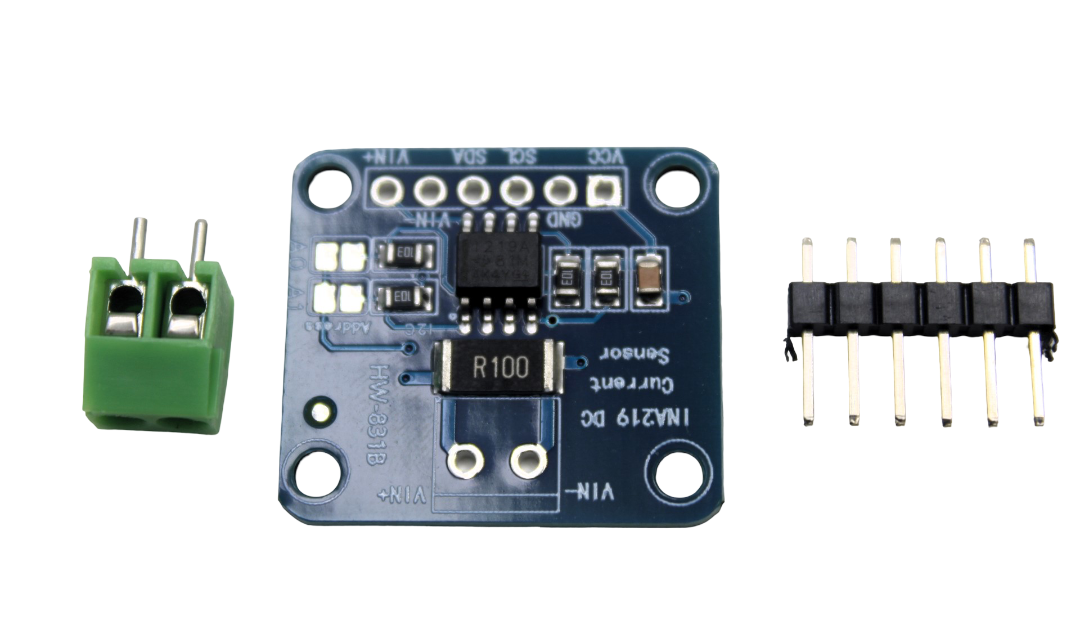
CJMCU-219 INA219 I2C Bi-directional Current/Power Monitoring Module
Use the INA219 to measure the actual current your display module draws. This helps diagnose power problems causing blank screens — verify the supply is delivering sufficient current.
Frequently Asked Questions
My OLED initialises (no error) but the screen is completely dark — what is wrong?
Most likely you forgot to call display.display() after drawing content. The Adafruit SSD1306 library buffers everything in MCU RAM and only pushes it to the physical screen on display.display(). Alternatively, your OLED may have burn-in from displaying only white content — try display.invertDisplay(true) to invert colours and see if anything appears.
My TFT shows a white screen (backlit but no content) — is it broken?
A white screen usually means the backlight is on but the controller is not initialised. This is a software/wiring issue, not a broken module. Check: correct library, correct pin definitions, and that tft.begin() or tft.init() is called before any drawing. Also check if the wrong hardware type or tab colour is specified.
The display worked on Arduino but is blank on ESP32 — why?
ESP32 SPI uses different default pins than Arduino. Also, ESP32 is 3.3V — if your display needs 5V logic, add level shifters. In TFT_eSPI library, you must configure the correct ESP32 SPI pins in User_Setup.h for your specific display connection.
I see ‘Display allocation failed’ in the Serial Monitor for SSD1306. What does this mean?
The SSD1306 library allocates a frame buffer in MCU RAM at initialisation. On an Arduino Uno with only 2KB RAM, if other libraries have consumed too much RAM, this allocation fails. Use a smaller display, reduce other memory usage, or switch to ESP32/Arduino Mega which have more RAM.
Can humidity in Indian monsoons damage display modules in storage?
Yes. OLED panels are moisture-sensitive. Store unused OLED modules in zip-lock bags with silica gel desiccant packets during monsoon months. TFT modules are less sensitive but extreme humidity can cause condensation on the glass. Store all display modules in dry, sealed containers during off-season storage.
Get Quality Display Modules from Zbotic
Reduce troubleshooting time by starting with genuine, quality-tested display modules. Browse OLED, TFT, and LCD modules at Zbotic — India’s trusted electronics components store.





Add comment