
Mach3 CNC Software Guide: Setup for Indian Workshop Use
Mach3 remains the most widely used CNC control software in Indian small workshops, fabrication units, and hobbyist garages — and for good reason. Despite being a product that dates back to the early 2000s, Mach3 is battle-hardened, widely understood, and supported by a vast ecosystem of tutorials, post-processors, and hardware interfaces. If you’re setting up a CNC router, plasma cutter, engraver, or mill in India, there’s a very good chance you’ll be dealing with Mach3.
This comprehensive guide covers everything from initial Windows installation to motor tuning, homing configuration, spindle control, and G-code basics — with specific attention to the practical challenges Indian workshops face, including power supply instability, dust, and heat.
What Is Mach3 and Why Is It Still Used?
Mach3 is a CNC control software developed by Artsoft (now Newfangled Solutions). It runs on a standard Windows PC and uses the PC’s parallel port (LPT) — or a USB/Ethernet motion controller like Smooth Stepper or UC100 — to generate step and direction pulses that drive stepper or servo motor drivers.
In India, Mach3 dominates for several reasons:
- Cost: A legitimate Mach3 licence costs around ₹8,000–12,000 — far less than industrial control systems. Many small workshops run the demo version (limited to 500 lines of G-code) until they can justify the full purchase.
- Availability of support: Indian machinery importers and CNC kit suppliers have used Mach3 for 15+ years. Any local CNC technician will be familiar with it.
- Hardware compatibility: The ubiquitous TB6600 and DM542 stepper drivers common in Indian CNC builds all have well-documented Mach3 configurations.
- Mature ecosystem: Post-processors for Mach3 exist in every major CAM software (Fusion 360, ArtCAM, Aspire, Mastercam).
Modern alternatives like LinuxCNC (free, open-source) and Mach4 (Mach3’s successor) exist, but Mach3 remains the practical choice for most Indian workshop upgrades due to the massive amount of existing Indian-language tutorial content and local technician knowledge.
Hardware Requirements and PC Setup
Mach3 has specific requirements that differ from typical office software:
Processor: Any dual-core x86 processor running at 2GHz+ is sufficient. Mach3 is not computationally intensive — what matters is real-time performance, not raw speed. An old Core 2 Duo or i3 is often better than a modern i7 with many background processes.
RAM: 2GB minimum, 4GB recommended. More RAM doesn’t help Mach3 performance but reduces background process interference.
Operating System: Windows XP 32-bit remains the gold standard for Mach3 parallel port operation due to its real-time scheduling behaviour. However, Windows 7 32-bit is more practical today and works well. Windows 10 and 11 can work with USB/Ethernet motion controllers (Smooth Stepper, UC100) but NOT with direct LPT parallel port operation — Windows 10 background processes interfere with real-time pulse generation.
Dedicated machine: This is critical. The CNC control PC must be dedicated to Mach3 only. Remove or disable: antivirus, Windows Update, screen savers, power management sleep, any unnecessary startup services. Background processes that interrupt Mach3 cause missed steps and ruined workpieces.
Parallel port: Most modern PCs lack a built-in LPT port. An add-in PCIe parallel port card (~₹800–1,500 from Indian electronics suppliers) works if it uses a proper PCI chipset (not USB-to-parallel adapters, which won’t work). Alternatively, use a USB motion controller like UC100 or UC400ETH.
Installing Mach3 on Windows
Follow these steps carefully for a clean Mach3 installation:
- Run Mach3 installer as Administrator — right-click the .exe and select “Run as administrator”
- During installation, accept the driver installation prompt — Mach3 installs a kernel-mode driver for real-time operation
- After installation, run the Mach3 Loader (not the application directly) to verify the driver loaded correctly
- From the main screen, go to Config → Ports and Pins to configure your hardware connection
- Set the port address:
- For built-in LPT: usually 0x378 (verify in Device Manager → LPT Port Properties → Resources tab)
- For PCIe card: shown in Device Manager, often 0xD010 or similar
- For UC100 USB: select USB mode instead
- Set Kernel Speed to 25,000 Hz as a starting point (Config → Config Plugins or Setup screen)
- Run the Driver Test (Help → Driver Test) and verify the green LED stays lit without red interruptions
Kernel speed note: Higher kernel speeds allow higher rapid traverse rates but require a faster PC. Start at 25kHz and increase to 45kHz only if your stepper frequencies require it.
Breakout Board Configuration
A breakout board (BOB) bridges the LPT port signals to your motor drivers. Common boards in Indian CNC builds include the CNCEST 5-axis BOB and various Chinese clones. Configure Ports and Pins in Mach3 as follows:
Motor Outputs tab:
| Axis | Step Pin | Dir Pin | Step Low Active |
|---|---|---|---|
| X Axis | 2 | 3 | Unchecked |
| Y Axis | 4 | 5 | Unchecked |
| Z Axis | 6 | 7 | Unchecked |
| A Axis (4th) | 8 | 9 | Unchecked |
These are defaults for the most common BOB wiring. Your specific BOB documentation may differ — always check the wiring diagram included with your board.
Input Signals tab — typical configuration:
- EStop: Pin 10 (or 15), Active Low
- X++ Limit: Pin 11, Active Low
- X– Limit / Home: Pin 12, Active Low
- Y++ Limit: Pin 13, Active Low
- Y– Limit / Home: Pin 15, Active Low
- Z++ Limit: Pin 14, Active Low (if available)
Motor Tuning: Steps, Velocity, and Acceleration
Motor tuning is where most Indian workshop operators get confused. Access it via Config → Motor Tuning and Setup. Three values matter for each axis:
1. Steps Per Unit (Steps per mm or steps per inch)
This is a calculation, not a guess:
Steps per mm = (Motor steps × Microstep setting) ÷ (Lead screw pitch × mechanical ratio)

Example for common Indian CNC setup:
- Stepper: 200 steps/rev
- Driver: 1/8 microstepping = 1600 steps/rev
- Lead screw: 5mm pitch ball screw
- Direct drive (no gearbox): ratio = 1

Steps per mm = 1600 ÷ 5 = 320 steps/mm
For belt-driven axes (common on CNC routers with GT2 belt + 20T pulley):
GT2 belt pitch: 2mm
20-tooth pulley: 20 × 2mm = 40mm per revolution
Steps per mm = 1600 ÷ 40 = 40 steps/mm
2. Velocity (mm/min)
This is the maximum speed for that axis. Start conservatively at 2,000–3,000 mm/min and increase in 500mm/min increments until the motor starts losing steps (you’ll hear skipping or grinding). Then back off 20%.
3. Acceleration (mm/sec²)
High acceleration makes the machine feel snappy but can overload motors on heavy gantries. Start at 200–400 mm/sec² for belt-driven axes and 100–200 for lead screw axes. A common Indian CNC router with a 3kg gantry runs well at 300 mm/sec².
Calibration check: After setting calculated values, always verify by commanding a known move (e.g., G1 X100 F1000 on the MDI screen) and measuring the actual travel with a ruler or digital calliper. Adjust Steps Per Unit proportionally until measured movement matches commanded movement exactly.
Homing and Limit Switches
Homing establishes a repeatable machine home position so the machine always knows where it is in space, even after power cycling. Without homing, every job must be manually referenced from scratch.
Configure homing in Config → Homing/Limits:
- Set Home Neg for each axis if the home switch is at the negative (minimum) end of travel
- Set a slow Home Speed (10–20mm/min) for the final switch trigger (ensures accuracy)
- Set a faster approach speed (500–1000mm/min) for initial approach
- Set Soft Limits to slightly inside your actual travel range (prevents crashing into hard limits during operation)
Limit switch wiring for Indian workshops: Noise-induced false triggers are extremely common in Indian workshops due to VFD (Variable Frequency Drive) interference from the spindle motor and industrial electrical noise. Always wire limit switches as Normally Closed (NC) rather than Normally Open (NO). An NC circuit fails safe — if the wire breaks, the machine stops. Shield your limit switch wires and route them away from spindle power cables.
Spindle Speed Control
Indian CNC builds use two common spindle types:
800W/1500W/2200W water-cooled spindles with VFD: These are the workhorses of Indian CNC router builds. Mach3 can control spindle speed via a 0–10V analog signal from the BOB to the VFD’s speed input. Configure in Config → Ports and Pins → Spindle Setup. Set max spindle speed to match your VFD’s maximum frequency setting (usually 400Hz = 24,000 RPM for 4-pole spindles).
Router-type spindles (Makita, Bosch, Dewalt trimmers): These are often manually speed-controlled without electronic interface. In Mach3, configure the spindle as relay-only (M3/M5 commands turn it on/off via a relay output, but speed is set manually on the router body).
VFD parameter setting for Indian power (240V 50Hz single phase):
- P00.00 (or equivalent): Set to external frequency control mode
- P00.01: Command source = external terminal
- P00.04: Max frequency = 400Hz (for 24,000 RPM 2-pole spindle) or 200Hz (for 12,000 RPM 4-pole)
- P08 group: Accel/decel ramp — set to 3–5 seconds to avoid VFD trips on startup
G-Code Basics for CNC Operators
Most Indian workshops use CAM software to generate G-code automatically, but understanding the basics prevents costly mistakes:
- G0 — Rapid move (maximum speed, no cutting — used for positioning)
- G1 — Linear feed move at specified F (feedrate) in mm/min
- G2/G3 — Arc moves (clockwise/counter-clockwise)
- G28 — Return to machine home
- G54–G59 — Work offset coordinates (your workpiece zero points)
- G90/G91 — Absolute/incremental positioning mode
- M3/M5 — Spindle on/off
- M6 — Tool change
- M30 — Program end
Setting work zero (G54) in Mach3:
- Jog the machine to your desired workpiece X=0, Y=0 position
- Press “Zero X” and “Zero Y” buttons on the Mach3 screen
- Jog Z down until the tool just touches the workpiece surface
- Press “Zero Z”
- This sets G54 work coordinates — all G-code will now execute relative to this point
CAM Software for Indian Workshops
CAM (Computer-Aided Manufacturing) software converts your 2D/3D design into G-code toolpaths. Common choices for Indian workshops:
Fusion 360 (free for personal/startup use under $100K revenue): Most popular for Indian makers and small businesses. Excellent Mach3 post-processor available. Handles 2.5D through full 5-axis operations. Requires internet for cloud-based CAM (though local mode is available).
Vectric Aspire/VCarve (paid, ~₹35,000–60,000): The industry standard for woodworking and sign-making CNC shops in India. Extremely intuitive for 2D/2.5D work. Most used in Indian wood furniture and advertising/signage industries.
EstlCAM (low-cost, ~₹2,500): Simple, powerful, and increasingly popular among Indian hobbyists for basic routing, drilling, and engraving operations.
FlatCAM (free): Specifically for PCB routing — popular among Indian electronics workshop operators who want to mill their own printed circuit boards.
Common Mach3 Problems and Fixes
Problem: Axes move in wrong direction
Fix: Check the “Dir LowActive” checkbox for that axis in Config → Ports and Pins → Motor Outputs. This reverses the direction signal.
Problem: Machine homes but position shifts after each job
Fix: Limit switch is being bounced by vibration. Add debounce filtering in Config → Ports and Pins → Input Signals. Start with 200ms debounce delay.
Problem: Random EStop triggers during cutting
Fix: Almost always EMI (electromagnetic interference) from the VFD spindle. Add a shielded cable for limit switches, connect shield to ground at one end only, and add ferrite cores to VFD output cables.
Problem: Steps lost on fast rapids — position error accumulates
Fix: Reduce maximum velocity or reduce acceleration in Motor Tuning. Also check that Kernel Speed is appropriate for your step frequency. Measure actual driver input frequency with an oscilloscope if possible.
Problem: Mach3 shows a pause mid-job for no reason
Fix: Windows background process interrupted real-time operation. Disable unnecessary Windows services, antivirus, and Windows Update. On Windows 7, use the Mach3 Kernel Driver Test to identify interrupt sources.
India-Specific Workshop Tips
Power supply quality: Indian mains voltage fluctuates significantly — from 190V to 260V is common in industrial areas. Install a servo voltage stabiliser (SVR) rated for at least 2kVA ahead of your CNC control cabinet. This protects the PC, BOB, and motor drivers from voltage spikes that are common during load switching in industrial areas.
Dust and heat: Workshop dust is the enemy of PC reliability. Install the control PC in a sealed, filtered enclosure or a separate cleaner area of the workshop. Clean PC fans every 3 months. Heat is equally damaging — Indian summers in non-air-conditioned workshops can see 40°C+ ambient. Ensure the PC’s thermal paste is fresh and fans are working.
Earthing (grounding): Poor earthing is endemic in Indian industrial areas. Many CNC problems (EMI interference, false limit triggers, VFD faults) trace back to inadequate earthing. Install a dedicated copper earth rod driven 2m into the ground near your CNC machine and connect all metal chassis, VFD ground, and PC ground to it.
3-phase power vs single phase: Indian 3-phase industrial power (415V, 50Hz) is excellent for CNC spindles. Many Indian CNC builders incorrectly run large spindles on single-phase, which stresses the VFD and reduces spindle life. If 3-phase is available in your workshop, use it.
Local technical support: Mach3 community in India is active on groups like “CNC India” Facebook group and several WhatsApp groups run by regional CNC machine suppliers. If you’re buying a CNC kit from Indian suppliers in Rajkot, Pune, or Bangalore, many will provide remote setup assistance for Mach3.
3D printing complements CNC: A 3D printer in the CNC workshop is invaluable for printing custom fixtures, workholding jigs, cable management parts, and limit switch mounts. PETG is ideal for workshop parts due to its heat and chemical resistance.
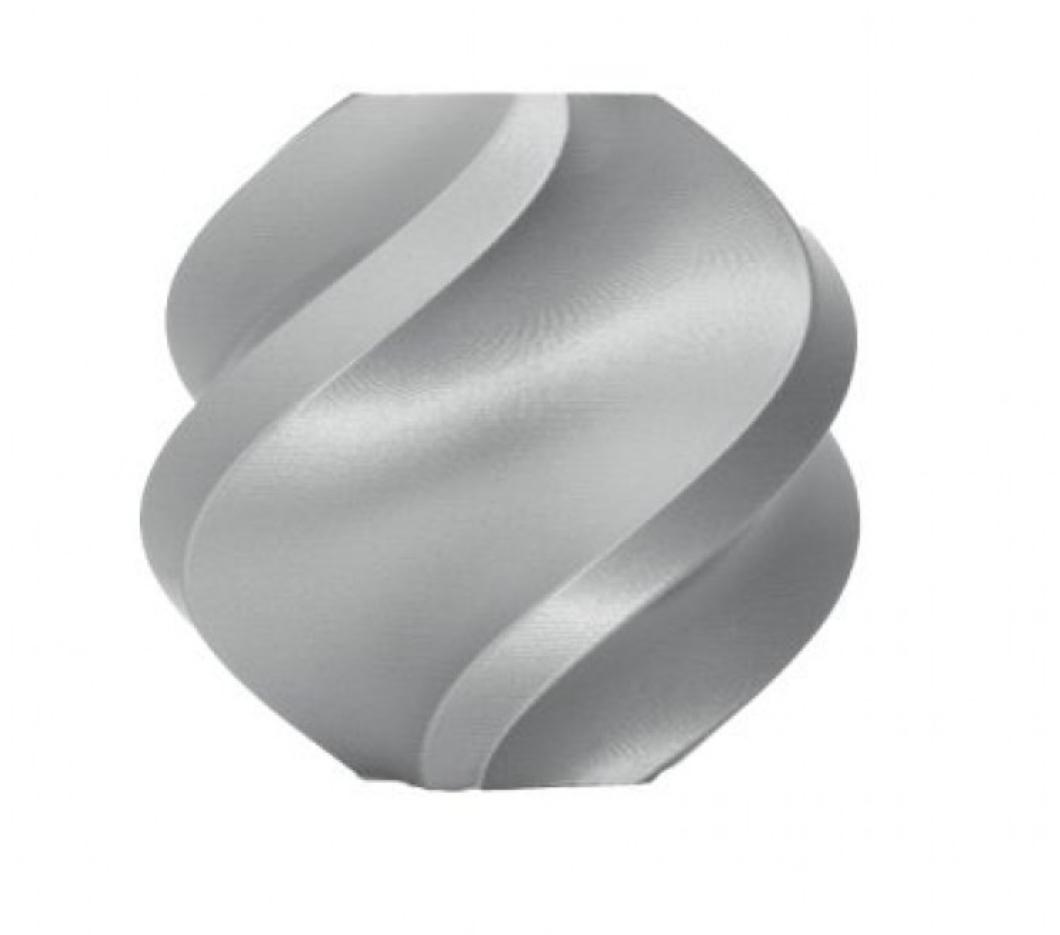
Bambu Lab PLA Filament Silver – 1.75mm with Reusable Spool
Premium silver PLA for printing CNC workshop accessories, cable guides, and control panel mounts. Bambu Lab’s tight tolerance ensures reliable printing of precision workshop parts.
3D Printer Pen with Filament and USB Cable
A 3D printing pen for rapid workshop prototyping and fixture repair. Perfect for CNC workshop operators who need to quickly create or repair small plastic parts between machine setups.
3D Printing Accessories from Zbotic
The best CNC workshops in India also have a 3D printer for printing fixtures, jigs, cable management, and replacement parts. Here are the essentials:
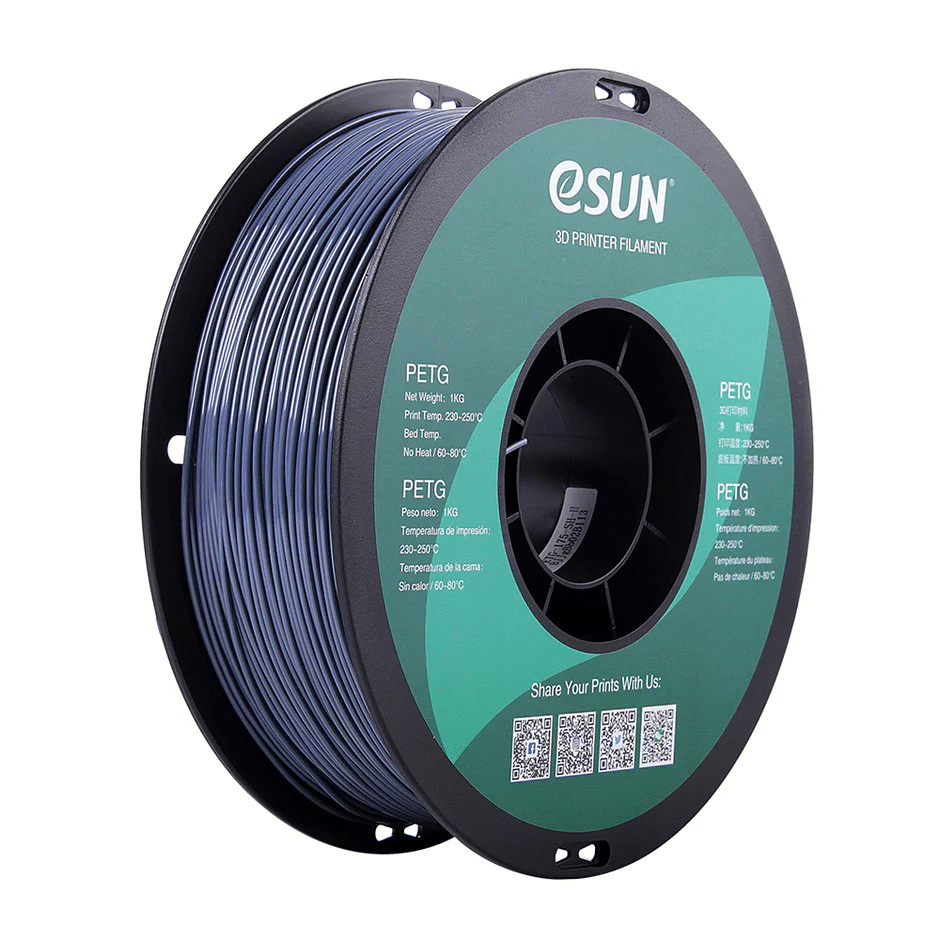
eSUN PETG 1.75mm Filament 1kg – Grey
The workshop workhorse filament. PETG resists workshop chemicals, handles heat from nearby machinery, and doesn’t deform under moderate mechanical load. Ideal for custom fixturing.
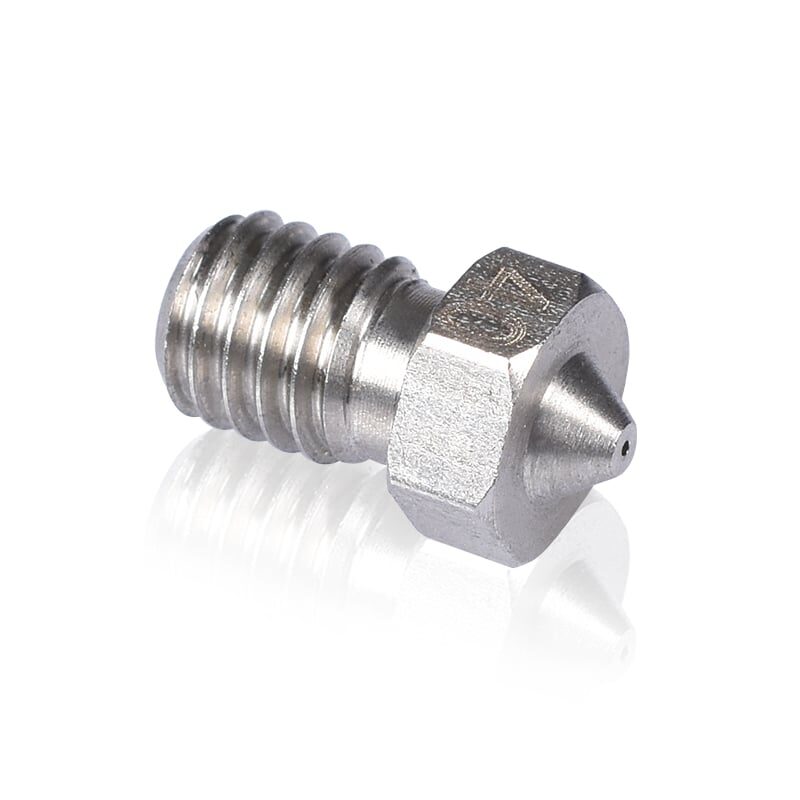
Stainless Steel Nozzle 0.4mm for 3D Printers
Stainless steel nozzles are ideal for workshop printers printing PETG and ABS repeatedly. More resistant to wear than brass, especially when printing filled or composite filaments.
Frequently Asked Questions
Is Mach3 free to use in India?
Mach3 has a demo version that is free but limited to 500 lines of G-code — enough for very small jobs. The full licence costs approximately ₹8,000–12,000 (USD 175 equivalent). Many Indian workshops run unlicensed copies; purchasing a legitimate licence supports continued development and gives access to official support.
Can Mach3 run on Windows 10 or Windows 11?
Mach3 can run on Windows 10/11 but ONLY with a USB or Ethernet motion controller (like UC100, UC400ETH, or Smooth Stepper). Direct LPT parallel port mode does not work reliably on Windows 10/11 due to real-time scheduling issues. If you’re building a new system, plan for a USB motion controller.
What is the best CNC controller for Indian voltage conditions?
The UC100 USB motion controller from CNC Drive is popular in India due to its reliability and immunity to Windows version changes. For larger machines with servo motors, the UC400ETH Ethernet controller provides better isolation and stability on Indian electrical systems.
What CNC routers work well with Mach3 in India?
Popular Indian CNC builds include 6040, 3040, and custom-built routers from Rajkot and Pune-based suppliers. All are typically pre-configured for Mach3. Imported Taiwanese and Chinese routers (Omni, CNC Step) also ship with Mach3 configurations.
How do I prevent my Mach3 PC from hanging mid-job?
Disable all Windows Update, antivirus, and background applications. Use msconfig to disable all non-essential startup services. On Windows 7, also adjust power settings to High Performance and disable CPU C-states in BIOS (look for C1E, C3, C6 states — disable all). These settings prevent the CPU from throttling during real-time operation.
Can I use Mach3 to run a 3D printer?
Technically yes — Mach3 can drive any stepper-based machine including basic FDM 3D printers. However, it lacks the firmware features (PID temperature control, layer fan management, acceleration profiles) that make dedicated 3D printer firmware (Marlin, Klipper) superior for printing. Use Mach3 for CNC and dedicated firmware for 3D printing.
Equip Your CNC and 3D Printing Workshop
From filaments and nozzles to printer accessories, Zbotic has everything your Indian fabrication workshop needs. Fast shipping nationwide.






Add comment