
Setting up a Raspberry Pi media server Plex is one of the most rewarding projects for any home enthusiast in India. With streaming platform prices in India rising steadily and internet speeds now fast enough for local streaming thanks to Jio Fiber and Airtel Xstream, running your own personal Plex server on a Raspberry Pi 5 makes tremendous sense. You get Netflix-like streaming of your personal media library — movies, TV shows, music, home videos — across every device in your home, all for the one-time cost of a Raspberry Pi and a hard drive. This comprehensive guide covers everything from hardware selection to remote access setup.
Why Choose Raspberry Pi for Plex in India?
Running Plex on a dedicated NAS device or a PC left running 24/7 works well but costs significantly more and consumes much more electricity. The Raspberry Pi 5 offers a compelling middle ground for Indian households:
- Power consumption: Raspberry Pi 5 + external HDD draws roughly 10-15W versus 50-100W for a budget NAS or PC. At India’s average electricity rate of Rs 7/kWh, this saves Rs 2,000-5,000 per year in electricity costs alone
- Cost: A complete Raspberry Pi 5 Plex server setup (board + case + SSD + 4TB HDD) costs under Rs 20,000 — far less than entry-level NAS devices from Synology or QNAP
- Transcoding on Pi 5: The Raspberry Pi 5’s BCM2712 includes hardware H.264 and HEVC decoding, enabling direct play of most common video formats and lightweight transcoding for format-incompatible clients
- Silence: No fan noise (with a passive case or the official active cooler on low-noise mode) — perfect for bedroom or living room placement
- Always-on with UPS support: The Pi 5 can run on a small UPS to survive short power cuts — a common concern in Indian homes
The key limitation is transcoding heavy 4K HDR content, which the Pi 5 struggles with in software. However, for Indian collections (which are predominantly 1080p Blu-ray, DVD rips, and streaming downloads), direct play works flawlessly with Plex on Raspberry Pi 5.

Raspberry Pi 5 Model 16GB RAM
The 16GB Raspberry Pi 5 is ideal for a Plex server — ample RAM for large media libraries, multiple concurrent streams, and running Plex alongside other home services like Sonarr and Radarr.
Hardware Requirements and Recommendations
Here is the complete hardware list for a reliable Raspberry Pi 5 Plex server in India:
Essential Hardware
- Raspberry Pi 5 (4GB or 8GB RAM recommended) — The extra RAM helps Plex’s metadata scanning and transcoding cache. 8GB is recommended if you plan to run Sonarr, Radarr, or other arr apps alongside Plex
- Official Raspberry Pi 5 27W USB-C Power Supply — Critical for stability. Underpowering the Pi 5 with external drives causes SD card corruption and filesystem errors
- External USB 3.0 HDD or SSD for media storage — A 4TB or 8TB 3.5 inch USB HDD (Western Digital Elements or Seagate Expansion) is the most cost-effective option. For faster access, use a USB 3.0 SSD like the Samsung T7
- MicroSD or NVMe SSD for the OS — Install Raspberry Pi OS on a quality microSD (Samsung Endurance Pro) or better, on an NVMe SSD via the M.2 HAT. The OS drive should NOT be the same as your media drive — keep them separate for reliability
Recommended Additions
- Powered USB Hub: A 4-port USB 3.0 powered hub if you are connecting both an external HDD and other peripherals
- Official Active Cooler: For sustained Plex transcoding tasks, the Pi 5 should have the active cooler to prevent throttling
- Case with ventilation: A case that keeps the Pi and USB hub tidy, with ventilation slots
- Ethernet cable: For best streaming performance, connect the Pi 5 to your router via Ethernet (Cat5e or Cat6) rather than Wi-Fi

Raspberry Pi 5 Model 4GB RAM
The 4GB Raspberry Pi 5 is a great value choice for a personal Plex server handling 2-4 simultaneous direct-play streams on a home network.
Installing Raspberry Pi OS and Plex
Step 1: Flash Raspberry Pi OS (64-bit)
Download Raspberry Pi Imager from the official Raspberry Pi website. Select Raspberry Pi OS Lite (64-bit) for a headless server (no desktop GUI needed — reduces resource usage). In Imager’s advanced settings, pre-configure: hostname (e.g., plexserver), SSH enabled, your Wi-Fi credentials (or skip if using Ethernet), and your username/password. Flash to your chosen OS drive.
Step 2: First Boot and System Update
Connect the Pi 5 to your router via Ethernet, power it on, and SSH in from another computer on your network:
ssh [email protected]

sudo apt update && sudo apt full-upgrade -y
sudo reboot
Step 3: Install Plex Media Server
Plex provides an official ARM64 .deb package for Linux. The most reliable installation method uses Plex’s official repository:
curl https://downloads.plex.tv/plex-keys/PlexSign.key | gpg --dearmor | sudo tee /usr/share/keyrings/plex-archive-keyring.gpg > /dev/null
echo "deb [signed-by=/usr/share/keyrings/plex-archive-keyring.gpg] https://downloads.plex.tv/repo/deb public main" | sudo tee /etc/apt/sources.list.d/plexmediaserver.list

sudo apt update
sudo apt install plexmediaserver -y

sudo systemctl enable plexmediaserver
sudo systemctl start plexmediaserver
sudo systemctl status plexmediaserver
Step 4: Initial Web Setup
From a browser on the same network, navigate to http://plexserver.local:32400/web. The Plex setup wizard will guide you through signing in (or creating a free Plex account) and setting up your initial media libraries.
Configuring Plex Media Server
After the initial wizard, these Plex settings are critical for a good experience on Raspberry Pi 5:
Transcoder Settings
Navigate to Settings, then Transcoder:
- Enable Use hardware-accelerated video encoding — the Pi 5 supports hardware H.264 encoding via its Video Codec Engine
- Set the Transcoder temporary directory to a fast location (your NVMe or USB SSD, NOT the microSD)
Library Organisation
For Indian media collections, create separate libraries for:
- Bollywood Movies (or all Movies in one library — Plex handles Hindi, Tamil, Telugu, Malayalam metadata through its agents)
- TV Shows (Indian OTT downloads)
- Music (your MP3/FLAC collection)
- Home Videos (personal recordings)
Naming convention is critical: Plex matches media to its metadata database using filenames. For Bollywood movies, use: Movie Name (Year)/Movie Name (Year).mkv. For TV shows: Show Name/Season 01/Show Name S01E01.mkv. Incorrect naming is the number one cause of missing artwork and metadata in Plex.
Plex Pass (Optional)
Plex Pass costs $4.99/month or $120 lifetime. Key Plex Pass features for Indian users: hardware-accelerated transcoding (important for 4K content), offline sync/downloads to mobile, and live TV/DVR if you connect an HDTV tuner.

18650 Battery Holder Development Board V3 for Raspberry Pi
Keep your Plex server running during power cuts with this UPS-like battery development board — perfect for Indian homes where brief outages are common.
Storage Setup: External HDD and NAS
The storage setup is the most important part of your Plex server for reliability. Here is the recommended approach for Indian users:
Formatting the External Drive
Format your external HDD as ext4 (native Linux filesystem) for best performance and reliability. Connect the drive and identify it:
lsblk
sudo mkfs.ext4 /dev/sda1 -L MediaDrive
Auto-Mount at Boot
sudo mkdir -p /mnt/media
sudo blkid /dev/sda1
# Add to /etc/fstab (replace UUID with your actual value):
UUID=your-uuid-here /mnt/media ext4 defaults,nofail 0 2
sudo mount -a
The nofail option is essential — it prevents boot failure if the drive is disconnected, which is important for reliable system recovery.
Permissions for Plex
sudo chown -R plex:plex /mnt/media
sudo chmod -R 755 /mnt/media
Dealing with Indian Power Fluctuations
Indian power supply is not always clean. USB HDDs are particularly vulnerable to sudden power loss — it can cause filesystem corruption and lost data. Recommendations: (1) Always shut down Plex gracefully before powering off (never just pull the plug), (2) Use a UPS for the Pi 5 and external HDD, (3) Consider an SSD instead of an HDD — SSDs handle sudden power loss far better, (4) Schedule weekly filesystem checks with fsck via cron.
Remote Access and Port Forwarding
To stream your Plex library outside your home — from your office, when travelling, or to family members in another city — you need remote access. There are two approaches:
Method 1: Plex Relay (Easy, No Router Config)
By default, Plex uses its own relay servers to route traffic when direct access is not configured. This is the easiest setup but limits bandwidth to Plex’s relay server speed (often 2-8 Mbps, enough for 720p but may struggle with 1080p).
Method 2: Port Forwarding (Recommended)
Assign a static local IP to your Pi 5 (via DHCP reservation in your router settings). Then log into your router admin panel (typically at 192.168.1.1 or 192.168.0.1) and create a port forwarding rule: External port 32400 to Internal IP of Pi 5, Port 32400. In Plex Settings, navigate to Remote Access, enter port 32400 and save. Plex will show a green checkmark when remote access is working.
Method 3: Tailscale VPN (Most Secure)
Install Tailscale on your Pi 5 and on all your client devices. Tailscale creates a private WireGuard VPN mesh — your Pi 5 is accessible from anywhere without port forwarding or exposing your home IP. This is particularly recommended for Indian users concerned about cybersecurity. Tailscale is free for personal use (up to 3 users and 100 devices).
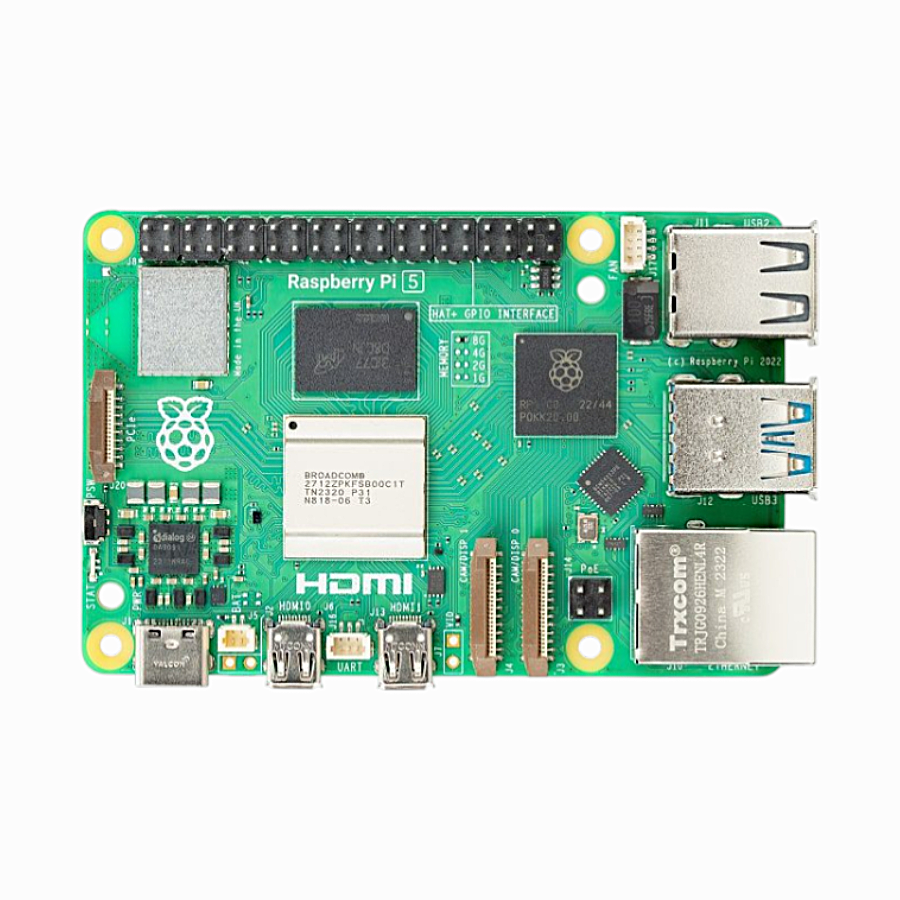
Raspberry Pi 5 Model 2GB RAM
The 2GB Raspberry Pi 5 can handle a personal Plex server for 1-2 simultaneous streams — a budget-friendly starting point you can upgrade later.
Frequently Asked Questions
How many simultaneous streams can Raspberry Pi 5 handle on Plex?
For direct play (no transcoding), the Pi 5 can comfortably handle 4-6 simultaneous 1080p streams — limited primarily by network bandwidth rather than CPU. For transcoding (format conversion), realistically 1-2 simultaneous 1080p transcodes. 4K transcoding in software is not practical on Pi 5; use Plex Pass hardware transcoding for 4K or ensure all 4K clients support direct play.
Can I use a Raspberry Pi 4 for Plex instead of Pi 5?
Yes, but with limitations. The Pi 4 works well for 1-3 simultaneous 1080p direct play streams. The Pi 5 is significantly faster (2-3x more CPU performance) and supports hardware H.264/HEVC encoding for transcoding. If you already own a Pi 4, it is a reasonable Plex server for personal use. For a new purchase in 2025-2026, the Pi 5 is strongly recommended.
Can I store media on a NAS and point Plex to it?
Yes. Mount the NAS share on the Pi 5 (via NFS or SMB/CIFS) and add the mounted path as a Plex library location. NFS is recommended for Linux-to-Linux NAS connections (faster, lower overhead than SMB). Ensure your home network is on Gigabit Ethernet for acceptable media access speeds — a 100 Mbps switch will be a bottleneck for 4K content.
Will Plex see my Hindi/Tamil/regional language movie metadata?
Plex uses The Movie Database (TMDB) and TheTVDB for metadata. TMDB has good coverage of Bollywood titles and is improving for Tamil, Telugu, and Malayalam cinema. Correct file naming is essential — use the English title in brackets after the regional title for best match rates. Some regional titles may require manual metadata matching in the Plex interface.
What happens to my Plex server during a power cut?
Sudden power loss to the Pi 5 while Plex is running can corrupt the Plex database (which lives on your OS drive). To protect against this: (1) Use the Plex setting to back up the database daily via Settings then Troubleshooting then Database, (2) Use a UPS or a power bank with pass-through charging, (3) Consider storing the Plex data directory on an SSD rather than microSD — SSDs handle sudden power loss better.
Build Your Home Media Server with Raspberry Pi 5
Get your Raspberry Pi 5 and all the accessories you need for a reliable Plex media server from Zbotic India. Genuine products, fast delivery, and expert support for Indian makers.







Add comment