
Setting up an ESP32 WiFiManager web portal is the single most professional upgrade you can make to your ESP32 projects. Instead of hardcoding your WiFi credentials into firmware — which means reflashing every time the router password changes or you deploy to a new location — WiFiManager lets users configure the network through a captive portal web page on their phone or laptop. This guide covers everything from installation to advanced customization, with working code you can drop into your project today.
What is WiFiManager and Why Use It?
WiFiManager is an open-source Arduino library by tzapu (with active forks by toblum and others) that manages WiFi connections on ESP32 and ESP8266. The core idea is elegant: if the device cannot connect to a previously saved network, it automatically starts a WiFi access point and hosts a web portal where the user can select their network and enter credentials. Once saved, those credentials are stored in NVS (Non-Volatile Storage) flash and used on every subsequent boot — no code change required.
This approach is essential for any product-grade ESP32 project:
- No hardcoded credentials — security and flexibility
- Field deployment — users configure devices without needing Arduino IDE
- Multiple environments — same firmware works at home, office, and client sites
- Custom parameters — you can add your own fields (MQTT server, API keys, device names) to the portal
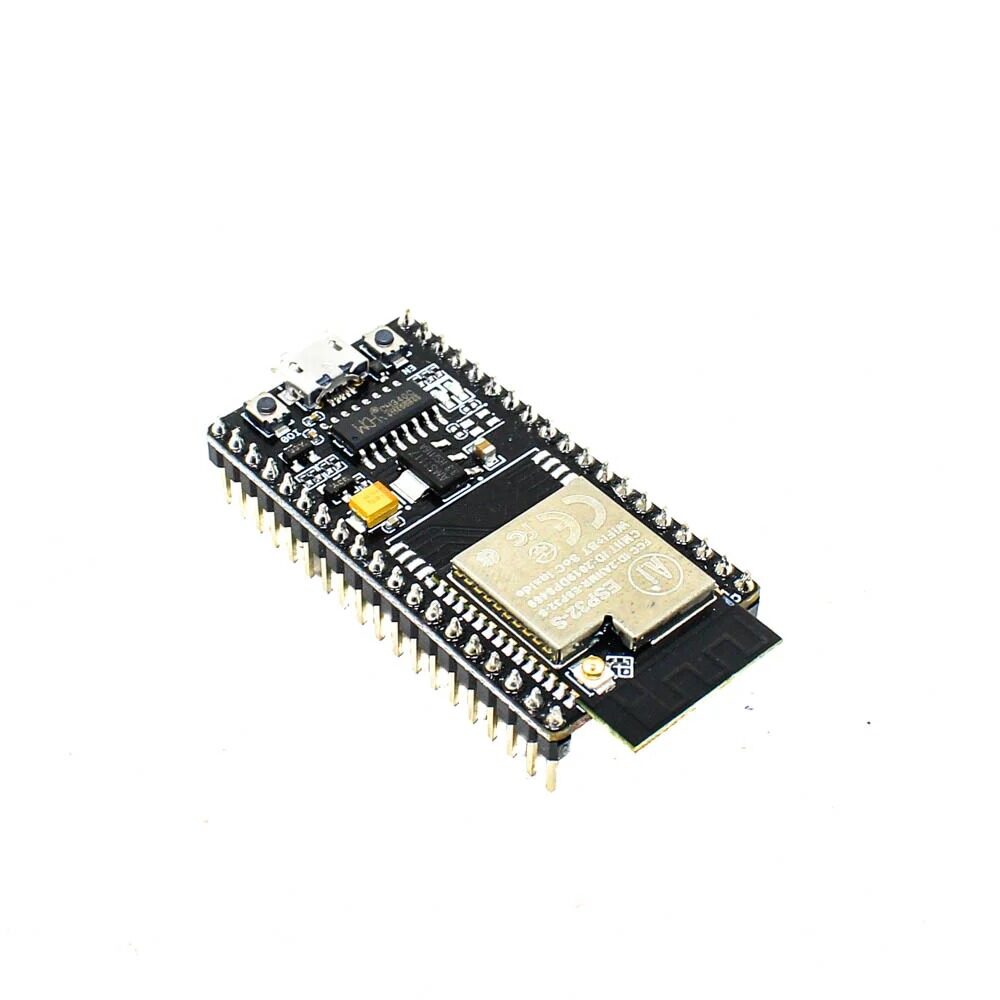
Ai Thinker NodeMCU-32S ESP32 Development Board – IPEX Version
A reliable ESP32 development board with IPEX antenna for extended WiFi range — ideal for testing WiFiManager in various network environments.
Installing the WiFiManager Library
There are two widely used versions of WiFiManager for ESP32:
Option 1: tzapu/WiFiManager (Arduino IDE Library Manager)
Open Arduino IDE → Tools → Manage Libraries → Search for “WiFiManager” → Install the one by tzapu. This is the classic version and works well for most projects. As of 2024 this library is maintained and ESP32 compatible.
Option 2: tablatronix/WiFiManager (GitHub)
This is the more actively maintained fork with additional features including async web server support, better ESP32 NVS handling, and more callback options. Install via PlatformIO:
lib_deps = tzapu/WiFiManager @ ^2.0.17Or download the ZIP from GitHub and install via Arduino IDE’s “Add .ZIP Library” option.
Dependencies for ESP32: The library requires the WiFi.h header, which is included in the ESP32 Arduino core. Ensure you have esp32 by Espressif Systems version 2.x or higher installed via Boards Manager.
Basic WiFiManager Sketch
Here is a minimal but complete WiFiManager example for ESP32:
#include <WiFiManager.h>

void setup() {
  Serial.begin(115200);

  WiFiManager wm;

  // Set timeout for config portal (seconds)
  wm.setConfigPortalTimeout(180);

  // Try to connect; if fails, start portal
  bool connected = wm.autoConnect("ESP32-Setup", "password123");

  if (!connected) {
    Serial.println("Failed to connect. Restarting...");
    delay(3000);
    ESP.restart();
  } else {
    Serial.println("Connected to WiFi!");
    Serial.print("IP Address: ");
    Serial.println(WiFi.localIP());
  }
}

void loop() {
  // Your main code here
}
When this code runs on a fresh ESP32 (no saved credentials), it creates a WiFi network named “ESP32-Setup” with the password “password123”. Connect to this network from your phone or laptop. Your device should automatically show the captive portal; if not, open a browser and navigate to 192.168.4.1. You will see a webpage listing available WiFi networks. Select yours, enter the password, and click Save. The ESP32 restarts, connects to your network, and from that point uses the saved credentials automatically.
Adding Custom Parameters to the Portal
One of WiFiManager’s most powerful features is the ability to collect additional configuration values through the same captive portal — MQTT broker addresses, device names, API keys, or any string your firmware needs. These are defined as WiFiManagerParameter objects:
#include <WiFiManager.h>
#include <ArduinoJson.h>
#include <SPIFFS.h>
char mqtt_server[40] = "mqtt.example.com";
char device_name[32] = "ESP32-Sensor";
void setup() {
Serial.begin(115200);
SPIFFS.begin(true);
// Load saved config from SPIFFS
loadConfig();
WiFiManagerParameter param_mqtt("mqtt", "MQTT Server", mqtt_server, 40);
WiFiManagerParameter param_name("name", "Device Name", device_name, 32);
WiFiManager wm;
wm.addParameter(¶m_mqtt);
wm.addParameter(¶m_name);
wm.setSaveParamsCallback([&]() {
strcpy(mqtt_server, param_mqtt.getValue());
strcpy(device_name, param_name.getValue());
saveConfig();
Serial.println("Custom params saved!");
});
wm.autoConnect("ESP32-Setup");
}
void saveConfig() {
JsonDocument doc;
doc["mqtt"] = mqtt_server;
doc["name"] = device_name;
File f = SPIFFS.open("/config.json", "w");
serializeJson(doc, f);
f.close();
}
void loadConfig() {
if (SPIFFS.exists("/config.json")) {
File f = SPIFFS.open("/config.json", "r");
JsonDocument doc;
deserializeJson(doc, f);
strcpy(mqtt_server, doc["mqtt"] | "mqtt.example.com");
strcpy(device_name, doc["name"] | "ESP32-Sensor");
f.close();
}
}The portal now shows additional input fields alongside the WiFi network selection. All values entered by the user are available immediately via getValue() after the save callback fires.

DHT11 Digital Relative Humidity and Temperature Sensor Module
Pair this classic sensor with a WiFiManager-enabled ESP32 to build a configurable wireless weather station with no hardcoded credentials.
Using Callbacks and Saving Config
WiFiManager provides several callback hooks that let your code respond to events during the connection and portal lifecycle:
setAPCallback— called when the Access Point (config portal) startssetSaveConfigCallback— called after credentials are saved (legacy)setSaveParamsCallback— called after custom parameters are saved (preferred)setPreSaveCallback— called before saving, useful for validationsetResetCallback— called when settings are reset
wm.setAPCallback([](WiFiManager* wm) {
  Serial.print("Config portal started. SSID: ");
  Serial.println(wm->getConfigPortalSSID());
  // Light an LED, show on display, etc.
});

wm.setSaveConfigCallback([]() {
  Serial.println("WiFi credentials saved — rebooting!");
});
Advanced: Non-Blocking Mode and OTA Integration
The default autoConnect() blocks execution until either WiFi connects or the portal timeout expires. For more complex firmware that needs to keep running (e.g., reading sensors, updating a display), use the non-blocking approach with startConfigPortal() or the async version:
WiFiManager wm;
bool portalRunning = false;

void loop() {
  if (portalRunning) wm.process(); // non-blocking portal

  // Check if portal should start (e.g., button press)
  if (digitalRead(TRIGGER_PIN) == LOW) {
    if (!portalRunning) {
      wm.startWebPortal();
      portalRunning = true;
    }
  }

  // Your normal loop code runs uninterrupted
  readSensors();
  delay(10);
}
For OTA updates, WiFiManager and ArduinoOTA work well together. After the WiFi connection is established, initialize OTA in the normal way — WiFiManager handles the connection, OTA handles the update pipeline.
A common pattern for commercial-grade products is to check for a physical “reset” button during boot. If held for 3+ seconds, call wm.resetSettings() to clear stored credentials and restart into the config portal. This gives users a recovery mechanism without requiring serial access.

BMP280 Barometric Pressure and Altitude Sensor I2C/SPI Module
This I2C pressure/altitude sensor is perfect for WiFiManager-configured weather stations — no reflashing needed when deploying to different locations.
Troubleshooting Common WiFiManager Issues
Captive portal does not open automatically
On Android phones with strict captive portal detection, some devices show a notification rather than auto-opening the browser. Tap the notification, or manually open a browser and go to 192.168.4.1. iOS devices generally handle captive portals automatically.
Device keeps restarting instead of showing portal
Set a longer timeout: wm.setConfigPortalTimeout(300); for 5 minutes. Also check your reset logic — accidental calls to ESP.restart() in loop() can cause this.
Saved credentials not persisting after power cycle
This usually means NVS is corrupted or partitions are misconfigured. Flash the board with a simple NVS-clear sketch first, or use wm.resetSettings() once to wipe old data, then re-enter credentials.
“Failed to connect” even with correct password
Ensure your router uses 2.4GHz — the ESP32 cannot connect to 5GHz networks. Also verify SSID case sensitivity and check for hidden networks (WiFiManager may not detect them in the scan list).
Frequently Asked Questions
Q1. Does WiFiManager work with ESP8266 too?
Yes, the original WiFiManager library was written for ESP8266 and was later extended to support ESP32. The same library works on both platforms with minimal code differences. ESP8266 projects use the same autoConnect() pattern.
Q2. Where does WiFiManager store the WiFi credentials on ESP32?
WiFiManager on ESP32 uses the WiFi.begin() mechanism which stores credentials in NVS (Non-Volatile Storage) in flash memory. These persist across reboots and firmware updates (unless you explicitly call wm.resetSettings() or erase flash).
Q3. Can I pre-set a default SSID in WiFiManager?
You can provide the access point name and password as arguments to autoConnect("MySsid", "MyPassword"). However, you cannot pre-populate the WiFi credentials for the target network through the library API — those must be entered through the portal.
Q4. How do I force the config portal to open on every boot during development?
Call wm.resetSettings(); at the very beginning of setup() to clear saved credentials before calling autoConnect(). Remember to remove this line before deploying!
Q5. Is WiFiManager suitable for production/commercial ESP32 products sold in India?
Absolutely. WiFiManager (or its async variants) is used in commercially deployed ESP32 products worldwide. For Indian smart home and industrial IoT products, it provides a professional user experience that eliminates the need for end-users to have any technical knowledge to configure their device’s network connection.
Get Your ESP32 Development Boards from Zbotic
Build your WiFiManager-powered IoT projects with quality ESP32 boards and sensors, shipped fast across India.







Add comment