
Table of Contents
- Introduction
- Prerequisites and Hardware
- Mission Planner Installation and Connection
- Pre-Flight Configuration
- Understanding AUTO Mode vs Guided Mode
- Creating a Waypoint Mission
- Key Mission Commands Explained
- Using Guided Mode
- Safety Configuration and Failsafes
- Indian Use Cases: Agriculture and Surveying
- Recommended Products
- Frequently Asked Questions
- Conclusion
Introduction
One of the most powerful capabilities of the ArduPilot/ArduCopter flight stack is fully autonomous waypoint navigation. Using Mission Planner — the ground control station software developed alongside ArduPilot — you can program a drone to take off, fly to precise GPS coordinates, perform specific actions at each waypoint, and return home automatically, all without any stick input from the pilot.
For Indian drone operators, this opens incredible possibilities. Agricultural drones can follow programmed grid patterns over fields, covering every row precisely. Surveying teams can automate photogrammetry missions over construction sites or forest areas. Security drones can patrol predefined routes autonomously. Environmental researchers can run repeated monitoring flights over fixed areas with consistent results.
In this tutorial, we’ll walk through the complete process from a blank Pixhawk to a drone executing a programmed waypoint mission. We’ll cover both AUTO mode (pre-programmed mission execution) and Guided mode (real-time command from ground station), the difference between them, and when to use each.
Prerequisites and Hardware
Required Hardware
- Flight controller: Any ArduPilot-compatible FC — Pixhawk 4, Cube Orange, Matek H743, Pixhawk 2.4.8, or similar
- GPS module: A quality GPS module with compass (NEO-M8N or better recommended)
- Telemetry radio: 3DR/SiK 915MHz or 433MHz radio pair — one on the drone, one on the ground station laptop
- RC transmitter and receiver: Any RC system (ELRS, FrSky, SBUS, etc.)
- Battery, motors, ESC, frame: A functional quadcopter or hexacopter build

3DR 100mW Radio Telemetry 915MHz for Pixhawk
The essential link between Mission Planner and your drone. The air module mounts on your build and connects via UART to the Pixhawk. The ground module plugs into your laptop USB port for real-time telemetry during autonomous missions.
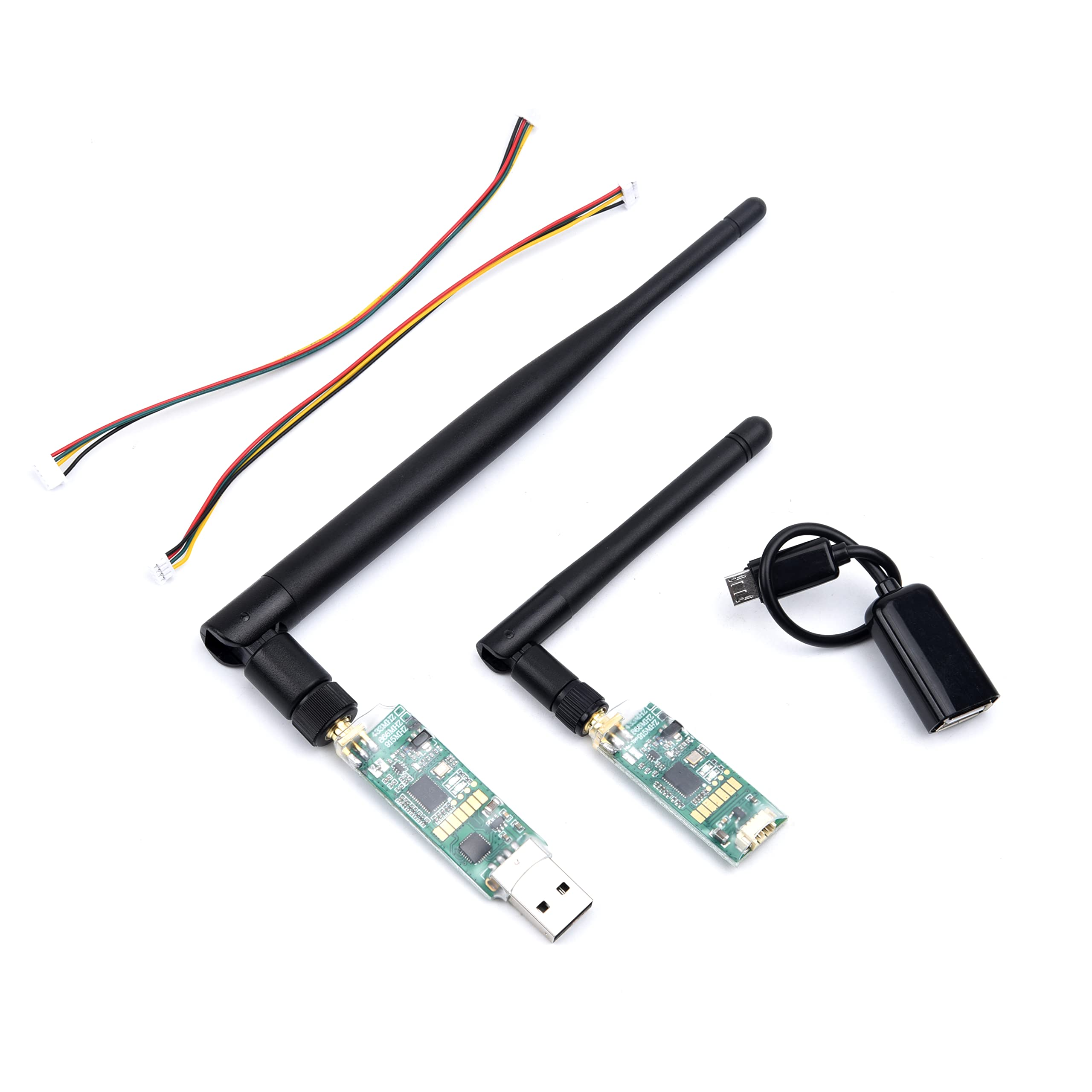
3DR Mini Radio Telemetry 433MHz 500mW
A compact 500mW telemetry radio pair for Pixhawk-based drone builds. The 433MHz frequency offers better penetration in cluttered Indian environments and longer range than 915MHz in some conditions.
Software Requirements
- Mission Planner: Download from ardupilot.org/planner — Windows only (use Wine on Linux, or QGroundControl as a cross-platform alternative)
- ArduCopter firmware: Latest stable release — installable directly from Mission Planner
- Drivers: Silabs CP2102 or CH340 USB drivers for the telemetry radio
Mission Planner Installation and Connection
Installing Mission Planner
- Download Mission Planner installer from ardupilot.org
- Run the installer — it includes all required .NET components
- Install telemetry radio drivers when prompted
- Launch Mission Planner
Flashing ArduCopter Firmware
- Connect the Pixhawk to your laptop via USB
- In Mission Planner, go to Setup → Install Firmware
- Select your vehicle type (quad, hex, etc.) and click the appropriate vehicle image
- Mission Planner downloads and flashes the latest stable ArduCopter firmware automatically
- After flashing, disconnect and reconnect USB
Connecting via Telemetry Radio
- Connect the ground telemetry radio to your laptop USB
- In Mission Planner top right, select the correct COM port from the dropdown
- Select baud rate 57600 (default for 3DR SiK radios)
- Click CONNECT
- Mission Planner connects and displays live telemetry — HUD attitude, GPS status, battery voltage
The HUD (Heads Up Display) shows roll, pitch, yaw, altitude, groundspeed, and flight mode in real time. The GPS status in the top bar shows satellite count and fix type (3D Fix needed for autonomous flight).
Pre-Flight Configuration
Accelerometer Calibration
- Setup → Mandatory Hardware → Accel Calibration
- Follow the on-screen prompts, placing the drone in 6 orientations (flat, nose up, nose down, left, right, back)
- Click Done when complete
Compass Calibration
Compass calibration is critical for accurate heading in AUTO mode. A poorly calibrated compass causes the drone to drift sideways or fly the wrong direction.
- Setup → Mandatory Hardware → Compass
- Enable Compass 1 (internal or external GPS compass — prefer external)
- Click Start → Onboard Calibration (recommended)
- Rotate the drone in all orientations as prompted
- Green progress indicators show calibration progress
- Click Restart to apply
Important for India: Compass calibration must be performed outdoors, away from reinforced concrete buildings and power lines. India’s urban environments have significant magnetic interference. Recalibrate whenever you change locations significantly.
Radio Calibration
- Setup → Mandatory Hardware → Radio Calibration
- Power on your RC transmitter
- Click Calibrate Radio
- Move all sticks and switches to their extreme positions
- Click Click When Done
Flight Modes
Setup → Mandatory Hardware → Flight Modes. Configure your RC switch positions to flight modes. Recommended for autonomous operations:
- Position 1: STABILIZE (manual recovery mode)
- Position 2: LOITER (GPS hold — for hovering and checking before mission)
- Position 3: AUTO (executes the uploaded waypoint mission)
- Position 4: RTL (Return to Launch — emergency mode)
- Position 5: GUIDED (allows Mission Planner to send real-time movement commands)
- Position 6: ALT HOLD (altitude hold without GPS — for use if GPS fails)
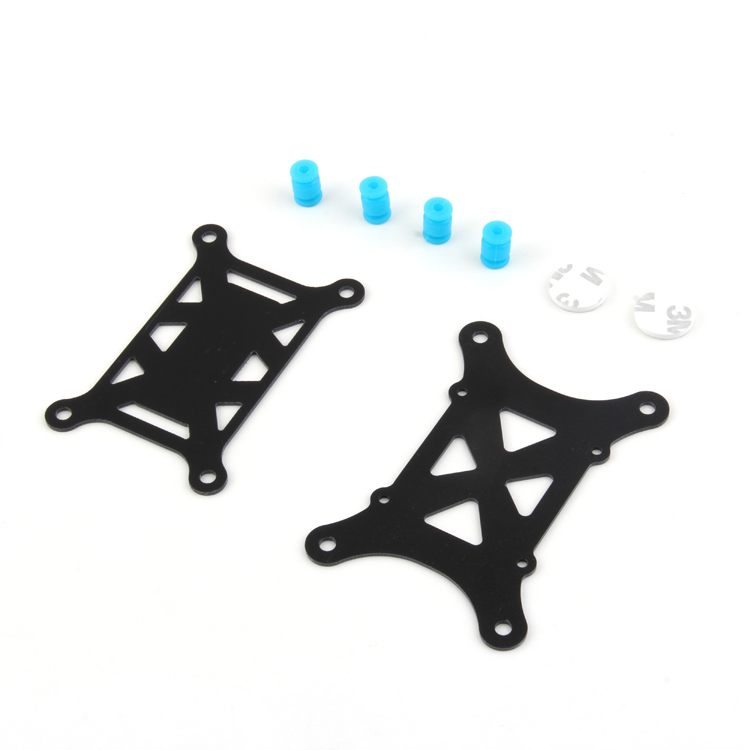
Anti-Vibration Shock Absorber for Pixhawk
A must-have vibration isolation mount for your Pixhawk flight controller. Reduces prop-induced vibrations that cause EKF errors and erratic behaviour during autonomous ArduCopter missions.
Understanding AUTO Mode vs Guided Mode
ArduCopter has two primary modes for autonomous operation, and understanding the difference is critical before flying:
AUTO Mode
In AUTO mode, ArduCopter executes a pre-uploaded mission from its memory. The mission is a sequence of waypoints and commands that you create in Mission Planner and upload to the drone before flight. Once you arm and switch to AUTO mode, the drone executes the entire mission without any further input.
Advantages of AUTO mode:
- Works without active telemetry link during flight
- Consistent repeatable missions (same path every time)
- Can be pre-planned in the office, executed in the field
- Mission stored in FC non-volatile memory — survives power cycles
Guided Mode
In Guided mode, the drone waits for real-time commands from Mission Planner (or any MAVLink ground control station). You click on the map in Mission Planner, right-click, and select “Fly to here” — the drone immediately flies to that location. You can also command altitude, change speed, or execute other MAVLink commands in real time.
Advantages of Guided mode:
- Dynamic — react to changing situations in real time
- No pre-planning required
- Useful for inspection (manoeuvre around a building as needed)
- Requires active telemetry link throughout flight
Key difference: AUTO mode works without telemetry during flight; Guided mode requires constant telemetry. AUTO mode runs from a fixed pre-planned route; Guided mode responds to real-time operator commands.
Creating a Waypoint Mission
Opening the Flight Plan Tab
In Mission Planner, click the PLAN tab (top navigation). You’ll see a satellite map view. Right-click the map and select “Set Home Here” at your intended takeoff location. This sets the RTL (Return to Launch) home point.
Adding Waypoints
There are two ways to add waypoints:
Method 1 — Left click on map: Each click adds a waypoint at that location. The default command is WAYPOINT with the default altitude. Adjust altitude in the waypoint list.
Method 2 — Right click → Add Here: Gives you more control, opens a dialog to set the command type immediately.
Survey Grid Tool (for Agricultural/Photogrammetry Missions)
For covering a rectangular area systematically:
- Right-click → Draw Polygon → Add Polygon Point
- Draw the boundary of your survey area by clicking points
- Right-click the finished polygon → Survey (Grid)
- Set parameters: altitude (typically 30–60m for agricultural spray, 80–120m for photogrammetry), side overlap percentage, front overlap percentage, and flight speed
- Mission Planner automatically generates the parallel scan lines covering the entire area
This is exactly what Indian agricultural drone operators use for field spraying and crop monitoring missions.
Setting Waypoint Altitude
Altitude in Mission Planner can be set as:
- Relative (default): Altitude above the home/takeoff point. Safest for most missions.
- Absolute (ASL): Above sea level. Required for terrain-aware missions using the terrain database.
- Terrain: Above ground level using digital elevation model data. Important for flying over hilly terrain in India (Western Ghats, Himachal Pradesh farmlands).
For Indian agricultural operations, use Terrain altitude mode to maintain constant height above ground even over undulating terrain.
Key Mission Commands Explained
The waypoint list in Mission Planner supports dozens of mission commands. Here are the most important ones for Indian drone operators:
TAKEOFF
Commands the drone to take off and climb to the specified altitude. Should always be the first command in a mission. Set altitude to at least 5–10 metres to clear local obstacles before beginning the mission.
WAYPOINT
Fly to a specific GPS coordinate at the specified altitude. Parameters include:
- Hold time: pause at the waypoint for X seconds before proceeding
- Acceptance radius: how close the drone must get before considering the waypoint reached (default 2m)
- Pass-through radius: can fly through a wider radius without stopping (faster grid missions)
DO_SET_SPEED
Change the mission cruise speed at any point. Insert this before a waypoint where you want a different speed — for example, slow down over a sensitive area or speed up over a transit leg.
DO_CHANGE_ALTITUDE
Change altitude between waypoints. Useful for missions that need to fly over an obstacle (trees, building) mid-route.
DO_SET_CAM_TRIGG_DIST
Trigger the camera at regular distance intervals — critical for photogrammetry surveys. The drone automatically takes photos every X metres for consistent overlap.
DO_DIGICAM_CONTROL
Manually trigger the camera at a specific waypoint. Useful for inspection missions where you want photos only at specific locations.
LOITER_TIME
Circle around a point for a specified time. Useful for surveillance orbits over a point of interest.
RTL (Return to Launch)
Insert RTL as the final command to send the drone home and land after mission completion. Alternatively, set Mission Planner to automatically append RTL to all missions.
Using Guided Mode
Entering Guided Mode
Guided mode can be entered from Mission Planner’s Flight Data screen while the drone is in the air:
- Click the flight data map view
- Right-click on the destination point on the map
- Select “Fly to here”
- Enter the desired altitude when prompted
- The drone immediately heads to that location
Guided Mode Actions Menu
Mission Planner’s Actions tab (in Flight Data view) provides buttons for:
- ARM/DISARM: arm the motors remotely
- TAKEOFF: command takeoff to specified altitude
- RTL: immediate return to launch
- LAND: land in place
- GUIDED: switch to guided and send a position target
MAVLink Inspector
The MAVLink Inspector in Mission Planner shows all live data flowing from the drone — attitude, GPS, battery, RC inputs, and more. This is invaluable for debugging autonomous missions. Access via Ctrl+F → MAVLink Inspector.
Safety Configuration and Failsafes
Safety configuration is critical before flying any autonomous mission, especially in India where there may be people, livestock, and infrastructure nearby.
Battery Failsafe
- Set
FS_BATT_ENABLE = 2(RTL on low battery) - Set
FS_BATT_VOLTAGEto trigger at 20% remaining charge (e.g., 3.5V per cell = 14.0V for 4S) - Set
FS_BATT_MAHto the remaining mAh at which to trigger (set to 20% of battery capacity)
RC Failsafe
- Set
FS_THR_ENABLE = 1 - Configure your RC transmitter’s failsafe to output a specific throttle value when signal is lost
- Set
FS_THR_VALUEto that throttle value — ArduCopter detects it and triggers RTL
GCS (Ground Control Station) Heartbeat Failsafe
- Set
FS_GCS_ENABLE = 2for RTL if telemetry link is lost for >5 seconds while in AUTO or Guided mode - This catches cases where your laptop disconnects, the telemetry radio fails, or you accidentally close Mission Planner
Geofence
Configure a geofence boundary in Mission Planner → Config → GeoFence. Set a maximum radius from home (e.g., 500m) and maximum altitude (e.g., 120m — the DGCA visual line of sight limit). If the drone tries to exit the geofence, it automatically RTLs. This prevents accidental fly-aways and keeps you compliant with Indian DGCA altitude limits.
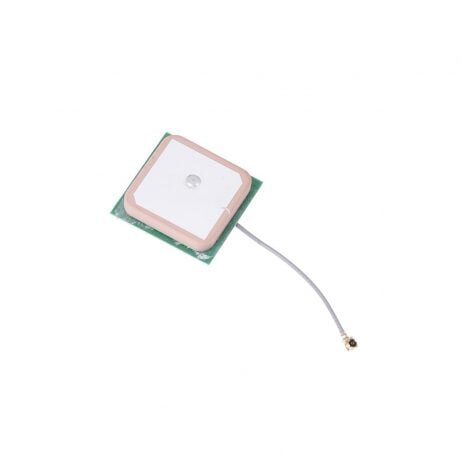
28dB High Gain Active GPS Antenna (NEO-6M/7M/8M)
A high-gain ceramic GPS antenna that improves satellite lock quality. Fewer GPS dropouts during autonomous missions means more reliable waypoint navigation and RTL behaviour.
Indian Use Cases: Agriculture and Surveying
Agricultural Spraying Missions
For crop spraying in India, a typical ArduCopter AUTO mode mission follows this structure:
- TAKEOFF to 3 metres (above crop canopy + safety margin)
- DO_SET_SPEED to 3–5 m/s (spraying speed)
- Grid of parallel waypoints at 3 metres altitude (terrain-following enabled)
- DO_DIGICAM_CONTROL at start of each row to activate spray pump
- DO_DIGICAM_CONTROL at end of each row to deactivate pump
- RTL at mission end
The EFT agricultural drone frames are purpose-built for exactly this type of automated spraying mission with ArduPilot.
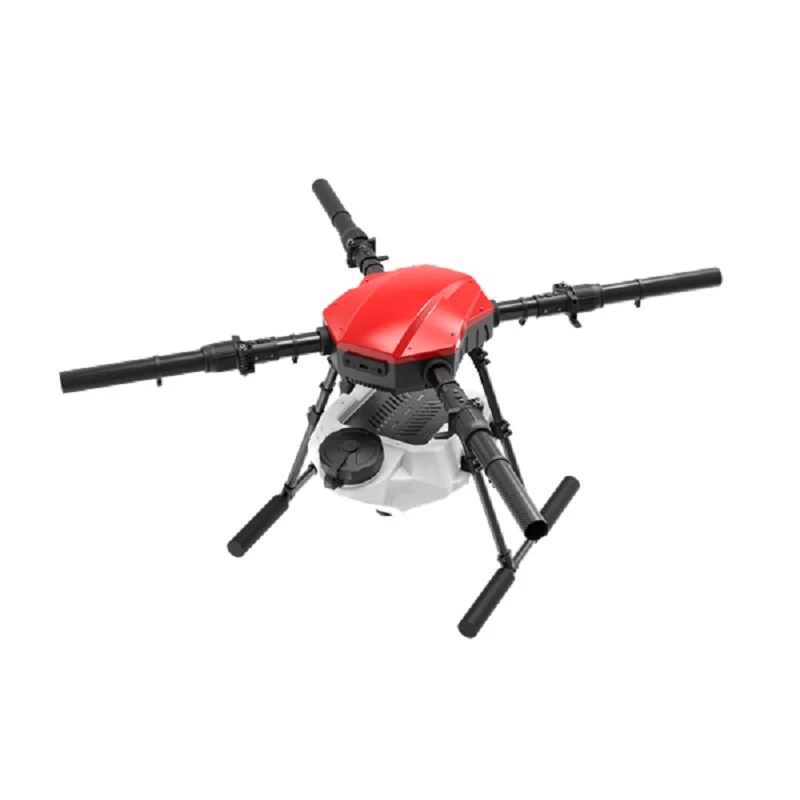
EFT E416P 16L Agricultural Drone Frame
Professional 16-litre agricultural drone frame designed for autonomous spraying missions. Compatible with Pixhawk and ArduCopter for fully automated waypoint-based field coverage.
Photogrammetry Surveying
India’s infrastructure boom — highway construction, smart city projects, mining surveys — creates huge demand for drone photogrammetry. A typical surveying mission:
- Define the survey area polygon in Mission Planner
- Use the Survey Grid tool at 80m altitude, 70% side overlap, 80% front overlap
- Enable DO_SET_CAM_TRIGG_DIST at 15m intervals (at 80m altitude, this gives ~90% overlap)
- Fly the mission in calm conditions (under 15km/h wind)
- Process images in Pix4D, Agisoft Metashape, or WebODM for orthomosaic and 3D model generation
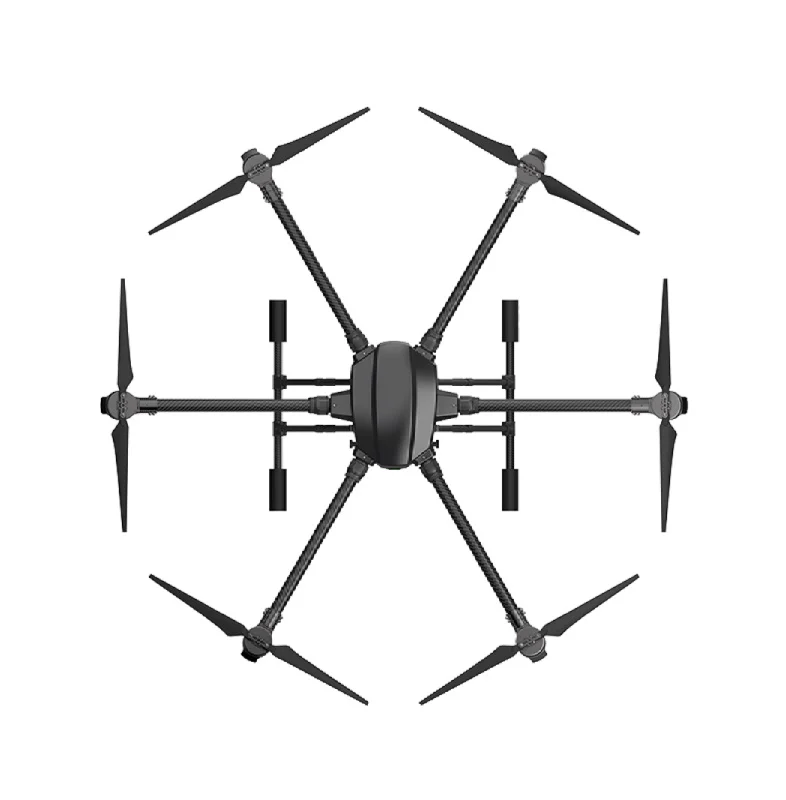
EFT 6120 Multifunction Surveillance Drone Frame
Hexacopter frame ideal for photogrammetry and inspection missions. The 6-motor configuration provides redundancy during autonomous waypoint flights — critical for professional survey operations.
Frequently Asked Questions
What minimum GPS accuracy do I need for AUTO mode?
ArduCopter requires at least a 3D GPS fix (minimum 6 satellites) to arm in AUTO mode. For reliable waypoint accuracy, you want HDOP (Horizontal Dilution of Precision) below 2.0 and preferably below 1.5. Wait for at least 10 satellites and HDOP under 1.5 before starting an autonomous mission. Indian skies generally provide good GPS coverage, but avoid flying under dense tree canopy or near tall buildings.
Can I manually override AUTO mode if something goes wrong?
Yes — this is critical safety knowledge. Flipping your flight mode switch to STABILIZE or LOITER immediately overrides AUTO mode and returns manual control. Always have this failsafe switch accessible. With STABILIZE, you have full manual control but must manage altitude yourself. With LOITER, GPS holds position while you have manual control of direction and altitude.
How do I ensure my drone comes back if telemetry fails?
Configure the GCS heartbeat failsafe (FS_GCS_ENABLE = 2) so the drone RTLs if it loses contact with Mission Planner for more than 5 seconds. Also configure the RC failsafe so signal loss triggers RTL. With both failsafes, the drone returns home even if telemetry AND RC both fail simultaneously (AUTO mode continues running from FC memory as final fallback).
Does ArduCopter AUTO mode work without telemetry?
Yes. Once the mission is uploaded to the flight controller, it’s stored in non-volatile memory. The drone can execute the mission with zero telemetry connection. Telemetry is only required for Guided mode real-time commands and for monitoring status during AUTO mode (monitoring doesn’t affect execution). This is a key advantage over systems that require continuous connection.
What is the maximum number of waypoints?
ArduCopter supports up to 700 waypoints in a single mission (limited by flight controller memory). For large agricultural surveys covering hundreds of hectares, you may need to split into multiple missions with battery changes between them.
Conclusion
ArduCopter’s AUTO mode and Guided mode transform a drone from a manually controlled aircraft into a fully autonomous system capable of executing precise, repeatable missions. For Indian operators — whether spraying Basmati fields in Haryana, surveying construction sites in Pune, or conducting security patrols in industrial areas — this capability is revolutionary.
The key to success with autonomous missions is methodical setup: proper sensor calibration, robust failsafe configuration, and conservative first missions that build confidence before tackling complex operations. Always fly your first autonomous missions in a large open area, keep the drone within visual range, and have your manual override switch trained into muscle memory.
With quality components — a reliable Pixhawk, high-gain GPS, and telemetry radios — and ArduCopter’s battle-tested firmware, you have access to a professional-grade autonomous flight system. Explore Zbotic’s full range of Pixhawk-compatible hardware to build your autonomous mission drone today.







Add comment