
Ask any experienced 3D printer owner what the single most important factor for successful prints is, and most will say the same thing: a well-levelled bed. The first layer of a 3D print determines everything — adhesion, dimensional accuracy, and whether the print survives the next 12 hours or fails in the first 5 minutes. This guide covers everything you need to know about 3D printer bed leveling and BLTouch auto-leveling, from basic manual tramming through advanced mesh compensation.
1. Why Bed Leveling Matters
Bed leveling — more precisely called tramming — is the process of adjusting the print bed so it is uniformly parallel to the plane in which the nozzle moves. When the bed is correctly levelled, every point on the bed is exactly the same distance from the nozzle, resulting in a consistent first layer across the entire print surface.
If the bed is too far from the nozzle:
- The extruded filament does not squish onto the bed, and the first layer lifts immediately.
- The lines of the first layer are round and do not adhere to each other.
If the bed is too close:
- The nozzle scrapes or gouges the bed surface.
- Filament cannot extrude freely, causing clogging.
- Extreme squish results in a fused, unremovable first layer.
The ideal first layer is squished 50–70% of the intended layer height — the filament lines are slightly flattened and bond to each other and the bed surface.
2. Manual Bed Leveling (Tramming) Explained
Manual bed leveling adjusts the physical height of each bed corner (usually via thumb screws or adjustment knobs) until the bed is flat and parallel to the gantry. Most printers — Ender 3, Creality CR-10, Prusa clones, Anet, and dozens of others — use four corner thumb screws with springs underneath the bed.
Advantages of Manual Leveling
- No additional hardware required
- Works even if the bed is truly flat
- No firmware changes needed
- Teaches you to understand your printer
Limitations
- Time-consuming — must be redone after bed removal, filament changes, or thermal cycling
- Cannot compensate for a warped bed surface — only adjusts the four corners
- Human error in sensing the nozzle-to-bed gap
- Does not account for thermal expansion — bed height changes slightly as the bed heats up
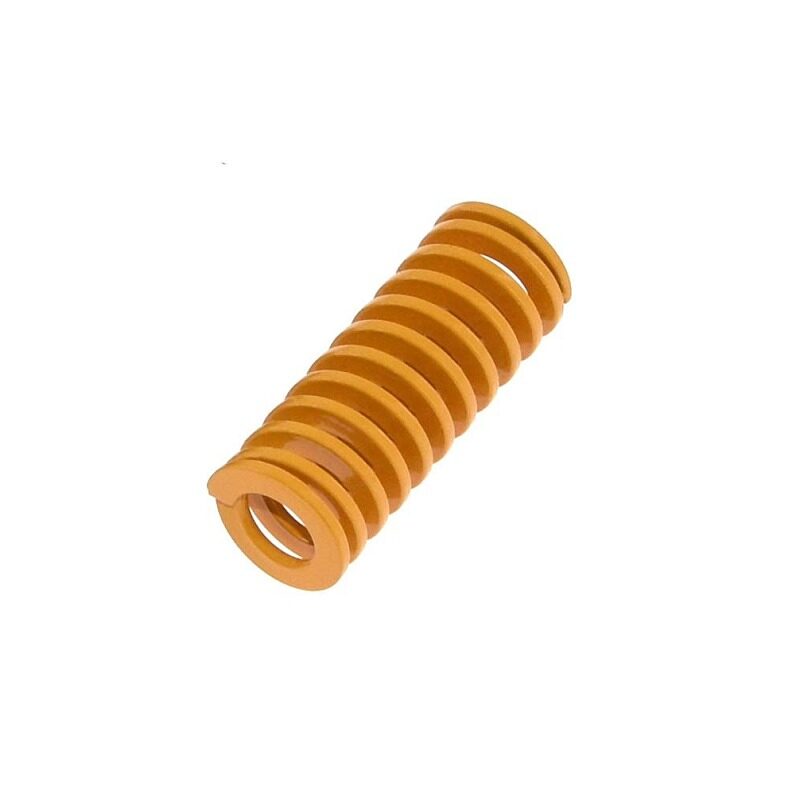
3D Printer Parts Spring for Heated Bed MK3 / CR-10
Stiffer bed springs maintain your manual level setting between print sessions — cheap springs gradually compress and cause your level to drift, forcing frequent re-leveling.
3. Step-by-Step Manual Leveling Procedure
Follow this procedure for accurate manual leveling on any FDM printer:
- Home all axes. Use the printer LCD menu or host software to home X, Y, and Z. This brings the nozzle to the reference position.
- Disable steppers (optional). On the LCD, use the “Disable steppers” option so you can move the printhead by hand freely.
- Prepare a reference gauge. A standard sheet of A4/80gsm paper (~0.1mm thick) is the traditional tool. Feeler gauges at 0.1–0.15mm are more precise and reusable.
- Level the first corner. Move the nozzle above the front-left corner screw. Slide the paper under the nozzle and adjust the thumb screw until you feel slight resistance when pulling the paper — not dragging, not freely sliding.
- Repeat for all four corners. Front-right, rear-right, rear-left. Adjust each so the paper drag feels identical.
- Check the centre. Move the nozzle to the centre of the bed. The paper drag should match the corners. If the centre is high or low, your bed may be warped — a mesh leveling system (ABL) is needed to compensate.
- Repeat the four-corner cycle twice. Adjusting one corner affects adjacent corners slightly. Two full passes ensure consistent results.
- Print a first-layer test. Print a single-layer square or the Cura bed level test pattern. Adjust thumb screws during the print if one corner is visibly off.
Thermal Leveling
Always level with the bed and nozzle at actual printing temperatures. Most beds expand 0.1–0.3mm when heated, which shifts the level. Level at printing temperature for maximum accuracy.
4. What Is BLTouch and How Does It Work?
BLTouch is a smart auto-bed leveling sensor made by Antclabs. It uses a retractable probe pin and a Hall effect sensor to measure the exact distance from the nozzle to the bed at multiple points, creating a 3D mesh of the bed surface. The printer’s firmware then uses this mesh to adjust the Z-height dynamically during printing — compensating for bed tilt, warp, and surface irregularities in real time.
How the BLTouch Works
- The BLTouch extends its probe pin downward.
- The pin touches the bed and triggers the Hall effect sensor, which signals the firmware that the probe has contacted the surface.
- The pin retracts. The firmware records the Z-position at that point.
- This is repeated across a grid (typically 3×3, 4×4, or 5×5 points).
- The firmware builds a mesh and applies bilinear interpolation to compensate the Z-axis in real time during the print.
BLTouch vs CR Touch vs 3DTouch
The original BLTouch (Antclabs) is the gold standard — reliable, well-documented, and compatible with all major firmware. CR Touch is Creality’s own version and works well on their printers. 3DTouch is a cheaper clone — quality varies. For most Indian users, an original BLTouch or CR Touch is the recommended choice.
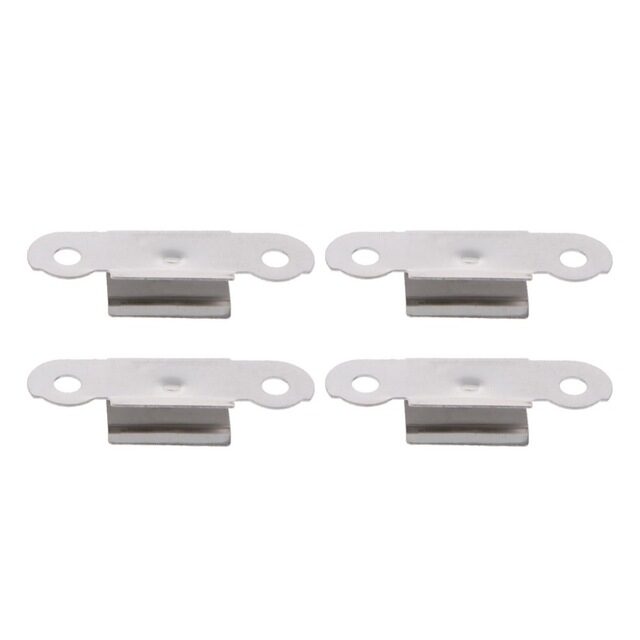
3D Printer Heated Bed Glass Retainer Clip – Pack of 4
Glass bed clips keep your print surface firmly seated during BLTouch probing and printing — a loose glass sheet gives inconsistent probe readings and ruins your mesh calibration.
5. Installing BLTouch on Ender 3 / Creality Printers
The Ender 3 family (V1, V2, Pro, S1) is the most common platform for BLTouch upgrades in India. Here is the installation process:
Parts Needed
- BLTouch sensor (or CR Touch)
- BLTouch bracket for your specific printer model (usually printable from Thingiverse)
- 5-pin extension cable (usually included)
- Marlin firmware compiled for BLTouch (or download the Creality BLTouch firmware for your specific board version)
Wiring the BLTouch
The BLTouch has two connectors: a 3-pin servo connector (power + control signal) and a 2-pin Z-stop connector (the probe trigger signal).
- 3-pin servo connector: Connect to the board’s servo/BLTouch header (usually labeled on the board).
- 2-pin connector: Replace the existing Z-endstop connector with the BLTouch 2-pin cable.
Wire colour guide for BLTouch:
- Brown = GND (ground)
- Red = 5V (power)
- Orange = Signal/Control (to servo pin)
- Black = GND (probe trigger)
- White = Signal (probe trigger, to Z-stop)
Always verify pin order against your specific board’s schematic — Ender 3 V1 and V2 have different board layouts.
Mounting the BLTouch
The BLTouch mounts to the printhead carriage, offset from the nozzle. The probe pin must extend below the nozzle tip when deployed. Common offsets for Ender 3 mounts are X: -44mm, Y: -6mm — but verify with the specific bracket you use.
6. Configuring BLTouch in Marlin
If you are compiling your own Marlin firmware, here are the key settings to enable in Configuration.h:
#define BLTOUCH
#define AUTO_BED_LEVELING_BILINEAR
#define GRID_MAX_POINTS_X 4  // 4x4 = 16 probe points
#define Z_SAFE_HOMING
#define RESTORE_LEVELING_AFTER_G28

// Probe offset from nozzle (measure your bracket)
#define NOZZLE_TO_PROBE_OFFSET { -44, -6, 0 }

// Probing speed
#define XY_PROBE_FEEDRATE (133*60)
#define Z_PROBE_FEEDRATE_FAST (4*60)
#define Z_PROBE_FEEDRATE_SLOW (Z_PROBE_FEEDRATE_FAST / 2)
Add this to your start G-code in your slicer to run the bed leveling before every print:
G28 ; Home all axes
G29 ; Auto bed leveling
G92 E0 ; Reset extruder
7. Mesh Bed Leveling and UBL
Marlin supports three main auto-leveling modes:
- Bilinear Bed Leveling (ABL): The most common. Probes a grid and applies bilinear interpolation during printing. Simple to set up, works well for most beds.
- Unified Bed Leveling (UBL): More powerful. Builds a detailed mesh stored in EEPROM, supports manual mesh editing to fill in corners the probe cannot reach, and applies faster compensation. Best for seriously warped beds or large printers.
- 3-Point Leveling: Probes 3 points and tilts the entire plane mathematically. Only works if the bed is truly flat — use bilinear if your bed has any warp.
Choosing Grid Size
A 3×3 grid (9 probe points) is sufficient for most 220×220mm beds. A 4×4 or 5×5 grid captures more bed curvature detail on larger beds (300×300mm and up). More points = more probing time before each print.
8. Manual vs Auto Leveling: Which Should You Choose?
| Factor | Manual | BLTouch Auto |
|---|---|---|
| Cost | Free (included) | ₹800–₹2,500 (BLTouch) |
| Setup complexity | Low | Medium (firmware + wiring) |
| Time per print | 2–5 min (level before print) | 30–90 sec (auto probe) |
| Handles warped beds | No | Yes (mesh compensation) |
| Repeatability | Moderate | Excellent |
| Firmware required | Any | Marlin / Klipper with ABL |
| Best for | Flat glass beds, beginners | PEI sheets, warped beds, production |
Recommendation for Indian makers: If you print more than 2–3 times per week, the BLTouch pays for itself in saved time and frustration within a month. If you print occasionally and have a flat glass bed, manual leveling is perfectly adequate. If your bed is visibly warped (common on cheap glass beds and aluminium beds after thermal cycling), BLTouch is essential.
9. Z-Offset Calibration
Z-offset is the distance between the BLTouch probe trigger point and the actual nozzle tip. Getting this right is just as important as the mesh itself — a wrong Z-offset shifts the entire mesh up or down, causing the nozzle to be too close or too far from the bed everywhere.
How to Set Z-Offset with BLTouch
- Home all axes (G28).
- Run G29 to probe the bed and activate mesh compensation.
- Move the nozzle to the centre of the bed at Z=0 (G1 Z0).
- Place a piece of paper under the nozzle. You should feel slight resistance.
- If the nozzle is too high (paper slides freely), decrease Z-offset by 0.05mm increments (more negative value).
- If the nozzle is scraping the bed, increase Z-offset (less negative).
- Save to EEPROM (M500) once correct.
Use the Baby Stepping feature (M290) in Marlin to fine-tune Z-offset during the first layer of an actual print — this is the most accurate method.
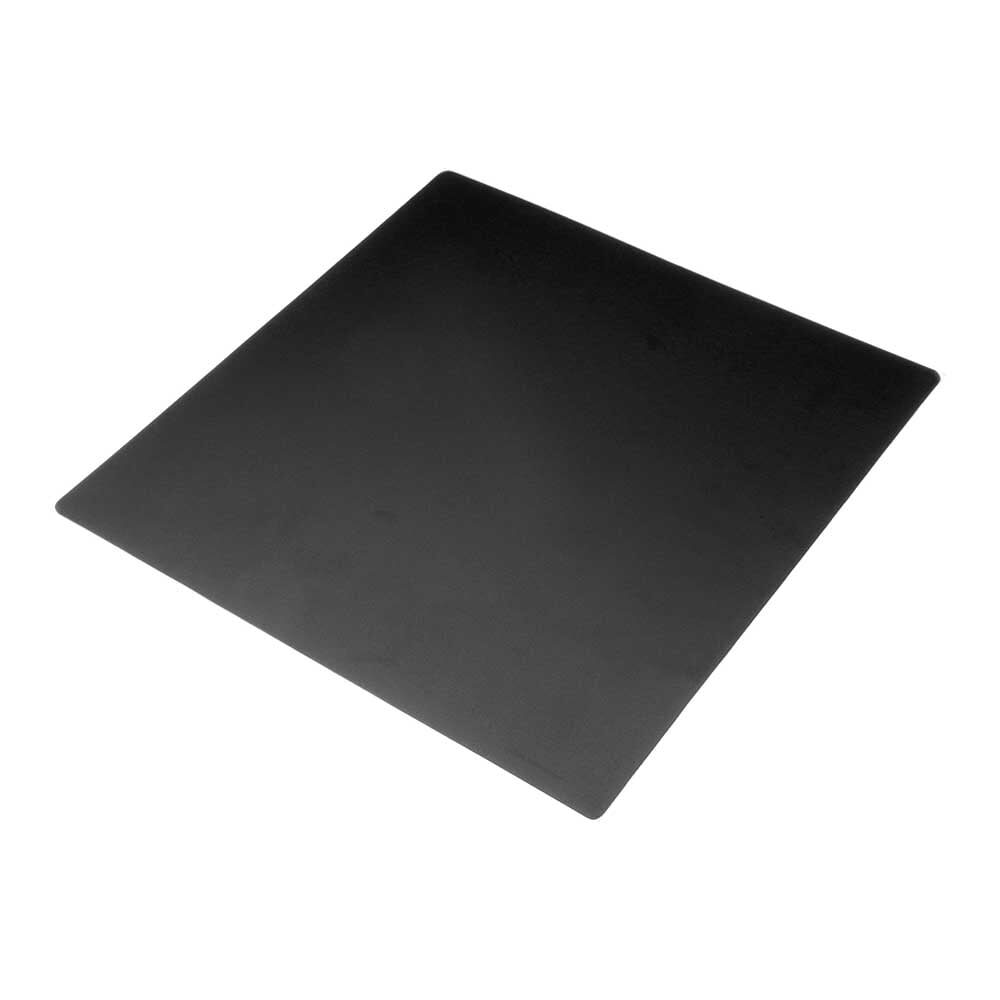
Frosted Heated Bed Sticker – 220×220mm with Adhesive
A frosted bed sticker provides a consistent, flat surface reference for BLTouch probing and excellent part adhesion — much easier to work with than bare glass or BuildTak.
10. Troubleshooting Bed Leveling Problems
Problem: First layer peeling up on corners
Manual: Front and rear corners are too high — lower the thumb screws at those corners.
BLTouch: Verify Z-offset, ensure G29 runs in start G-code after G28.
Problem: BLTouch red LED blinking / error
This indicates the probe failed to trigger. Common causes: probe pin stuck (manually push pin to free it), wiring fault, probe mount too high (pin can’t reach bed). Check wiring continuity and ensure the mount positions the probe below 8mm from bed at home position.
Problem: Nozzle scrapes bed on one side, too high on other
Manual: The bed is tilted — adjust the high-side corner down.
BLTouch: Run G29 to regenerate mesh. Check if G29 is being called after G28 in start G-code — mesh is wiped when G28 is called without immediately following G29.
Problem: Centre of bed too high (convex warp)
Manual leveling cannot fix this. You need mesh bed leveling (BLTouch / ABL) with at least a 3×3 or 4×4 grid to compensate. Alternatively, replace the bed with a known-flat borosilicate glass sheet.
Problem: Mesh looks flat but first layer still uneven
Possible causes: loose BLTouch mount (tighten probe bracket), probe offset incorrectly configured in firmware (NOZZLE_TO_PROBE_OFFSET wrong), or bed surface is not firmly attached (loose glass clip). Check each systematically.
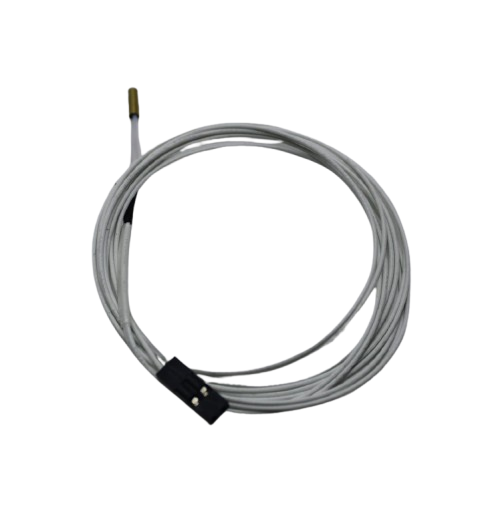
100k NTC Thermistor with Copper Tip for MK8 Extruder
Consistent bed temperature during BLTouch probing requires an accurate thermistor. If your bed temperature fluctuates, probe repeatability suffers and mesh accuracy drops.
Frequently Asked Questions
Is BLTouch worth it for an Ender 3?
Yes, for most users. The Ender 3’s aluminium bed often warps over time due to thermal cycling, and the stock bed springs gradually soften, making manual leveling drift faster. A BLTouch (or CR Touch) combined with stiffer springs and good bed surface eliminates most first-layer frustration. The setup takes 1–2 hours once, and it saves significant time per print session afterward.
Can I use BLTouch without changing firmware?
Some Creality printers (Ender 3 V2 Neo, CR-6 SE) come with BLTouch support pre-built into the stock firmware. For older Ender 3 models, you need to flash either Creality’s official BLTouch firmware (available on their website) or a community Marlin build. If you use Klipper, BLTouch is configured via the printer.cfg file with no firmware compilation needed.
How many probe points should I use for a 4×4 grid vs 3×3?
For a standard 220×220mm bed, a 3×3 grid (9 points) is usually sufficient for a moderately flat bed. Use 4×4 (16 points) or 5×5 (25 points) for beds over 250×250mm or beds with complex warp patterns. More points give finer mesh detail but add 30–60 seconds of probing time before each print. Balance accuracy vs convenience based on your bed’s actual flatness.
Why does my BLTouch probe at different heights each time?
BLTouch repeatability errors are usually caused by a loose probe mount (the probe vibrates slightly between measurements), a sticky probe pin (deploy-stow the pin manually a few times to free it), or interference from the part cooling fan (fan airflow can vibrate the probe). Also check that the probe bracket is firmly clamped to the printhead carriage with no play.
Does BLTouch work with Klipper firmware?
Yes. Klipper has excellent BLTouch support. Configure the [bltouch] section in printer.cfg with your probe offsets, then use BED_MESH_CALIBRATE to generate the mesh. Klipper’s bed mesh implementation is highly configurable and supports adaptive mesh (probing only the area of the print) for faster probing on small parts.
Fix Your First Layer for Good
Zbotic stocks bed springs, bed clips, glass bed stickers, and hotend accessories to help you achieve perfect first layers every print. Upgrade your printer’s bed system today.







Add comment