
UART communication is the oldest and arguably simplest serial protocol used in embedded electronics. Every time you open the Arduino Serial Monitor to see debug messages, or connect a GPS module to your microcontroller, or program an ESP8266 for the first time, you are using UART. Understanding baud rate, data framing, and wiring is fundamental knowledge for any maker — and this guide explains all of it clearly with practical examples.
Table of Contents
- What is UART?
- UART vs SPI vs I2C: When to Use Which
- Baud Rate Explained
- UART Data Framing: Start, Data, Parity, Stop Bits
- TX/RX Wiring: Connecting Two UART Devices
- UART on Arduino: Hardware and Software Serial
- Common UART Problems and Solutions
- Frequently Asked Questions
What is UART?
UART stands for Universal Asynchronous Receiver-Transmitter. It is a hardware communication protocol that transmits data serially — one bit at a time — over two wires: TX (transmit) and RX (receive). The key word is “asynchronous”: unlike SPI and I2C, UART does not use a shared clock signal. Instead, both devices must agree on the communication speed (baud rate) in advance, and each device uses its own internal clock to time the bits.
UART is point-to-point: one device communicates with exactly one other device. There is no addressing, no bus, no concept of master and slave in the traditional sense. It is the simplest possible serial communication — just two wires and an agreed speed.
Common applications of UART in hobby electronics:
- Arduino Serial Monitor (USB-to-UART via CH340/FTDI chip)
- GPS modules (NEO-6M, u-blox)
- GSM/GPRS modules (SIM800L, SIM900)
- Bluetooth modules (HC-05, HC-06)
- Wi-Fi modules (ESP8266 AT command mode)
- RFID readers, fingerprint sensors, barcode scanners
UART vs SPI vs I2C: When to Use Which
Choosing the right protocol depends on your needs:
| Feature | UART | SPI | I2C |
|---|---|---|---|
| Wires | 2 (TX + RX) | 4+ (SCLK, MOSI, MISO, CS) | 2 (SDA + SCL) |
| Speed | Up to ~5 Mbps | Up to 80 Mbps | Up to 3.4 Mbps |
| Devices | 2 only | Multiple (one CS each) | Up to 112 |
| Clock | Asynchronous | Synchronous | Synchronous |
| Best for | Debug, GPS, GSM, BT | Displays, SD cards, ADC | Sensors, small data |
Use UART when: you need to talk to a single external module that already uses serial communication, you are debugging over USB, or you are working with legacy devices that output UART streams.
Baud Rate Explained
Baud rate is the number of symbols transmitted per second. In UART, each symbol is one bit, so baud rate equals bits per second (bps). This is the single most important setting in UART — if the two devices have mismatched baud rates, communication will fail completely or produce garbage data.
Standard UART baud rates are:
300, 1200, 2400, 4800, 9600, 19200, 38400, 57600, 115200, 230400, 460800, 921600
The two most common rates in hobby electronics are 9600 bps (the Arduino default) and 115200 bps (used by ESP8266, ESP32, and faster modules). Always check the datasheet of your module to see which baud rate it uses.
Why are standard baud rates odd numbers like 9600? Historically, these rates derive from the clock frequencies of early UART chips and their dividers. The values were chosen to be achievable by common crystal oscillator frequencies. Modern microcontrollers can generate these rates very accurately from their internal clocks.
How much timing error is acceptable? UART can tolerate about ±2-3% timing error before bits start to be misread. This is why it is critical that both devices use the same baud rate — even a 10% mismatch causes the receiver to sample bits at the wrong point within the bit period.

LM35 Temperature Sensors
Read LM35 analog output with Arduino’s ADC, then send the temperature data over UART to a PC or another microcontroller — a classic beginner UART project.
UART Data Framing: Start, Data, Parity, Stop Bits
UART transmits data in frames. Each frame carries one character (typically one byte). The frame structure is:
1. Idle state: The TX line sits HIGH (logic 1) when no data is being sent.
2. Start bit: To begin a frame, the transmitter pulls TX LOW for exactly one bit period. The receiver detects this falling edge and uses it to synchronise its sampling clock.
3. Data bits: The actual data follows, LSB (Least Significant Bit) first by convention. Standard UART sends 8 data bits per frame, though 5, 6, 7, or 9-bit modes exist.
4. Parity bit (optional): An optional error-checking bit. Can be Even, Odd, or None. Most hobby electronics use no parity (8N1 format — 8 data bits, No parity, 1 stop bit). If parity is enabled but mismatched between devices, data will appear corrupted.
5. Stop bit(s): TX returns HIGH for one or two bit periods to signal the end of the frame. Most devices use one stop bit. The stop bit also gives the receiver time to process the byte before the next start bit arrives.
The most common UART configuration is 8N1: 8 data bits, No parity, 1 stop bit. This is the default in Arduino’s Serial library and in most modules. A complete 8N1 frame takes 10 bit periods (1 start + 8 data + 1 stop), so at 9600 baud, you can transmit a maximum of 960 bytes per second.
TX/RX Wiring: Connecting Two UART Devices
UART wiring uses a cross-connection: the transmitter’s TX pin connects to the receiver’s RX pin. This is opposite to I2C and SPI where same-named signals connect together.
Rule of thumb: TX of device A → RX of device B, and TX of device B → RX of device A.
You also need a common ground between both devices. Without a shared GND, the voltage reference is undefined and communication will fail.
| Arduino Uno | Direction | External Module |
|---|---|---|
| TX (Pin 1) | → | RX |
| RX (Pin 0) | ← | TX |
| GND | — | GND |
Voltage level caution: Arduino Uno operates at 5V. Many modern modules (ESP8266, GPS, GSM) operate at 3.3V. The 3.3V module’s RX pin typically cannot tolerate 5V from the Arduino TX. Always use a level shifter or a simple voltage divider (two resistors) on the TX line from 5V Arduino to 3.3V module. The other direction (3.3V module TX to Arduino RX) is usually fine since 3.3V is recognised as HIGH by the 5V Arduino input.
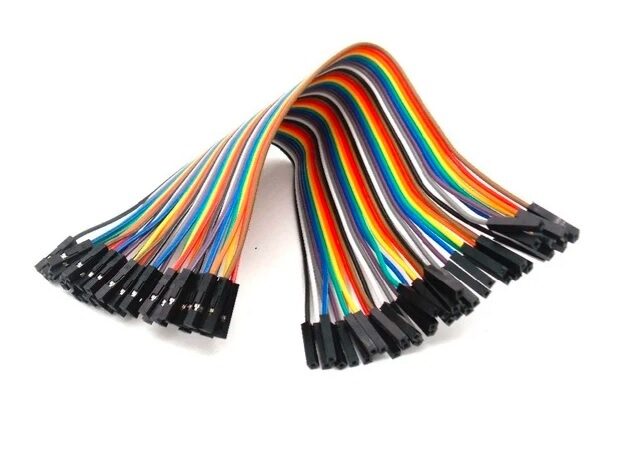
10CM Female To Female Breadboard Jumper Wires 2.54MM – 40Pcs
F-F jumper wires are perfect for UART connections — plug directly onto module header pins for a quick and tidy TX/RX/GND connection during prototyping.
UART on Arduino: Hardware and Software Serial
Arduino boards have one or more hardware UART peripherals built into the microcontroller. The ATmega328P in Arduino Uno has one hardware UART on pins 0 (RX) and 1 (TX), used by both the Serial Monitor (via USB) and any external module you connect.
Hardware Serial (Serial object): Uses the dedicated UART hardware. Reliable, interrupt-driven, and supports high baud rates. The downside is that pins 0 and 1 are shared with the USB-serial chip, so you cannot use Serial Monitor and communicate with another device at the same time on Uno.
Software Serial (SoftwareSerial library): Bit-bangs UART on any two digital GPIO pins using software timing. This frees pins 0 and 1 for the Serial Monitor while your module uses a different pair. The limitation is that SoftwareSerial is less reliable at baud rates above 38400 and cannot receive data while transmitting.
Example: using SoftwareSerial with a GPS module on pins 4 (RX) and 3 (TX):
#include <SoftwareSerial.h>

SoftwareSerial gpsSerial(4, 3); // RX, TX

void setup() {
  Serial.begin(9600);     // Debug serial to PC
  gpsSerial.begin(9600);  // GPS module baud rate
}

void loop() {
  if (gpsSerial.available()) {
    char c = gpsSerial.read();
    Serial.print(c); // Echo GPS data to Serial Monitor
  }
}
For Arduino Mega, Mega 2560, and Leonardo, multiple hardware UARTs are available (Serial1, Serial2, Serial3), eliminating the need for SoftwareSerial in most cases. ESP32 also supports three hardware UARTs, all configurable to any GPIO pins.

DHT11 Temperature And Humidity Sensor Module with LED
Read DHT11 sensor data on Arduino and stream it over UART to a PC or another microcontroller. A practical project that reinforces both sensor interfacing and UART skills.
Common UART Problems and Solutions
Garbage characters in the Serial Monitor
Almost always a baud rate mismatch. Check the baud rate in your code (Serial.begin()) and the baud rate selected in the Serial Monitor dropdown (bottom right corner). Both must match. Also check that the module you are communicating with uses the same baud rate.
No data received at all
Check TX and RX connections — are they crossed correctly? Verify GND is shared. If using SoftwareSerial, make sure you called softwareSerial.begin(). Check the module is powered correctly.
First few characters are corrupted, rest is fine
The receiver was not ready when transmission began. Add a brief startup delay, or ensure the receiver is initialised before the transmitter begins sending. Some modules send a startup message immediately on power-up before your code is ready to receive.
Works at 9600 bps but fails at higher baud rates
Long cables or poor connections add capacitance that slows signal edges. At higher baud rates, the bit period is shorter and slow edges cause bit errors. Use shorter wires, shield the cable, or stick to 9600 bps for robust serial connections over longer distances.
Uploading to Arduino fails when module is connected on pins 0/1
The USB-serial chip shares pins 0 and 1 with the hardware UART. Always disconnect any module from pins 0/1 before uploading code. Switch to SoftwareSerial on other pins to avoid this problem entirely.

10CM Male To Female Breadboard Jumper Wires 2.54MM – 40Pcs
M-F jumper wires bridge Arduino pin headers to module connector pins cleanly. Keep the red wire for TX, black for GND, and white for RX to avoid swap errors.
Frequently Asked Questions
What does 9600 8N1 mean?
9600 is the baud rate (bits per second). 8 means 8 data bits per frame. N means No parity bit. 1 means 1 stop bit. This is the most common UART configuration worldwide and the default for Arduino Serial.
What is the difference between UART and RS-232?
UART is the logic-level protocol (0V/3.3V or 0V/5V). RS-232 is the physical layer standard that uses ±12V signalling (positive voltage = logic 0, negative voltage = logic 1 — inverted). To connect a microcontroller UART to an RS-232 port (DB9 connector on old PCs), you need a MAX232 level converter chip. Most modern devices skip RS-232 and use USB-to-UART adapters instead.
Can UART communicate more than 2 devices at once?
Standard UART is point-to-point (two devices only). For multi-drop serial communication, use RS-485 which supports up to 32 nodes on one bus with differential signalling over long cable runs.
Why is my HC-05 Bluetooth module not responding to AT commands?
The HC-05 enters AT command mode only when the EN/KEY pin is held HIGH at power-on. Also, AT command mode uses a fixed baud rate of 38400 (some modules use 9600). The default operating baud rate is 9600. Make sure you are using the correct baud rate for the mode you are in.
How do I communicate between two Arduinos using UART?
Use SoftwareSerial on both Arduinos (or Hardware Serial if available). Set the same baud rate. Cross-connect TX of Arduino 1 to RX of Arduino 2, and TX of Arduino 2 to RX of Arduino 1. Connect both GND pins together. Use Serial.print() to send and Serial.read() to receive.
—
Build your first UART project with quality components from Zbotic! Whether you are interfacing a GPS module, building a Bluetooth remote, or simply learning serial communication, Zbotic has everything you need — from sensors and modules to jumper wires and prototype boards. Shop now at Zbotic.in and enjoy fast delivery across India.






Add comment