
Building a Raspberry Pi weather station is one of the most rewarding and practical Raspberry Pi GPIO projects you can tackle. You combine two powerful sensors — the DHT22 for temperature and humidity, and the BMP280 for barometric pressure and altitude — to create a real-time environmental monitor. Whether you are tracking monsoon conditions in Mumbai, altitude at a hill station, or indoor climate in your server room, this guide takes you through every step from hardware wiring to a live web dashboard. All components mentioned are available in India through Zbotic.
Components Required
Here is everything you need to build a complete Raspberry Pi weather station in India:
| Component | Purpose | Qty |
|---|---|---|
| Raspberry Pi 5 (4GB) | Main controller | 1 |
| DHT22 / DHT11 Sensor Module | Temp + Humidity | 1 |
| BMP280 Module | Pressure + Altitude | 1 |
| Jumper wires (M-F) | Connections | 10+ |
| Breadboard | Prototyping | 1 |
| Micro SD Card (32GB+) | OS + data storage | 1 |
For a more advanced station, also consider adding a DS18B20 waterproof temperature probe for outdoor soil or water temperature measurement.

Raspberry Pi 5 Model 4GB RAM
The Raspberry Pi 5 is ideal for a weather station project — it runs a full web server locally, handles multiple I2C sensors simultaneously, and has plenty of headroom for data logging and dashboard apps.
Wiring the DHT22 and BMP280
Both sensors can coexist on the same Raspberry Pi. The BMP280 uses I2C (shared bus), while the DHT22 uses a single GPIO data pin.
DHT22 Wiring
The DHT22 module (3-pin version with onboard resistor) wires as follows:
- VCC → Pin 1 (3.3V) or Pin 2 (5V — check your module datasheet)
- GND → Pin 6 (GND)
- DATA → GPIO4 (Pin 7) — add a 10kΩ pull-up to 3.3V if using bare sensor IC
BMP280 Wiring (I2C Mode)
- VCC → Pin 1 (3.3V)
- GND → Pin 9 (GND)
- SDA → GPIO2 (Pin 3) — I2C Data
- SCL → GPIO3 (Pin 5) — I2C Clock
- CSB → VCC (forces I2C mode on some modules)
- SDO → GND → I2C address 0x76; SDO → VCC → address 0x77
You can connect multiple I2C devices (BMP280 + BME280 + OLED display) to the same SDA/SCL pins — each has a unique address. Verify addresses with sudo i2cdetect -y 1 from terminal.

BMP280 Barometric Pressure and Altitude Sensor I2C/SPI Module
Bosch’s BMP280 provides highly accurate barometric pressure (±1 hPa) and temperature measurements. Its I2C interface makes it easy to chain with other sensors on the Raspberry Pi GPIO bus.
Software Setup and Libraries
Start with a fresh Raspberry Pi OS Bookworm installation. Then install all required Python libraries:
sudo apt update && sudo apt upgrade -y
sudo apt install python3-pip python3-venv libgpiod2 -y

# Create a virtual environment (best practice)
python3 -m venv ~/weather-station
source ~/weather-station/bin/activate

# Install libraries
pip install adafruit-circuitpython-dht
pip install adafruit-circuitpython-bmp280
pip install flask  # For web dashboard
pip install pandas matplotlib  # For data analysis
Enable I2C interface:
sudo raspi-config
# Navigate: Interface Options → I2C → Enable → Finish
Reading Sensor Data with Python
Here is a complete Python script that reads both DHT22 and BMP280 together:
import time
import board
import busio
import adafruit_dht
import adafruit_bmp280

# Initialize DHT22 on GPIO4
dht22 = adafruit_dht.DHT22(board.D4)

# Initialize BMP280 on I2C
i2c = busio.I2C(board.SCL, board.SDA)
bmp280 = adafruit_bmp280.Adafruit_BMP280_I2C(i2c, address=0x76)

# Set sea level pressure for your location
# Mumbai: ~1013 hPa, Bangalore: ~912 hPa, Delhi: ~1013 hPa
bmp280.sea_level_pressure = 1013.25

def read_sensors():
    data = {}

    # Read DHT22
    for attempt in range(3):  # Retry up to 3 times
        try:
            data['dht_temp'] = dht22.temperature
            data['dht_humidity'] = dht22.humidity
            break
        except RuntimeError as e:
            if attempt == 2:
                data['dht_temp'] = None
                data['dht_humidity'] = None
            time.sleep(2)

    # Read BMP280
    data['bmp_temp'] = round(bmp280.temperature, 2)
    data['bmp_pressure'] = round(bmp280.pressure, 2)
    data['bmp_altitude'] = round(bmp280.altitude, 2)

    return data

if __name__ == '__main__':
    print("Raspberry Pi Weather Station Started")
    print("-" * 50)

    while True:
        readings = read_sensors()

        print(f"[DHT22] Temp: {readings['dht_temp']}°C | "
              f"Humidity: {readings['dht_humidity']}%")
        print(f"[BMP280] Temp: {readings['bmp_temp']}°C | "
              f"Pressure: {readings['bmp_pressure']} hPa | "
              f"Altitude: {readings['bmp_altitude']} m")
        print("-" * 50)

        time.sleep(10)
DHT11 Digital Relative Humidity and Temperature Sensor Module
The DHT11 is a budget-friendly alternative to the DHT22 for weather station builds. It measures 0-50°C temperature and 20-80% humidity — ideal for indoor stations where budget matters.
Data Logging to CSV and SQLite
A weather station is only as useful as its historical data. Let us add data logging capability:
import sqlite3
import csv
from datetime import datetime

# SQLite logging (better for queries)
def setup_database():
    conn = sqlite3.connect('/home/pi/weather.db')
    c = conn.cursor()
    c.execute('''CREATE TABLE IF NOT EXISTS readings (
        id INTEGER PRIMARY KEY AUTOINCREMENT,
        timestamp TEXT,
        dht_temp REAL,
        dht_humidity REAL,
        bmp_pressure REAL,
        bmp_altitude REAL
    )''')
    conn.commit()
    return conn

def log_to_db(conn, data):
    c = conn.cursor()
    c.execute('''INSERT INTO readings
                 (timestamp, dht_temp, dht_humidity, bmp_pressure, bmp_altitude)
                 VALUES (?, ?, ?, ?, ?)''',
              (datetime.now().isoformat(),
               data['dht_temp'], data['dht_humidity'],
               data['bmp_pressure'], data['bmp_altitude']))
    conn.commit()

# Usage
conn = setup_database()
while True:
    readings = read_sensors()
    log_to_db(conn, readings)
    time.sleep(60)  # Log every minute
To set up automatic logging on boot, create a systemd service:
# /etc/systemd/system/weather-station.service
[Unit]
Description=Raspberry Pi Weather Station
After=network.target

[Service]
User=pi
WorkingDirectory=/home/pi
ExecStart=/home/pi/weather-station/bin/python /home/pi/weather_logger.py
Restart=always
RestartSec=10

[Install]
WantedBy=multi-user.target
Building a Live Web Dashboard
Use Flask to serve a live dashboard accessible from any device on your local network (great for checking from your phone):
from flask import Flask, jsonify, render_template_string
import sqlite3

app = Flask(__name__)

HEADER_HTML = '''
<!DOCTYPE html>
<html><head>
<title>Pi Weather Station</title>
<meta http-equiv="refresh" content="30">
<style>
body { font-family: sans-serif; max-width: 800px; margin: 40px auto; background: #f0f4f8; }
.card { background: white; border-radius: 12px; padding: 20px; margin: 15px 0;
        box-shadow: 0 2px 8px rgba(0,0,0,0.1); }
.val { font-size: 2em; font-weight: bold; color: #ff6b00; }
</style>
</head><body>
<h1>🌤️ Pi Weather Station</h1>
'''

@app.route('/')
def dashboard():
    conn = sqlite3.connect('/home/pi/weather.db')
    row = conn.execute('SELECT * FROM readings ORDER BY id DESC LIMIT 1').fetchone()
    conn.close()
    html = HEADER_HTML + f'''
    <div class="card">
      <h2>Temperature</h2>
      <span class="val">{row[2]:.1f}°C</span>
    </div>
    <div class="card">
      <h2>Humidity</h2>
      <span class="val">{row[3]:.1f}%</span>
    </div>
    <div class="card">
      <h2>Pressure</h2>
      <span class="val">{row[4]:.1f} hPa</span>
    </div>
    </body></html>'''
    return html

@app.route('/api/current')
def api_current():
    conn = sqlite3.connect('/home/pi/weather.db')
    row = conn.execute('SELECT * FROM readings ORDER BY id DESC LIMIT 1').fetchone()
    conn.close()
    return jsonify({'temp': row[2], 'humidity': row[3], 'pressure': row[4]})

if __name__ == '__main__':
    app.run(host='0.0.0.0', port=8080)
Access the dashboard from any device on your network at http://<pi-ip-address>:8080. Find your Pi’s IP with hostname -I.
Advanced Features: Alerts and Cloud Upload
Telegram Bot Alerts
Get notified on your phone when conditions cross thresholds:
import requests

BOT_TOKEN = 'your_bot_token'
CHAT_ID = 'your_chat_id'

def send_alert(message):
    url = f'https://api.telegram.org/bot{BOT_TOKEN}/sendMessage'
    requests.post(url, json={'chat_id': CHAT_ID, 'text': message})

# In your main loop:
if readings['dht_humidity'] and readings['dht_humidity'] > 85:
    send_alert(f"⚠️ High humidity alert: {readings['dht_humidity']:.1f}%")
Upload to ThingSpeak (Free IoT Cloud)
import requests

API_KEY = 'your_thingspeak_write_api_key'

def upload_thingspeak(data):
    url = 'https://api.thingspeak.com/update'
    params = {
        'api_key': API_KEY,
        'field1': data['dht_temp'],
        'field2': data['dht_humidity'],
        'field3': data['bmp_pressure'],
        'field4': data['bmp_altitude']
    }
    requests.get(url, params=params)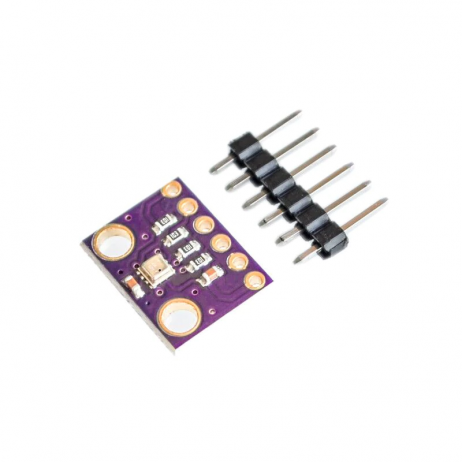
GY-BME280-3.3 Precision Altimeter Atmospheric Pressure Sensor Module
The BME280 is an upgraded version of BMP280 with added humidity sensing — one chip replaces both DHT22 and BMP280 in your weather station. Perfect for a compact, all-in-one sensor solution.
Frequently Asked Questions
What is the difference between DHT11 and DHT22 for a weather station?
The DHT22 is significantly more accurate than DHT11: it measures -40°C to +80°C (vs 0-50°C) and 0-100% humidity with ±2% accuracy (vs ±5%). For a serious outdoor weather station, always use DHT22 or upgrade to the BME280. The DHT11 is fine for indoor/learning projects where exact precision is not critical.
How do I get accurate altitude readings from BMP280?
BMP280 calculates altitude from atmospheric pressure relative to sea-level pressure. You must set bmp280.sea_level_pressure to the current sea-level pressure for your region (not your local pressure). Get this from a nearby weather service or airport METAR report. For major Indian cities: Mumbai ~1011 hPa, Delhi ~1012 hPa. Bangalore, being at 920m elevation, still uses sea-level reference (~1013 hPa) for the formula.
Can I power the Raspberry Pi weather station from a battery?
Yes. Use an 18650 Battery Holder Development Board compatible with Raspberry Pi 3B/4B. For ultra-low power applications, consider using a Raspberry Pi Pico with a deep sleep timer — it can run for months on a single charge vs hours for a full Pi 5.
How often should I sample sensor readings?
DHT22 requires at least 2 seconds between readings (hardware limitation). For weather monitoring, sampling every 60 seconds is sufficient and keeps database size manageable. If you are tracking rapid changes (like a fermentation chamber), 10-second intervals are reasonable.
My BMP280 shows 0x76 and 0x77 both on i2cdetect. Is that normal?
No — you either have two BMP280 modules connected, or one module has the SDO pin floating (undefined state). Connect SDO firmly to either GND (for 0x76) or VCC (for 0x77) to fix the address definitively.
Build Your Weather Station Today
All the sensors and Raspberry Pi boards mentioned in this guide are available at Zbotic with fast delivery across India. From DHT11 and BMP280 to BME280 all-in-one modules and Raspberry Pi 5 boards — start building your weather station this weekend.






Add comment