
A Raspberry Pi barcode scanner system is a game-changer for small retailers, warehouses, libraries, and inventory managers across India who need an affordable, customisable point-of-sale or inventory tracking solution. Commercial barcode scanning systems with dedicated hardware and software licences can cost ₹20,000–₹1,00,000 or more. With a Raspberry Pi and a USB barcode scanner, you can build a fully functional retail scan system for under ₹5,000 that does exactly what you need — and you own the hardware and software entirely.
Use Cases for Raspberry Pi Barcode Scanner
The applications of a Raspberry Pi barcode scanner in India are extensive. Barcode scanning is no longer limited to large supermarkets — it is increasingly used in:
- Kirana stores and retail shops: Track inventory, generate bills, and manage stock automatically
- Warehouses and godowns: Scan incoming and outgoing goods, track locations, and manage stock levels
- Libraries: Book issue and return tracking using ISBN barcodes
- Pharmacies: Scan medicine barcodes for expiry tracking and stock management
- Restaurants: Kitchen order management using QR-coded order tickets
- Event management: Scan tickets at entry points for events, conferences, and exhibitions
- School and college canteens: Student card-based cashless payment systems
- Healthcare: Patient wristband scanning, medicine dispensing, and lab sample tracking
The flexibility of the Raspberry Pi means you can adapt the system to any specific workflow, connect it to your existing database, and even run it offline — essential for locations with unreliable internet connections.

Raspberry Pi 5 Model 4GB RAM
The Raspberry Pi 5 with 4GB RAM is perfect for a retail scan system — fast enough to run a full web-based POS interface, database, and barcode processing simultaneously without lag.
Hardware Requirements
You have two main options for the scanning hardware — a dedicated USB barcode scanner or the Raspberry Pi camera module. Each has its advantages:
| Feature | USB Barcode Scanner | Camera-based Scanner |
|---|---|---|
| Scan speed | Instant (laser/LED) | 0.5–2 seconds |
| Cost | ₹800–₹3,000 | ₹500–₹2,000 (camera) |
| QR code support | 2D scanners only | All code types |
| Reliability | Very high | High (lighting dependent) |
| Setup complexity | Plug and play | Software configuration required |
For a retail or warehouse environment where reliability and speed are critical, a dedicated USB barcode scanner (available from Opticon, Honeywell, or Zebra) is the better choice. For QR code scanning, self-service kiosks, or event management where flexibility matters more, the camera approach is excellent.
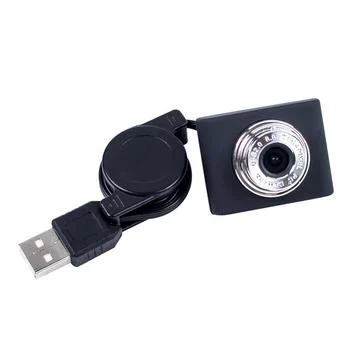
1/4 CMOS 640×480 USB Camera with Collapsible Cable for Raspberry Pi
This compact USB camera connects directly to Raspberry Pi and works perfectly as a barcode/QR code scanner with the ZBar or pyzbar library. The collapsible cable makes mounting flexible.
Using a Camera as a Barcode Scanner
The Python ecosystem provides excellent barcode scanning libraries that work with any camera connected to the Raspberry Pi. The most popular are pyzbar (wrapper for the ZBar library) and OpenCV with QR code detection.
Install Required Libraries
sudo apt install libzbar0 python3-pip python3-opencv -y
pip3 install pyzbar pillow opencv-python
Basic Barcode Scanner Script
#!/usr/bin/env python3
# barcode_scanner.py
import cv2
from pyzbar import pyzbar
import time

def scan_barcodes():
    cap = cv2.VideoCapture(0)  # Use camera index 0
    print("Barcode scanner ready. Point camera at barcode.")

    scanned_codes = set()  # Avoid duplicate scans

    while True:
        ret, frame = cap.read()
        if not ret:
            break

        barcodes = pyzbar.decode(frame)

        for barcode in barcodes:
            data = barcode.data.decode('utf-8')
            btype = barcode.type

            if data not in scanned_codes:
                scanned_codes.add(data)
                print(f"Scanned {btype}: {data}")
                # Here: look up product in database, add to cart, etc.
                process_barcode(data)
                time.sleep(1)  # Prevent duplicate scans

        cv2.imshow('Barcode Scanner', frame)
        if cv2.waitKey(1) & 0xFF == ord('q'):
            break

    cap.release()
    cv2.destroyAllWindows()

def process_barcode(code):
    """Look up barcode in database and perform action"""
    print(f"Processing: {code}")
    # Add your database lookup logic here

if __name__ == '__main__':
    scan_barcodes()
USB Barcode Scanner Setup
USB barcode scanners are plug-and-play on Raspberry Pi. They appear as a USB HID (Human Interface Device) keyboard — when you scan a barcode, the scanner types the barcode data followed by Enter, just like pressing keys on a keyboard. This makes them incredibly easy to integrate:
# Test your USB scanner:
# Connect scanner → open terminal → scan a barcode
# The barcode data will appear as typed text in the terminal

# Read scanner input in Python:
import sys

def read_barcode_usb():
    print("Waiting for scan...")
    while True:
        barcode = input()  # Reads until Enter (n) from scanner
        barcode = barcode.strip()
        if barcode:
            print(f"Scanned: {barcode}")
            process_barcode(barcode)
For a proper production setup, use the evdev library to read scanner input in the background without requiring a terminal window to be in focus — crucial for GUI-based POS applications.
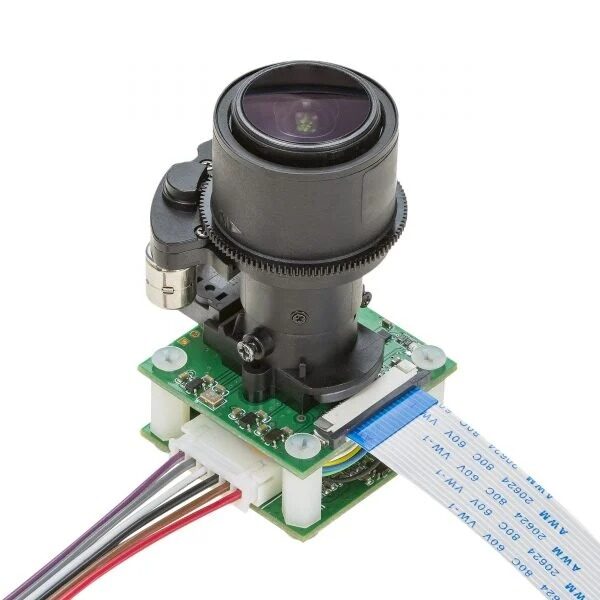
Arducam 5MP 1080p Pan Tilt Zoom PTZ Camera for Raspberry Pi
This motorised PTZ camera can scan barcodes across a wide area — ideal for conveyor belt inventory systems or warehouse scanning stations where manual pointing is impractical.
Building an Inventory Management System
A practical inventory management system combines barcode scanning with a database. For a Raspberry Pi, SQLite is perfect for single-location use, while MySQL/PostgreSQL is better for multi-location setups.
Database Schema
-- SQLite schema for basic inventory
CREATE TABLE products (
    barcode TEXT PRIMARY KEY,
    name TEXT NOT NULL,
    category TEXT,
    mrp REAL,
    selling_price REAL,
    gst_percent REAL DEFAULT 18,
    unit TEXT DEFAULT 'pcs',
    min_stock INTEGER DEFAULT 5
);

CREATE TABLE inventory (
    barcode TEXT REFERENCES products(barcode),
    current_stock INTEGER DEFAULT 0,
    last_updated TIMESTAMP DEFAULT CURRENT_TIMESTAMP
);

CREATE TABLE transactions (
    id INTEGER PRIMARY KEY AUTOINCREMENT,
    barcode TEXT,
    transaction_type TEXT, -- 'sale', 'purchase', 'adjustment'
    quantity INTEGER,
    price REAL,
    timestamp TIMESTAMP DEFAULT CURRENT_TIMESTAMP,
    notes TEXT
);
Web-Based Interface with Flask
A Flask web application running on the Raspberry Pi allows staff to manage inventory from any device on the local network:
pip3 install flask flask-sqlalchemyBuild routes for: product lookup by barcode, add to transaction, view current stock, low stock alerts, and daily sales reports. The Flask app can serve the barcode scanner page as a web interface, allowing scanning from the Pi or from a tablet/phone on the same network.
Point of Sale (POS) Integration
For a retail POS system, several open source solutions support Raspberry Pi:
- Floreant POS: Java-based, touch-friendly, supports barcode scanning and receipt printing
- uniCenta oPOS: Professional POS with inventory management, GST support (critical for India!), and multi-currency
- OpenBravo POS: Feature-rich retail POS with barcode and scale integration
Thermal Receipt Printer
Connect a USB thermal receipt printer (available for ₹2,000–₹5,000 in India) to the Raspberry Pi. Use the python-escpos library to print GST invoices with barcode, item details, HSN code, and CGST/SGST breakdown — all required for GST compliance.
pip3 install python-escpos

from escpos.printer import Usb
printer = Usb(0x04b8, 0x0202)  # Replace with your printer's USB ID
printer.text("ZBOTIC STOREn")
printer.text("GST No: 27XXXXX1234X1ZXn")
printer.barcode('4006381333931', 'EAN13', 64, 2, '', '')
printer.cut()
QR Code Generation and Scanning
QR codes are increasingly popular in Indian retail, especially after UPI payments made QR codes ubiquitous. Your Raspberry Pi barcode scanner system can also generate QR codes for products.
Generating QR Codes
pip3 install qrcode pillow

import qrcode

# Generate product QR code with JSON data
qr = qrcode.QRCode(version=1, box_size=10, border=5)
qr.add_data('{"id":"PRD001","name":"Raspberry Pi 5","price":7500}')
qr.make(fit=True)

img = qr.make_image(fill_color="black", back_color="white")
img.save('product_qr.png')
Print these QR code labels for your products. Customers or staff scan them with the Pi camera or a smartphone to instantly retrieve product information, pricing, or UPI payment links.
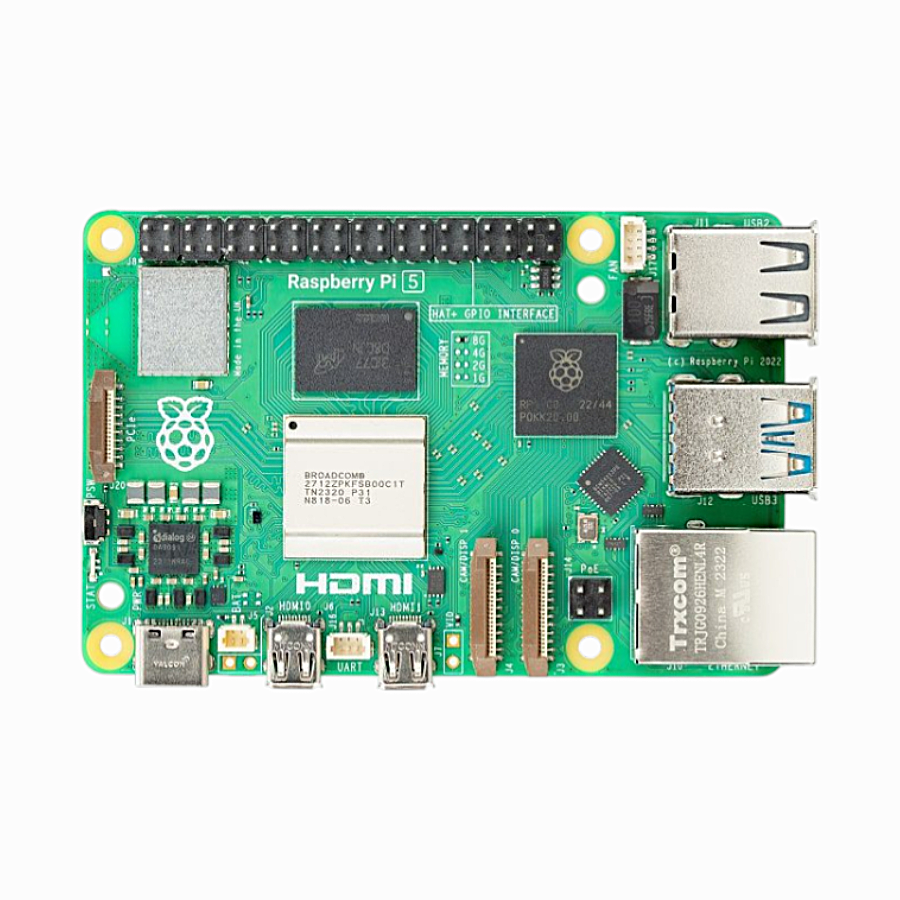
Raspberry Pi 5 Model 2GB RAM
The Raspberry Pi 5 2GB is the ideal cost-effective choice for a dedicated barcode scanning workstation. It runs Python barcode libraries, SQLite databases, and web interfaces smoothly at an accessible price point.
Frequently Asked Questions
Can Raspberry Pi read all types of barcodes?
Yes. The pyzbar library supports 1D barcodes (EAN-13, EAN-8, Code 128, Code 39, UPC-A, UPC-E, QR Code 2005) and 2D codes (QR codes, Data Matrix). For retail products in India, EAN-13 and QR codes are the most common formats, both fully supported.
Which USB barcode scanner works best with Raspberry Pi?
Any USB HID barcode scanner works plug-and-play with Raspberry Pi — the Pi sees it as a keyboard. Popular and reliable brands available in India include Honeywell (Voyager series), Symbol/Zebra, and budget options from Retsol and Argox. For QR code scanning, ensure you buy a 2D scanner.
Can I build a GST-compliant billing system on Raspberry Pi?
Yes. You can build a complete GST-compliant POS system on Raspberry Pi with barcode scanning, inventory management, and GST invoice printing. Include HSN codes, CGST/SGST breakdown, business GSTIN, and invoice serial numbers. Open source POS solutions like uniCenta support Indian GST billing out of the box.
How reliable is a Raspberry Pi for a retail environment?
A properly set up Raspberry Pi is very reliable for retail use. Key precautions: use a quality power supply to avoid SD card corruption, enable a UPS for power cut protection, use read-only root filesystem mode for the OS, and backup the database regularly to a USB drive or cloud storage.
Can I scan barcodes without an internet connection?
Absolutely. The barcode scanner, SQLite database, and Flask web interface all run completely offline on the Raspberry Pi. Internet is only needed for updates or cloud backup. This makes it perfect for areas with unreliable connectivity.
Build Your Retail Scan System with Raspberry Pi!
Get the Raspberry Pi 5 and cameras you need from Zbotic — India’s trusted electronics components store. Fast shipping across India.






Add comment