
Table of Contents
- What is Marlin Firmware?
- Getting Started: Tools and Setup
- Configuration.h: Essential Settings
- Stepper Motor and Driver Configuration
- Endstops and Bed Leveling
- Thermistors and Heating
- Motion System Settings
- Configuration_adv.h: Advanced Features
- Input Shaping and Pressure Advance
- Compiling and Flashing
- Frequently Asked Questions
Marlin is the most widely used open-source firmware for 3D printers in the world. It powers everything from entry-level Ender 3s to sophisticated CoreXY machines and custom RepRap builds. Marlin 2.0 brought 32-bit processor support, dramatically expanded feature sets, and a more modular configuration system — but with that power comes a sprawling set of options that can overwhelm first-time firmware builders.
This guide cuts through the complexity. Whether you are building a custom 3D printer from scratch, upgrading a kit printer with new hardware, or simply trying to enable auto bed leveling on your existing machine, this comprehensive walkthrough explains every major Marlin 2.0 configuration option in plain language — with practical advice for the Indian maker community.
What is Marlin Firmware?
Marlin is free, open-source firmware that runs on the control board (mainboard) of FDM 3D printers. It interprets G-code commands sent from your slicer or host software, controls stepper motors, manages temperature regulation, handles endstops and limit switches, coordinates all printer motion, and manages safety features like thermal runaway protection.
Marlin 2.0 specifically added support for 32-bit ARM processors (STM32, LPC1768, SAM3X, and others) while maintaining backward compatibility with older 8-bit AVR Arduino boards (though with reduced feature sets due to memory limitations).
Key Improvements in Marlin 2.x over 1.x
- 32-bit processor support with HAL (Hardware Abstraction Layer) architecture
- Unified Bed Leveling (UBL) — the most powerful bed leveling system available
- Input Shaping (resonance compensation) for reduced ringing at high speeds
- Pressure Advance (Linear Advance) improvements
- Multi-stepper support (multiple motors per axis)
- Improved junction deviation for smoother motion planning
- Better multi-material/multi-extruder support
Getting Started: Tools and Setup
What You Need
- VSCode + PlatformIO extension: The recommended development environment for Marlin 2.0. Handles all library dependencies automatically and supports all target boards.
- Marlin Source Code: Download from marlinfw.org — always use the bugfix-2.1.x branch for the latest stable features.
- Example Configurations: Marlin ships with pre-configured config files for hundreds of popular printers. Start from the closest matching example rather than from scratch.
- USB Cable: For flashing firmware to your board (bootloader method)
- SD Card: Some boards (32-bit) support firmware upload via SD card
Configuration File Overview
Marlin 2.0 uses two primary configuration files:
- Configuration.h: Core settings — printer geometry, motors, temperatures, endstops, leveling. Start here.
- Configuration_adv.h: Advanced features — input shaping, pressure advance, filament sensors, advanced motion, UI customisation. Only touch these once the basics are working.
Configuration.h: Essential Settings
Printer Type: MOTHERBOARD
The very first critical setting. You must specify your exact control board:
#define MOTHERBOARD BOARD_CREALITY_V4
// or: BOARD_BTT_SKR_V1_4_TURBO, BOARD_RAMPS_14_EFB, etc.
Wrong board selection means the firmware will not compile or will not control hardware correctly. Refer to the Marlin Boards.h file for your exact board identifier.
Serial Port and Baud Rate
#define SERIAL_PORT 1
#define BAUDRATE 115200
115200 baud is standard for most USB connections. If you are using a Raspberry Pi/OctoPrint at 250000 baud, adjust accordingly. The serial port number depends on your board’s hardware UART mapping.
Printer Name
#define CUSTOM_MACHINE_NAME "My Ender 3"This name appears on the LCD and in host software connections. Set it to something meaningful.
Extruder Count
#define EXTRUDERS 1Set to 1 for single extruder, 2 for dual extruder setups (IDEX, dual hotend, etc.).
Thermal Settings: TEMP_SENSOR
This is one of the most important settings. You must select the correct thermistor type for your hotend and heated bed. Wrong selection leads to wildly inaccurate temperature readings and can cause thermal runaway triggers or, worse, fires.
#define TEMP_SENSOR_0 1    // Most common: 100k NTC (EPCOS)
#define TEMP_SENSOR_BED 1  // Same for bed thermistors typically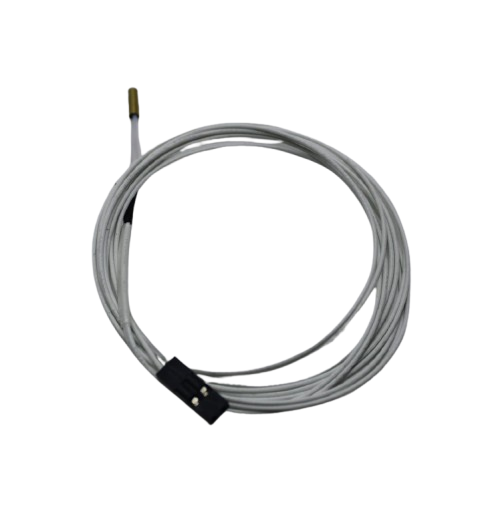
100k NTC Thermistor with Copper Tip for MK8 Extruder
The standard 100k NTC thermistor used in most consumer 3D printers. In Marlin, this corresponds to TEMP_SENSOR value 1 (EPCOS 100k). Essential replacement part for maintaining accurate temperature readings.
Common TEMP_SENSOR values:
1— EPCOS 100k (most common in Creality, Prusa printers)5— ATC Semitec 104GT-2 (used in E3D V6 hotends)11— EPCOS 100k (MK3-style, better accuracy)-5— PT100 amplifier board-1— Thermocouple with MAX6675 amplifier
Temperature Limits
#define HEATER_0_MAXTEMP 275
#define BED_MAXTEMP 120
Set slightly above your maximum intended operating temperature. Marlin uses MAXTEMP to trigger a safety shutdown if temperature exceeds this value. For standard PTFE-lined hotends, keep nozzle max at 245°C to avoid PTFE degradation. All-metal hotends can go higher.
Thermal Runaway Protection
#define THERMAL_RUNAWAY_PROTECTION_HOTENDS
#define THERMAL_RUNAWAY_PROTECTION_BED
#define THERMAL_RUNAWAY_PERIOD 20        // Seconds
#define THERMAL_RUNAWAY_HYSTERESIS 4     // Degrees C
Never disable thermal runaway protection. This is the single most important safety feature in Marlin. It detects if the temperature sensor fails (or a heater short-circuits) and shuts down the printer before it can start a fire. All modern versions of Marlin have this enabled by default.
PID Tuning
#define PIDTEMP
#define DEFAULT_Kp 22.2
#define DEFAULT_Ki 1.08
#define DEFAULT_Kd 114.0
PID values control how precisely the hotend maintains temperature. The defaults work for many setups, but if you see temperature fluctuations of more than ±3°C during printing, run M303 (PID autotune) to generate optimised values for your specific heater/thermistor combination:
M303 E0 S220 C8 // Tune hotend at 220°C, 8 cyclesStepper Motor and Driver Configuration
Driver Type
#define X_DRIVER_TYPE  TMC2209
#define Y_DRIVER_TYPE  TMC2209
#define Z_DRIVER_TYPE  TMC2209
#define E0_DRIVER_TYPE TMC2209
Specifying the correct driver type enables Marlin’s advanced stepper driver features (UART communication, StallGuard sensorless homing, SpreadCycle vs StealthChop mode selection). Options include: A4988, DRV8825, TMC2208, TMC2209, TMC2130, TMC2226, TMC5160.
Steps Per Millimetre (Steps/mm)
This is perhaps the most fundamental calibration value. It tells Marlin how many stepper motor steps equal one millimetre of movement.
#define DEFAULT_AXIS_STEPS_PER_UNIT { 80, 80, 400, 93 }
//                                    X   Y   Z   E
Common values:
- X/Y axis (belt-driven): 80 steps/mm for GT2 belt with 20T pulley at 1/16 microstepping
- Z axis (leadscrew): 400 steps/mm for T8 (2mm pitch, 4-start, 8mm lead) at 1/16 microstepping; 800 for M5 screws
- Extruder: Varies enormously by extruder type — MK8-style: ~93; BMG dual drive: ~415; Titan: ~370. Always calibrate this empirically.
E-steps calibration procedure: Mark 100mm on your filament above the extruder, command 100mm extrusion (M83; G1 E100 F100), measure actual movement, then calculate: new_steps = (current_steps × 100) / actual_distance.
Motor Current (for TMC drivers)
#define X_CURRENT 800     // mA RMS
#define Y_CURRENT 800
#define Z_CURRENT 800
#define E0_CURRENT 800
Set to 70–80% of your motor’s rated current for normal operation. Too low causes skipping; too high causes heat and reduced motor life. Most Nema 17 motors used in 3D printers are rated 1.5–2A; 800–1200mA RMS is typical for TMC drivers.
Endstops and Bed Leveling
Endstop Polarity
#define X_MIN_ENDSTOP_INVERTING false  // false = normally open
#define Y_MIN_ENDSTOP_INVERTING false
#define Z_MIN_ENDSTOP_INVERTING false
Set to true for normally-closed (NC) switches, false for normally-open (NO). Wrong setting means the printer thinks an endstop is always triggered, preventing movement. Use M119 to check endstop states in real-time.
ABL: Auto Bed Leveling
Auto bed leveling is one of the most impactful features you can enable in Marlin. Marlin supports four ABL systems:
1. PROBE_MANUALLY: No sensor — uses the nozzle itself with M48 probing. Requires operator interaction. Good for zero-cost leveling on printers without probe mounts.
2. AUTO_BED_LEVELING_LINEAR / BILINEAR: Uses a probe (BLTouch, CR Touch, inductive probe) to sample a grid of points and compensate for tilt. Bilinear interpolates between probe points for better compensation on warped beds.
3. AUTO_BED_LEVELING_3POINT: Samples 3 points to determine plane tilt. Fast but no compensation for non-planar warping.
4. AUTO_BED_LEVELING_UBL (Unified Bed Leveling): The most comprehensive system. Creates a detailed mesh, stores it in EEPROM, and intelligently combines tilt correction with mesh compensation. Best choice for most printers.
#define AUTO_BED_LEVELING_UBL
#define MESH_BED_LEVELING    // Alternative for no-probe setups
#define RESTORE_LEVELING_AFTER_G28  // Re-enable leveling after homing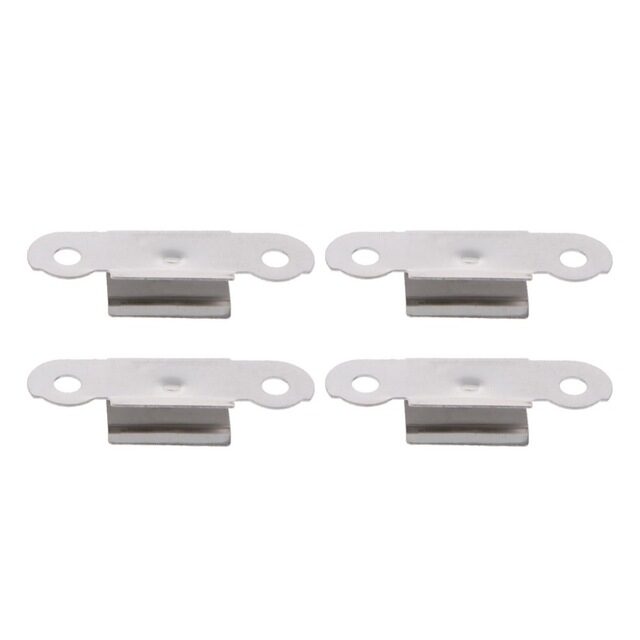
3D Printer Build Platform Glass Retainer Heated Bed Clip (Pack of 4)
Stainless steel glass retainer clips for heated beds. A stable, well-secured glass bed is essential for reliable bed leveling mesh results in Marlin UBL and bilinear ABL systems.
Probe Configuration
#define BLTOUCH                          // Enable BLTouch probe
#define NOZZLE_TO_PROBE_OFFSET { -44, -9, 0 }  // Probe offset from nozzle
#define PROBING_MARGIN 10               // Inset from bed edges
#define XY_PROBE_FEEDRATE (133*60)      // Probe travel speed
#define Z_PROBE_FEEDRATE_FAST (4*60)
#define Z_PROBE_FEEDRATE_SLOW (Z_PROBE_FEEDRATE_FAST / 2)
The nozzle-to-probe offset is critical — measure this physically on your printer. Wrong values will cause the probe to measure at the wrong location, making leveling inaccurate.
Thermistors and Heating
PID Bed Heating
#define PIDTEMPBED
#define DEFAULT_bedKp 10.00
#define DEFAULT_bedKi  .023
#define DEFAULT_bedKd 305.4
By default, heated beds use bang-bang control (on/off). Enabling PIDTEMPBED gives the bed PID control, which results in much more stable and consistent bed temperature — critical for materials like ABS and ASA that are sensitive to temperature fluctuations causing warping.
Minimum and Maximum Temperatures
#define EXTRUDE_MINTEMP 170   // Prevent cold extrusion
#define HEATER_0_MINTEMP 5    // Must be above ambient before moving
EXTRUDE_MINTEMP prevents filament grinding and potential damage by refusing extrude commands below this temperature. Never set it below 170°C.
Motion System Settings
Printer Geometry
#define X_BED_SIZE 235    // Ender 3 example
#define Y_BED_SIZE 235
#define Z_MAX_POS  250

// Homing direction (-1 = min, 1 = max)
#define X_HOME_DIR -1
#define Y_HOME_DIR -1
#define Z_HOME_DIR -1
Maximum Velocities and Accelerations
#define DEFAULT_MAX_FEEDRATE        { 500, 500, 5, 25 }  // mm/s (X, Y, Z, E)
#define DEFAULT_MAX_ACCELERATION    { 500, 500, 100, 5000 }  // mm/s²
#define DEFAULT_ACCELERATION          500    // Normal printing
#define DEFAULT_RETRACT_ACCELERATION  2500   // Retraction
#define DEFAULT_TRAVEL_ACCELERATION   1000  // Non-printing travel
These are maximums — your slicer settings still control actual print speeds and accelerations during a print. Higher accelerations can cause ringing artefacts; lower accelerations mean slower prints. Input shaping (see below) allows higher accelerations without ringing.
Junction Deviation
#define JUNCTION_DEVIATION_MM 0.013Junction deviation replaced the older jerk system in Marlin 2.0. It controls how much the printer decelerates when changing direction. Lower values (0.008) give slower but smoother direction changes; higher values (0.020) allow faster cornering but may cause artefacts. 0.013 is a good starting point for most Cartesian printers.
Configuration_adv.h: Advanced Features
S_CURVE_ACCELERATION
#define S_CURVE_ACCELERATIONEnables S-curve (sigmoid) acceleration profiles instead of linear acceleration ramps. Reduces mechanical stress on the motion system during direction changes and high-acceleration moves. Recommended for most printers.
Linear Advance (Pressure Advance)
#define LIN_ADVANCE
#define LIN_ADVANCE_K 0  // Calibrate this per filament and speed
Linear Advance compensates for pressure buildup in the hotend during acceleration and deceleration. It results in sharper corners, more consistent extrusion, and reduced corner blobs. Calibrate K value by printing test patterns and observing corner sharpness.
Filament Runout Sensor
#define FILAMENT_RUNOUT_SENSOR
#define FIL_RUNOUT_ENABLED_DEFAULT true
#define NUM_RUNOUT_SENSORS   1
#define FIL_RUNOUT_STATE     LOW   // LOW for normally-open switch
Enables the filament runout sensor, which pauses the print when filament runs out or breaks. The FIL_RUNOUT_STATE depends on your sensor hardware (most use LOW/normally-open).
Advanced Pause / Filament Change
#define ADVANCED_PAUSE_FEATURE
#define FILAMENT_CHANGE_UNLOAD_LENGTH   100  // mm to unload
#define FILAMENT_CHANGE_LOAD_LENGTH     100  // mm to load new filament
Enables M600 (filament change) support. When triggered (manually or by runout sensor), the printer pauses, parks the head, unloads filament, and waits for the user to load new filament before resuming.
EEPROM
#define EEPROM_SETTINGS
#define EEPROM_AUTO_INIT  // Automatically initialise EEPROM if corrupted
Enables persistent storage of settings (steps/mm, PID values, leveling mesh, etc.) to the board’s EEPROM. Without this, all M-code changes are lost on power cycle. Always enable this.
Input Shaping and Pressure Advance
Input shaping (resonance compensation) is one of the most significant features in modern Marlin 2.x. It mathematically filters the motion commands to cancel resonant frequencies in the printer’s mechanical system — the same principle used in Klipper’s input shaper and Bambu Lab’s Micro Lidar-based resonance compensation.
#define INPUT_SHAPING_X
#define INPUT_SHAPING_Y
#define SHAPING_FREQ_X  37.0f  // Hz — calibrate with ringing test
#define SHAPING_FREQ_Y  37.0f
#define SHAPING_ZETA_X  0.15f  // Damping ratio
#define SHAPING_ZETA_Y  0.15f
To determine your printer’s resonant frequency:
- Print a ringing/ghosting test model at high speed (100+ mm/s)
- Measure the distance between ghost/echo artefacts
- Calculate frequency: f = speed / (2 × ringing_distance)
- Enter this frequency in SHAPING_FREQ_X or Y
- For best results, use an accelerometer (ADXL345) connected to the board for automated frequency sweep
Compiling and Flashing
PlatformIO Build Process
- Open the Marlin folder in VSCode with PlatformIO installed
- Edit Configuration.h and Configuration_adv.h as needed
- Open platformio.ini — verify the default_envs matches your board
- Click the PlatformIO Build button (checkmark icon) or run
pio run - If successful, find the firmware file at
.pio/build/[env]/firmware.bin(or .hex)
Flashing Methods
SD Card (most 32-bit boards): Copy firmware.bin to SD card root, rename as required by your board, power cycle. The board’s bootloader flashes automatically.
USB/Arduino Bootloader (8-bit boards): Use Arduino IDE or avrdude to flash the .hex file via USB.
ST-Link / J-Link (recovery): For boards with corrupted bootloaders, use an ST-Link programmer for direct flash without bootloader.
Post-Flash Checklist
- Send M502 (reset settings to firmware defaults)
- Send M500 (save to EEPROM)
- Recalibrate: PID hotend (M303), PID bed (M303 E-1), E-steps (M92)
- Run bed leveling (G29) and save mesh (M500)
- Test all endstops (M119)
- Verify temperatures are accurate
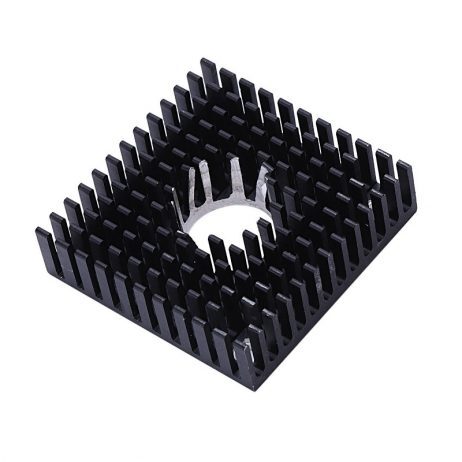
B Type Aluminium Heat Sink for MK7 MK8 Extruder
Aluminium heat sink block for MK7/MK8 extruders. When upgrading or rebuilding your printer hotend (common when flashing custom Marlin configurations), proper heat sink installation is critical for heat creep prevention.
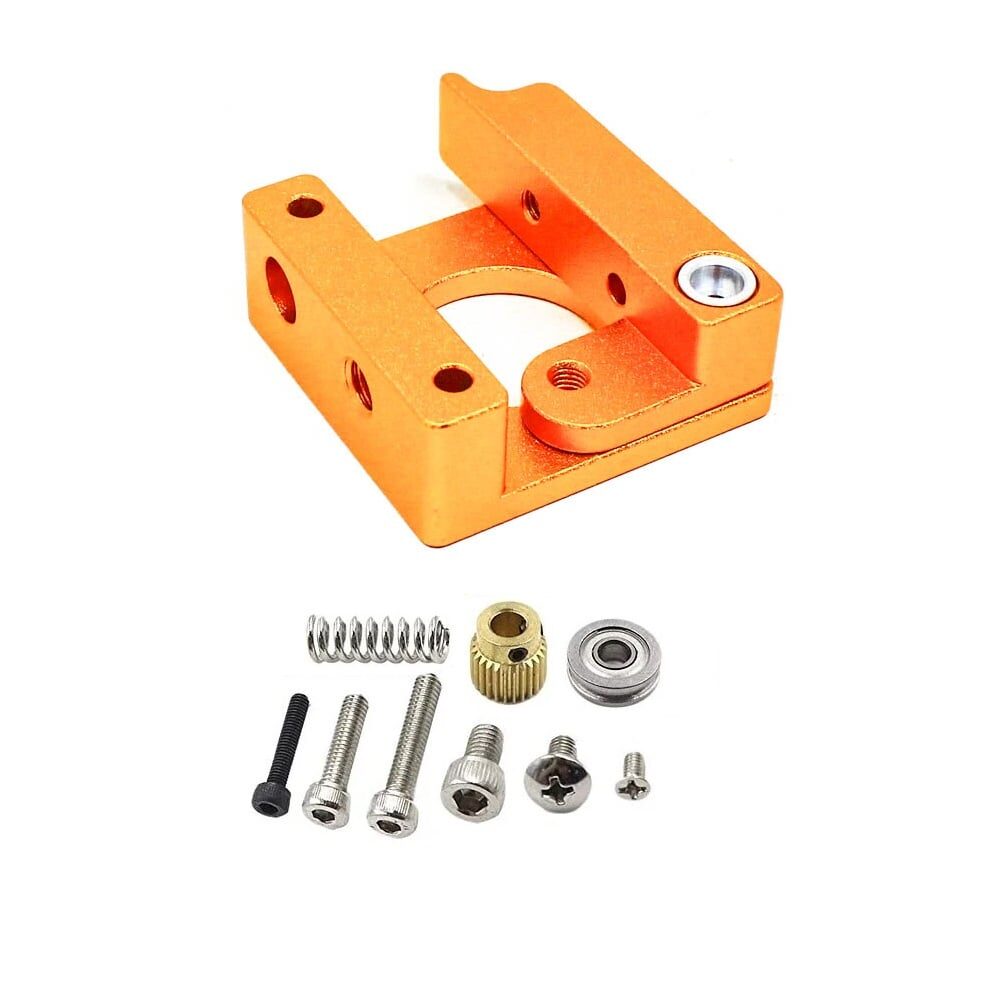
Left Side MK8 Extruder Aluminium 3D Printer Block
Aluminium heater block for MK8 extruder hotends. A key component in DIY printer builds where you are configuring Marlin from scratch — compatible with standard Creality and MK8-style setups.
Frequently Asked Questions
Can I use Marlin on a Bambu Lab printer?
No. Bambu Lab printers run proprietary firmware that is not based on Marlin. They use a custom motion control system. Marlin is designed for open RepRap-style printers and controllers (Creality, Prusa, Voron, custom builds, etc.).
My printer skips steps after changing steps/mm. What is wrong?
Step skipping after modifying steps/mm can be caused by: motor current too low, acceleration too high for the new settings, or the motor driver being in a mode incompatible with the new microstepping. After changing steps/mm, retune your acceleration settings proportionally.
Thermal runaway keeps triggering. How do I fix it?
First, verify that your thermistor is the correct type (TEMP_SENSOR setting). Then run PID autotune (M303). If the trigger happens during rapid heating, increase THERMAL_RUNAWAY_PERIOD slightly. If it triggers during printing, the heater or thermistor may be faulty — replace hardware before disabling the protection.
Is Marlin suitable for Klipper-based printers?
Klipper and Marlin are competing firmware solutions. Klipper runs the motion computation on a host Raspberry Pi, sending low-level step commands to a simple microcontroller firmware. Marlin runs entirely on the printer’s control board. Both have their merits — Marlin requires no separate host computer, while Klipper offers more flexibility for configuration and advanced features like resonance compensation via ADXL345.
How do I enable a BLTouch probe in Marlin?
In Configuration.h: enable #define BLTOUCH, set #define Z_MIN_PROBE_USES_Z_MIN_ENDSTOP_PIN or the appropriate probe pin, configure your NOZZLE_TO_PROBE_OFFSET, enable AUTO_BED_LEVELING_BILINEAR or UBL, and set your probe grid size and margins. Compile and flash, then run G28 followed by G29 to calibrate.
Build Your Custom 3D Printer with Confidence
Marlin 2.0 is a remarkably capable firmware that can be configured for virtually any FDM printer architecture. The key to success is working methodically — start with the closest example configuration, make one change at a time, test thoroughly, and build up to advanced features like UBL, input shaping, and pressure advance only after the basics are solid.
For Indian makers building custom printers or upgrading existing machines, investing time in proper Marlin configuration pays dividends in print quality, reliability, and safety. A well-configured Marlin printer with thermal runaway protection, proper PID tuning, and UBL will outperform many expensive commercial printers.
Get Your 3D Printer Components at Zbotic: From thermistors and extruder blocks to nozzles and bed components, Zbotic.in stocks the hardware you need for your custom Marlin build. Shop 3D Printer Components and build with confidence.






Add comment