
Klipper Firmware: Upgrade Your 3D Printer for Speed
If you have heard experienced 3D printing enthusiasts talk about speeds of 300mm/s, 500mm/s, or even higher without quality loss, they are almost certainly running Klipper firmware. Klipper is an open-source 3D printer firmware that offloads computation from your printer’s microcontroller to a single-board computer (Raspberry Pi or similar) running Linux. The result is dramatically higher performance, precision, and flexibility than stock Marlin firmware — at almost no hardware cost if you already have a printer. This guide is a complete Klipper setup tutorial for Indian 3D printing enthusiasts.
1. What Is Klipper and How Does It Differ from Marlin?
Traditional 3D printer firmware like Marlin runs entirely on the printer’s microcontroller — a modest 8-bit AVR or 32-bit ARM chip that simultaneously handles motion planning, temperature control, display, SD card reading, and communication. This split attention limits computation speed and introduces compromises.
Klipper splits this responsibility:
- A Raspberry Pi (or similar SBC) runs the full Klipper Python application, handles all motion planning, G-code parsing, and configuration
- The printer’s microcontroller is reduced to a simple, fast real-time executor — it only handles step pulses and sensor readings at high priority
This architecture enables Klipper to:
- Run full Python mathematical algorithms for input shaping (resonance compensation)
- Implement pressure advance with precise timing impossible on microcontrollers
- Support a fully configurable, text-file-based configuration system
- Provide a real-time web interface (Mainsail/Fluidd) via browser from any device on your network
- Run on nearly any 3D printer control board as a thin firmware layer
2. Compatible Printers in India
Klipper supports a vast range of printers. The most popular in India that are commonly upgraded:
- Creality Ender 3 series (Ender 3, Ender 3 Pro, Ender 3 V2, Ender 3 S1) — the most common Klipper conversion in India
- Creality CR-10 / CR-10 Max — large format Klipper builds
- Artillery Sidewinder X2 / Genius Pro — popular in Indian maker community
- Voron 2.4, Trident, 0.1, 0.2 — designed from the ground up for Klipper
- Bambu Lab printers — run a Klipper fork internally (not user-accessible by default)
- Prusa MK3S+ — Klipper is possible but requires hardware modifications
- Any printer with a supported control board: BTT SKR series, Creality boards with STM32, Raspberry Pi-based systems
3. Hardware You Need
The Host Computer
The most popular choice is a Raspberry Pi 3B+ or Pi 4 (2GB RAM minimum). In India, Pi 4 availability has improved but prices remain ₹4,500–₹8,000 depending on RAM. Alternatives that work well:
- Orange Pi Zero 2 — often available at ₹1,500–₹2,000 in India, runs Klipper well
- BTT CB1 — a CM4-compatible compute module designed for Klipper host duties, priced around ₹2,500
- BTT Manta boards — integrate host + control board in one unit
MicroSD Card
16GB or 32GB Class 10 / A1 rated. Samsung EVO or Sandisk Ultra work reliably. Avoid no-brand cards — SD card corruption is the #1 cause of Klipper installation failures.
USB Connection
Host computer connects to the printer’s control board via USB. Isolate the connection with a USB data isolator if you experience ground loop issues (EMI-related random resets).
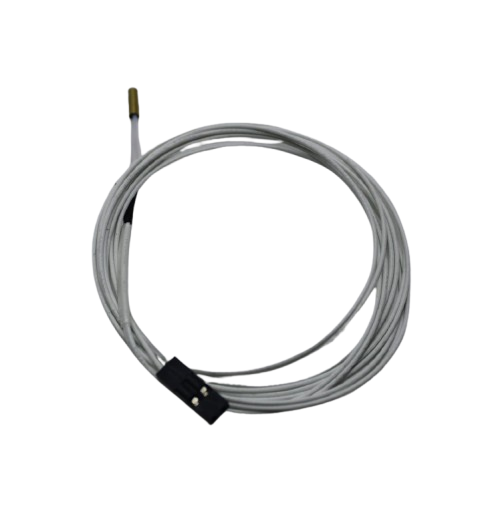
100k NTC Thermistor with Copper Tip for MK8 Extruder
Replacement thermistor for hotend temperature sensing. Klipper’s precise PID tuning requires an accurate thermistor — upgrade worn sensors during your Klipper conversion.
4. Installing Klipper Step by Step
The recommended method for new users is KIAUH (Klipper Installation And Update Helper) — a menu-driven installer that handles all the complexity.
Step 1: Prepare the Host
- Flash Raspberry Pi OS Lite (64-bit) to your microSD card using Raspberry Pi Imager
- Enable SSH and configure WiFi in the imager’s advanced settings
- Boot the Pi, find its IP address via your router’s DHCP client list
- SSH in:
ssh pi@<IP_ADDRESS>
Step 2: Install KIAUH
sudo apt update && sudo apt install git -y
git clone https://github.com/dw-0/kiauh.git
cd kiauh && ./kiauh.sh
Step 3: Install via KIAUH Menu
In the KIAUH menu, select Install and install in this order:
- Klipper (Python 3)
- Moonraker (API server)
- Mainsail or Fluidd (web UI — pick one)
- KlipperScreen (optional — if you have a Pi touchscreen)
Step 4: Compile and Flash Klipper to Your Printer
SSH into the Pi and run:
cd ~/klipper
make menuconfig
In the menuconfig, select the correct microcontroller for your board (e.g., STM32F103 for Creality boards, STM32F407 for BTT SKR). Compile with make, then flash using the appropriate method for your board (DFU, SD card flash, or UART).
5. Writing Your printer.cfg
The printer.cfg file is the heart of Klipper — it replaces all the compile-time settings in Marlin with human-readable configuration. The Klipper GitHub repository contains starting configurations for most common printers in config/. Start with your printer’s template and customise:
[stepper_x],[stepper_y],[stepper_z]— motor pins, step distance, endstop positions[extruder]— step distance (calibrate with estep calibration), max temp, PID values[heater_bed]— PID values for bed temperature control[bed_mesh]— mesh levelling probe settings[input_shaper]— resonance compensation values
Run PID_CALIBRATE HEATER=extruder TARGET=220 and PID_CALIBRATE HEATER=heater_bed TARGET=60 to auto-calibrate temperature control — this alone improves temperature stability significantly over Marlin defaults.
6. Input Shaping: Eliminating Ringing
Input shaping (also called resonance compensation) is Klipper’s most impressive feature. It uses an accelerometer to measure your printer’s resonant frequencies and applies a digital filter to motion commands that cancels out vibrations before they cause ringing artifacts in prints.
Hardware Required
An ADXL345 accelerometer module (₹80–₹200 in India). Connect it to the Raspberry Pi via SPI.
Calibration Process
- Mount the ADXL345 on the toolhead with M3 screws
- Add the
[adxl345]and[resonance_tester]sections to printer.cfg - Run
TEST_RESONANCES AXIS=XandTEST_RESONANCES AXIS=Y - Klipper generates CSV files; run the analysis script:
~/klipper/scripts/calibrate_shaper.py /tmp/resonances_x_*.csv -o /tmp/shaper_calibrate_x.png - The script recommends shaper type (MZV, EI, 2HUMP_EI) and frequency — add to printer.cfg
After input shaping, printers that previously maxed out at 80mm/s can run at 200–300mm/s without any ringing artifacts. This is the single biggest quality-of-life improvement Klipper provides.
7. Pressure Advance Calibration
Pressure advance (PA) compensates for the pressure buildup in the extruder’s melt zone during speed changes. Without PA, you get bulging corners (overpressure at slowdown) and thin lines after direction changes (pressure deficit). Marlin calls this Linear Advance — Klipper’s implementation is superior.
Calibrating Pressure Advance
- Print the pressure advance calibration pattern (search Klipper docs for the pattern G-code)
- The pattern prints at varying PA values (0 to 0.5)
- Inspect corners — find the value where corners are sharpest without bulging
- Add
pressure_advance: 0.XXXto your[extruder]section
Typical values: PLA direct drive 0.02–0.06, PLA Bowden 0.4–0.7, PETG 0.05–0.12. After PA calibration, corner quality improves dramatically and you can push perimeter speeds higher.
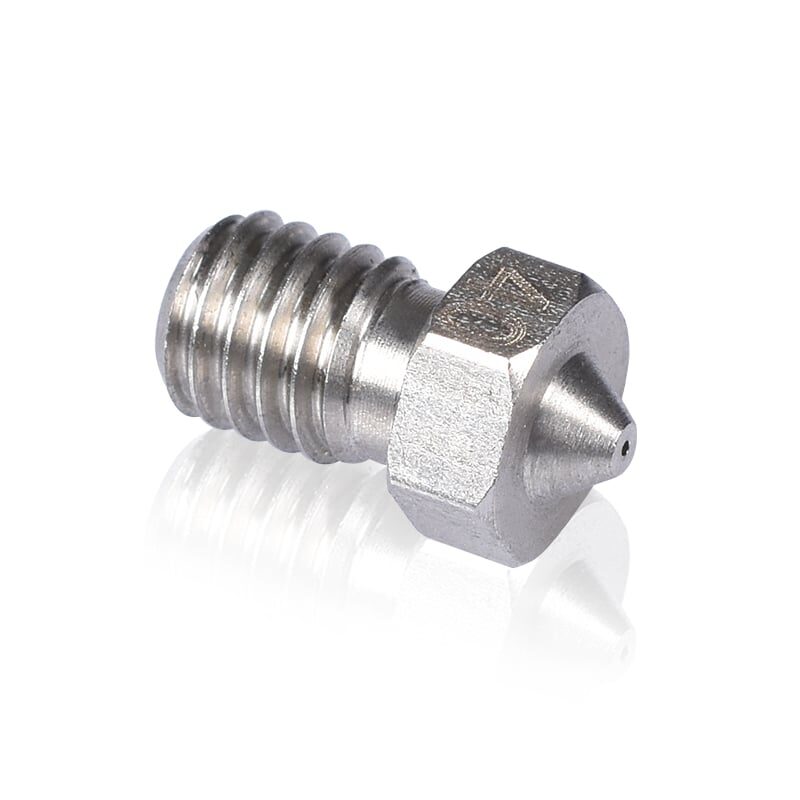
3D Printers Stainless Steel Nozzle 0.4mm
Standard 0.4mm nozzle for calibration and general printing. Replace when switching to Klipper high-speed mode to start fresh with a clean nozzle geometry.
8. Pushing Print Speeds Safely
After input shaping and pressure advance, you can push speeds significantly. However, new limits emerge:
Hotend Flow Rate
A standard 0.4mm brass nozzle with a typical V6-style heatblock maxes out at ~12–16mm³/s volumetric flow. At 200mm/s with 0.2mm layer height and 0.4mm line width, you are already at 16mm³/s — the limit. Push beyond this and the hotend cannot melt filament fast enough, causing under-extrusion.
Solutions for higher speed:
- High-flow hotend: Bambu-style ceramic hotends, Rapido, Dragon HF — rated 25–40mm³/s
- Larger nozzle (0.6mm–0.8mm): More cross-section per layer = higher flow at same speed
- Higher melt temperature: PLA at 230°C vs 210°C flows 20–30% faster
Practical Speed Targets by Printer Type
| Printer | Stock Speed | Klipper Speed | Bottleneck |
|---|---|---|---|
| Ender 3 (stock bed-slinger) | 50mm/s | 100–120mm/s | Bed inertia |
| Ender 3 (direct drive) | 50mm/s | 150–180mm/s | Hotend flow |
| Voron 2.4 (CoreXY) | N/A (Klipper native) | 250–400mm/s | Hotend flow |
| CR-10 Max (Klipper) | 60mm/s | 80–100mm/s | Bed inertia (450mm) |
9. Essential Klipper Macros
Klipper macros are the equivalent of Marlin’s custom G-codes but far more powerful — they support variables, conditionals, and Python expressions. Must-have macros:
PRINT_START
Automates homing, bed mesh levelling, heat soak, and purge line before each print. Your slicer’s start G-code calls PRINT_START BED=<temperature> EXTRUDER=<temperature> and the macro handles everything.
PRINT_END
Parks the toolhead, turns off heaters, presents the part. Avoids the default Marlin behaviour of the nozzle hovering over the finished part, melting the top surface.
HEAT_SOAK
Critical for ABS printing in Voron and other enclosed printers. Waits for the chamber thermistor to reach target temperature before the print begins, ensuring thermal expansion has fully occurred.
PA_CAL, FLOW_CAL
Automated pressure advance and flow rate calibration macros from community repositories (Ellis3DP’s Print Tuning Guide macros are the community standard).
10. Mainsail vs Fluidd Web Interface
Both Mainsail and Fluidd are excellent web interfaces for Klipper. Key differences:
- Mainsail: Feature-rich, active development, slightly more complex UI, better macro management panel. Community standard for Voron builds.
- Fluidd: Cleaner, simpler UI, fast. Preferred by users who want a streamlined interface without extra options.
Both provide file management, real-time temperature graphs, webcam integration, and G-code console. Install both and pick your preferred — they can coexist on different ports.
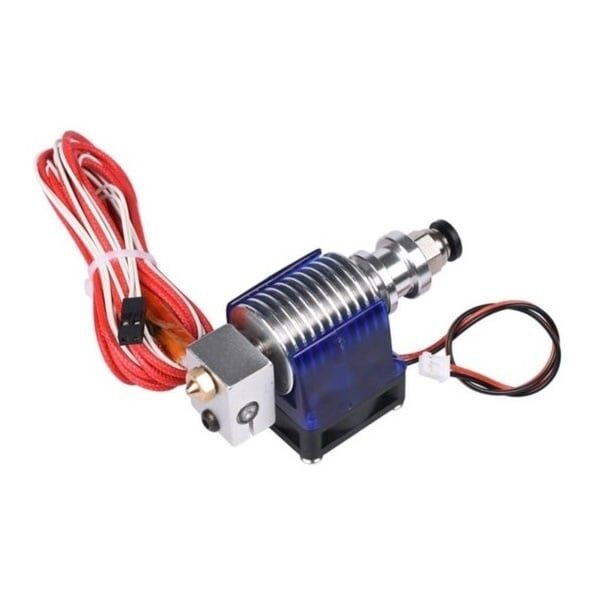
All Complete Bowden V6 Hotend with Fan Cable – 30cm, 1.75mm, 0.2mm Nozzle
Complete V6 hotend assembly for Ender-3 and similar Klipper conversions. Pair with Klipper’s precise PID tuning for stable temperatures at high print speeds.
11. Common Klipper Setup Issues
“mcu ‘mcu’: Unable to connect” Error
Cause: USB connection issue or wrong serial port in printer.cfg.
Fix: Run ls /dev/serial/by-id/ on the Pi to find the correct serial path. Update serial: in [mcu] section.
Thermistor “ADC out of range” Shutdown
Cause: Thermistor disconnected, wrong thermistor type configured, or damaged thermistor.
Fix: Verify thermistor type matches your hardware (NTC 100k B3950 is most common). Check wiring continuity. Replace thermistor if open circuit.
Random Disconnects / Errors During Print
Cause: USB data corruption due to ground loops (common when printer and Pi share a PSU), SD card corruption, or insufficient Pi power supply.
Fix: Use a USB isolator module (₹400–₹800 in India), use a quality SD card, ensure Pi gets 5V/3A clean power.
Homing Fails / Endstop Issues
Cause: Incorrect endstop pin configuration (open vs closed, pull-up vs pull-down).
Fix: Run QUERY_ENDSTOPS and physically trigger each endstop to verify correct open/triggered state. Add/remove ! prefix on pin definition to invert logic.
Frequently Asked Questions
Can I install Klipper on an Ender 3 without a Raspberry Pi?
Yes — you can use any Linux SBC (Orange Pi, BTT CB1) or even an old Android phone with the Klipperize app (experimental). The Raspberry Pi is most recommended for stability, but Orange Pi Zero 2 is a cost-effective Indian alternative at ₹1,500.
Does Klipper void my printer warranty?
Technically, flashing third-party firmware may void the manufacturer warranty. However, Klipper is reversible — you can re-flash stock Marlin at any time. For most Indian users with long-delivered printers, warranty is not a practical concern.
Is Klipper difficult to set up for beginners?
Klipper has a steeper initial setup curve than Marlin. The printer.cfg system requires understanding your printer’s hardware pinout. However, KIAUH makes software installation trivial, and the Voron/Klipper community has excellent documentation. Budget 4–8 hours for first-time setup on a well-documented printer like the Ender 3.
Can I use OrcaSlicer or Cura with Klipper?
Yes. Klipper accepts standard G-code — any slicer works. OrcaSlicer is the community favourite for Klipper due to its built-in PA calibration and flow calibration tools. PrusaSlicer also works well. Cura functions but lacks some Klipper-specific niceties.
What is the difference between Klipper and Marlin 2.x?
Marlin 2.x is compiled firmware — configuration is done at compile time and must be re-flashed for each change. Klipper uses a text configuration file changeable at runtime via the web UI. Klipper’s input shaping and pressure advance implementations are also technically superior to Marlin’s equivalents.
How much speed improvement can I realistically expect on an Ender 3?
With Klipper, input shaping, and direct drive upgrade, an Ender 3 can realistically print PLA at 150mm/s without quality loss — 3× its stock speed. With a high-flow hotend, 200mm/s is achievable. The bed-slinger dynamic limits ultimate speed more than the motion system does.
Upgrade Your 3D Printer’s Hardware Alongside Klipper
Getting the most from Klipper often means hardware upgrades too — better thermistors, high-flow hotends, quality nozzles, and reliable extruders. Zbotic.in stocks a wide range of 3D printer components to support your Klipper conversion with fast delivery across India.







Add comment