
If you are building IoT projects in India and want to send sensor data to the cloud, Google Firebase with ESP32 real-time database is one of the best combinations available today. Firebase is a free (within limits) backend-as-a-service from Google that gives your ESP32 a powerful, scalable cloud database without writing a single line of server code. In this guide, we will walk through everything — from setting up a Firebase project, to wiring your ESP32, writing Arduino code, and reading live data on your phone or browser.
What is Google Firebase Realtime Database?
Google Firebase is a platform developed by Google that offers a suite of backend services for mobile and web applications. For IoT makers, the Firebase Realtime Database is the most useful service. It is a cloud-hosted NoSQL database where data is stored as JSON and synchronised in real time to every connected client.
This means the moment your ESP32 writes a temperature reading to Firebase, your smartphone app or web dashboard reflects that change almost instantly — typically within 100-500 milliseconds. No polling, no REST API calls every few seconds. Firebase uses WebSockets internally to push updates to all listeners simultaneously.
Firebase free Spark plan allows: 1 GB of stored data, 10 GB of monthly download bandwidth, and 100 simultaneous connections. For most hobbyist and small-scale Indian IoT projects, this is completely free.
Why Use ESP32 with Firebase for IoT?
The ESP32 microcontroller is the go-to chip for IoT development in India because it combines a dual-core 240 MHz processor, built-in Wi-Fi (802.11 b/g/n), and Bluetooth Classic + BLE — all for under Rs 300. When you pair this with Firebase, you get a production-grade cloud backend at zero cost.
- No server needed: Firebase handles all the backend infrastructure. Your ESP32 connects directly using the Firebase REST API or the dedicated Arduino library.
- Real-time sync: Data appears on dashboards and apps the moment it is written.
- Authentication built in: Firebase Authentication lets you secure your database so only authorised ESP32 devices can write data.
- Free tier is generous: Perfect for student projects, college assignments, and small home automation setups common in India.
- Works on your home Wi-Fi: No static IP, no port forwarding needed. The ESP32 initiates the outbound connection.
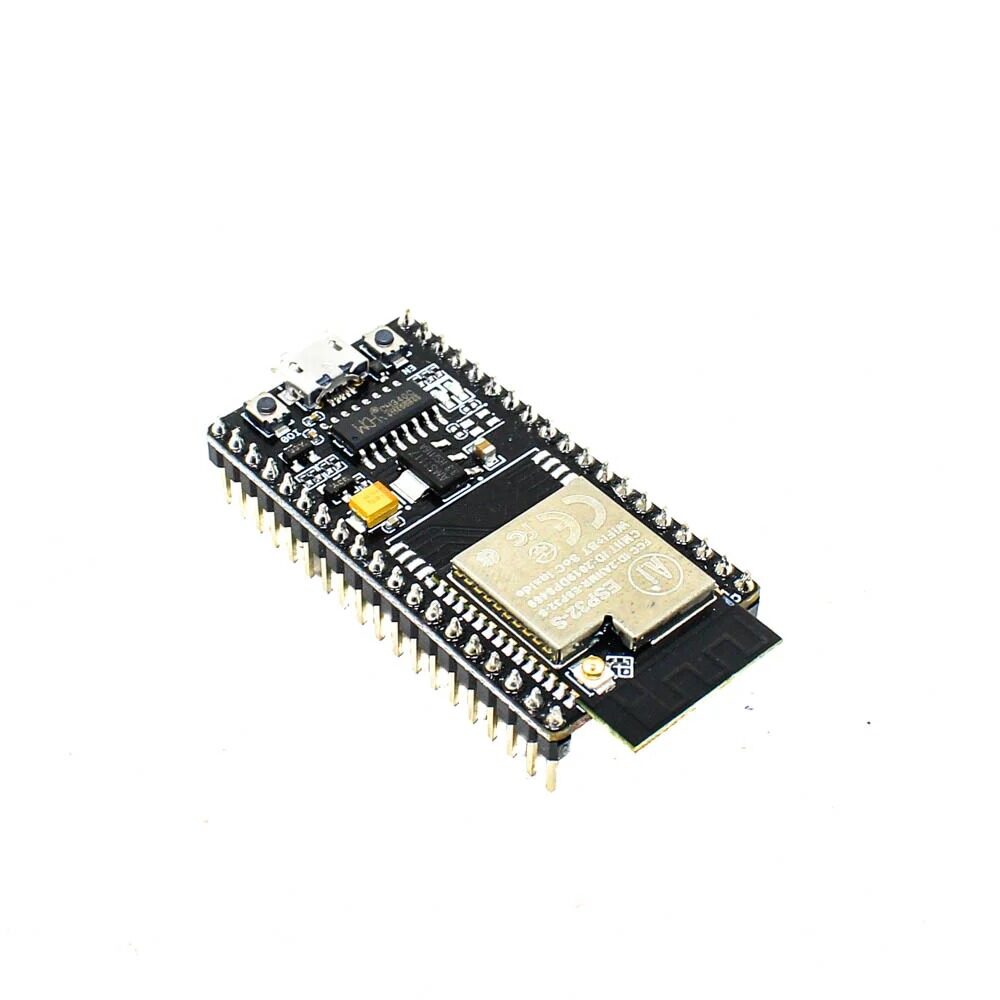
Ai Thinker NodeMCU-32S ESP32 Development Board – IPEX Version
A reliable dual-core ESP32 development board with external antenna support, perfect for Firebase IoT projects that need strong Wi-Fi range indoors.
Hardware Requirements and Wiring
For this tutorial, we will build a temperature and humidity monitoring system that sends data to Firebase every 10 seconds. You need: an ESP32 development board, a DHT11 or DHT20 temperature/humidity sensor, a breadboard and jumper wires, a USB cable for programming, and a smartphone or laptop for viewing the Firebase dashboard.
Wiring the DHT11 to ESP32:
- DHT11 VCC to ESP32 3.3V
- DHT11 GND to ESP32 GND
- DHT11 DATA to ESP32 GPIO4 (with a 10kOhm pull-up resistor to 3.3V)
If you are using the DHT11 module (with onboard resistor and LED), you can skip the external pull-up resistor and connect DATA directly to GPIO4.

DHT11 Digital Relative Humidity and Temperature Sensor Module
A widely used sensor for measuring temperature and humidity, ideal for your first Firebase IoT project. Works directly with the DHT library on Arduino IDE.
Setting Up Your Firebase Project
Follow these steps carefully to create and configure your Firebase project before writing any Arduino code.
Step 1: Create a Firebase Account
Go to console.firebase.google.com and sign in with your Google account. Firebase is free to start — no credit card required for the Spark plan.
Step 2: Create a New Project
Click Add Project, give it a name (e.g. ESP32-IoT-Monitor), disable Google Analytics (not needed), and click Create Project.
Step 3: Enable the Realtime Database
In the left sidebar, click Build then Realtime Database. Click Create Database, choose Singapore as the server location (closest for India), select Start in test mode, and click Enable.
Step 4: Get Your Database URL and API Key
After the database is created, copy the database URL (looks like: https://your-project-id-default-rtdb.firebaseio.com/). Next, go to Project Settings then General and copy the Web API Key. You will need both of these in your Arduino sketch.
Step 5: Set Up Authentication
Go to Build then Authentication then Get Started. Enable Email/Password sign-in, then create a user with any email and password — this is the credential your ESP32 will use to authenticate. This prevents unauthorised access to your Firebase database.
Arduino IDE Code for ESP32 Firebase
Install the Firebase ESP Client library by Mobizt from Arduino IDE Library Manager. Also install the DHT sensor library by Adafruit. Here is the complete sketch:
#include <Arduino.h>
#include <WiFi.h>
#include <Firebase_ESP_Client.h>
#include <DHT.h>
#include "addons/TokenHelper.h"
#include "addons/RTDBHelper.h"

#define WIFI_SSID "YourWiFiName"
#define WIFI_PASSWORD "YourWiFiPassword"
#define API_KEY "your_web_api_key"
#define DATABASE_URL "https://your-project-id-default-rtdb.firebaseio.com/"
#define USER_EMAIL "[email protected]"
#define USER_PASSWORD "your_firebase_user_password"
#define DHTPIN 4
#define DHTTYPE DHT11

DHT dht(DHTPIN, DHTTYPE);
FirebaseData fbdo;
FirebaseAuth auth;
FirebaseConfig config;
unsigned long sendDataPrevMillis = 0;

void setup() {
  Serial.begin(115200);
  dht.begin();
  WiFi.begin(WIFI_SSID, WIFI_PASSWORD);
  while (WiFi.status() != WL_CONNECTED) { delay(300); Serial.print("."); }
  Serial.println("Connected! IP: " + WiFi.localIP().toString());
  config.api_key = API_KEY;
  config.database_url = DATABASE_URL;
  auth.user.email = USER_EMAIL;
  auth.user.password = USER_PASSWORD;
  config.token_status_callback = tokenStatusCallback;
  Firebase.begin(&config, &auth);
  Firebase.reconnectWiFi(true);
}

void loop() {
  if (Firebase.ready() && millis() - sendDataPrevMillis > 10000) {
    sendDataPrevMillis = millis();
    float temperature = dht.readTemperature();
    float humidity = dht.readHumidity();
    if (!isnan(temperature)) Firebase.RTDB.setFloat(&fbdo, "/sensor/temperature", temperature);
    if (!isnan(humidity)) Firebase.RTDB.setFloat(&fbdo, "/sensor/humidity", humidity);
    Firebase.RTDB.setInt(&fbdo, "/sensor/timestamp", millis() / 1000);
    Serial.printf("Temp: %.1f C, Humidity: %.1f%%
", temperature, humidity);
  }
}
DHT20 SIP Packaged Temperature and Humidity Sensor
An upgraded sensor over DHT11 with I2C interface and better accuracy (plus or minus 0.5 degrees C). Great for more precise Firebase IoT monitoring projects.
Reading and Visualising Data in Real Time
Once your ESP32 is running and sending data, open your Firebase Console, go to Realtime Database, and you will see the JSON tree update live. You can also build a simple web dashboard using the Firebase JavaScript SDK that updates in real time without page refresh. For more advanced logging, integrate with Google Sheets via Firebase Cloud Functions, or use MQTT and Grafana for beautiful time-series graphs.
For a quick local web view, the ESP32 can also host its own web server on port 80 using the WebServer library, displaying the latest sensor values at its local IP address — no internet needed for that view.
Common Issues and Troubleshooting
Authentication Failed or Token Error
Make sure your system time is correct. Firebase tokens require accurate time. Add NTP sync in your setup function: configTime(19800, 0, “pool.ntp.org”); — IST offset is 19800 seconds (UTC+5:30).
Wi-Fi Keeps Disconnecting
Add Firebase.reconnectWiFi(true) in setup. Also check your router’s DHCP lease time and consider assigning a static IP to your ESP32 via the router’s admin panel.
Database Rules Block Write Access
In test mode, rules allow read/write for 30 days. After that, update your Firebase security rules in the Console to require authentication (auth != null) for both read and write operations.
Sensor Returns NaN Values
DHT11 needs at least 1 second between reads. Always check the return value with isnan() before sending to Firebase. Also verify your pull-up resistor is 10kOhm — too low or too high a value will cause reading failures.
ESP32 Heap Running Out
Firebase SSL connections use about 40-50 KB of heap. Avoid storing large JSON objects in the database path your ESP32 reads from. Use setFloat/setInt for individual values rather than setJSON for large objects to minimise memory usage.

30Pin ESP32 Expansion Board with Type-C USB and Micro USB Dual Interface
Makes prototyping Firebase IoT projects easier with breadboard-friendly pin breakout and dual USB support for programming and power.
Frequently Asked Questions
Is Google Firebase free for ESP32 IoT projects?
Yes. The Firebase Spark plan is completely free and includes 1 GB of Realtime Database storage, 10 GB of monthly download bandwidth, and up to 100 simultaneous connections. This is more than enough for most hobbyist and student IoT projects in India. You only need to upgrade when scaling to hundreds of devices or gigabytes of data.
Can I use Firebase with Arduino Uno or NodeMCU ESP8266?
The Firebase ESP Client library officially supports both ESP32 and ESP8266. Arduino Uno does not have Wi-Fi and does not support Firebase directly. The ESP32 handles Firebase SSL/TLS requirements better than ESP8266 due to its larger RAM (520 KB vs 80 KB), making it the recommended choice for Firebase projects.
How secure is my Firebase database?
By default in test mode, anyone with your database URL can read and write. Always enable Firebase Authentication and update security rules to require auth != null before deploying any real project. You can also restrict writes to specific paths for different devices using Firebase security rules expressions.
How many ESP32 devices can I connect to one Firebase database?
The Spark (free) plan supports 100 simultaneous connections. For a home automation system with 10-20 devices this is plenty. Each device should use a unique path (for example /device1/sensor, /device2/sensor) to organise data cleanly and avoid conflicts.
Can the ESP32 both write to and read from Firebase?
Absolutely. You can use Firebase.RTDB.setFloat() to write data and Firebase.RTDB.getFloat() to read it. You can also set up real-time listeners with Firebase.RTDB.beginStream() to receive push notifications when a value changes in the database — perfect for remote control applications where a phone app controls an ESP32 device.
Ready to Build Your Firebase IoT Project?
Get all the ESP32 boards, sensors, and accessories you need from Zbotic. We ship across India with fast delivery and genuine components.






Add comment