
Introduction
ESP8266 wifi module is low cost standalone wireless transceiver that can be used for end-point IoT developments.
ESP8266 wifi module enables internet connectivity to embedded applications. It uses TCP/UDP communication protocol to connect with server/client.
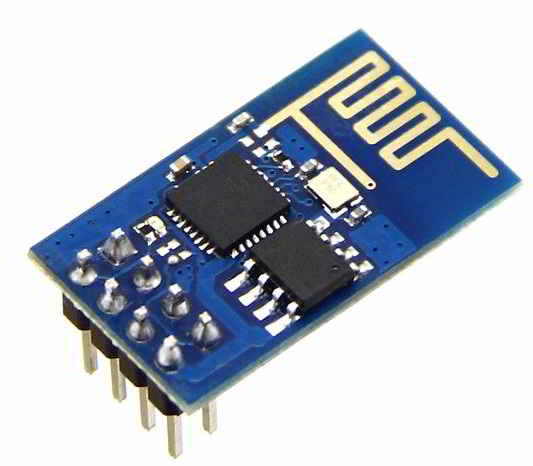
ESP8266 Wi-Fi Module
To communicate with the ESP8266 wifi module, microcontroller needs to use set of AT commands. Microcontroller communicates with ESP8266-01 wifi module using UART having specified Baud rate (Default 115200).
Now let’s interface ESP8266 wifi Module with Arduino UNO.
Interfacing diagram
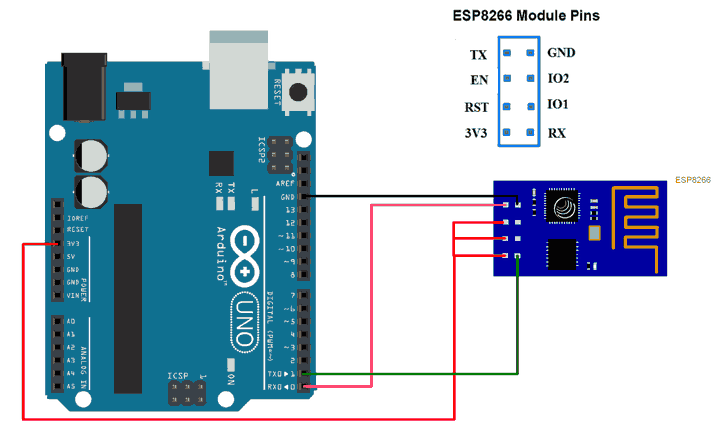
TCP Client using ESP8266 WiFi Module
Let’s program Arduino UNO to configure ESP8266 wifi module as TCP Client and Receive/Send data from/to Server using WIFI.
Here, we are using Thingspeak server for TCP Client demo purpose.
Thingspeak is an open IOT platform where anyone can visualize and analyze live data from their sensor devices. Also, we can perform data analysis on data posted by remote devices with Matlab code in Thingspeak. To learn more about Thingspeak refer link https://thingspeak.com/pages/learn_more
Just sign up and create channel. We have below channel and write key available on Thingspeak for data send and receive.
channel ID is = 119922Write Key is = C7JFHZY54GLCJY38
Note: Do not forget to tick Make Public field in channel setting option on your thingspeak channel. It makes channel available to use as public. This allows any user to access channel data without any username & password.
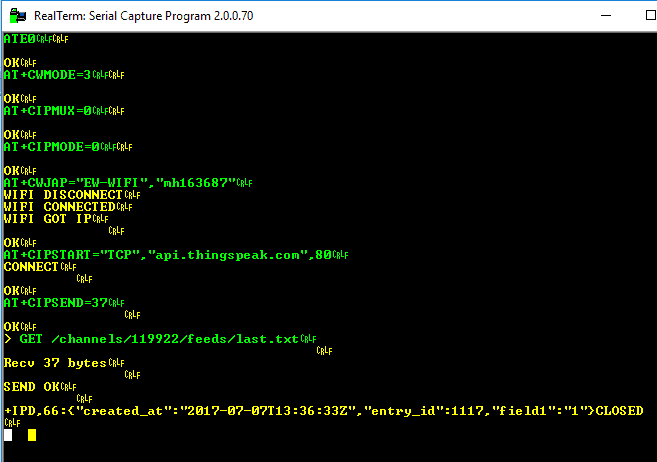
For TCP RECEIVE method use below AT command steps shown in screenshot of RealTerm Serial Terminal.
Below screenshot consists of AT commands (Green) and Responses (Yellow).
For TCP SEND method use below AT command steps shown in screenshot of RealTerm Serial Terminal.
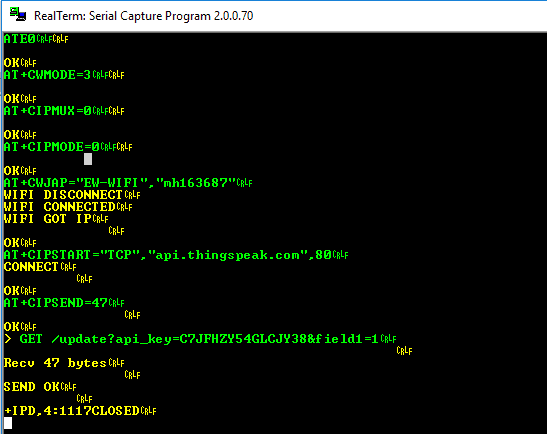
For accessing required functionality i.e. TCP receive or send make changes in program as per given below,
For TCP Client RECEIVE demo
#define RECEIVE_DEMO        /* Define RECEIVE demo */
//#define SEND_DEMO         /* Define SEND demo */
For TCP Client SEND demo
//#define RECEIVE_DEMO     /* Define RECEIVE demo */
#define SEND_DEMO          /* Define SEND demo */
Edit fields below with respective data in header file of ESP 8266
/* Define Required fields shown below */
#define DOMAIN           "api.thingspeak.com"
#define PORT             "80"
#define API_WRITE_KEY    " Thingspeak Write Key "
#define CHANNEL_ID       " Thingspeak Channel ID "
#define SSID             " WiFi SSID "
#define PASSWORD         " WiFi Password "
Program
/*
 * ESP8266 wifi module Interfacing with Arduino Uno
 * http://www.electronicwings.com
 */
 #include "ESP8266_AT.h"

 /* Select Demo */
//#define RECEIVE_DEMO			/* Define RECEIVE demo */
#define SEND_DEMO			/* Define SEND demo */

/* Define Required fields shown below */
#define DOMAIN          "api.thingspeak.com"
#define PORT            "80"
#define API_WRITE_KEY   "Write your Write Key here"
#define CHANNEL_ID      "Write your Channel ID here"

#define SSID            "Write your WIFI SSID here"
#define PASSWORD        "Write your WIFI Password here"

char _buffer[150];
uint8_t Connect_Status;
#ifdef SEND_DEMO
uint8_t Sample = 0;
#endif

void setup() {
    Serial.begin(115200);

    while(!ESP8266_Begin());
    ESP8266_WIFIMode(BOTH_STATION_AND_ACCESPOINT);	/* 3 = Both (AP and STA) */
    ESP8266_ConnectionMode(SINGLE);     			/* 0 = Single; 1 = Multi */
    ESP8266_ApplicationMode(NORMAL);    			/* 0 = Normal Mode; 1 = Transperant Mode */
    if(ESP8266_connected() == ESP8266_NOT_CONNECTED_TO_AP)/*Check WIFI connection*/
    ESP8266_JoinAccessPoint(SSID, PASSWORD);		/*Connect to WIFI*/
    ESP8266_Start(0, DOMAIN, PORT);
}

void loop() {
    Connect_Status = ESP8266_connected();
    if(Connect_Status == ESP8266_NOT_CONNECTED_TO_AP)	/*Again check connection to WIFI*/
    ESP8266_JoinAccessPoint(SSID, PASSWORD);		/*Connect to WIFI*/
    if(Connect_Status == ESP8266_TRANSMISSION_DISCONNECTED)
    ESP8266_Start(0, DOMAIN, PORT);			/*Connect to TCP port*/

    #ifdef SEND_DEMO
    memset(_buffer, 0, 150);
    sprintf(_buffer, "GET /update?api_key=%s&field1=%d", API_WRITE_KEY, Sample++); 	/*connect to thingspeak server to post data using your API_WRITE_KEY*/
    ESP8266_Send(_buffer);
    delay(15000); 					/* Thingspeak server delay */
    #endif

    #ifdef RECEIVE_DEMO
    memset(_buffer, 0, 150);
    sprintf(_buffer, "GET /channels/%s/feeds/last.txt", CHANNEL_ID); /*Connect to thingspeak server to get data using your channel ID*/
    ESP8266_Send(_buffer);
    Read_Data(_buffer);
    delay(600);
    #endif
  }
ESP8266 Response
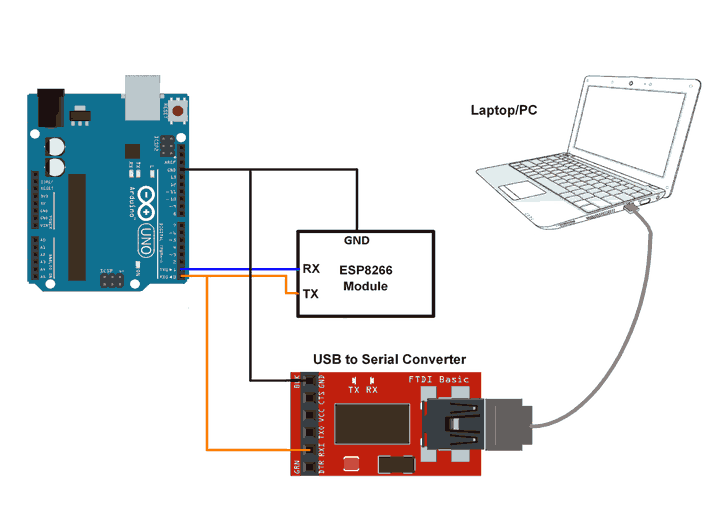
At the client end, we need to check ESP8266 responses. We can check it on the serial terminal of PC/Laptop. Connect ESP8266 module transmit pin (TX) to the receive pin (RX) of Arduino UNO and to receive pin (RX) of USB to serial converter as shown in below figure. connect USB to serial converter to PC/Laptop. Open the serial terminal on PC/Laptop to see the ESP8266 responses for the AT command sent from Arduino UNO.
Now for TCP SEND commands (sent from Arduino UNO module), we can see the below response from ESP8266 on the serial terminal for the thingspeak server.
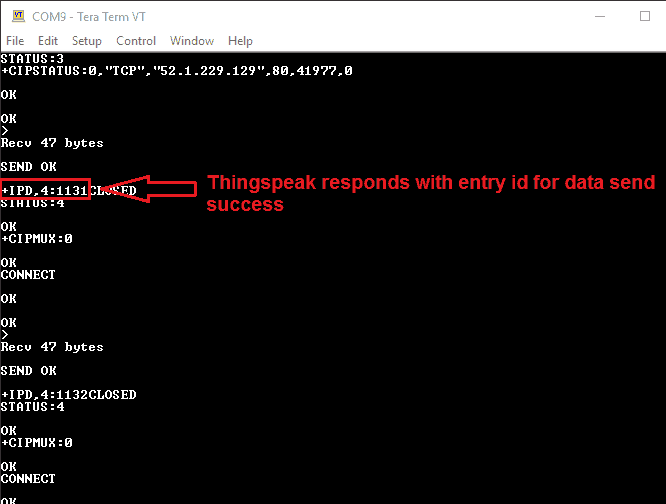
In response with TCP SEND we get the data entry no. as shown in above figure i.e. 1131, 1132, and so on.
For TCP RECEIVE commands (sent from Arduino UNO Module), we can see the below response from ESP8266 on the serial terminal for the thingspeak server.
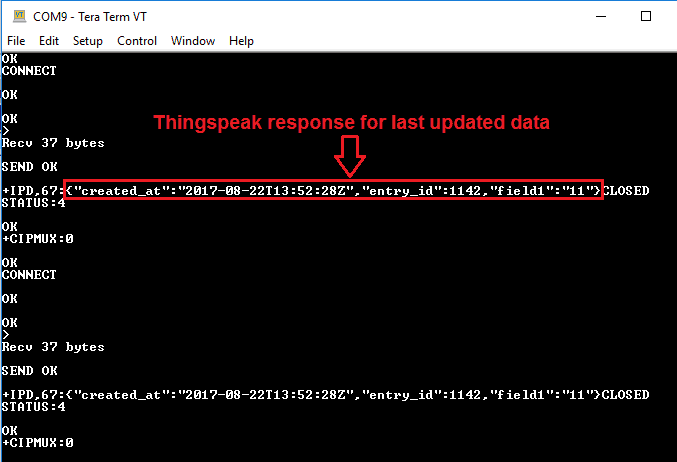
In response with TCP RECEIVE we get the last entry data for field 1 on thingspeak as shown in above figure.
Note: here we are retrieving the last entry data on field1 of thingspeak server hence we get the last updated data of field1 from server as shown in above figure i.e. “field1”:”11”. In program, we used “GET /channels/119922/feeds/last.txt” to receive last updated data only.
- Updates at thingspeak server on TCP SEND
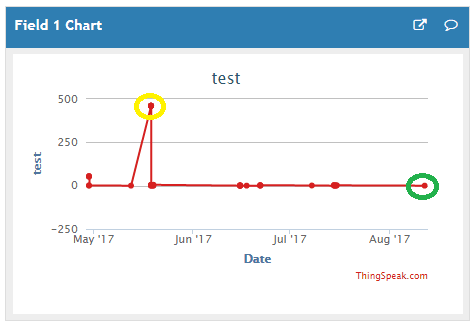
For TCP SEND we can see the output at server end. Here we are using thingspeak server and sending incremented count to the field 1 on server. We get incremented count at field1 of thingspeak server as shown in figure below.






Add comment