
The ThingsBoard ESP32 IoT platform combination is one of the most powerful and cost-effective ways to build a professional IoT monitoring system. ThingsBoard is an open-source IoT platform that provides device management, data collection, processing, and rich visualisation dashboards — and it connects seamlessly to ESP32 microcontrollers via MQTT. Whether you are building a smart home system in Mumbai, a factory monitoring solution in Coimbatore, or an agricultural sensor network in Vidarbha, this guide will walk you through the complete setup from hardware to a live dashboard.
What Is ThingsBoard and Why Use It with ESP32
ThingsBoard is an open-source IoT platform originally developed by Ukrainian company ThingsBoard, Inc., and used widely across the world including in many Indian smart city and industrial IoT projects. It provides:
- Device Management: Register, monitor, and manage thousands of ESP32 devices from a single interface.
- Multi-Protocol Ingestion: MQTT, HTTP, CoAP, and LWM2M protocols out of the box. ESP32 works best with MQTT.
- Time-Series Data Storage: Built on Cassandra, PostgreSQL, or TimescaleDB depending on your deployment scale.
- Real-Time Dashboards: Drag-and-drop dashboard builder with 30+ widget types including maps, charts, gauges, and tables.
- Rule Engine: Visual, node-based rule chains that can filter, transform, aggregate data and trigger alerts.
- RPC (Remote Procedure Calls): Send commands from the dashboard down to your ESP32 in real time.
Compared to commercial alternatives like AWS IoT Core + QuickSight or Azure IoT Hub + Power BI, ThingsBoard provides a complete end-to-end stack at minimal cost, making it perfect for Indian startups and independent developers working on IoT products.
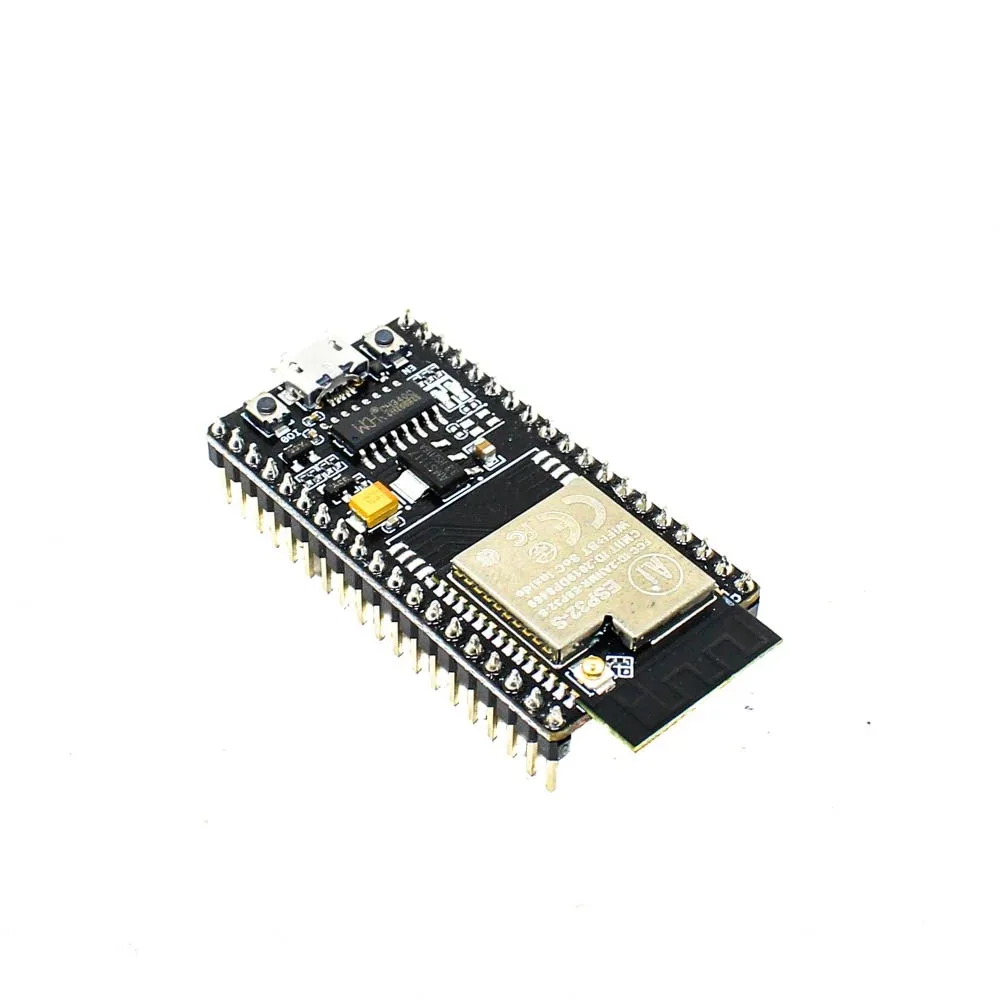
Ai Thinker NodeMCU-32S-ESP32 Development Board – IPEX Version
The NodeMCU-32S with its 38-pin layout and IPEX antenna connector is the go-to board for ThingsBoard IoT projects requiring stable WiFi connectivity in challenging environments.
ThingsBoard Setup Options: Cloud vs Self-Hosted
Option 1: ThingsBoard Cloud (thingsboard.cloud)
ThingsBoard offers a managed cloud service at thingsboard.cloud. The free tier supports up to 30 devices, which is sufficient for small projects and learning. No server setup required — sign up and start connecting devices in minutes. This is the best option for hobbyists and students in India who want to quickly prototype without managing infrastructure.
Option 2: Self-Hosted on AWS/Digital Ocean
For production deployments with more devices or data privacy requirements, self-hosting ThingsBoard Community Edition on a cloud VM is the standard approach in India. A Digital Ocean droplet or AWS EC2 t3.small (₹1,500–2,500/month) running Ubuntu 22.04 can handle hundreds of connected ESP32 devices. The installation steps:
# Install ThingsBoard Community Edition on Ubuntu 22.04
wget https://github.com/thingsboard/thingsboard/releases/latest/download/thingsboard.deb
sudo apt install ./thingsboard.deb

# Install PostgreSQL database
sudo apt install -y postgresql
sudo -u postgres psql -c "CREATE DATABASE thingsboard;"
sudo -u postgres psql -c "CREATE USER thingsboard WITH PASSWORD 'thingsboard';"
sudo -u postgres psql -c "GRANT ALL ON DATABASE thingsboard TO thingsboard;"

# Configure ThingsBoard
export DATABASE_TS_TYPE=sql
export SPRING_DATASOURCE_URL=jdbc:postgresql://localhost:5432/thingsboard
export SPRING_DATASOURCE_USERNAME=thingsboard
export SPRING_DATASOURCE_PASSWORD=thingsboard

# Initialize and start
sudo /usr/share/thingsboard/bin/install/install.sh --loadDemo
sudo service thingsboard start

# Access at http://your-server-ip:8080
# Default admin: [email protected] / sysadmin
Option 3: Local Raspberry Pi Deployment
For isolated factory environments without internet connectivity, ThingsBoard PE (Professional Edition) or the Community Edition can run on a Raspberry Pi 4 (4GB RAM model). This provides a completely offline IoT dashboard — useful for factories with strict data security policies or poor internet connectivity in rural areas.
Device Provisioning and Access Token Setup
Every ESP32 connecting to ThingsBoard needs an Access Token — a unique credential that identifies the device and authorises it to publish telemetry. Here is how to provision a device:
- Log into ThingsBoard and go to Devices → Add Device.
- Enter a name (e.g., “ESP32-Sensor-01”), select device profile (Default), and save.
- Click the device, go to Credentials tab.
- Select Access Token as credential type.
- Copy the auto-generated token (e.g.,
A1_TEST_TOKEN) — this is what goes into your ESP32 code.
For large deployments, use the Device Provisioning feature which lets ESP32 devices self-register and receive their tokens automatically on first boot, without manual pre-configuration for each device.
ESP32 MQTT Telemetry Code
ThingsBoard uses a specific MQTT topic structure for telemetry data:
- Publish telemetry:
v1/devices/me/telemetry - Publish attributes:
v1/devices/me/attributes - Subscribe to RPC commands:
v1/devices/me/rpc/request/+ - MQTT authentication: username = Access Token, password = empty
#include <WiFi.h>
#include <PubSubClient.h>
#include <ArduinoJson.h>
#include <DHT.h>

// WiFi credentials
const char* WIFI_SSID     = "YourWiFiSSID";
const char* WIFI_PASSWORD = "YourWiFiPassword";

// ThingsBoard connection
const char* TB_SERVER    = "thingsboard.cloud"; // or your server IP
const int   TB_PORT      = 1883;
const char* ACCESS_TOKEN = "YOUR_DEVICE_ACCESS_TOKEN";

// ThingsBoard MQTT topics
const char* TELEMETRY_TOPIC  = "v1/devices/me/telemetry";
const char* ATTRIBUTE_TOPIC  = "v1/devices/me/attributes";
const char* RPC_SUBSCRIBE    = "v1/devices/me/rpc/request/+";
const char* RPC_RESPONSE_FMT = "v1/devices/me/rpc/response/%d";

// DHT22 sensor
#define DHTPIN  4
#define DHTTYPE DHT22
DHT dht(DHTPIN, DHTTYPE);

WiFiClient   espClient;
PubSubClient mqttClient(espClient);

void handleRPC(char* topic, byte* payload, unsigned int length) {
  // Parse RPC request
  StaticJsonDocument<256> request;
  deserializeJson(request, payload, length);

  String method = request["method"].as<String>();
  int requestId = 0;
  // Extract request ID from topic: v1/devices/me/rpc/request/{id}
  sscanf(topic, "v1/devices/me/rpc/request/%d", &requestId);

  StaticJsonDocument<128> response;
  char responseTopic[64];
  snprintf(responseTopic, sizeof(responseTopic),
           RPC_RESPONSE_FMT, requestId);

  if (method == "getTemperature") {
    response["temperature"] = dht.readTemperature();
    response["humidity"]    = dht.readHumidity();
  } else if (method == "reboot") {
    response["status"] = "rebooting";
    char respBuffer[64];
    serializeJson(response, respBuffer);
    mqttClient.publish(responseTopic, respBuffer);
    delay(500);
    ESP.restart();
    return;
  }

  char respBuffer[128];
  serializeJson(response, respBuffer);
  mqttClient.publish(responseTopic, respBuffer);
}

void reconnectMQTT() {
  while (!mqttClient.connected()) {
    Serial.print("Connecting to ThingsBoard...");
    // Access token is the MQTT username, password is empty
    if (mqttClient.connect("ESP32_Client", ACCESS_TOKEN, "")) {
      Serial.println("connected!");
      mqttClient.subscribe(RPC_SUBSCRIBE);

      // Publish device attributes on connect
      StaticJsonDocument<128> attrs;
      attrs["firmware_version"] = "1.0.0";
      attrs["board_type"]       = "ESP32";
      attrs["sdk_version"]      = ESP.getSdkVersion();
      char attrsBuffer[128];
      serializeJson(attrs, attrsBuffer);
      mqttClient.publish(ATTRIBUTE_TOPIC, attrsBuffer);
    } else {
      Serial.printf("Failed (rc=%d). Retrying in 5s...n",
                    mqttClient.state());
      delay(5000);
    }
  }
}

void publishTelemetry() {
  float temp = dht.readTemperature();
  float hum  = dht.readHumidity();

  if (isnan(temp) || isnan(hum)) {
    Serial.println("DHT read failed");
    return;
  }

  // ThingsBoard telemetry JSON format
  StaticJsonDocument<256> telemetry;
  telemetry["temperature"]  = temp;
  telemetry["humidity"]     = hum;
  telemetry["rssi"]         = WiFi.RSSI();
  telemetry["heap_free"]    = ESP.getFreeHeap();

  char jsonBuffer[256];
  serializeJson(telemetry, jsonBuffer);

  if (mqttClient.publish(TELEMETRY_TOPIC, jsonBuffer)) {
    Serial.printf("Published: %sn", jsonBuffer);
  }
}

void setup() {
  Serial.begin(115200);
  dht.begin();

  WiFi.begin(WIFI_SSID, WIFI_PASSWORD);
  while (WiFi.status() != WL_CONNECTED) {
    delay(500); Serial.print(".");
  }
  Serial.println("nWiFi connected: " + WiFi.localIP().toString());

  mqttClient.setServer(TB_SERVER, TB_PORT);
  mqttClient.setCallback(handleRPC);
  mqttClient.setBufferSize(1024);
}

void loop() {
  if (!mqttClient.connected()) reconnectMQTT();
  mqttClient.loop();

  static unsigned long lastPublish = 0;
  if (millis() - lastPublish > 10000) { // Every 10 seconds
    publishTelemetry();
    lastPublish = millis();
  }
}

DHT20 SIP Packaged Temperature and Humidity Sensor
The DHT20 communicates over I2C and offers better accuracy than DHT11/22. Ideal for ThingsBoard environmental monitoring projects where sensor precision matters.
Building Your ThingsBoard Dashboard
ThingsBoard’s drag-and-drop dashboard builder makes it easy to create professional monitoring interfaces. Here is how to build a complete environmental monitoring dashboard for your ESP32 data:
Step 1: Create a New Dashboard
- Go to Dashboards → Add Dashboard → give it a name.
- Click the dashboard to open it, then click the pencil icon to enter edit mode.
- Click Add Widget to add your first visualization.
Step 2: Add Key Widgets
For a temperature/humidity dashboard, add these widgets:
- Gauge (Analogue): For real-time temperature display. Set min=0, max=50, yellow threshold at 35°C, red at 45°C.
- Time-Series Chart: For historical temperature and humidity trends. Set time window to last 24 hours.
- Card widget: For displaying latest values with custom icons.
- Alarm widget: Shows active and historical alarms for this device.
- Map widget: If you have GPS coordinates as attributes, plot device locations on OpenStreetMap.
Step 3: Configure Data Sources
When adding each widget, you need to configure its data source. Select the device you created (ESP32-Sensor-01), then select the telemetry key (e.g., temperature). ThingsBoard automatically queries historical data and streams real-time updates via WebSocket.
Alarms, Rules, and Automated Actions
ThingsBoard’s Rule Engine is where the real power lies. It lets you define automated workflows triggered by device data. Here is how to create a temperature alarm that sends an email when temperature exceeds 40°C:
- Go to Rule Chains → open Root Rule Chain.
- Add a Filter node of type Script:
// Filter: pass through only if temperature > 40
return msg.temperature != null && msg.temperature > 40;
- Add an Action node of type Create Alarm:
- Alarm type:
High Temperature - Alarm severity:
CRITICAL - Alarm details script:
return {temperature: msg.temperature};
- Alarm type:
- Add a Send Email node connected to the alarm creator.
- To: your email (e.g., [email protected])
- Subject:
ALERT: Temperature at ${metadata.deviceName} - Body:
Temperature is ${msg.temperature}°C. Immediate action required.

GY-BME280-3.3 Precision Altimeter Atmospheric Pressure Sensor Module
Add atmospheric pressure monitoring to your ThingsBoard dashboard. The BME280 measures temperature, humidity, AND pressure via I2C — three data streams from one sensor.
Frequently Asked Questions
Is ThingsBoard free to use for commercial projects in India?
ThingsBoard Community Edition (CE) is completely free and open-source under the Apache 2.0 licence. You can use it for commercial projects at no cost. The Professional Edition (PE) adds features like white-labelling, advanced rule chain nodes, and enterprise support, but CE is more than sufficient for most Indian SME IoT deployments. The ThingsBoard Cloud service has a paid tier (starting ~$10/month) but the self-hosted CE is always free.
How many ESP32 devices can one ThingsBoard instance handle?
ThingsBoard CE on a 4-core, 8GB RAM server can handle 10,000+ simultaneously connected MQTT devices. For small deployments (under 100 ESP32 devices), a 1-core 2GB VPS is sufficient. The bottleneck is usually the database — for large time-series data volumes, using TimescaleDB instead of regular PostgreSQL significantly improves performance and is a common choice for Indian smart meter deployments.
Does ESP32 support MQTT over TLS for secure ThingsBoard connections?
Yes. The ESP32 has hardware-accelerated AES and SHA2 and can handle TLS 1.2 connections. Use WiFiClientSecure instead of WiFiClient and load the ThingsBoard server’s CA certificate. The performance impact is a ~500ms additional handshake on first connection, but subsequent publishes have negligible overhead. Always use TLS for production deployments — plain MQTT on port 1883 sends your access token in cleartext.
Can I visualise GPS location of ESP32 devices on a map in ThingsBoard?
Yes. Publish latitude and longitude as either telemetry or device attributes. Use the Map widget (OpenStreetMap or Google Maps) and configure it to use your location keys. ThingsBoard supports both static location markers (from attributes) and animated trip paths (from time-series telemetry) — very useful for tracking vehicles or mobile IoT assets.
Start Your ThingsBoard IoT Project
Get the ESP32 boards and sensors you need to build a complete ThingsBoard monitoring system. Zbotic.in offers fast delivery across India — from Mumbai to Chennai to Kolkata — with genuine components and technical support.


Add comment