
A Raspberry Pi cluster is one of the most rewarding DIY projects you can build at home — combining multiple Pi boards into a single, powerful distributed computing system. Whether you want to learn about parallel computing, host your own services, or experiment with Kubernetes, building a Raspberry Pi cluster gives you hands-on experience with real enterprise-grade concepts at a fraction of the cost. In India, where developers and hobbyists are increasingly exploring edge computing and self-hosted infrastructure, a Pi cluster is a fantastic weekend project.
What Is a Raspberry Pi Cluster?
A Raspberry Pi cluster is a group of Raspberry Pi single-board computers (SBCs) connected together via a local network switch, configured to work as a single distributed system. Each individual Pi is called a node, and together they form a cluster that can distribute workloads across multiple processors. This mimics what large datacentres do with thousands of servers — but in a compact, affordable, and power-efficient form factor.
Clusters are typically built with a head node (master) that orchestrates work and multiple worker nodes that execute tasks. The head node is usually your primary access point via SSH, and it handles job scheduling, load balancing, and coordination. Worker nodes receive instructions from the head node and report results back.
With the launch of the Raspberry Pi 5 featuring up to 16GB RAM, higher clock speeds, and PCIe support, building a powerful cluster in 2026 is more accessible than ever. A four-node cluster using Pi 5 (4GB or 8GB) boards can deliver genuine computational power for AI inference, web hosting, media streaming, and more.

Raspberry Pi 5 Model 4GB RAM
The perfect balance of performance and cost for cluster nodes — 4GB RAM, quad-core Cortex-A76, and PCIe 2.0 support make it ideal for a multi-node home server.
Hardware You Need to Build a Pi Cluster
Building a Raspberry Pi cluster requires some planning. Here is the complete hardware list for a 4-node cluster — a good starting point that delivers real parallelism while keeping costs manageable:
Core Components
- 4x Raspberry Pi 5 (4GB or 8GB RAM) — worker nodes; use 16GB for the head node if budget allows
- 4x MicroSD cards (32GB Class 10 / A2 rated) — one per node for the OS
- 1x Gigabit network switch (unmanaged, 5-port) — connects all nodes
- 5x Ethernet cables (Cat6, 0.3m) — short cables keep the cluster tidy
- 4x USB-C power supplies (27W minimum for Pi 5) — official Pi 5 PSU recommended
- 1x Cluster case or rack mount — keeps boards stacked and cooled
- 4x Heatsinks or active cooling fans — Pi 5 runs warm under load
Optional but Recommended
- A powered USB hub with individual switches for clean power management
- USB-powered Gigabit switch (for neater cable management)
- NVMe SSD on the head node via PCIe HAT for fast shared storage
- OLED display HAT on head node for real-time status monitoring
If you are on a tighter budget, the Raspberry Pi 5 2GB works fine for worker nodes in CPU-bound tasks like MPI computing. For Kubernetes or Docker Swarm deployments, the 4GB variant is the sweet spot. Reserve the 16GB model for your head node if you plan to run a database or NFS file server alongside cluster management.

Raspberry Pi 5 Model 16GB RAM
The flagship Pi 5 with 16GB RAM — ideal as the head node of your cluster, capable of running NFS, a database, and Kubernetes control plane simultaneously.
Setting Up the Network for Your Cluster
Networking is the backbone of any cluster. A well-configured network ensures low latency communication between nodes, which is critical for distributed workloads like MPI programs or containerised microservices.
Step 1: Assign Static IP Addresses
Every node in your cluster needs a fixed IP address so they can always find each other. Edit /etc/dhcpcd.conf on each Pi (or use NetworkManager on Raspberry Pi OS Bookworm):
interface eth0
static ip_address=192.168.1.101/24
static routers=192.168.1.1
static domain_name_servers=8.8.8.8
Assign sequential IPs: head node at 192.168.1.100, workers at 101, 102, 103.
Step 2: Configure /etc/hosts on All Nodes
Add all node hostnames to /etc/hosts on every Pi so nodes can refer to each other by name:
192.168.1.100  pi-head
192.168.1.101  pi-worker1
192.168.1.102  pi-worker2
192.168.1.103  pi-worker3
Step 3: Set Up SSH Key Authentication
Generate an SSH key on the head node and copy it to all workers:
ssh-keygen -t rsa -b 4096
ssh-copy-id pi@pi-worker1
ssh-copy-id pi@pi-worker2
ssh-copy-id pi@pi-worker3
This allows the head node to log in to workers without a password — essential for both MPI and Kubernetes operations.
Installing and Configuring the OS on Each Node
Use Raspberry Pi OS Lite (64-bit, Bookworm) for all nodes — the headless version saves RAM and CPU that would otherwise be wasted on a desktop GUI. Flash each SD card using Raspberry Pi Imager, enabling SSH and setting hostnames during the flashing process.
Essential Configuration Steps
- Update all packages:
sudo apt update && sudo apt full-upgrade -y - Set unique hostname:
sudo hostnamectl set-hostname pi-worker1 - Enable SSH:
sudo systemctl enable ssh && sudo systemctl start ssh - Set timezone:
sudo timedatectl set-timezone Asia/Kolkata - Configure NTP: Ensure time is synchronised across all nodes — critical for distributed systems
- Create a common user account: Use the same username on all nodes to simplify MPI and Kubernetes setup
NFS Shared Storage (Optional but Useful)
Set up an NFS share on the head node that all workers can mount. This gives all nodes access to a common filesystem — useful for sharing datasets, logs, and compiled binaries:
# On head node
sudo apt install nfs-kernel-server
echo "/home/pi/cluster 192.168.1.0/24(rw,sync,no_subtree_check)" | sudo tee -a /etc/exports
sudo exportfs -a

# On each worker
sudo mount pi-head:/home/pi/cluster /mnt/cluster
Setting Up MPI for Parallel Computing
MPI (Message Passing Interface) is the standard protocol for parallel computing on clusters. Open MPI is the most widely used implementation and works excellently on Raspberry Pi.
Installing Open MPI
sudo apt install openmpi-bin openmpi-common libopenmpi-dev -yInstall this on all nodes.
Create the MPI Hosts File
On the head node, create ~/mpi_hosts listing all nodes with the number of CPU slots:
pi-head slots=4
pi-worker1 slots=4
pi-worker2 slots=4
pi-worker3 slots=4
This tells MPI that each node has 4 CPU cores available (Pi 5 is quad-core), giving you a total of 16 parallel processes.
Test with a Hello World Program
mpirun -np 16 --hostfile ~/mpi_hosts hostnameYou should see each node print its hostname multiple times, confirming that all 16 processes launched across the cluster successfully.
Running Kubernetes (K3s) on Your Pi Cluster
K3s is a lightweight Kubernetes distribution from Rancher, perfectly suited for ARM-based hardware like the Raspberry Pi. It uses less than 512MB RAM on worker nodes — ideal for our resource-constrained cluster environment.
Install K3s on the Head Node (Control Plane)
curl -sfL https://get.k3s.io | sh -
# Get the node token for workers
sudo cat /var/lib/rancher/k3s/server/node-token
Join Worker Nodes
curl -sfL https://get.k3s.io | K3S_URL=https://192.168.1.100:6443 K3S_TOKEN=YOUR_TOKEN sh -Run this on each worker node substituting the token from the head node.
Verify the Cluster
kubectl get nodesYou should see all 4 nodes listed as Ready. From here, you can deploy containerised applications using standard Kubernetes manifests — the same skills used by DevOps engineers at major Indian tech companies.
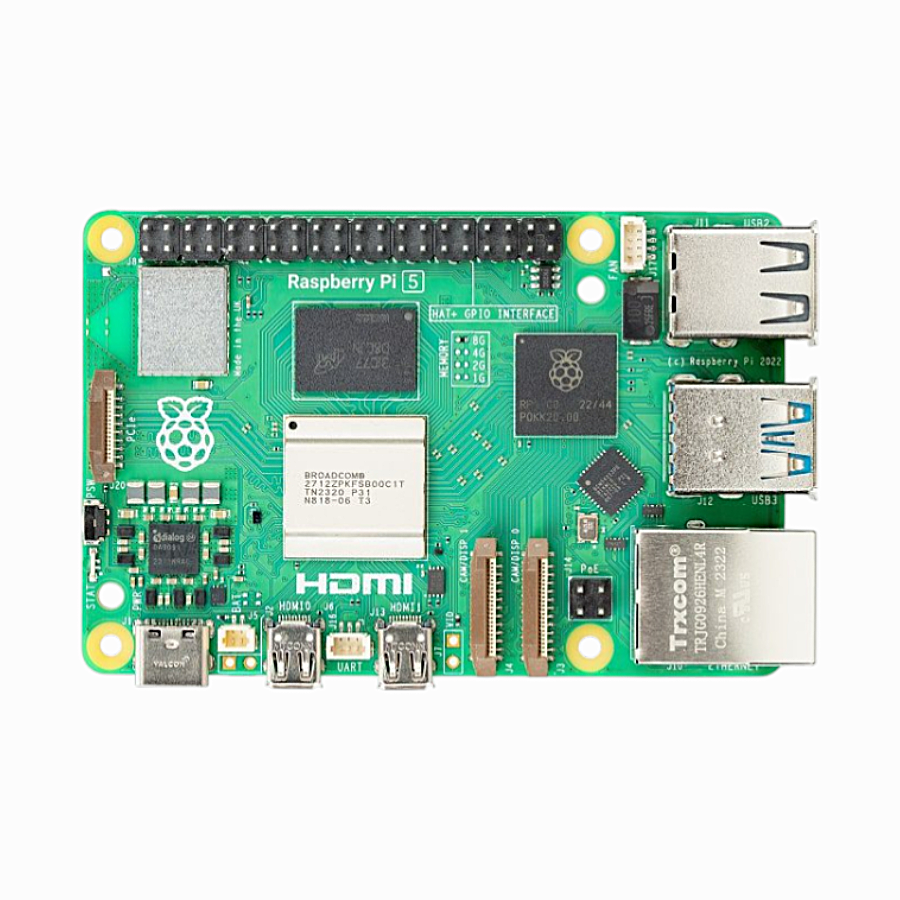
Raspberry Pi 5 Model 2GB RAM
A cost-effective worker node option — the Pi 5 2GB handles K3s worker duties with ease, letting you scale your cluster affordably.
Best Use Cases for a Home Pi Cluster
A Raspberry Pi cluster is not just a learning exercise — it can run genuinely useful services for your home or small business. Here are the most popular use cases among Indian makers and developers:
1. Home Media Server
Run Jellyfin or Plex on your cluster with Docker containers. Distribute transcoding load across worker nodes for smooth 4K streaming to multiple devices simultaneously.
2. Personal Cloud Storage
Deploy Nextcloud on Kubernetes and get your own Google Drive replacement with no monthly fees. Store documents, photos, and videos on an attached USB hard drive connected to the head node.
3. CI/CD Pipeline
Run Gitea (self-hosted Git) and Drone CI on your cluster to build and test code automatically. Many Indian startup developers use Pi clusters for lightweight CI pipelines to avoid cloud bills.
4. Machine Learning Inference
With Pi 5’s improved CPU performance, you can run lightweight ML models across cluster nodes using frameworks like TensorFlow Lite or ONNX Runtime, distributing inference requests via a load balancer.
5. Network Monitoring
Deploy Prometheus + Grafana to monitor your home network infrastructure. The cluster can aggregate metrics from multiple IoT devices, routers, and servers across your home.
6. Learning DevOps and Cloud-Native Skills
This is arguably the most valuable use case for students and IT professionals in India. Running Kubernetes on a physical cluster teaches you concepts directly applicable to AWS EKS, Google GKE, and Azure AKS — the skills companies are hiring for.
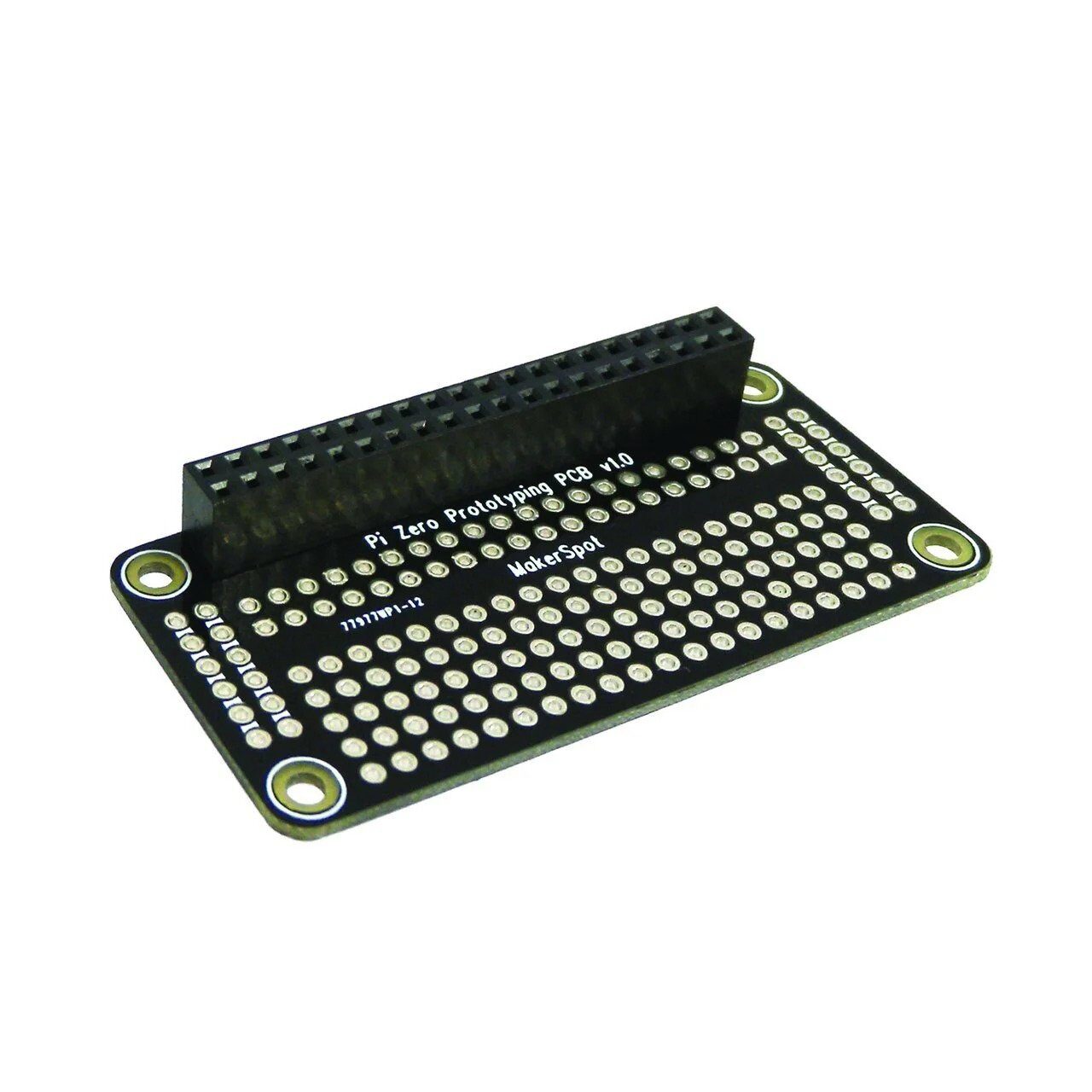
HAT DIY PCB Prototyping Board for Raspberry Pi Zero
Extend your Pi Zero nodes with custom HAT prototyping boards — great for adding sensors or custom interfaces to cluster nodes.
Frequently Asked Questions
How many Raspberry Pi boards do I need to build a cluster?
You can start with as few as 2 boards — one head node and one worker. However, a 4-node cluster gives you enough parallelism to see real performance benefits and learn meaningful distributed computing concepts. There is no upper limit; large Pi clusters with 32+ nodes have been built for research purposes.
Do I need a dedicated router for my Pi cluster?
No. A simple unmanaged Gigabit Ethernet switch is sufficient for inter-node communication. You can connect the head node to your existing home router for internet access, while all cluster traffic stays on the switch’s local network.
Which Raspberry Pi model is best for a cluster in 2026?
The Raspberry Pi 5 (4GB or 8GB) is the best choice for cluster builds in 2026. Its quad-core Cortex-A76 CPU, faster memory bandwidth, and PCIe 2.0 interface make it significantly more capable than previous generations for both computing and storage-intensive workloads.
What is the power consumption of a 4-node Pi cluster?
A 4-node Pi 5 cluster typically consumes 15–25W under load. This is extremely efficient compared to a conventional server or desktop PC. Annually, running 24/7, a Pi cluster costs roughly ₹1,500–₹2,500 in electricity at Indian residential tariffs.
Can I run a website on a Raspberry Pi cluster?
Yes. With Kubernetes (K3s), you can deploy a containerised NGINX + PHP + MySQL stack across nodes with auto-scaling and load balancing. For internal use or learning purposes, this works great. For public-facing production sites, you would need a stable internet connection with a static IP or a reverse proxy service.
Build Your Pi Cluster Today
Get all your Raspberry Pi 5 boards, cameras, displays, and accessories from Zbotic — India’s trusted electronics store.






Add comment