
Speed measurement is one of the most fundamental requirements in robotics, motor control, and industrial automation. Whether you are building a self-balancing robot, a CNC machine, or a conveyor belt monitor, knowing how fast a motor shaft is spinning is critical. The optical encoder disc combined with an infrared (IR) break-beam sensor is one of the most affordable and accurate ways to measure RPM with an Arduino.
In this comprehensive guide, you will learn everything from how optical encoder discs work to complete Arduino code that uses PWM-compatible interrupt pins to calculate precise speed in real time. By the end, you will have a working tachometer project you can adapt for any motor.
What Is an Optical Encoder Disc?
An optical encoder disc — also called a slotted wheel or chopper wheel — is a thin circular disk with evenly spaced holes or slots cut around its perimeter. When this disc is mounted on a rotating shaft and placed between an infrared emitter and receiver pair, each slot that passes through the beam generates a digital pulse. By counting these pulses over time, you can calculate the angular velocity (RPM) of the shaft.
The disc itself is passive — it is just a physical interrupt mechanism. The intelligence comes from your Arduino counting the pulses using hardware interrupts and converting the count to meaningful speed data. Encoder discs come in standard slot counts: 20 slots per revolution is the most common for hobbyist use, but you will also find 12, 16, 36, and custom-count versions depending on the resolution you need.
How Optical Speed Sensing Works
The sensing assembly consists of three parts working together:
- IR LED (emitter): Constantly emits an infrared beam across a small gap.
- Phototransistor or photodiode (receiver): Normally receives the IR beam and keeps its output HIGH (or LOW depending on module design).
- Encoder disc: Rotates between the emitter and receiver. Each opaque tooth blocks the beam; each slot allows the beam through.
As the motor spins, the disc interrupts the IR beam repeatedly. Each complete revolution produces a number of pulses equal to the slot count. A 20-slot disc produces 20 rising edges per revolution. By measuring the time between pulses — or by counting pulses in a fixed time window — the Arduino can calculate RPM.
RPM Formula using pulse count method:
RPM = (pulseCount / slotsPerRevolution) * (60 / timeWindowSeconds)
RPM Formula using pulse period method (more accurate at high speeds):
RPM = 60,000,000 / (pulseIntervalMicroseconds * slotsPerRevolution)
Types of Encoder Discs
Not all encoder discs are identical. Understanding the variations helps you pick the right one for your project:
1. Standard Slotted Disc (20 or 24 slots)
The most common. Compatible with LM393-based IR break-beam modules. Gives ±3 RPM accuracy at speeds above 100 RPM. Ideal for DC motor speed control.
2. High-Resolution Disc (100+ slots)
Used in servo drives and precision positioning. Requires faster interrupt handling. The Arduino Uno can handle up to ~50 kHz interrupt rate, so keep slot count within safe limits for your maximum motor speed.
3. Reflective Encoder Disc
Instead of slots, uses alternating black and white stripes. Paired with a reflective IR sensor (like TCRT5000). Easier to mount on the face of a shaft where you cannot thread a disc onto the shaft tip.
4. Magnetic Encoder Disc
Not optical, but worth mentioning. Uses Hall effect sensors. More resistant to dust and oil — common in industrial motors. Not covered in this guide.
Components Required
- Arduino Uno / Nano / Mega
- IR optical speed sensor module (FC-03 or equivalent with LM393 comparator)
- 20-slot encoder disc (usually included with FC-03 modules)
- DC motor with mounting shaft (or any rotating mechanism)
- 16×2 LCD display or Serial Monitor for output
- 10kΩ resistors x 2 (for LCD contrast, optional)
- Jumper wires and breadboard
- 5V power supply (USB or battery pack)
The FC-03 IR speed sensor module is the standard choice. It includes the LM393 voltage comparator which converts the analog phototransistor signal into a clean digital output — no extra filtering needed.
Wiring the Encoder Sensor to Arduino
The FC-03 module has four pins: VCC, GND, DO (digital output), and AO (analog output). For interrupt-based speed measurement, use the DO pin.
| FC-03 Pin | Arduino Pin | Notes |
|---|---|---|
| VCC | 5V | Module operates at 3.3–5V |
| GND | GND | Common ground |
| DO | Pin 2 (INT0) | Must be interrupt-capable pin |
| AO | A0 (optional) | Only needed for analog thresholding |
Important: On Arduino Uno, only pins 2 and 3 support hardware interrupts (INT0 and INT1). On Arduino Mega, pins 2, 3, 18, 19, 20, and 21 support interrupts. Always use a hardware interrupt pin for encoder signals — polling in loop() will miss pulses at high RPM.
Position the encoder disc between the IR emitter and receiver gap. The disc should rotate freely without touching either side. Adjust the LM393 sensitivity potentiometer until the onboard LED blinks steadily as the disc rotates.
Arduino Code for RPM Measurement
The following code uses the RISING interrupt trigger to count pulses. RPM is calculated every second using the pulse count method. Serial output displays the result.
// Optical Encoder RPM Measurement
// Encoder disc: 20 slots per revolution
// Sensor output connected to Arduino Pin 2 (INT0)

const int ENCODER_PIN = 2;     // Interrupt-capable pin
const int SLOTS = 20;          // Slots per revolution on encoder disc
const int SAMPLE_MS = 1000;    // RPM calculation interval in ms

volatile unsigned long pulseCount = 0;
unsigned long lastSampleTime = 0;
float rpm = 0;

void IRAM_ATTR encoderISR() {
  pulseCount++;
}

void setup() {
  Serial.begin(9600);
  pinMode(ENCODER_PIN, INPUT_PULLUP);
  attachInterrupt(digitalPinToInterrupt(ENCODER_PIN), encoderISR, RISING);
  Serial.println("Optical Encoder Speed Monitor");
  Serial.println("-----------------------------");
}

void loop() {
  unsigned long currentTime = millis();

  if (currentTime - lastSampleTime >= SAMPLE_MS) {
    // Disable interrupt temporarily to read pulse count safely
    detachInterrupt(digitalPinToInterrupt(ENCODER_PIN));

    unsigned long count = pulseCount;
    pulseCount = 0;

    // Re-enable interrupt
    attachInterrupt(digitalPinToInterrupt(ENCODER_PIN), encoderISR, RISING);

    // Calculate RPM
    // count = pulses in SAMPLE_MS milliseconds
    // RPM = (pulses / slots) * (60000 / SAMPLE_MS)
    rpm = ((float)count / SLOTS) * (60000.0 / SAMPLE_MS);

    Serial.print("Pulse Count: ");
    Serial.print(count);
    Serial.print(" | RPM: ");
    Serial.println(rpm, 1);

    lastSampleTime = currentTime;
  }
}
Upload this sketch and open the Serial Monitor at 9600 baud. Spin the motor and you should see RPM values updating every second.
Generating PWM Output Based on Speed
One powerful application is using measured RPM to control motor speed via PWM — a simple closed-loop controller. Here is an expanded version that reads a target RPM from a potentiometer and adjusts motor PWM to match:
const int MOTOR_PWM_PIN = 9;   // PWM-capable pin
const int POT_PIN = A1;        // Potentiometer for target RPM
const int MAX_RPM = 3000;      // Maximum motor RPM at full PWM

int motorPWM = 0;

void loop() {
  // Read target RPM from potentiometer
  int potVal = analogRead(POT_PIN);  // 0-1023
  float targetRPM = map(potVal, 0, 1023, 0, MAX_RPM);

  unsigned long currentTime = millis();
  if (currentTime - lastSampleTime >= SAMPLE_MS) {
    // ... (same RPM calculation as above)

    // Proportional control: adjust PWM based on error
    float error = targetRPM - rpm;
    motorPWM += (int)(error * 0.05);  // Proportional gain = 0.05
    motorPWM = constrain(motorPWM, 0, 255);
    analogWrite(MOTOR_PWM_PIN, motorPWM);

    Serial.print("Target: "); Serial.print(targetRPM, 0);
    Serial.print(" | Actual: "); Serial.print(rpm, 0);
    Serial.print(" | PWM: "); Serial.println(motorPWM);

    lastSampleTime = currentTime;
  }
}
This is a basic P-controller. For better performance, implement a full PID controller using the PID_v1 library available in the Arduino Library Manager.
Calibration and Accuracy Tips
1. Verify Slot Count
Physical slot counts can vary. Count slots manually on your disc before programming. A 20-slot disc will produce 20 pulses per revolution exactly — any mismatch in code gives proportional RPM error.
2. Debounce is Not Usually Needed
The LM393 comparator in the FC-03 module produces a clean digital signal. Software debounce actually hurts accuracy at high RPM. If you are using a raw phototransistor (no comparator), add a 100ns hardware filter capacitor.
3. Increase Sample Rate for Low RPM
At very low RPM (below 30), a 1-second window may not capture any complete revolution. Increase SAMPLE_MS to 2000ms or use the period-measurement method (measure time between successive pulses with micros()).
4. Interrupt Latency
Arduino Uno’s interrupt latency is approximately 3–5 microseconds. At 3000 RPM with a 20-slot disc, pulses arrive every 1ms — well within the safe interrupt response window.
5. Mechanical Alignment
The IR emitter-receiver gap is typically 3–5mm wide. Position the disc centrally. Off-center mounting causes missing pulses when disc wobble exits the beam path.
Real-World Applications
DC Motor Speed Control
Used in line-following robots, RC vehicles, and conveyor systems to maintain constant speed regardless of load changes. The encoder provides feedback to a PID controller driving the motor PWM.
Fan RPM Monitoring
CPU coolers and industrial exhaust fans use encoder-based tachometers to detect bearing failure (sudden RPM drop) and trigger alarms.
Odometry in Mobile Robots
By placing encoder discs on both drive wheels, a robot can estimate distance traveled and direction change. 20-slot discs on 65mm wheels give approximately 1cm resolution per pulse.
Flow Meters
A small paddle wheel with an encoder disc placed in a pipe measures liquid flow rate. Each revolution corresponds to a fixed volume of liquid passing through.
CNC Axis Positioning
Combined with limit switches, optical encoders verify that stepper motors have not skipped steps during rapid moves — a critical safety feature in CNC routers.
Troubleshooting Common Issues
RPM Always Shows Zero
- Check that the DO pin is connected to an interrupt-capable pin (2 or 3 on Uno).
- Verify
digitalPinToInterrupt()is used — not a raw interrupt number. - Test the sensor alone: cover and uncover the gap with paper and check if the LED on the module toggles.
RPM Values Are Erratic or Too High
- The sensitivity potentiometer may be too sensitive — adjust it until the signal is clean.
- Check for mechanical vibration causing the disc to bounce in and out of the beam.
- Ensure disc is rotating freely and not wobbling.
RPM Reads Exactly Double
- You are likely triggering on both RISING and FALLING edges. Change interrupt mode to
RISINGonly.
Inconsistent Readings at High RPM
- Increase the interrupt service routine efficiency — remove any Serial.print from the ISR.
- Consider switching to the Arduino Mega for higher interrupt throughput.
Recommended Sensors from Zbotic
While your optical encoder project is underway, you will find these complementary sensors from Zbotic invaluable for related measurement tasks:
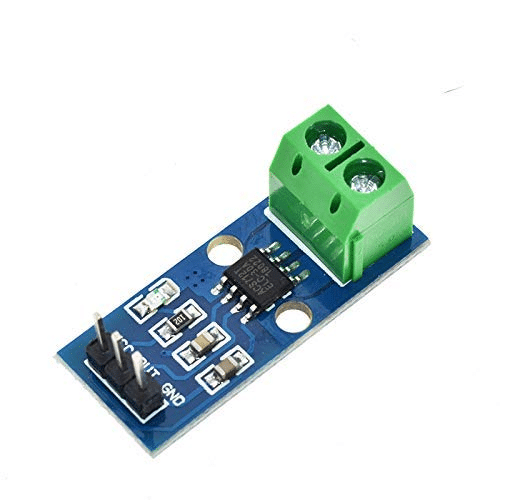
30A Range Current Sensor Module ACS712
Measure motor current draw alongside RPM to compute real-time motor power consumption — essential for efficiency monitoring in motor control projects.
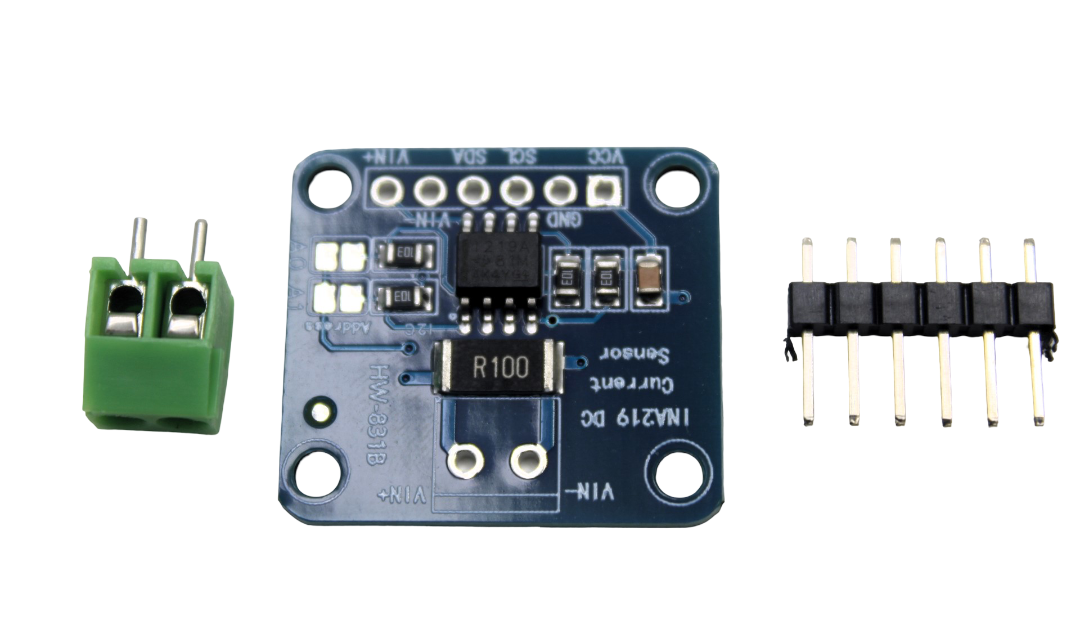
CJMCU-219 INA219 I2C Power Monitoring Module
Bi-directional current and power monitoring over I2C — pair with your encoder-based RPM measurement for a complete motor efficiency logger.
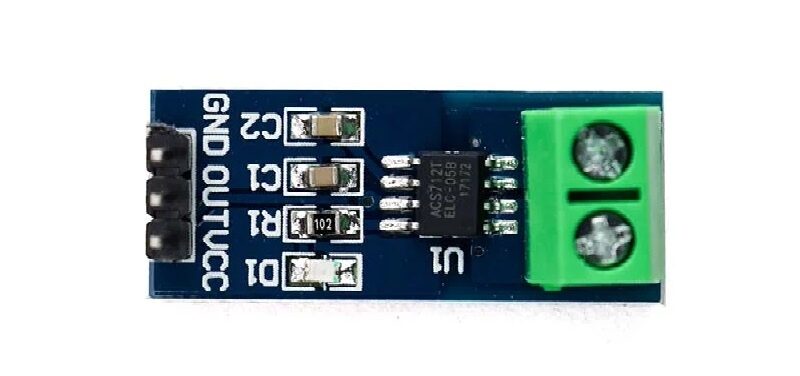
5A Range Current Sensor Module ACS712
Ideal for small DC motors and hobby robots — measures up to 5A with 185mV/A sensitivity, perfect for protecting motors from overcurrent at measured RPMs.
Frequently Asked Questions
Q: Can I use the optical encoder disc with ESP32 or Raspberry Pi?
Yes. The ESP32 has hardware interrupt support on most GPIO pins and a built-in PCNT (Pulse Counter) peripheral that is far more accurate than software counting. On Raspberry Pi, use the GPIO.RISING edge callback in Python’s RPi.GPIO library, though timing accuracy is limited by the OS scheduler — consider using a dedicated Arduino or RP2040 for high-accuracy pulse counting.
Q: What is the maximum RPM I can measure with a 20-slot disc and Arduino Uno?
The Arduino Uno can handle interrupts up to approximately 50,000 per second. At 20 slots per revolution, the maximum measurable RPM is (50,000 / 20) × 60 = 150,000 RPM — far beyond any DC motor you would use with an Arduino. In practice, motor speed and disc wobble at high RPM are the limiting factors, not the Arduino.
Q: How do I measure the direction of rotation?
A single encoder disc cannot determine direction. You need a quadrature encoder — two sets of slots offset by 90 degrees — or two separate sensor modules positioned slightly apart. By comparing which sensor fires first, you can determine CW vs CCW rotation.
Q: Is the FC-03 module the same as the H206 speed sensor?
Functionally yes. Both use LM393 comparators with slotted IR pairs. The H206 typically has a wider slot gap (6mm) suitable for thicker discs, while FC-03 has a 5mm gap. Both work with standard Arduino code without modification.
Q: My encoder disc does not fit my motor shaft. What should I do?
Encoder discs are available in different shaft bore diameters (2mm, 3mm, 4mm, 6mm being common). If yours does not fit, print a custom hub adapter using a 3D printer, or use a flexible coupling sleeve to connect your shaft diameter to the disc bore. Many encoder discs also include a set screw for adjustable mounting.
Q: Can I use encoder data to measure distance instead of speed?
Absolutely. This is called odometry. For a wheel of circumference C mm and a 20-slot disc, each pulse = C/20 mm of travel. Accumulate pulse counts to track total distance. Combine left and right wheel encoders to track 2D position and heading of a mobile robot.
Zbotic stocks a full range of sensors and modules for Arduino projects across India. From current sensors to LiDAR modules, get everything you need for your next build with fast shipping.



Add comment