
Imagine controlling your robot from a smartphone, a web dashboard, or even another Arduino — all over Wi-Fi without a direct cable or Bluetooth pairing. That’s the power of MQTT robot control over Wi-Fi. MQTT (Message Queuing Telemetry Transport) is a lightweight publish-subscribe protocol designed for IoT devices with limited resources, and it’s perfect for sending movement commands to an Arduino-based robot. This tutorial walks you through the full setup from broker to bot.
What Is MQTT and Why Use It for Robots?
MQTT is a publish-subscribe messaging protocol that runs over TCP/IP. Unlike HTTP (request-response), MQTT maintains a persistent connection to a broker (server). Devices publish messages to topics and subscribe to topics they care about. The broker routes messages between publishers and subscribers in real time.
Why MQTT beats Bluetooth/Serial for robot control:
- Range: Works over any Wi-Fi network or the internet — not limited to ~10m BT range
- Multi-client: Multiple dashboards, phones, or programs can control/monitor the robot simultaneously
- Lightweight: Headers as small as 2 bytes; designed for 8-bit microcontrollers
- Bidirectional: Robot can publish sensor data back (battery level, distance readings) while receiving commands
- QoS levels: Guarantee delivery of critical commands (e.g., emergency stop)
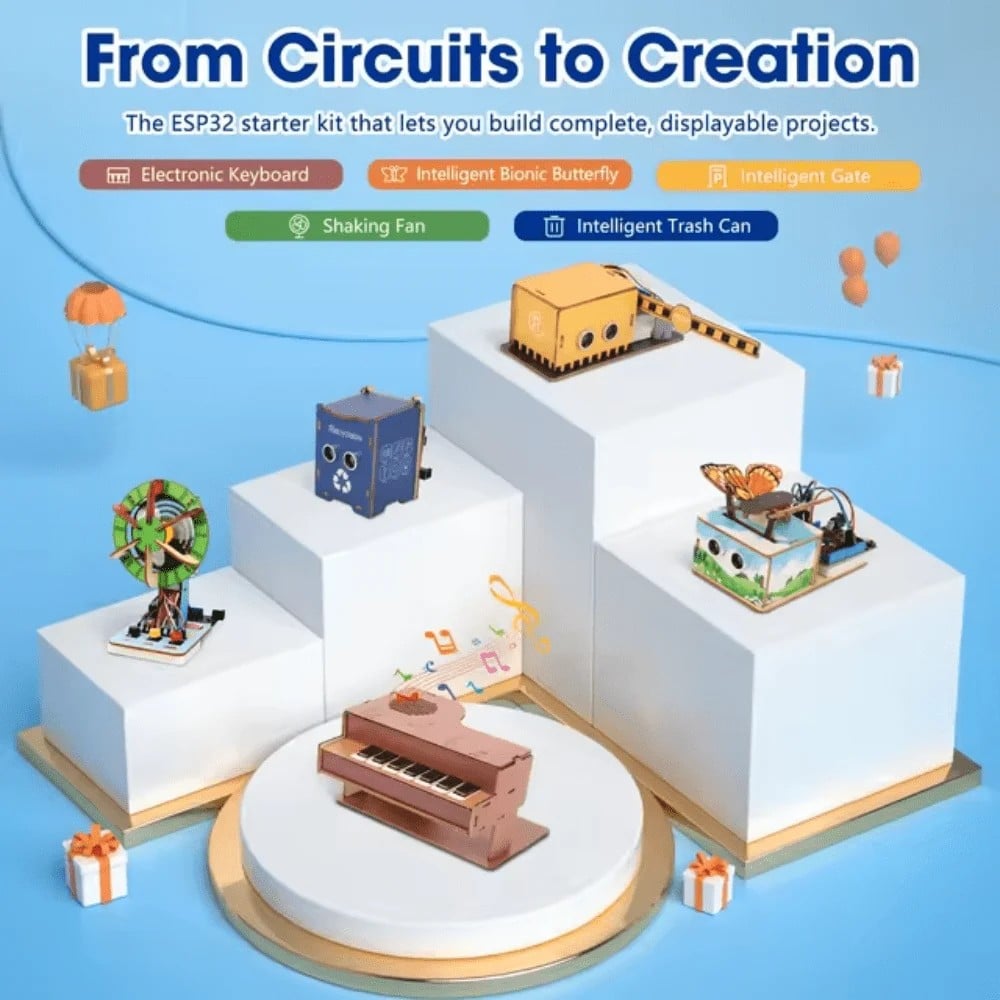
ACEBOTT ESP32 Basic Starter Kit (Project Expansion Pack) – QE201
Complete ESP32 starter kit with all components needed to begin MQTT and Wi-Fi robotics projects. Includes sensors, LEDs, and motor control basics.
Hardware You Need
For this MQTT robot control tutorial, you need:
- ESP32 or NodeMCU (ESP8266) — the Wi-Fi-capable microcontroller that handles MQTT communication
- Arduino Uno/Nano (optional) — if using ESP32 as a Wi-Fi shield, the Arduino handles motor logic via Serial
- L298N motor driver module — to drive DC gear motors
- Robot chassis with DC motors — 2WD or 4WD
- LiPo or 18650 battery pack — 7.4V or 11.1V for chassis power
- Jumper wires, USB cable
Architecture options:
- Option A (ESP32 standalone): ESP32 runs MQTT client + motor control directly. Simplest approach.
- Option B (ESP32 + Arduino): ESP32 receives MQTT, sends commands via Serial/I2C to Arduino which drives motors. Good for offloading Wi-Fi stack from timing-critical motor code.
Setting Up an MQTT Broker
You need an MQTT broker — the server that receives and routes messages.
Option 1: Public Broker (easiest for testing)
Use broker.hivemq.com (port 1883, no auth). Free, no setup. Not for production — anyone can read your topics.
Option 2: Local Mosquitto Broker (recommended)
Install on a Raspberry Pi or your PC on the same Wi-Fi network:
# On Raspberry Pi / Ubuntu
sudo apt update && sudo apt install mosquitto mosquitto-clients -y
sudo systemctl enable mosquitto

# Test: subscribe in one terminal
mosquitto_sub -h localhost -t robot/cmd

# Publish in another terminal
mosquitto_pub -h localhost -t robot/cmd -m "FORWARD"
Option 3: Cloud Broker (for internet control)
Use HiveMQ Cloud, EMQX Cloud, or CloudMQTT — all have free tiers. Enable TLS (port 8883) and authentication.
ESP32/NodeMCU Arduino Code
Install the PubSubClient library by Nick O’Leary via Arduino IDE Library Manager. Also install WiFi.h (built-in for ESP32) or ESP8266WiFi.h for NodeMCU.
#include <WiFi.h>          // Use ESP8266WiFi.h for NodeMCU
#include <PubSubClient.h>

const char* ssid     = "YOUR_WIFI_SSID";
const char* password = "YOUR_WIFI_PASS";
const char* broker   = "192.168.1.100"; // Local Mosquitto IP
const char* cmdTopic = "robot/cmd";

// Motor pins (ESP32 PWM capable pins)
#define ENA 25  #define IN1 26  #define IN2 27
#define ENB 32  #define IN3 33  #define IN4 14

WiFiClient espClient;
PubSubClient client(espClient);

void callback(char* topic, byte* payload, unsigned int length) {
  String msg = "";
  for (int i = 0; i < length; i++) msg += (char)payload[i];

  if (msg == "FORWARD")      { forward(200); }
  else if (msg == "BACKWARD") { backward(200); }
  else if (msg == "LEFT")     { turnLeft(180); }
  else if (msg == "RIGHT")    { turnRight(180); }
  else if (msg == "STOP")     { stopMotors(); }
}

void setup() {
  Serial.begin(115200);
  pinMode(IN1,OUTPUT); pinMode(IN2,OUTPUT); pinMode(ENA,OUTPUT);
  pinMode(IN3,OUTPUT); pinMode(IN4,OUTPUT); pinMode(ENB,OUTPUT);

  WiFi.begin(ssid, password);
  while (WiFi.status() != WL_CONNECTED) { delay(500); Serial.print("."); }

  client.setServer(broker, 1883);
  client.setCallback(callback);
  reconnect();
}

void loop() {
  if (!client.connected()) reconnect();
  client.loop();
}

void reconnect() {
  while (!client.connected()) {
    if (client.connect("ESP32Robot")) {
      client.subscribe(cmdTopic);
    } else { delay(2000); }
  }
}

void forward(int spd) {
  analogWrite(ENA, spd); analogWrite(ENB, spd);
  digitalWrite(IN1,HIGH); digitalWrite(IN2,LOW);
  digitalWrite(IN3,HIGH); digitalWrite(IN4,LOW);
}
void backward(int spd) {
  analogWrite(ENA, spd); analogWrite(ENB, spd);
  digitalWrite(IN1,LOW); digitalWrite(IN2,HIGH);
  digitalWrite(IN3,LOW); digitalWrite(IN4,HIGH);
}
void turnLeft(int spd) {
  analogWrite(ENA, spd); analogWrite(ENB, spd);
  digitalWrite(IN1,LOW); digitalWrite(IN2,HIGH);
  digitalWrite(IN3,HIGH); digitalWrite(IN4,LOW);
}
void turnRight(int spd) {
  analogWrite(ENA, spd); analogWrite(ENB, spd);
  digitalWrite(IN1,HIGH); digitalWrite(IN2,LOW);
  digitalWrite(IN3,LOW); digitalWrite(IN4,HIGH);
}
void stopMotors() {
  analogWrite(ENA, 0); analogWrite(ENB, 0);
}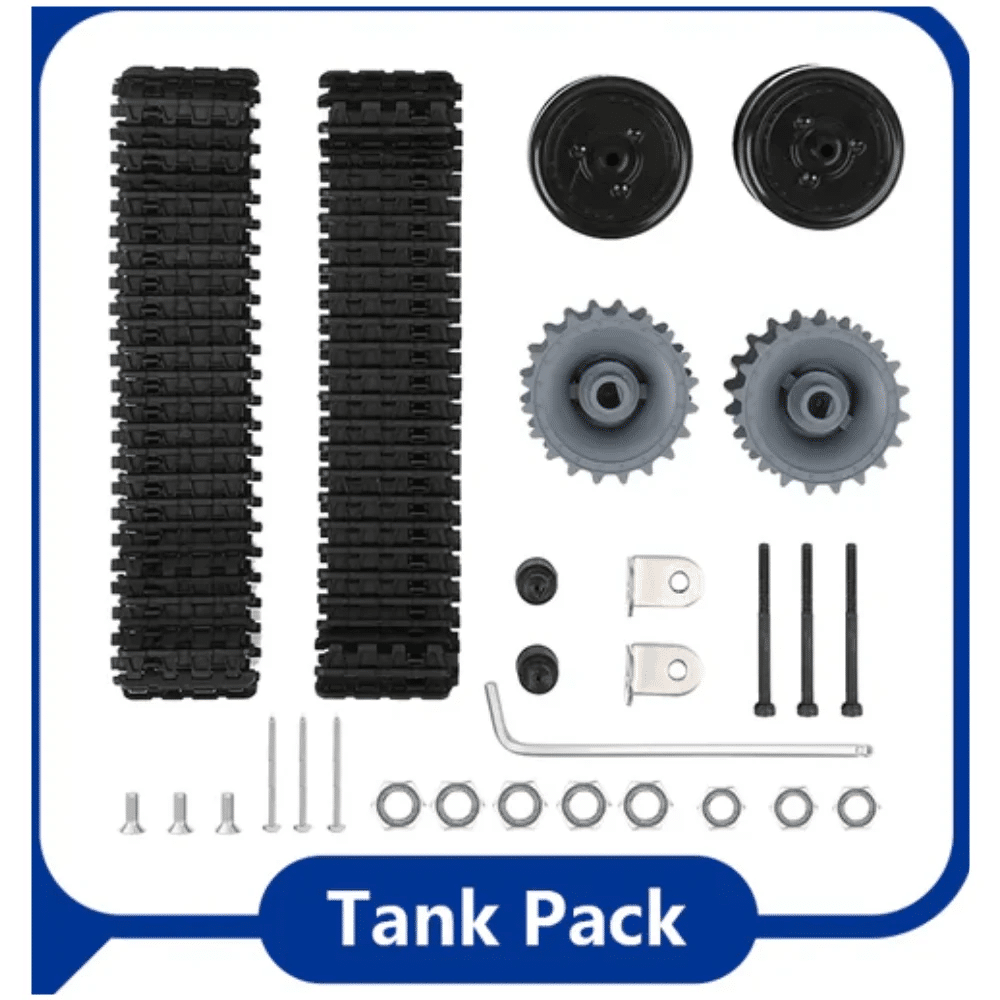
ACEBOTT ESP32 Tank Robot Car Expansion Pack for QD001–QD004
ESP32-based tank robot platform ideal for MQTT-controlled autonomous navigation. Supports Wi-Fi, BLE, and sensor integrations out of the box.
Designing Your MQTT Topic Structure
Good topic design keeps your system scalable and debuggable. Recommended structure:
robots/{robot_id}/cmd          ← command input
robots/{robot_id}/status       ← robot publishes status
robots/{robot_id}/sensors/us   ← ultrasonic distance
robots/{robot_id}/sensors/bat  ← battery voltage
Using robot IDs in topics lets you control multiple robots from the same broker and dashboard. Wildcards in subscription (robots/+/status) let you monitor all robots at once.
Command payload formats:
- Simple string:
"FORWARD","LEFT","STOP"— easy to implement, limited precision - JSON:
{"cmd":"FORWARD","speed":200,"duration":500}— flexible, self-documenting - Binary: Minimal overhead for high-frequency control loops (>20Hz)
Controlling the Robot from Mobile/PC
Several apps and tools let you publish MQTT commands without writing a controller app:
- MQTT Dash (Android) — dashboard with customizable buttons. Map each button to a topic/payload.
- IoT MQTT Panel (Android/iOS) — drag-and-drop UI with joystick widget.
- Node-RED (PC/Pi) — visual programming tool. Drag an MQTT output node, connect to a UI dashboard with joystick/buttons. Runs on Pi alongside Mosquitto.
- MQTT Explorer (Desktop) — great for debugging; shows all topics in a tree.
For a web-based controller, use JavaScript with the mqtt.js library:
// Browser MQTT over WebSocket (broker must support WS, port 9001)
const client = mqtt.connect('ws://192.168.1.100:9001');
client.on('connect', () => {
  document.getElementById('fwd').onclick = () =>
    client.publish('robot/cmd', 'FORWARD');
});
Latency, QoS, and Reliability Tips
For real-time robot control, latency matters. Here’s how to keep it low:
- Use a local broker — LAN latency is <5ms vs 50–200ms for cloud brokers
- QoS 0 for motion commands — fire-and-forget, lowest latency. If a packet drops, the next command arrives in milliseconds anyway.
- QoS 1 for safety commands — emergency stop should be acknowledged at least once
- Keep alive interval — set
setKeepAlive(15)in PubSubClient; prevents broker from dropping idle connections - Reconnect logic — always implement reconnect() in loop(); ESP32 Wi-Fi can drop briefly
- Watchdog timer — if no command received for 1 second, stop motors (prevents runaway robot on connection loss)
// Watchdog: stop if no command for 1 second
unsigned long lastCmd = 0;
void loop() {
  client.loop();
  if (millis() - lastCmd > 1000) stopMotors();
}
// In callback: lastCmd = millis();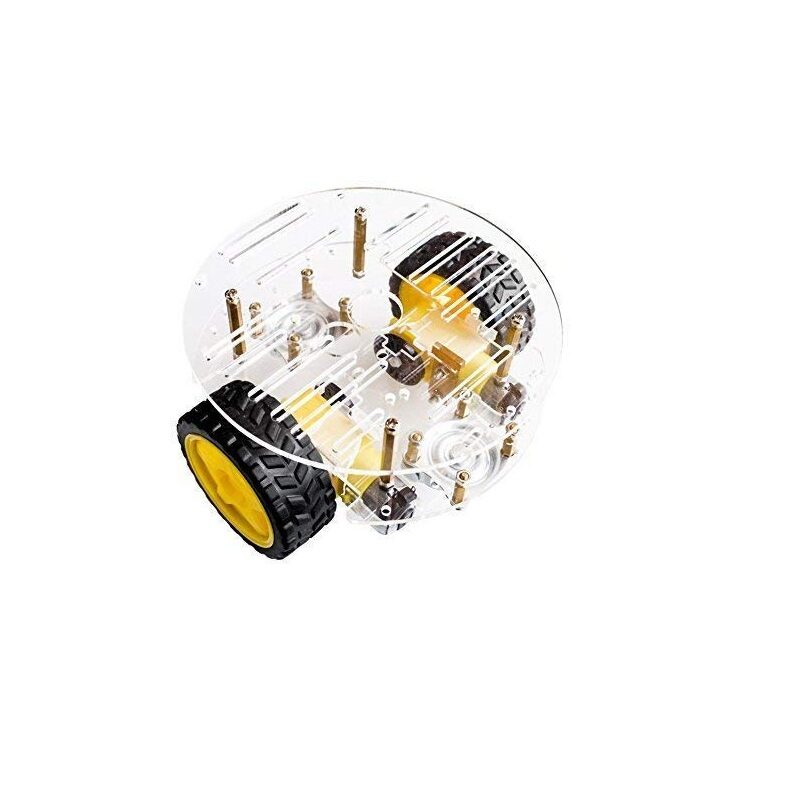
2WD Mini Round Double-Deck Smart Robot Car Chassis DIY Kit
Compact and affordable 2WD chassis, perfect for your first MQTT-controlled robot. Easy motor wiring and plenty of mounting space for ESP32 and driver board.
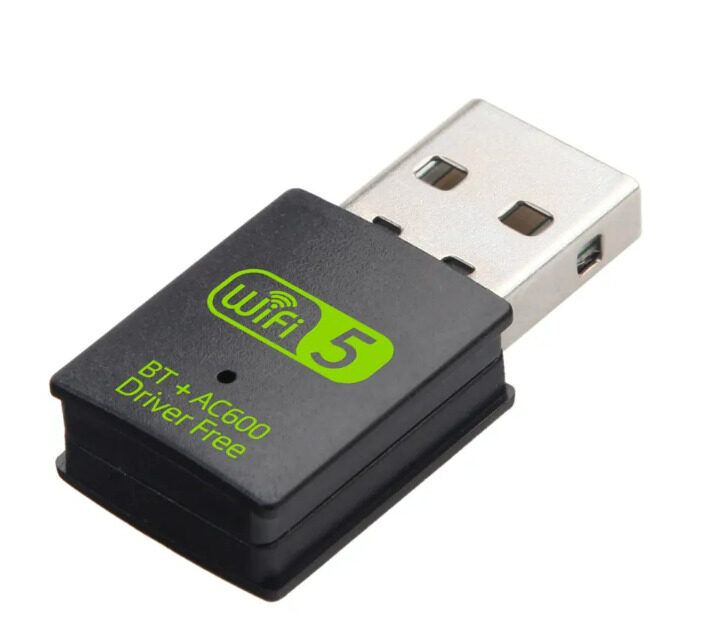
2-in-1 USB Bluetooth WiFi Adapter 600Mbps Dual Band
Add Wi-Fi and Bluetooth 5.0 to your PC or Raspberry Pi for running your local MQTT broker and robot control dashboard wirelessly.
Frequently Asked Questions
Q: Can I use MQTT to control a robot over the internet (not just LAN)?
Yes. Use a cloud MQTT broker (HiveMQ Cloud, EMQX) with TLS on port 8883. Latency will be 50–200ms depending on geography — fine for manual control, but not suitable for real-time feedback loops.
Q: What’s the difference between MQTT and WebSocket for robot control?
MQTT is the application-layer protocol; WebSocket is a transport layer that MQTT can run over (for browser clients). For embedded devices, MQTT over TCP (port 1883) is preferred. Browsers use MQTT over WebSocket (port 9001).
Q: My ESP32 keeps disconnecting from the MQTT broker. What’s wrong?
Common causes: (1) Keep-alive interval too short — increase to 30s. (2) Broker max connections reached on free tier. (3) Wi-Fi signal weak — add a signal booster or move the robot closer to the router.
Q: Can I use MQTT with ROS?
Yes. The mqtt_bridge ROS package bridges MQTT topics to ROS topics bidirectionally. Useful for robots where ESP32 handles hardware and a Raspberry Pi runs ROS navigation.
Q: How many commands per second can MQTT send?
On a local broker with QoS 0, you can easily achieve 100+ messages/second. For robot control, 10–20 commands/second is typically more than sufficient for responsive manual control.
Zbotic stocks ESP32 development boards, robot chassis kits, motor drivers, and all the accessories you need to build a fully wireless MQTT-controlled robot. Shop the Robotics & Automation category and start your project this weekend.




Add comment