
The ESP32 touch sensor (capacitive) is one of the most underappreciated built-in features of the ESP32 microcontroller. Unlike mechanical buttons that wear out over time, capacitive touch sensors have no moving parts — they detect the change in capacitance caused by the proximity of your finger. The ESP32 has up to 10 dedicated touch-sensitive GPIO pins, making it ideal for building elegant, modern touch interfaces for smart home switches, appliances, and decorative projects.
In this comprehensive tutorial, we will cover how the ESP32’s capacitive touch works, how to configure and read touch pins, debouncing touch input, building multi-touch and gesture detection, and creating a complete smart touch switch for Indian home automation.
How ESP32 Capacitive Touch Sensing Works
Capacitive touch sensing measures changes in electrical capacitance. Every object has some capacitance relative to the ground. When you touch or bring your finger close to a conductive pad connected to an ESP32 touch pin, the total capacitance increases because your body adds its own capacitance to the circuit. The ESP32 detects this change and reports it as a touch event.
The ESP32 implements this using a built-in circuit that charges and discharges the touch pin repeatedly and measures how long each cycle takes. Higher capacitance (more charge stored) means each charge/discharge cycle takes longer. The touchRead() function returns a value that represents this timing — a lower number means higher capacitance (more charge time) and typically indicates a touch is happening.
On ESP32 boards (original Xtensa-based), the returned value is a 10-bit number (0–1023) where:
- High value (~60-90): No touch detected — low capacitance on the pin
- Low value (~5-30): Touch detected — high capacitance from finger contact
Note: The direction is counterintuitive — lower values mean stronger touch. Keep this in mind when writing your threshold comparisons.
The ESP32-S2 and ESP32-S3 variants use an improved touch sensing circuit with higher sensitivity and support for up to 14 touch channels, but the API is slightly different (values increase with touch instead of decreasing).
ESP32 Touch Pins Reference
The following GPIOs on the standard ESP32 (Xtensa dual-core) support capacitive touch sensing:
| Touch Channel | GPIO Number | Notes |
|---|---|---|
| T0 | GPIO 4 | General purpose |
| T1 | GPIO 0 | Boot button — use with caution |
| T2 | GPIO 2 | Has boot-mode pull-down |
| T3 | GPIO 15 | General purpose |
| T4 | GPIO 13 | General purpose |
| T5 | GPIO 12 | Has boot-mode pull-up — avoid for touch |
| T6 | GPIO 14 | General purpose |
| T7 | GPIO 27 | General purpose |
| T8 | GPIO 33 | General purpose |
| T9 | GPIO 32 | General purpose |
For most projects, stick to GPIO 4, 13, 14, 27, 32, and 33 (T0, T4, T6, T7, T8, T9) — these have the least boot-mode conflicts.
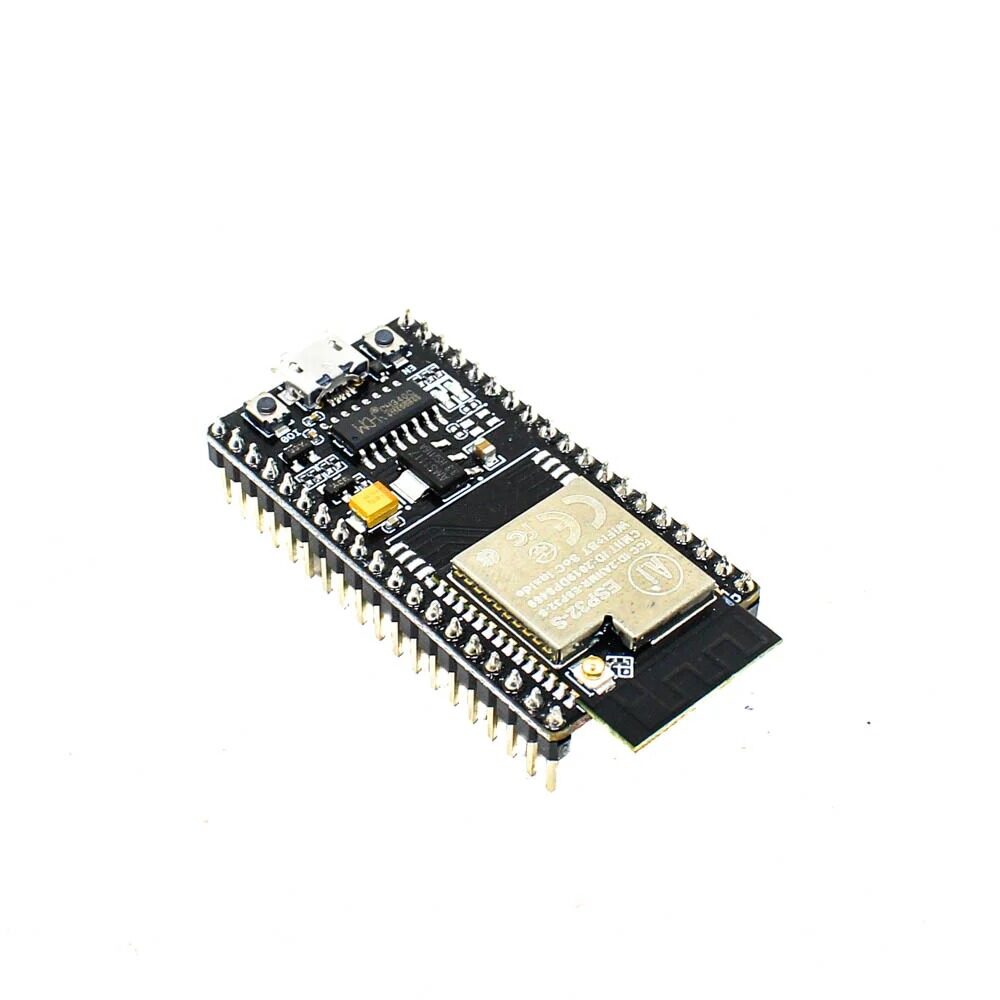
Ai Thinker NodeMCU-32S ESP32 Development Board – IPEX Version
The standard ESP32 development board with all 10 touch-capable GPIO pins broken out — perfect for building multi-touch interfaces and smart home switches.
Basic Touch Sensing Code
Reading a touch pin is as simple as calling the built-in touchRead() function:
const int TOUCH_PIN = 4;    // GPIO 4 = T0
const int THRESHOLD  = 40;  // Adjust based on your setup

void setup() {
  Serial.begin(115200);
  Serial.println("ESP32 Touch Sensor Test");
}

void loop() {
  int touchValue = touchRead(TOUCH_PIN);

  Serial.print("Touch value: ");
  Serial.println(touchValue);

  if (touchValue < THRESHOLD) {
    Serial.println("TOUCHED!");
  }

  delay(100);
}
Upload this sketch and open the Serial Monitor. Touch the GPIO 4 pin (or a wire connected to it) with your finger and watch the value drop. The exact threshold depends on:
- The size of the electrode/pad connected to the pin
- The length of connecting wire (more wire = more stray capacitance)
- The surface material over the electrode (glass, acrylic, or PCB material)
- Humidity and ambient temperature
Always run the sketch first without touching to note the baseline value, then touch to see the touched value. Set your threshold at roughly halfway between the two.
Debouncing and Threshold Calibration
Unlike mechanical buttons, capacitive touch does not produce bouncing in the traditional sense, but it does need careful threshold management to avoid false triggers. Here is a more robust touch detection function:
#include <Arduino.h>

const int TOUCH_PIN        = 4;
const int SAMPLES          = 10;       // Average over 10 samples
const float TOUCH_RATIO    = 0.65;     // Touch triggers at 65% of baseline
const int DEBOUNCE_MS      = 50;       // Minimum touch duration

int baseline = 0;
bool touchState    = false;
bool lastTouchState = false;
unsigned long touchStart = 0;

void calibrateBaseline() {
  Serial.println("Calibrating baseline — do not touch the sensor...");
  long sum = 0;
  for (int i = 0; i < 50; i++) {
    sum += touchRead(TOUCH_PIN);
    delay(10);
  }
  baseline = sum / 50;
  Serial.printf("Baseline: %d  Touch threshold: %dn",
                baseline, (int)(baseline * TOUCH_RATIO));
}

bool readTouch() {
  long sum = 0;
  for (int i = 0; i < SAMPLES; i++) {
    sum += touchRead(TOUCH_PIN);
  }
  int avg = sum / SAMPLES;
  return avg < (baseline * TOUCH_RATIO);
}

void setup() {
  Serial.begin(115200);
  delay(500);
  calibrateBaseline();
}

void loop() {
  bool rawTouch = readTouch();

  if (rawTouch && !lastTouchState) {
    touchStart = millis();
  }

  if (rawTouch && (millis() - touchStart > DEBOUNCE_MS)) {
    touchState = true;
  } else if (!rawTouch) {
    touchState = false;
  }

  if (touchState != lastTouchState) {
    if (touchState) {
      Serial.println("Touch PRESSED");
      // Your action here
    } else {
      Serial.println("Touch RELEASED");
    }
    lastTouchState = touchState;
  }

  delay(20);
}
This approach auto-calibrates at startup and uses a relative threshold (65% of baseline) rather than an absolute number, making the code portable across different electrode sizes and environments.
Building a Smart Touch Switch
Here is a complete smart switch project that toggles a relay (and therefore an AC appliance) when you touch the ESP32 touch pad, and also supports remote control via Wi-Fi:
#include <WiFi.h>
#include <WebServer.h>

const int TOUCH_PIN = 4;
const int RELAY_PIN = 26;    // Active LOW relay
const int LED_PIN   = 2;     // Onboard LED
const float TOUCH_RATIO = 0.65;

bool relayState = false;
int  baseline   = 0;

const char* ssid     = "YourWiFiSSID";
const char* password = "YourWiFiPassword";
WebServer server(80);

void toggleRelay() {
  relayState = !relayState;
  digitalWrite(RELAY_PIN, relayState ? LOW : HIGH); // Active LOW
  digitalWrite(LED_PIN, relayState ? HIGH : LOW);
  Serial.printf("Relay %sn", relayState ? "ON" : "OFF");
}

void calibrateBaseline() {
  long sum = 0;
  for (int i = 0; i < 50; i++) {
    sum += touchRead(TOUCH_PIN);
    delay(10);
  }
  baseline = sum / 50;
}

void handleRoot() {
  String state = relayState ? "ON" : "OFF";
  String html = "<html><body><h1>Smart Switch</h1>";
  html += "<p>Current state: <strong>" + state + "</strong></p>";
  html += "<form action='/toggle'><button type='submit'>Toggle</button></form>";
  html += "</body></html>";
  server.send(200, "text/html", html);
}

void handleToggle() {
  toggleRelay();
  server.sendHeader("Location", "/");
  server.send(302);
}

void setup() {
  Serial.begin(115200);
  pinMode(RELAY_PIN, OUTPUT);
  pinMode(LED_PIN, OUTPUT);
  digitalWrite(RELAY_PIN, HIGH);  // Relay OFF at start

  calibrateBaseline();

  WiFi.begin(ssid, password);
  while (WiFi.status() != WL_CONNECTED) delay(500);
  Serial.println("IP: " + WiFi.localIP().toString());

  server.on("/",       handleRoot);
  server.on("/toggle", handleToggle);
  server.begin();
}

void loop() {
  server.handleClient();

  static bool lastTouch = false;
  static unsigned long touchStart = 0;
  bool rawTouch = touchRead(TOUCH_PIN) < (baseline * TOUCH_RATIO);

  if (rawTouch && !lastTouch) touchStart = millis();
  if (!rawTouch && lastTouch && (millis() - touchStart > 50)) {
    toggleRelay();
  }
  lastTouch = rawTouch;
  delay(20);
}
30Pin ESP32 Expansion Board with Type-C USB and Micro USB
Get easy access to all ESP32 GPIO pins including all touch-capable channels — great for prototyping touch switch panels with relay control.
Multi-Touch and Gesture Detection
With multiple touch pins available on the ESP32, you can build rich gesture interfaces:
Two-Pin Swipe Detection
Arrange two touch electrodes side by side (left and right). By detecting which electrode is touched first and which is touched second, you can distinguish left-to-right and right-to-left swipes. Use timestamps on touch events to determine swipe direction and speed.
Long Press vs Short Press
Measure the duration between touch-start and touch-release. A touch shorter than 500ms is a short press; longer than 500ms is a long press. Map different actions to each — short press for light toggle, long press for dimming or scene activation.
Double Tap Detection
Track the time between consecutive touches. Two touches within 400ms = double tap. This allows six distinct inputs from just three touch pads: single tap, double tap, and long press on each.
Slider/Dimmer
Arrange 4-5 touch electrodes in a line. Read all of them simultaneously and find the centre of gravity of touched electrodes to create a smooth slider for dimmer control or volume adjustment.
PCB and Electrode Design Tips
For a finished, professional-looking product, you will want to create a proper PCB with copper touch electrodes rather than using bare wire. Key design guidelines:
- Electrode size: 10mm×10mm is a good starting size for a fingertip. Larger electrodes = higher baseline capacitance = lower sensitivity to small changes. Too large and you get false triggers from nearby hands.
- Overlay material: You can place a 1-3mm thick layer of glass, acrylic, or PCB substrate over the electrode and touch sensing still works. Thicker overlay requires larger electrodes or lower thresholds.
- Ground plane: Place a grounded copper pour around (but not under) the electrodes. This shields the sensitive routing from interference.
- Trace length: Keep traces from ESP32 to electrodes short — less than 20cm. Long traces pick up noise and interfere with capacitance readings.
- Decoupling: Add 10µF and 100nF capacitors close to the ESP32’s power pins to reduce supply noise, which directly affects touch reading stability.
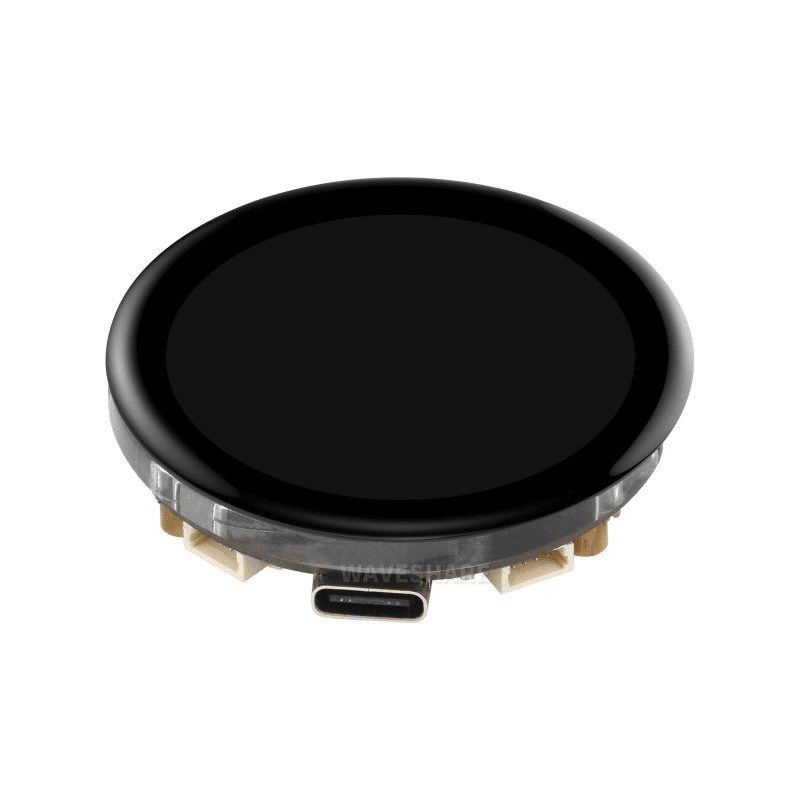
Waveshare ESP32-S3 1.43inch AMOLED Display Development Board
Combine touch sensing with a vivid AMOLED display for a sleek smart home control panel — ESP32-S3 has 14 touch channels and hardware touch detection interrupt support.
Frequently Asked Questions
Why does my ESP32 touch pin show random values when not touched?
Floating touch pins are extremely sensitive to electromagnetic interference. If you are not using a touch pin, set it as a regular GPIO output with pinMode(pin, OUTPUT); digitalWrite(pin, LOW) to eliminate noise. If using it for touch, ensure it has a short, shielded trace to the electrode and add a ground guard ring on your PCB.
Can I use ESP32 touch through a thick acrylic or wood panel?
Yes, but sensitivity decreases with increasing overlay thickness. For acrylic up to 3mm, standard electrode sizes (10mm×10mm) work well. For thicker materials (5-10mm wood), use larger electrodes (20mm×20mm or more) and lower your touch threshold. Some makers successfully use touch sensing through a 4mm marble slab for decorative switches.
Does the ESP32 touch sensor work in deep sleep mode?
Yes — and this is one of its best features for battery-powered devices. You can configure any touch pin as a wake source using esp_sleep_enable_touchpad_wakeup() and touchSleepWakeUpEnable(TOUCH_PIN, threshold). The ESP32 continuously monitors the touch pin in deep sleep using just 10µA of current and wakes up instantly when touched.
How many touch inputs can one ESP32 handle simultaneously?
The standard ESP32 has 10 touch channels (T0-T9). The ESP32-S2 and S3 have up to 14 touch channels. All channels can be monitored simultaneously either by polling in the main loop or using touch interrupt callbacks.
What is the difference between touchRead() and touch interrupts?
Polling with touchRead() in the main loop works well for most projects but adds a small overhead to every loop iteration. Touch interrupts using touchAttachInterrupt(pin, callback, threshold) allow the ESP32 to run other tasks freely and only execute the callback function when a touch event occurs — more efficient for complex projects.
Build Your Smart Touch Switch Today
Get all the ESP32 boards, expansion boards, and modules you need for capacitive touch and smart home projects at Zbotic.






Add comment