
Forget bland serial monitor outputs and simple seven-segment displays. With ESP32 LVGL display UI development, you can build professional-looking touchscreen interfaces that rival smartphone apps — all running on a microcontroller that costs less than ₹400. LVGL (Light and Versatile Graphics Library) is the most popular open-source embedded GUI library in the world, and pairing it with an ESP32 and a cheap TFT screen opens up incredible possibilities for IoT dashboards, smart appliance controls, and industrial HMI panels.
What Is LVGL and Why Use It on ESP32?
LVGL (formerly known as LittlevGL) is a free and open-source graphics library written in C, specifically designed for embedded systems with limited resources. Unlike desktop GUI frameworks that require gigabytes of RAM and powerful CPUs, LVGL is engineered to run on microcontrollers with as little as 64KB RAM and an 8MHz clock.
Key advantages of LVGL for ESP32 projects:
- Rich widget library: Buttons, sliders, charts, tabviews, keyboards, gauges, lists, and over 30 other widget types
- Smooth animations: Built-in animation engine with easing functions for professional-looking transitions
- Touch support: Built-in resistive and capacitive touch handling with gesture recognition
- Themes: Pre-built Material and LVGL default themes with customizable colors and fonts
- Multilingual: Full Unicode support with custom fonts — crucial for Indian languages
- Active community: Huge global community, excellent documentation at docs.lvgl.io
For Indian makers and startups building IoT products, LVGL enables you to create polished displays for smart meters, medical monitoring devices, agricultural automation panels, and home automation controllers — without hiring a software UI developer.
Choosing Your Display Hardware
LVGL requires a display controller that supports reading/writing pixels. The most common options for ESP32 projects in the Indian market are:
SPI TFT Displays (Budget Option)
ILI9341 (240×320) and ST7789 (240×240, 240×320) based displays connected via SPI are the most affordable entry point. A 2.4 inch ILI9341 with resistive touch costs around ₹250-400 in India. SPI is slower than parallel interfaces (max ~40MHz on ESP32 = ~15-20 fps for full-screen redraws), but perfectly adequate for most UI projects with LVGL’s partial update system.
ESP32-S3 with Built-in Display (Recommended)
Several ESP32-S3 development boards now come with displays built in. These are the best option for new projects as they eliminate wiring complexity and often use faster QSPI or parallel RGB interfaces.
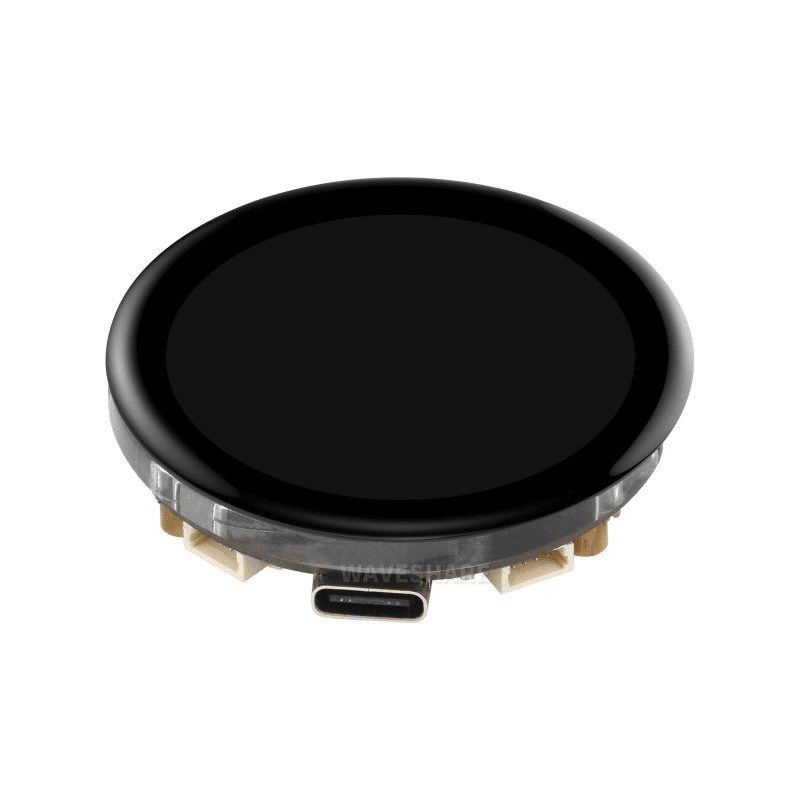
Waveshare ESP32-S3 1.43inch AMOLED Display Board, 466×466, QSPI Interface
A premium ESP32-S3 board with a stunning 466×466 round AMOLED display — perfect for circular LVGL gauge and clock UIs. QSPI interface delivers smooth animations at high refresh rates.
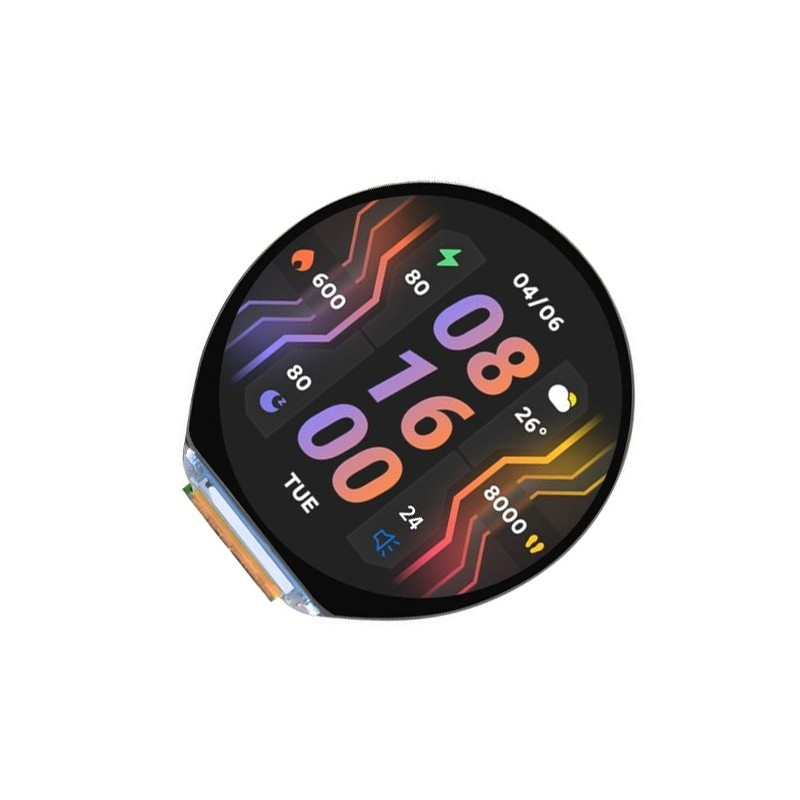
Waveshare ESP32-S3 1.46inch Round Display, 412×412, WiFi+BT, Accelerometer, Speaker and Mic
All-in-one ESP32-S3 with a round display, IMU sensor, speaker, and microphone. Build LVGL UIs enhanced with motion sensing and audio feedback — ideal for wearable and smart home displays.
Setting Up LVGL with Arduino and PlatformIO
The most common way to use LVGL on ESP32 with Arduino is via the lvgl Arduino library combined with the TFT_eSPI or Arduino_GFX display driver.
PlatformIO Setup (Recommended)
In your platformio.ini:
[env:esp32s3]
platform = espressif32
board = esp32-s3-devkitc-1
framework = arduino

lib_deps =
    lvgl/lvgl @ ^9.2.0
    bodmer/TFT_eSPI @ ^2.5.43

build_flags =
    -DBOARD_HAS_PSRAM
    -DLVGL_CONF_INCLUDE_SIMPLE
    -DLV_CONF_PATH="${PROJECT_DIR}/src/lv_conf.h"
lv_conf.h Key Settings
Copy lv_conf_template.h from the LVGL library to your src/ folder as lv_conf.h and configure these critical settings:
// Enable LVGL
#define LV_USE_STDLIB_MALLOC  LV_STDLIB_BUILTIN

// Color depth - must match your display
#define LV_COLOR_DEPTH  16  // RGB565 for most TFT displays

// Draw buffer size - increase for smoother rendering
// For 320x240: set to 320*40 (40 lines at once)
#define LV_DEF_REFR_PERIOD  10  // Screen refresh period in ms (10ms = 100fps max)

// Enable features you need
#define LV_USE_LABEL     1
#define LV_USE_BTN       1
#define LV_USE_SLIDER    1
#define LV_USE_CHART     1
#define LV_USE_TABVIEW   1
#define LV_USE_ARC       1
#define LV_USE_SPINNER   1
#define LV_USE_MSGBOX    1

// Font settings
#define LV_FONT_MONTSERRAT_14  1
#define LV_FONT_MONTSERRAT_20  1
#define LV_FONT_MONTSERRAT_28  1

// Theme
#define LV_USE_THEME_DEFAULT  1
Initializing LVGL in main.cpp
#include <lvgl.h>
#include <TFT_eSPI.h>

TFT_eSPI tft = TFT_eSPI();

// LVGL draw buffer — allocate in PSRAM for large displays!
static lv_display_t* display;
static lv_color_t* buf1;
static lv_color_t* buf2;

// LVGL flush callback — called when LVGL has pixels to send to display
void lvgl_flush_cb(lv_display_t* disp, const lv_area_t* area, uint8_t* px_map) {
  uint32_t w = area->x2 - area->x1 + 1;
  uint32_t h = area->y2 - area->y1 + 1;

  tft.startWrite();
  tft.setAddrWindow(area->x1, area->y1, w, h);
  tft.pushColors((uint16_t*) px_map, w * h, true);
  tft.endWrite();

  lv_display_flush_ready(disp);
}

void setup() {
  // Init display
  tft.begin();
  tft.setRotation(1);
  tft.fillScreen(TFT_BLACK);

  // Init LVGL
  lv_init();

  // Allocate draw buffers in PSRAM
  size_t buf_size = TFT_WIDTH * 40 * sizeof(lv_color_t);
  buf1 = (lv_color_t*) ps_malloc(buf_size);
  buf2 = (lv_color_t*) ps_malloc(buf_size);

  // Create display
  display = lv_display_create(TFT_WIDTH, TFT_HEIGHT);
  lv_display_set_flush_cb(display, lvgl_flush_cb);
  lv_display_set_buffers(display, buf1, buf2, buf_size, LV_DISPLAY_RENDER_MODE_PARTIAL);

  // Create your UI
  create_dashboard_ui();
}

void loop() {
  lv_timer_handler();  // MUST call this in loop for LVGL to work!
  delay(5);
}
Building Your First LVGL UI
Let us build a practical IoT dashboard showing temperature, humidity, and a chart of historical values:
void create_dashboard_ui() {
  // Apply Material dark theme
  lv_theme_t* theme = lv_theme_default_init(display,
    lv_palette_main(LV_PALETTE_BLUE),
    lv_palette_main(LV_PALETTE_RED),
    true,  // dark mode
    LV_FONT_DEFAULT
  );
  lv_display_set_theme(display, theme);

  lv_obj_t* scr = lv_screen_active();
  lv_obj_set_style_bg_color(scr, lv_color_hex(0x1a1a2e), 0);

  // Title label
  lv_obj_t* title = lv_label_create(scr);
  lv_label_set_text(title, "Weather Station");
  lv_obj_set_style_text_font(title, &lv_font_montserrat_20, 0);
  lv_obj_set_style_text_color(title, lv_color_hex(0x4CC9F0), 0);
  lv_obj_align(title, LV_ALIGN_TOP_MID, 0, 10);

  // Temperature arc gauge
  lv_obj_t* temp_arc = lv_arc_create(scr);
  lv_arc_set_range(temp_arc, -10, 60);
  lv_arc_set_value(temp_arc, 28);  // Update dynamically in loop
  lv_obj_set_size(temp_arc, 100, 100);
  lv_obj_align(temp_arc, LV_ALIGN_LEFT_MID, 10, 0);

  // Temperature label inside arc
  lv_obj_t* temp_label = lv_label_create(scr);
  lv_label_set_text(temp_label, "28°C");
  lv_obj_align_to(temp_label, temp_arc, LV_ALIGN_CENTER, 0, 0);

  // Humidity bar
  lv_obj_t* hum_bar = lv_bar_create(scr);
  lv_bar_set_range(hum_bar, 0, 100);
  lv_bar_set_value(hum_bar, 65, LV_ANIM_ON);
  lv_obj_set_size(hum_bar, 120, 20);
  lv_obj_align(hum_bar, LV_ALIGN_RIGHT_MID, -10, -20);

  // Historical temperature chart
  lv_obj_t* chart = lv_chart_create(scr);
  lv_chart_set_type(chart, LV_CHART_TYPE_LINE);
  lv_chart_set_point_count(chart, 24);  // 24 hours
  lv_obj_set_size(chart, 300, 80);
  lv_obj_align(chart, LV_ALIGN_BOTTOM_MID, 0, -10);

  lv_chart_series_t* temp_series = lv_chart_add_series(
    chart, lv_palette_main(LV_PALETTE_RED), LV_CHART_AXIS_PRIMARY_Y
  );

  // Populate with dummy historical data
  for (int i = 0; i < 24; i++) {
    lv_chart_set_next_value(chart, temp_series, 25 + (i % 5) - 2);
  }
}
Working with LVGL Widgets and Themes
LVGL v9 offers an expanded widget set. Here are the most useful widgets for IoT dashboard projects:
Tabview — Multi-Screen Navigation
lv_obj_t* tabview = lv_tabview_create(lv_screen_active());
lv_tabview_set_tab_bar_position(tabview, LV_DIR_BOTTOM);
lv_tabview_set_tab_bar_size(tabview, 45);

lv_obj_t* tab_home = lv_tabview_add_tab(tabview, LV_SYMBOL_HOME " Home");
lv_obj_t* tab_sensors = lv_tabview_add_tab(tabview, LV_SYMBOL_SETTINGS " Sensors");
lv_obj_t* tab_alerts = lv_tabview_add_tab(tabview, LV_SYMBOL_WARNING " Alerts");

// Build content for each tab independently
build_home_tab(tab_home);
build_sensors_tab(tab_sensors);
build_alerts_tab(tab_alerts);
Custom Styles
// Create a styled card container
lv_obj_t* card = lv_obj_create(parent);
lv_obj_set_size(card, 150, 100);
lv_obj_set_style_bg_color(card, lv_color_hex(0x16213E), 0);
lv_obj_set_style_border_color(card, lv_color_hex(0x4CC9F0), 0);
lv_obj_set_style_border_width(card, 2, 0);
lv_obj_set_style_radius(card, 12, 0);
lv_obj_set_style_shadow_width(card, 20, 0);
lv_obj_set_style_shadow_color(card, lv_color_hex(0x4CC9F0), 0);
Performance Optimization for Smooth Rendering
Getting smooth LVGL animations on ESP32 requires attention to several factors:
1. Use PSRAM for Buffers
For displays larger than 240×240, allocating LVGL draw buffers in PSRAM is essential. Two buffers (double buffering) allows LVGL to render one buffer while the other is being sent to the display via DMA, eliminating rendering stalls.
2. DMA Transfers
TFT_eSPI supports DMA transfers on ESP32. Enable with tft.initDMA() and use tft.pushImageDMA() in your flush callback. DMA frees the CPU during pixel transfer, letting LVGL calculate the next frame simultaneously.
3. Task Pinning
In FreeRTOS, pin the LVGL task to Core 1 and keep network tasks on Core 0. This prevents network operations from interrupting LVGL rendering and causing frame drops:
void lvgl_task(void* param) {
  while (true) {
    lv_timer_handler();
    vTaskDelay(pdMS_TO_TICKS(5));
  }
}

void setup() {
  // ... init code ...
  xTaskCreatePinnedToCore(lvgl_task, "lvgl", 8192, NULL, 2, NULL, 1); // Core 1
  xTaskCreatePinnedToCore(network_task, "net", 8192, NULL, 1, NULL, 0); // Core 0
}
4. Limit Animated Widgets
Every animated widget (spinner, animated chart) triggers a screen redraw cycle. On SPI displays, keep simultaneous animations below 3-4. On faster displays (QSPI AMOLED), you can animate freely.
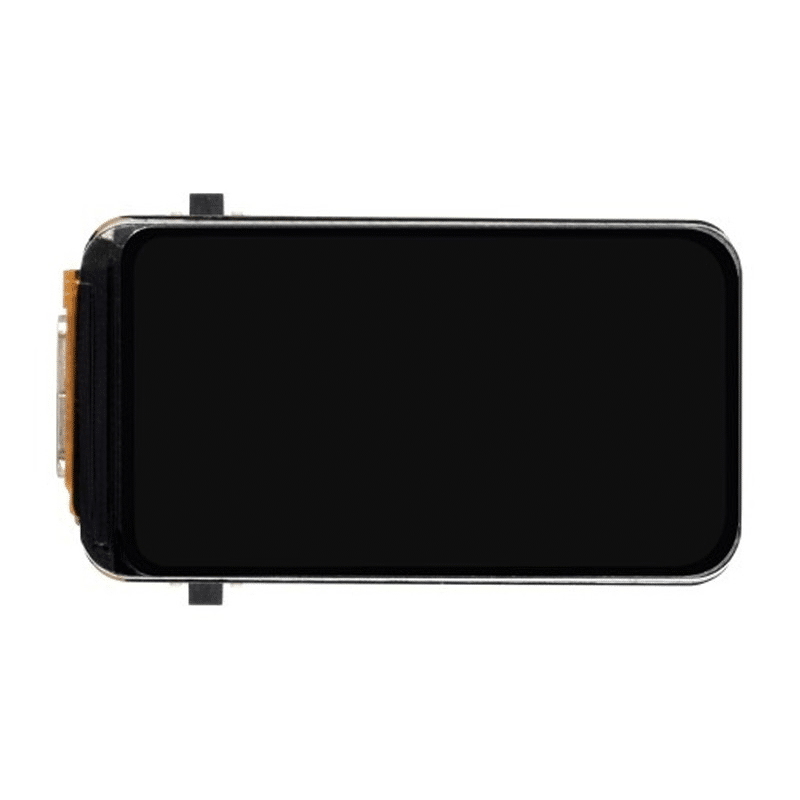
Waveshare ESP32-S3 1.47inch 172×320 LCD Display Development Board with 262K Colors
A compact ESP32-S3 display board with 262K color LCD — great starting point for LVGL projects. The built-in display eliminates wiring hassle and the ESP32-S3 provides enough processing power for fluid animations.
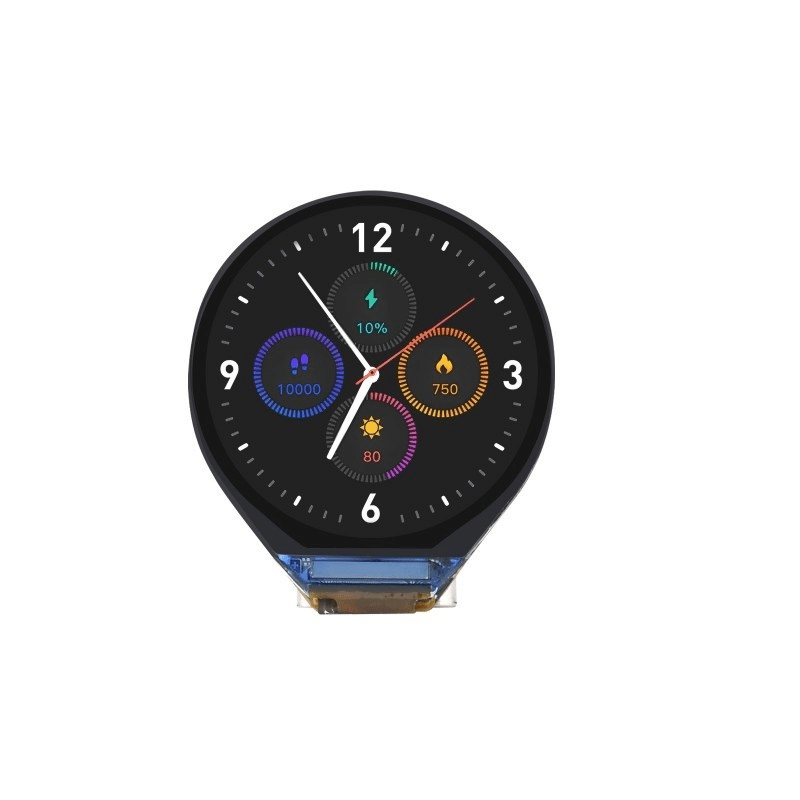
Waveshare ESP32-C3 0.71inch Round Display Development Board, ESP32-C3 Single-core Processor
A tiny round display on ESP32-C3 — affordable entry point for LVGL experimentation. Perfect for wearable projects and IoT status indicators that need a small but visually rich display.
Frequently Asked Questions
Q: What is the minimum resolution display I need for LVGL to look good?
LVGL works on displays as small as 80×160 pixels, but 240×240 is really the sweet spot for usable UIs with readable text. For dashboards with multiple data cards and charts, 320×240 (2.4″) or 320×480 (3.5″) is recommended. The round AMOLED displays at 466×466 from Waveshare look exceptionally sharp with LVGL.
Q: Can I use LVGL without a touchscreen?
Absolutely. LVGL supports multiple input devices including physical buttons, encoders (rotary knobs), and even keyboard input. You can navigate LVGL UIs entirely with a rotary encoder, which is a common approach for industrial panels where touchscreens are impractical due to gloved use or harsh environments.
Q: How much RAM does LVGL require on ESP32?
LVGL itself needs about 8-16KB for its internal state and object tree. The main memory consumer is the draw buffer. For a 320×240 display with 16-bit color, a single 40-line buffer requires 320 × 40 × 2 = 25.6KB. For double buffering (recommended), that is 51.2KB. On standard ESP32 with 320KB usable DRAM, this is tight. Use PSRAM buffers whenever possible.
Q: Is LVGL suitable for commercial products sold in India?
Yes. LVGL is released under the MIT licence, which allows commercial use without royalties or licence fees. You only need to keep the copyright notice. Many Indian startups building smart meters, POS systems, and agricultural devices already use LVGL commercially.
Q: How do I display Hindi text in LVGL?
LVGL supports Unicode fonts. Use the LVGL online font converter (lvgl.io/tools/fontconverter) to generate a C array font file from a Devanagari font (like Noto Sans Devanagari). Include the generated font in your project and set it as the label font. Note that right-to-left and complex script shaping for languages like Arabic require the LVGL BiDi feature to be enabled in lv_conf.h.
Explore our range of ESP32 display boards and development kits at Zbotic’s IoT category. From bare ESP32 modules to complete ESP32-S3 display boards, we have everything you need shipped fast across India.





Add comment