
Betaflight Blackbox: Analyse Drone Flight Data for Precise Tuning
If you have ever wondered why your FPV quad oscillates on fast rolls, feels sluggish on punch-outs, or wobbles during tight corners, the answer is almost certainly hidden inside your Betaflight Blackbox logs. The Blackbox is one of the most powerful tools available to any drone builder or FPV pilot, yet it is often overlooked by beginners and even intermediate flyers who rely on guesswork instead of data.
In this comprehensive guide, we will walk you through everything you need to know about Betaflight Blackbox — from enabling it on your flight controller to downloading logs, analysing them with Blackbox Explorer, and making meaningful PID adjustments based on what the graphs actually tell you. Whether you are tuning a 5-inch freestyle quad or a 7-inch long-range build, this tutorial will help you squeeze the best possible performance out of your drone.
1. What Is Betaflight Blackbox?
Betaflight Blackbox is a data-logging feature built into Betaflight firmware that records real-time flight telemetry at extremely high sample rates — typically 2 kHz or more. Every loop of the flight controller, the Blackbox captures:
- Gyroscope data (roll, pitch, yaw rates)
- Accelerometer data
- RC command inputs from your transmitter
- PID setpoint vs actual response
- Motor outputs (0–2000 range)
- Battery voltage and current (if sensors are present)
- GPS data (if configured)
This data is essentially a complete picture of what your drone was doing every millisecond during flight. With this information, you can objectively determine whether your PIDs are too high, too low, or introducing oscillations — no more flying by feel alone.
Think of it as an airplane’s flight data recorder, but for your FPV quad. Indian FPV pilots who take tuning seriously consistently report dramatic improvements in flight feel and video smoothness after learning to use Blackbox data effectively.
2. Hardware Requirements: SD Card vs Flash Memory
Before you can use Blackbox, you need a place to store the data. There are two main options:
Onboard Flash Memory
Many modern flight controllers include built-in SPI flash memory (typically 16 MB to 128 MB). This is the most common setup on 30×30 and 20×20 stack FCs. Flash memory is convenient — no extra hardware required — but the limited storage means logs fill up quickly at high sample rates. You will typically get 5–15 minutes of flight data before the flash is full.
MicroSD Card
Some flight controllers (like the Matek F722-SE or similar boards) include a microSD slot. This gives you virtually unlimited logging capacity, which is ideal for longer tuning sessions. Always use a Class 10 or UHS-I rated microSD card to avoid write bottlenecks. In India, cards from Samsung or SanDisk (available at most electronics stores) work reliably.
Serial/UART Logging
A third option is logging over a spare UART to an external device, but this is rarely used in practice and primarily useful for research builds.
Check your flight controller’s product page or silkscreen to determine what storage it supports. Most 4-in-1 ESC + FC stacks popular in India (like the 35A V2.1 units) use SPI flash and are perfectly adequate for tuning sessions.

35A V2.1 2-5S 4-in-1 Brushless ESC for RC Drone FPV Racing
Compact 4-in-1 ESC stack with built-in Blackbox flash memory support, ideal for 5-inch freestyle and racing quads.
View on Zbotic3. Enabling Blackbox in Betaflight Configurator
Enabling Blackbox is straightforward once you know where to look. Follow these steps:
- Open Betaflight Configurator and connect your flight controller via USB.
- Navigate to the Blackbox tab (it may be under the Configuration tab in older versions).
- Set Blackbox logging device to either “SPIFLASH” (for onboard flash) or “SDCARD” depending on your FC hardware.
- Set the Blackbox logging rate. For tuning purposes, use the highest rate your FC supports — typically 2 kHz for F7 processors, 1 kHz for F4. Higher rates give better resolution but fill storage faster.
- Under Blackbox debug mode, select “GYRO_SCALED” to capture both raw gyro and filtered gyro data — essential for filter tuning.
- Hit Save and Reboot.
You can also enable Blackbox logging to start automatically on arm, or set it to only log when throttle is above a threshold. For most tuning sessions, arm-triggered logging is the easiest approach.
CLI Commands for Blackbox
set blackbox_device = SPIFLASH
set blackbox_sample_rate = 1/2
set blackbox_mode = NORMAL
save
The blackbox_sample_rate = 1/2 means log every 2nd gyro cycle. On a 8 kHz gyro loop, this gives you 4 kHz Blackbox data — more than enough detail. Adjust based on available storage.
4. How to Record a Blackbox Log
Recording is as simple as flying. Once Blackbox is enabled and set to start on arm:
- Go to your flying field and arm the drone normally.
- Fly a structured test pattern: do figure-8s, sharp rolls, punch-outs, and hover tests. Try to reproduce any problem manoeuvres you want to fix.
- Disarm cleanly. The Blackbox will finalise the log.
- Do not power off abruptly — an incomplete log may be partially unreadable.
For tuning sessions, a 3–5 minute flight is usually sufficient. You want enough data to identify patterns but not so much that analysis becomes tedious.
Pro tip for Indian conditions: Wind is a tuning enemy — fly in calm morning conditions (before 8 AM) when possible. Wind disturbances can look like oscillations in logs and send you chasing false problems.
5. Downloading Logs from Your Flight Controller
From Onboard Flash
- Connect your FC to PC via USB.
- In Betaflight Configurator, go to the Blackbox tab.
- You will see “Dataflash” — click Download Flash to save the .bfl file to your computer.
- After downloading, click Erase Flash to clear storage for the next session.
From MicroSD Card
Simply remove the microSD card and read it on your PC using a card reader. Logs are saved as .bfl files in the root directory. Name them with date and flight notes for easy reference (e.g., 2026-03-10_5inch_pid_test.bfl).
6. Using Betaflight Blackbox Explorer
Betaflight Blackbox Explorer is a free, open-source tool for viewing and analysing Blackbox logs. Download it from the official Betaflight GitHub releases page.
Loading a Log
- Open Blackbox Explorer.
- Click Open Log File and select your .bfl file.
- If your log contains multiple flights (multiple arming sessions), use the left/right arrows to navigate between them.
Interface Overview
- Top pane: Throttle, RC commands, and motor outputs
- Middle pane: Gyroscope data (roll, pitch, yaw)
- Bottom pane: PID error terms
- Timeline: Click and drag to zoom into specific moments
The colour coding is important: blue = roll, orange/red = pitch, green = yaw. This convention is consistent throughout Betaflight Configurator as well.
7. Reading Gyro, P-Term, D-Term Graphs
This is where most people get confused. Let us break down exactly what each trace means and what healthy vs problematic graphs look like.
Gyro vs Setpoint
The setpoint (stick input) is what you are asking the drone to do. The gyro trace is what the drone actually did. Ideally, these two lines should overlap almost perfectly. Any deviation = your drone is not responding as commanded.
- Gyro chasing setpoint with overshoot: P gain is too high
- Gyro lagging far behind setpoint: P gain is too low
- High frequency buzz on gyro trace: Motor or prop noise; D gain or filters need adjustment
- Low-frequency oscillation: Classic P oscillation; reduce P and possibly I
P-Term Trace
The P-term drives the drone toward the setpoint. In healthy logs, the P-term should peak sharply when you make an input and return to near-zero quickly. If you see the P-term oscillating even when you have not moved the sticks, your P is almost certainly too high.
D-Term Trace
The D-term damps P overshoot. A healthy D-term is relatively quiet. If D is too high, you will see high-frequency noise on the D trace — this generates heat in motors and ESCs and can cause mid-throttle oscillations. If D is too low, the gyro will overshoot the setpoint on every input.
I-Term Trace
The I-term corrects for sustained errors (e.g., wind, unbalanced props). In normal flight, the I-term should be a slow, smooth drift. If you see fast I-term oscillations, check for mechanical issues like bent props or frame resonance.
8. Making PID Adjustments Based on Log Data
Now for the practical part. Here is a systematic tuning workflow based on Blackbox analysis:
Step 1: Fix Obvious Noise First
Before touching PIDs, zoom into a hover section of your log. If the gyro trace shows high-frequency noise even with no stick input, your filters are not doing enough work. Increase the RPM filter notch width or lower the gyro low-pass filter cutoff frequency.
Step 2: Tune P Gain
Do a series of sharp rolls in the log. Look at how the gyro traces match the setpoint:
- If gyro overshoots → lower P by 5–10% on that axis
- If gyro undershoots → raise P by 5–10%
- If gyro oscillates after the roll → lower P significantly
Step 3: Tune D Gain
After P is stable, look at your step responses. The D-term should prevent overshoot while keeping the step response clean. Check the D-term trace for high-frequency content — if it is noisy, lower D. If the gyro still overshoots after P tuning, D needs to go up.
Step 4: Check I-Term
Fly a sustained roll rate (hold stick at 50%) and check if the gyro drifts away from the setpoint. Drift = low I. Windup and bobbing after releasing the stick = high I.
Tuning the Betaflight CLI
# Check current PIDs
get p_roll
get d_roll

# Set new values
set p_roll = 45
set d_roll = 32
save
9. RPM Filter and Motor Noise Analysis
The RPM filter in Betaflight uses bidirectional DSHOT to track motor speeds in real-time and notch out exactly the noise frequencies they produce. This is one of the biggest improvements in modern Betaflight tuning.
To analyse RPM filter effectiveness:
- Set Blackbox debug mode to
GYRO_SCALED - Enable the Analyze tab in Blackbox Explorer to view frequency content
- Look for peaks in the frequency spectrum — these correspond to motor noise harmonics
- If peaks persist above 100 Hz, your RPM filter may need adjustment or your DSHOT bidirectional is not working correctly
To verify RPM filter is working in CLI:
get dshot_bidir
# Should show "ON"
get rpm_filter_harmonics
# Default: 3
10. Advanced: Filtering Profiles and Step Response
Step Response Analysis Tool
The online PID Toolbox (available at pidtoolbox.com) takes your Blackbox .bfl file and automatically generates step response curves. This is the gold standard for evaluating how well your tune tracks inputs. A perfect step response shows the gyro rising sharply to match the setpoint and levelling off without overshoot or undershoot.
Filter Profiles
Betaflight 4.x supports multiple filter profiles. You can save an aggressive (low-latency) profile for race tuning and a smooth (high-filtering) profile for windy conditions or cinema use. Switch between them without re-tuning PIDs.
Master Multiplier Approach
Rather than changing individual P/I/D values, many experienced tuners use the PID Master Multiplier slider to scale all axes simultaneously. This is faster for identifying whether overall PID level is the issue before fine-tuning per-axis.
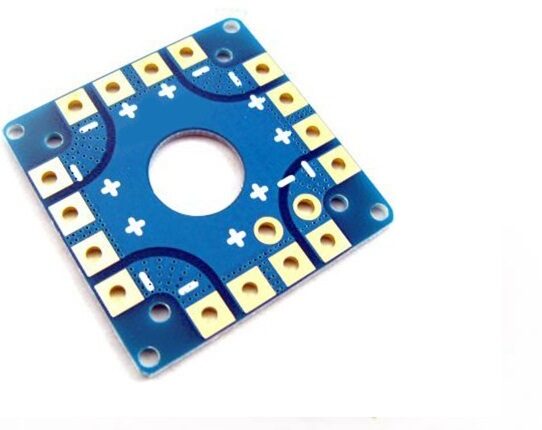
100A Multirotor ESC Power Distribution Battery Board For Quadcopter
Heavy-duty 100A PDB with built-in current sensing — useful for monitoring motor current during Blackbox analysis.
View on Zbotic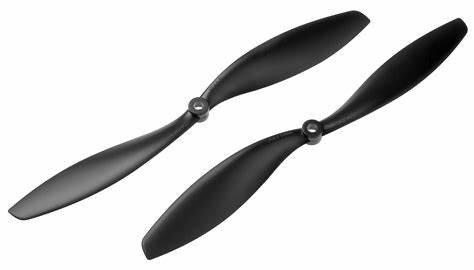
1045 2 Blades Carbon Fiber Propeller CW&CCW
Balanced carbon fiber props that reduce mechanical vibration — keeping your Blackbox gyro trace clean and your tune accurate.
View on Zbotic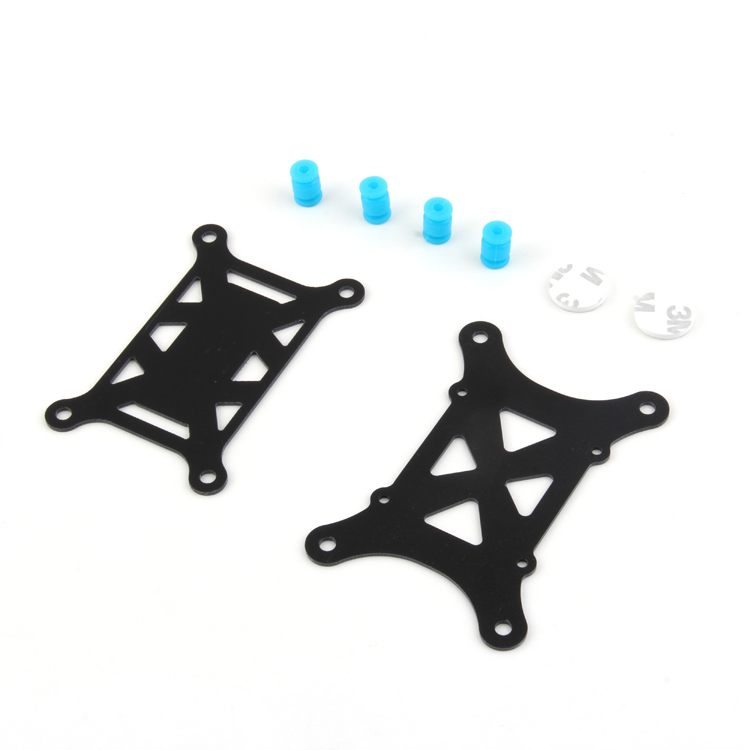
Anti-Vibration Shock Absorber for APM/KK/MWC/PixHawk
Damping mounts isolate flight controller from frame vibrations — one of the easiest mechanical fixes before tuning PIDs.
View on Zbotic11. Recommended Hardware from Zbotic
Getting your hardware right makes Blackbox tuning much more effective. Balanced props, vibration-isolated FCs, and quality ESCs all contribute to cleaner logs and easier tuning.
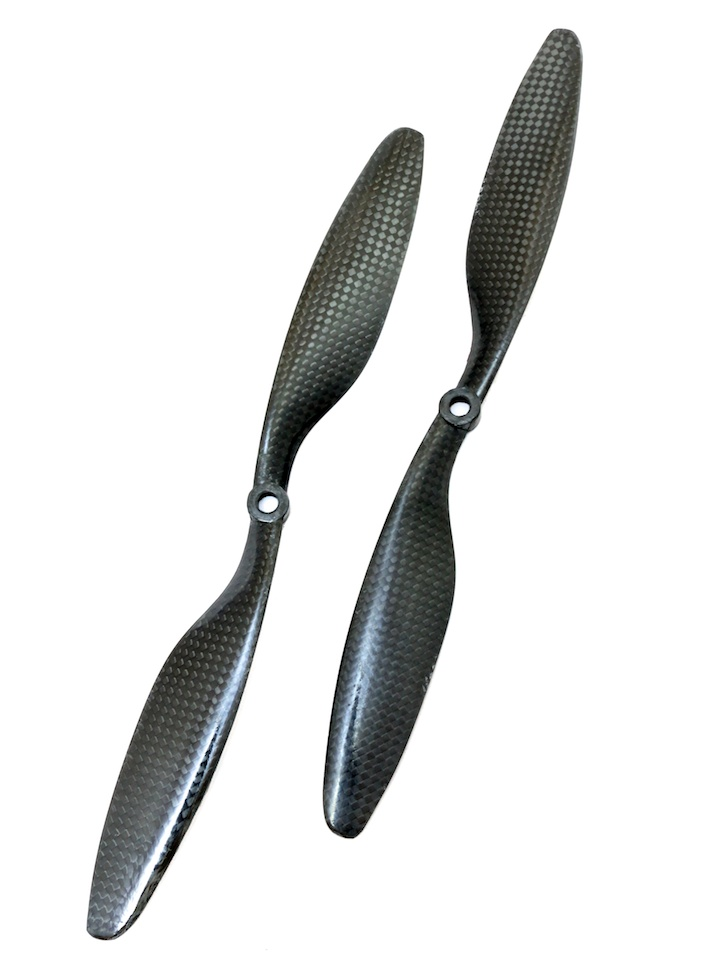
1045 2 Blades Carbon Fiber Propeller CW&CCW For DJI
DJI-compatible precision carbon fiber propellers for cleaner vibration signature during tuning sessions.
View on Zbotic12. Frequently Asked Questions
Q: Betaflight Blackbox is enabled but no log is being recorded. Why?
A: Check that the logging device is set correctly (SPIFLASH vs SDCARD). Also verify your FC actually has the hardware — not all FC boards include flash storage. Check the Blackbox status in the Configuration tab; it will show “OK” or an error if hardware is missing.
Q: My Blackbox log is huge (hundreds of MB). Is this normal?
A: Yes, high-rate logging on flash generates large files. Use the blackbox_sample_rate = 1/4 or 1/8 setting to reduce file size if storage is limited. For most tuning purposes, 1 kHz (1/8 on an 8 kHz gyro) is sufficient.
Q: I can see oscillations in Blackbox but my drone feels fine. Should I still tune?
A: Yes. Small oscillations you cannot feel (or hear) still drain batteries faster, heat motors, and stress components. Clean logs = longer motor life and better efficiency.
Q: Does Blackbox analysis work the same for 3-inch and 7-inch builds?
A: The method is identical but the optimal PID values and filter settings will differ significantly. Smaller props resonate at higher frequencies; larger props at lower frequencies. Always analyse the frequency spectrum for each build individually.
Q: Can I use Blackbox to diagnose a motor that is about to fail?
A: Absolutely. A failing motor will show asymmetric output in the motor trace — one motor consistently higher or lower than its opposite. Also check for desync events (sudden drops to zero and recovery).
Ready to Take Your Drone Tuning to the Next Level?
Zbotic stocks a wide range of FPV flight controllers, ESCs, props, and accessories for Indian drone builders. Quality hardware makes Blackbox analysis far more accurate and effective.
Shop Drone Parts at Zbotic






Add comment