
Table of Contents
- What Is Dual Extrusion 3D Printing?
- Types of Dual Extrusion Systems
- Soluble Supports Explained
- Two-Color Printing: Techniques and Applications
- Best Filament Combinations for Dual Extrusion
- Slicer Settings for Dual Extrusion
- Calibration Tips for Perfect Dual Extrusion
- Troubleshooting Common Issues
- Project Ideas for Indian Makers
- FAQ
Dual extrusion 3D printing is one of the most exciting upgrades you can make to your 3D printing workflow. Whether you want to print complex overhanging geometries using soluble supports that simply dissolve in water, or create stunning two-color or two-material prints, a dual extrusion setup opens a completely new world of possibilities. In this comprehensive guide, we cover everything an Indian maker or hobbyist needs to know about dual extrusion — from hardware choices and filament pairing to slicer configuration and troubleshooting.
What Is Dual Extrusion 3D Printing?
Dual extrusion refers to a 3D printer setup that uses two independent extruder-hotend assemblies to print with two different materials or colors in a single print job. Each extruder carries a different filament, and the slicer software coordinates which hotend is active at any given layer or region of the model.
The primary use cases for dual extrusion are:
- Soluble supports: One extruder prints the main model in a standard filament (PLA, PETG, ABS), while the second prints support structures in a water-soluble material like PVA or BVOH. After printing, you simply soak the part in water and the supports disappear — leaving behind a clean, smooth surface that would otherwise need sanding or manual removal.
- Two-color or two-material prints: Print visually striking objects with two distinct colors or combine materials with different mechanical properties — for example, a rigid PLA body with flexible TPU grips.
- Multi-material objects: Embed different functional materials, such as conductive filament alongside standard PLA for basic circuit traces.
For Indian hobbyists who are building functional prototypes, educational models, drone frames, or robotics components, dual extrusion dramatically reduces post-processing time and expands design freedom.
Types of Dual Extrusion Systems
Before you dive in, it is important to understand the different hardware architectures used in dual extrusion printers, as each has its own strengths and limitations.
1. Independent Dual Extrusion (IDEX)
IDEX printers have two completely independent carriages, each with its own hotend, moving independently along the X-axis. While one is printing, the other is parked at the side. Benefits include zero ooze contamination between materials and the ability to mirror or duplicate prints simultaneously. The Flashforge Creator Pro and similar machines use IDEX systems.
2. Single Carriage Dual Hotend (Chimera / Cyclops Style)
Both hotends are mounted on the same carriage. The active hotend is switched by software. The inactive nozzle can ooze molten filament onto the print, so a purge tower (prime tower) is essential. The BCN3D Sigma uses a variant of this design.
3. Tool Changer Systems
High-end systems like the E3D ToolChanger or Prusa XL allow the printer head to physically swap between multiple tool heads. These offer the cleanest results but are expensive.
4. Multi-Material Units (MMU / AMS)
Systems like Prusa’s MMU3 or Bambu Lab’s AMS feed multiple filaments into a single hotend via a selector. Only one filament is loaded at a time; filament is retracted and swapped automatically. Color mixing is not true simultaneous dual extrusion, but these systems handle up to 4–16 materials effectively.
For most Indian makers, a budget IDEX or a single-carriage dual-hotend printer (or a printer with an AMS/MMU add-on) is the most practical starting point.
Soluble Supports Explained
Soluble supports are arguably the most game-changing application of dual extrusion. Removing traditional supports from intricate prints — think mechanical joints, figurines, or bridge geometries — is tedious and often leaves ugly marks. Soluble supports eliminate all of that.
PVA (Polyvinyl Alcohol)
PVA is the most widely used soluble support material. It dissolves completely in water, typically within 30 minutes to a few hours depending on water temperature and agitation. PVA works best when paired with PLA, as both materials print at similar bed temperatures (PLA: 50–60°C; PVA: 45–60°C) and PVA adheres well to PLA interfaces.
Tips for PVA:
- Store PVA in an airtight container with silica gel — it absorbs moisture rapidly and will clog your nozzle or produce bubbles if damp.
- Print PVA at 180–200°C; higher temps cause degradation.
- Use warm water (30–40°C) and stir or use an ultrasonic cleaner to speed dissolution.
- Do not use PVA with PETG or ABS — the interface adhesion is poor.
BVOH (Butenediol Vinyl Alcohol Co-polymer)
BVOH dissolves faster than PVA and is more compatible with PETG and CPE. It is more expensive but worth it for engineering filaments.
HIPS (High Impact Polystyrene)
HIPS dissolves in D-limonene (a citrus-based solvent), not water. It is the go-to soluble support for ABS prints because both materials print at similar high temperatures (230–240°C nozzle, 100–110°C bed) and adhere well. D-limonene is available in India through chemical suppliers and some hobby stores.
Design Considerations for Soluble Supports
- Use your slicer’s interface layer feature — print 1–2 layers of the primary material between the soluble support and the model to make support removal cleaner.
- Thin-walled soluble supports dissolve faster; keep support wall count to 1–2.
- Increase support interface layer height slightly to prevent the two materials from fusing too strongly.
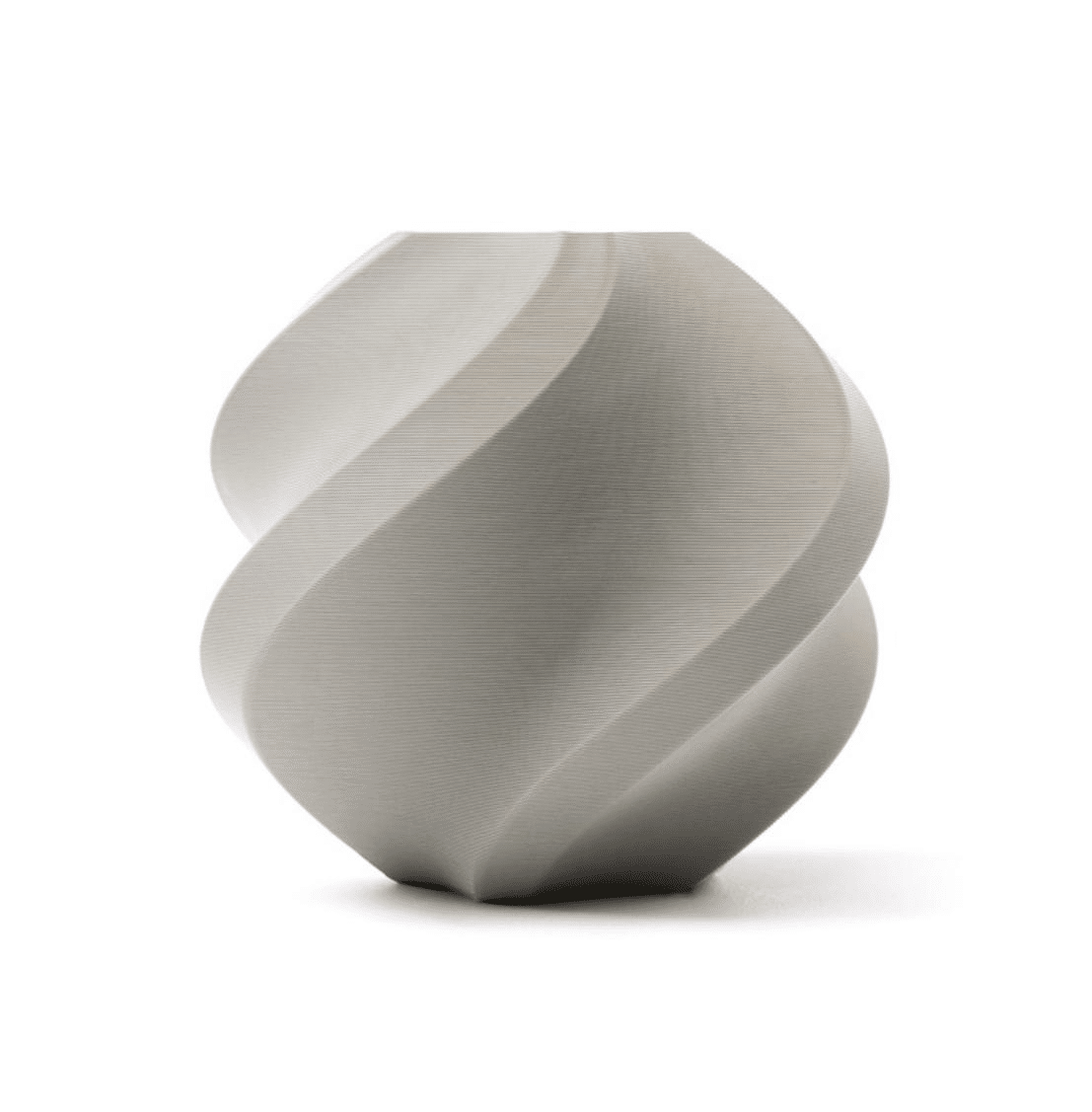
Bambu Lab PLA Filament Grey – 1.75mm with Reusable Spool
High-quality PLA filament that pairs perfectly with PVA for dual extrusion soluble support printing. Consistent diameter and excellent layer adhesion.
Two-Color Printing: Techniques and Applications
Two-color printing is visually impressive and surprisingly practical. Here are the main techniques:
Layer-Based Color Switching
The entire layer prints in one color, then the next layer (or set of layers) prints in another color. This is ideal for striped objects — think educational globes, labeled nameplates, or layered enclosures. In your slicer, assign Z-height ranges to each extruder.
Region-Based Color Separation
The most common and versatile approach: different regions of a single layer print in different colors. A slicer like PrusaSlicer, Cura, or Bambu Studio handles this automatically when you import a multi-body or multi-color STL. Each body is assigned to a specific extruder.
Color-Mixed Filaments (Single Hotend)
Some printers (like the Geeetech A10M) mix two filaments in a single hotend nozzle to create gradient effects. This is different from true dual extrusion but delivers smooth color transitions.
Applications in India
- Product prototyping: Print a housing in gray PLA with brand-colored logos or lettering in a second color.
- Educational models: Color-coded anatomy models, geography maps, or circuit diagrams.
- Signage and nameplates: Print functional nameplates for labs, offices, or home workshops with embedded lettering in contrasting colors.
- Drone frames: Print frame arms in a high-strength filament and body panels in a lightweight material with visual markings for front/rear orientation.
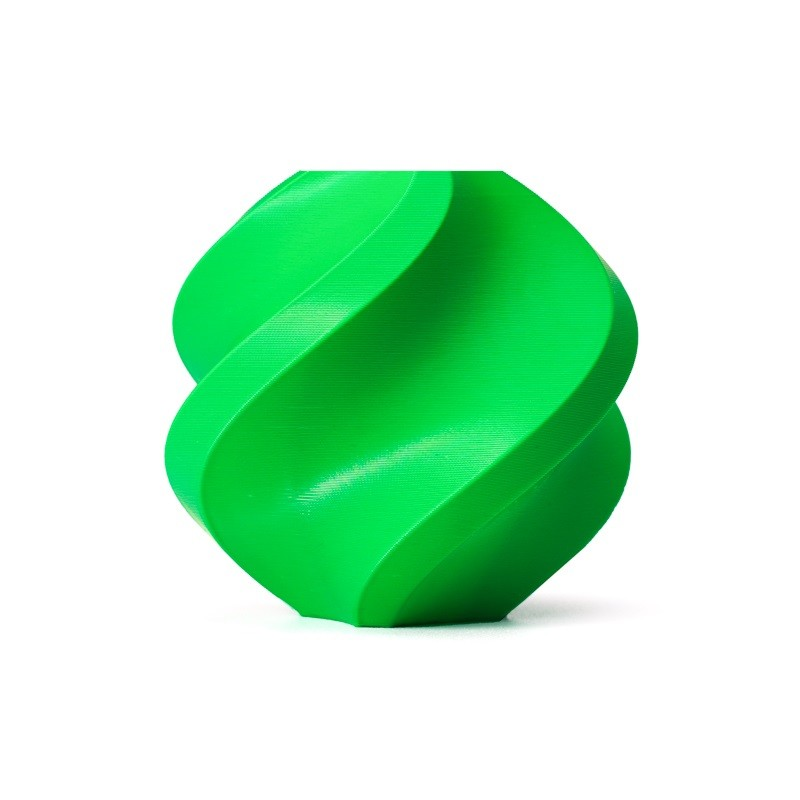
Bambu Lab ABS Filament Bambu Green – 1.75mm with Reusable Spool
Vibrant green ABS filament for two-color printing projects. Excellent for high-temperature applications like drone frames and outdoor enclosures.
Best Filament Combinations for Dual Extrusion
Choosing compatible filament pairs is critical. Incompatible materials will either not adhere to each other, warp differently, or require dramatically different print temperatures that a single heated bed cannot accommodate simultaneously.
| Primary Material | Support Material | Bed Temp | Dissolution |
|---|---|---|---|
| PLA | PVA | 50–60°C | Water |
| PETG | BVOH | 70–80°C | Water |
| ABS | HIPS | 100–110°C | D-limonene |
| PLA | PLA (contrast color) | 50–60°C | N/A (two-color) |
| PLA | TPU (flex) | 50–60°C | N/A (multi-material) |
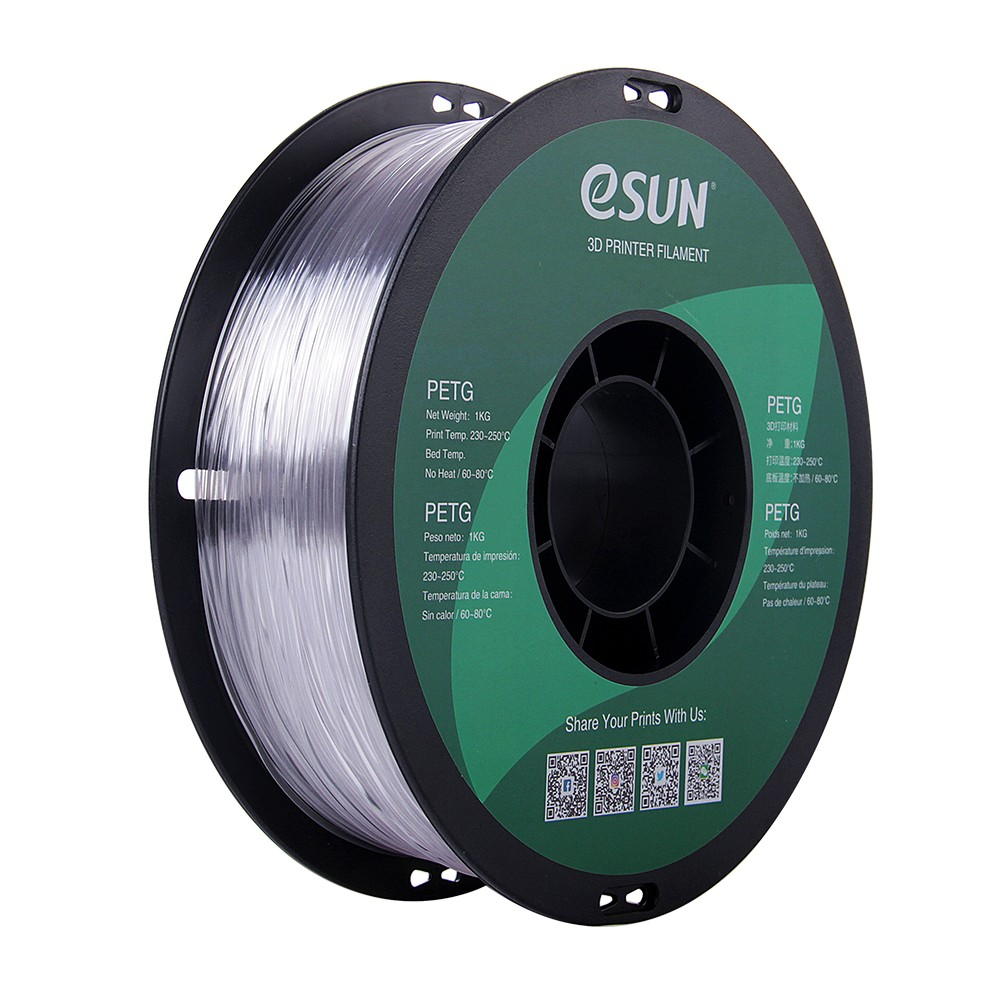
eSun PETG 1.75mm 3D Printing Filament 1kg – Clear
Crystal-clear PETG filament ideal for dual-material prints where transparency is desired. Strong, chemical-resistant, and food-safe when printed carefully.
Slicer Settings for Dual Extrusion
Getting your slicer configured correctly is where most beginners struggle with dual extrusion. Here is a systematic walkthrough for the most popular slicers.
PrusaSlicer / BambuStudio
- Printer profile: Select a dual-extruder printer profile. Set nozzle diameters, hotend offsets (X/Y/Z), and temperatures for each extruder independently.
- Wipe tower (Prime tower): Enable this! The prime tower purges the previous material from the nozzle when switching extruders. Set prime volume to 60–100mm³ for opaque materials; 150mm³ when switching from a dark to a light color.
- Support material extruder: In Print Settings → Support Material, set the support extruder to Extruder 2 (your PVA/HIPS extruder).
- Interface layers: Enable support interface layers and assign them to either extruder. Using the primary material for interface layers gives a cleaner break; using PVA for interface layers speeds dissolution.
- Ooze prevention: Enable ooze prevention and set temperature drop to 15–25°C for the idle extruder. This prevents drooling while the other nozzle is active.
Ultimaker Cura
- Enable dual extrusion in printer settings and set extruder offsets precisely.
- Assign supports to the second extruder under Support → Support Extruder.
- Enable Prime Tower with a target purge volume matching your filament change requirements.
- Use Standby Temperature for the inactive extruder.
Key Slicer Parameters Summary
- Prime/Wipe Tower: Enable, 60–150mm³ purge volume
- Ooze Prevention / Standby Temperature: 15–25°C drop from print temp
- Extruder Offset: Calibrated precisely (see calibration section)
- Retraction: Longer retraction (4–7mm for Bowden) when switching extruders
- Fan speed: Reduce to 0 for first layers, especially with ABS/HIPS combinations
Calibration Tips for Perfect Dual Extrusion
Calibration is the single most important factor in dual extrusion quality. Even a 0.1mm offset between your two nozzles will result in visible misalignment at color boundaries.
Step 1: XY Offset Calibration
Print a dual-extruder calibration print (many are available on Thingiverse/Printables). This typically looks like a grid or cross-hair where one extruder prints vertical lines and the other prints horizontal lines. Measure the offset and enter the correction in your slicer’s printer settings.
Step 2: Z Offset / Nozzle Height Calibration
If one nozzle is lower than the other, it will drag through the print. Use a feeler gauge to check nozzle heights, or adjust the Z-offset for the second extruder in firmware/slicer settings.
Step 3: Temperature Tuning
Run a temperature tower print for each filament separately to find the optimal temperature. Use these values in your dual extrusion profile.
Step 4: Retraction and Ooze Calibration
Print a two-color object that requires frequent extruder switching. Examine the wipe tower for signs of under- or over-purging, and adjust prime volume accordingly. Check the main print for ooze blobs and adjust standby temperature.
Step 5: Flow Rate (E-Steps) Calibration
Each extruder motor must be calibrated independently for accurate filament extrusion. Use the 100mm extrusion test and adjust the E-steps for each extruder in firmware.
Bambu Lab PLA Filament Silver – 1.75mm with Reusable Spool
Premium silver PLA filament for dual-color projects. Consistent 1.75mm diameter ensures reliable dual extrusion without feeding issues.
Troubleshooting Common Issues
Issue 1: Color Bleeding / Contamination
Cause: Insufficient purging at extruder switch.
Fix: Increase prime tower purge volume. Ensure ooze prevention / standby temperature is active. Check that retraction is adequate for the inactive nozzle.
Issue 2: Spaghetti or Layer Shifting at Extruder Switch
Cause: Active nozzle dragging over print during parking move, or XY offset miscalibrated.
Fix: Enable Z-hop during extruder change (0.2–0.4mm). Recalibrate XY offset. Reduce travel speed.
Issue 3: PVA Clogging
Cause: Moisture-absorbed PVA or printing too hot.
Fix: Dry PVA at 45°C for 4–6 hours before printing. Reduce print temperature to 180–195°C. Store in a sealed dry box.
Issue 4: Wipe Tower Detaching
Cause: Poor first-layer adhesion on wipe tower.
Fix: Ensure the wipe tower’s first layer is well-adhered. Use a brim on the wipe tower. Do not print the wipe tower too far from the main model.
Issue 5: Weak Bond Between Materials
Cause: Incompatible filament pair, or temperature mismatch causing poor interface adhesion.
Fix: Verify material compatibility. Increase interface layer temperature slightly. Use compatible filament pairs as per the table above.
Project Ideas for Indian Makers
- Custom PCB holder with flex grips: Print a rigid PLA circuit board holder with soft TPU bumpers in a contrasting color — no tools or screws required.
- Drone arm with integrated branding: Print quadcopter arms in black ABS (strength) with orange color markings on front arms for orientation — practical and looks professional.
- Threaded enclosures with clean interiors: Use soluble supports to print complex enclosures with internal cable routing channels, threading features, and mounting bosses that would be impossible to clean up with breakaway supports.
- Educational anatomy models: Print bones in white PLA with cartilage/soft tissue regions in a translucent PETG — perfect for biology students.
- Signage for home lab: Two-color nameplates with embedded text for your electronics workbench, shelves, or school project display.
Frequently Asked Questions
Can I add dual extrusion to my existing single-extruder printer?
Yes, but it depends on your printer’s frame and electronics. Some printers (like the Ender 3) have dual-extruder upgrade kits available, though firmware and slicer configuration becomes complex. A purpose-built dual extrusion printer is easier to set up and calibrate.
Is PVA expensive in India?
PVA filament is more expensive than standard PLA — expect to pay ₹2,500–₹5,000 per 500g spool from reputable suppliers. However, because supports are thin-walled structures, a spool lasts a long time. HIPS is a more affordable alternative if you are printing ABS.
Do I need a heated enclosure for dual extrusion ABS/HIPS?
Yes. ABS and HIPS both warp significantly without an enclosure. If your printer does not have an enclosure, build a cardboard or acrylic tent around it — Indian makers on a budget commonly use this approach successfully.
Can I use dual extrusion with Bambu Lab or Prusa MMU?
Bambu Lab AMS and Prusa MMU3 are multi-material systems that route filament through a single hotend. They support soluble supports with specific filament profiles and are excellent for color printing. True dual-hotend setups (like IDEX) can offer better material isolation.
How long does PVA take to dissolve?
PVA dissolves in 30 minutes to 4 hours depending on the amount of support material, water temperature (warm water is faster), and agitation. Thin support walls dissolve in under an hour. Use a container of warm water and stir occasionally for best results.
What is a prime tower and do I always need one?
A prime tower (wipe tower) is a small throwaway column that the printer uses to purge residual filament from the nozzle before printing on the actual model. IDEX printers parking the idle nozzle over a wipe pad may not need a large prime tower, but for single-carriage dual hotend setups, it is essential to prevent color contamination.
Ready to Start Dual Extrusion Printing?
Whether you are pairing PLA with PVA for clean soluble supports or combining two colors for stunning visual prints, the right filament is the foundation of success. Browse Zbotic’s complete range of premium 3D printing filaments — PLA, ABS, PETG, and more — delivered across India.







Add comment