
Polycarbonate (PC) is one of the most mechanically impressive materials you can print on a desktop FDM printer. It is transparent, extremely tough, has a high heat deflection temperature, and resists impacts far better than PLA or even PETG. It is the material used in bulletproof glass, riot shields, and aerospace components. If your functional parts need to survive heat, stress, and impact, PC deserves serious consideration.
But PC has a well-deserved reputation for being difficult. Warping, layer delamination, and moisture absorption are the three main failure modes. This guide covers every setting and technique you need to print PC reliably and warp-free on a properly equipped desktop printer in India — including the specific challenges of India’s climate and humidity.
Why Print in Polycarbonate?
Polycarbonate offers a property combination that no other common FDM material matches:
- Heat deflection temperature: 110–130°C (vs PLA at 55–60°C, PETG at 70–80°C). This means PC parts can survive car interiors in Indian summer, industrial environments, and near-engine applications.
- Impact resistance: PC is one of the toughest thermoplastics. Parts that would crack in PLA or shatter in brittle PETG simply flex and survive in PC.
- Transparency: Good-quality PC filament produces optically clear parts when printed carefully, useful for light guides, covers, and inspection windows.
- Tensile strength: ~55–65 MPa, higher than PLA (~50 MPa) and PETG (~50 MPa).
- Electrical insulation: Excellent dielectric properties for printed enclosures and insulators.
For Indian engineers and makers designing functional prototypes, automotive brackets, industrial jigs, or electrical enclosures, PC is often the best choice — if you can print it reliably.
The Challenges of PC Printing
PC’s difficulty comes from three intrinsic material properties:
1. High printing temperature: PC requires a hotend temperature of 260–300°C. Standard brass nozzles handle this, but PTFE-lined hotends (stock on Ender 3) cannot — PTFE degrades above 240°C and releases toxic fumes. You need an all-metal hotend.
2. Extreme warping tendency: PC has a high coefficient of thermal expansion. As layers cool and contract, they pull on the print bed and on previous layers. Without an enclosure maintaining ambient temperature above 60°C, large PC prints will warp, delaminate, or pop off the bed entirely.
3. Aggressive hygroscopicity: PC absorbs moisture from the air faster than almost any other common filament. In India’s humid climate — especially during monsoon season in cities like Mumbai, Chennai, and Kolkata — an unsealed spool of PC can absorb enough moisture overnight to cause stringing, bubbling, and popping during printing. Always dry PC before use and print from a dry box.
Printer and Hardware Requirements
Not every printer can handle PC. Here is what you need:
All-metal hotend: Mandatory. E3D V6 all-metal, Bambu Lab hardened steel hotend, or equivalent. No PTFE anywhere in the heatbreak or melt zone. PTFE at temperatures above 240°C softens, deforms, and outgasses toxic compounds.
Hotend temperature rating: Your hotend must reliably reach 280–300°C. Most modern hotends rated for 300°C are fine. Stock Ender 3 hotends are NOT suitable for PC.
Heated bed: Must reach at least 100–110°C. Most enclosed printers handle this. Ensure your bed thermistor is accurate — a bed reading 100°C that is actually 85°C will cause warping.
Enclosure: Not optional for large PC prints. The enclosure needs to maintain an ambient temperature of 45–60°C throughout the print. For small prints under 50×50mm, you may get away without one, but for anything larger, you need an enclosure.
Extruder grip: PC is a stiff filament. Weak extruders slip on PC, especially at high temperatures. A quality dual-drive BMG clone extruder or an orbiter-style lightweight direct drive works best.
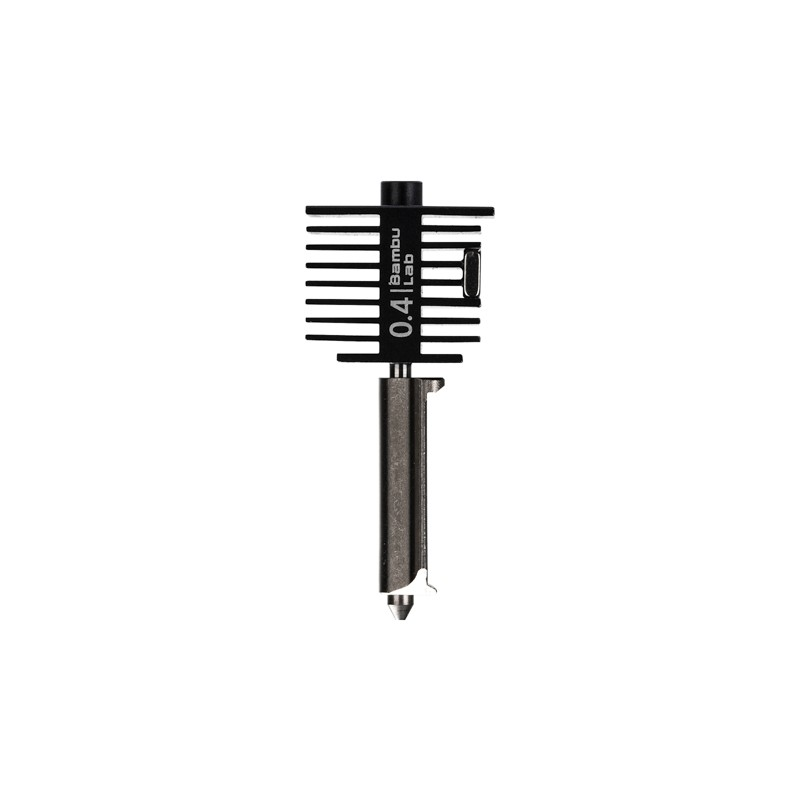
Bambu Lab Hotend with Hardened Steel Nozzle – 0.4mm
An all-metal hotend with hardened steel nozzle rated for high-temperature engineering filaments including PC, ABS, and PA. No PTFE in the melt zone.
View on ZboticDrying Your PC Filament
This step is not optional in India. PC is extremely hygroscopic and India’s ambient humidity — particularly in coastal regions — will degrade a spool within hours of opening it.
Drying parameters for PC:
- Temperature: 70–80°C
- Duration: 6–12 hours minimum. For a spool that has been open for more than a week in humid conditions, dry for 12–16 hours.
- Equipment: A food dehydrator set to 70°C works excellently. A conventional oven on the lowest setting (often 80–100°C) can be used but watch the temperature carefully. Dedicated filament dryers like the Sunlu S2 or Creality Filament Dryer are the most convenient option.
Signs of wet PC filament during printing: Popping or crackling sounds from the nozzle, excessive stringing, bubbles visible in extruded filament, and rough surface finish are all indicators of moisture. If you hear these sounds, stop, dry the filament, and restart.
Storage: Store PC in sealed bags with fresh silica gel desiccant packs immediately after use. Vacuum-sealed storage bags are ideal. This is especially important during India’s June–September monsoon months.
Recommended Print Settings
These settings are a starting point. Fine-tune based on your specific PC filament brand and printer capabilities.
| Parameter | Recommended Value |
|---|---|
| Nozzle Temperature | 270–300°C |
| Bed Temperature | 100–110°C |
| Enclosure Temperature | 45–60°C ambient |
| Print Speed | 30–50 mm/s |
| Layer Height | 0.15–0.25mm |
| Wall Count | 4–6 walls |
| Infill | 40–60% (gyroid or honeycomb) |
| Cooling Fan | 0% (OFF) |
| Retraction Distance | 0.5–1.5mm (direct drive) / 3–5mm (Bowden) |
| First Layer Speed | 15–20 mm/s |
Key settings to understand:
Fan speed: 0%. This is the most counterintuitive setting for beginners. Cooling fan kills inter-layer adhesion on PC. The hot ambient enclosure temperature does the job of managing cooling rate. Never turn the fan on for PC.
Slow down: 30–50 mm/s may feel agonisingly slow if you are used to printing PLA at 120 mm/s. PC needs time for each layer to bond fully. Rushing it produces delamination and layer separation under mechanical stress.
High nozzle temp: Start at 280°C. If you see poor layer adhesion, increase to 290°C. If stringing is severe, reduce to 270°C and verify your filament is dry.
Bed Adhesion Strategies
PC adhesion to the print bed is both a blessing and a curse. Too little adhesion and the print warps and pops off. Too much and you damage the print or the bed surface when removing the part.
PC-specific adhesion options:
- PEI spring steel sheet: The best surface for PC. PC sticks aggressively at 100–110°C and releases cleanly when the bed cools below 50°C. This is the most reliable approach for long-term PC printing.
- Garolite (FR4) sheet: A fibreglass epoxy sheet that PC bonds to very well. Popular in the Voron community specifically for PC printing. More difficult to source in India but available as PCB material from electronics suppliers.
- Glass + ABS slurry or PC adhesive: Borosilicate glass with a thin layer of ABS dissolved in acetone (or commercial PC adhesive) provides adequate adhesion. The slurry must be reapplied periodically.
- Avoid: BuildTak, standard blue PET film, bare glass without treatment, and standard magnetic flex beds not rated for 100°C+ bed temperatures. PC can permanently bond to these surfaces.
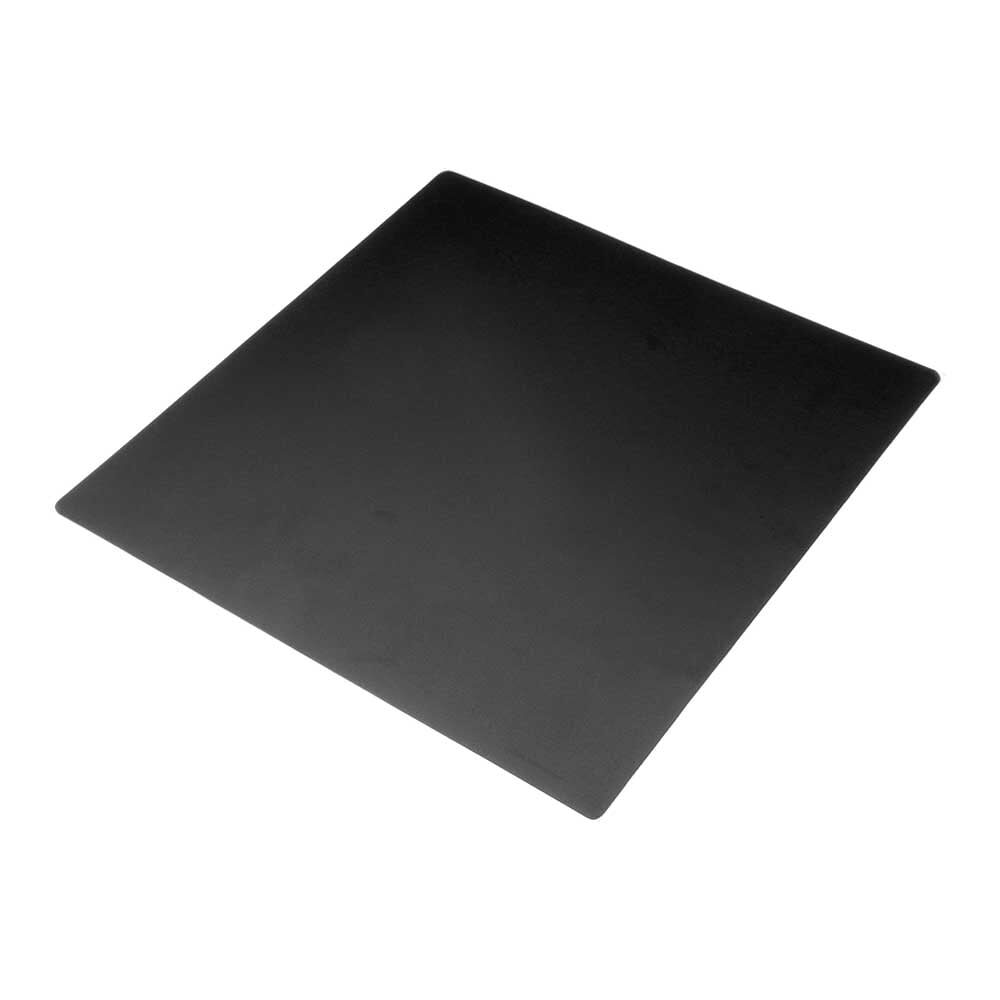
Frosted Heated Bed Sticker Build Plate – 220x220mm
Frosted build surface with adhesive backing for consistent first-layer adhesion across materials. A reliable surface prep solution for printers with glass beds.
View on ZboticEnclosure Temperature Management
Managing enclosure temperature is critical and often underappreciated by beginners attempting PC.
Target enclosure temperature: 45–60°C. Below 45°C, the thermal gradient between the hot extruded PC and the cooler ambient air is too steep, causing the upper layers to cool and contract faster than lower layers, which creates warping forces. Above 65°C, you risk overheating your stepper motors, electronics, and belts — unless they are mounted outside the enclosure.
How to achieve enclosure temperature:
- Run the printer with the bed at 100–110°C for 15–20 minutes before starting the print with the enclosure closed. The heated bed alone will bring the enclosure to 45–50°C in a well-insulated enclosure.
- Avoid opening the enclosure mid-print. Each opening drops the ambient temperature by 5–10°C and the subsequent thermal shock often causes warping at that exact layer.
- On Bambu Lab machines, the auxiliary fan circulates warm air within the enclosure, helping maintain uniform temperature. Enable this feature for PC.
Electronics protection: If your printer has electronics inside the enclosure (like most modified Enders), add a thermistor monitoring enclosure temperature and consider relocating the main board outside if enclosure temps regularly exceed 50°C.
Anti-Warp Techniques
Even with correct settings, large flat PC parts can warp. These additional techniques help:
Brim: Use a wide brim (10–15mm) for all PC prints. The brim significantly increases first-layer contact area, anchoring the print during temperature transitions. Remove it carefully after the print cools.
Avoid thin flat sections: Design parts with fillets and ribs where possible. Thin flat sections in PC warp most aggressively.
Draft shield: In Cura and PrusaSlicer, a draft shield is a thin wall printed around the part that traps warm air close to the print. Enable it for PC with a 5mm offset. This is essentially a software-defined mini enclosure inside your enclosure.
Bed pre-soak: Never start a PC print on a cold bed. Pre-heat the bed for at least 20 minutes and wait for the enclosure to reach target temperature before starting the first layer.
Reduce first-layer flow: A 105–110% first-layer flow rate ensures the PC is pressed firmly into the bed surface, maximising adhesion contact area.
Post-Processing PC Parts
PC parts have excellent post-processing options compared to PLA or PETG:
Polishing: PC can be wet-sanded progressively from 400 to 2000 grit and then buffed to optical clarity. This is useful for light guides and transparent covers.
Flame polishing: A quick pass with a gas lighter or heat gun on clear PC parts melts the surface micro-roughness and produces a glass-like finish. Work quickly and keep the flame or heat moving — lingering causes bubbling.
Bonding: PC bonds well with methylene chloride (DCM), but this is a hazardous solvent. Cyanoacrylate (super glue) works for non-structural joins. Epoxy works well for structural joins.
Annealing: PC parts can be annealed in an oven at 110–120°C for 1–2 hours to relieve internal stresses from printing and improve thermal performance. Support the parts during annealing to prevent distortion.
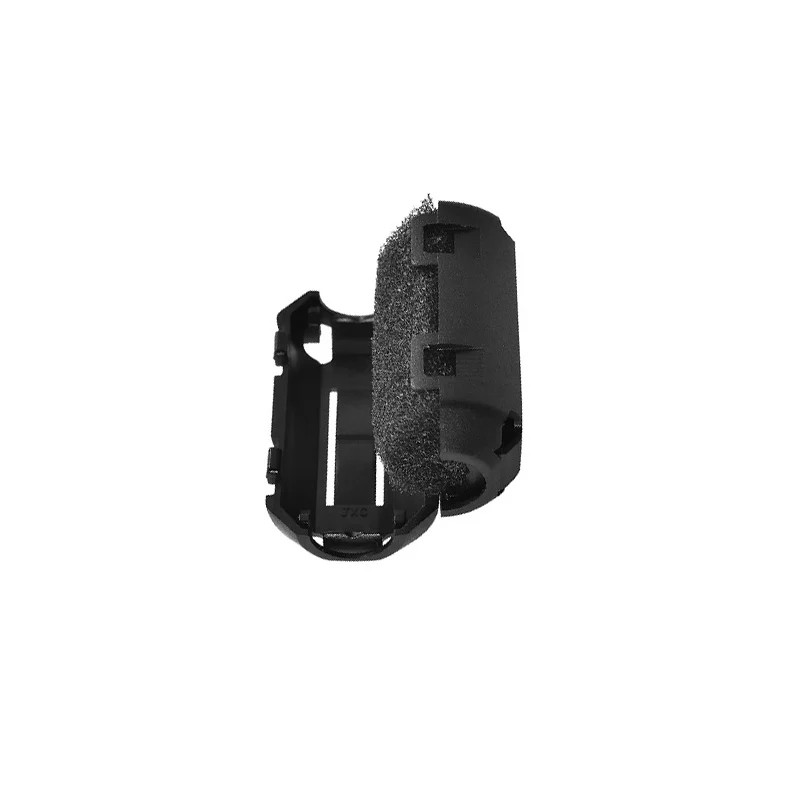
Filament Filter Cleaner Blocks – Dust Removal for 1.75mm Filament
Felt filament cleaner blocks remove dust and debris from your filament before it enters the hotend. Especially important for expensive engineering filaments like PC.
View on ZboticTroubleshooting Common Issues
Warping during print: Increase enclosure temperature, increase bed temperature by 5°C, add brim, slow down first layer speed, and verify bed is properly levelled.
Layer delamination: Increase nozzle temperature (try +5°C increments), turn fan completely off, increase layer height slightly to 0.25mm, and reduce print speed.
Popping/bubbling from nozzle: Wet filament. Stop print, dry filament for 8–12 hours at 75°C, and restart.
Clogged nozzle: PC can carbonise at very high temperatures (>310°C). If you have a partial clog, try a cold pull at 150°C or use cleaning filament. Switch to a fresh nozzle if the clog is severe.
Stringing: Reduce retraction speed slightly, increase retraction distance, and verify filament is dry. PC strings more than PLA but should be manageable with correct settings.
Get Your 3D Printing Supplies from Zbotic
Shop nozzles, hotend components, bed surfaces, and maintenance tools — everything you need for advanced filament printing in India.
Shop 3D Printing SuppliesFrequently Asked Questions
Can I print PC on an Ender 3?
Not with the stock hotend. The Ender 3’s stock hotend has a PTFE-lined heatbreak that degrades above 240°C. You need to upgrade to an all-metal hotend, and you also need an enclosure for the Ender 3. With these upgrades, it is possible but difficult — a Bambu Lab P1S or enclosed Voron is much better suited.
Does PC filament need to be dried in India?
Yes, always — especially in India’s humid climate. PC absorbs moisture faster than almost any other filament. Dry it at 70–80°C for 6–12 hours before printing and print from a sealed dry box during long prints.
What bed temperature is needed for PC?
100–110°C bed temperature is required for reliable PC adhesion and warp prevention. Beds that cannot reach 100°C will produce warped prints on large parts.
Do I need an enclosure for 3D printing PC?
For any print larger than approximately 50×50mm, yes. An enclosure maintaining 45–60°C ambient temperature prevents the thermal gradients that cause warping and layer delamination in PC.
Is PC filament safe to print?
PC filament at 270–300°C nozzle temperature does emit some VOCs. Print in a well-ventilated space or use an enclosure with an activated carbon filter. Never print PC with a PTFE-lined hotend — PTFE at temperatures above 240°C releases toxic fumes.
Which slicer profiles work best for PC?
Bambu Studio has built-in PC profiles tuned for Bambu printers. OrcaSlicer (a community fork) has the best PC profiles for a wide range of printers. PrusaSlicer has decent PC profiles as a starting point. Always customise from the profile — do not use PC profiles unchanged.







Add comment