
Table of Contents
- Project Overview and What You Will Build
- Components Needed
- Printing the Robot Arm Parts
- Assembly Guide: Putting the Arm Together
- Wiring the Servos to Arduino
- Programming the Arduino: Basic Control Code
- Advanced: Joystick or Potentiometer Control
- Going Further: Inverse Kinematics Basics
- Troubleshooting Common Issues
- FAQ
A 3D printed robot arm controlled by an Arduino is one of the most satisfying maker projects you can build. It combines mechanical design, electronics, and programming in a single project — and unlike many tutorials online, this guide covers the entire journey from printing parts to writing code, with notes specifically for Indian hobbyists sourcing components locally.
By the end of this tutorial, you will have a functional 4–6 axis robot arm that can be controlled manually via joysticks, programmed to follow recorded movements, or even interfaced with a computer for remote control. The total cost ranges from ₹2,500 to ₹5,000 depending on the servos and filament you choose — and much of that cost comes from components you can reuse in future projects.
Project Overview and What You Will Build
This project builds a desktop robot arm inspired by industrial robotic arms. It features:
- 4–6 degrees of freedom (DOF): Base rotation, shoulder, elbow, wrist pitch, wrist roll, and end-effector (gripper)
- Servo-driven joints: MG996R high-torque servos for large joints, SG90 micro servos for lighter joints
- Arduino Mega 2560 control: Enough PWM pins for all servos with room for expansion
- 3D printed structure: All structural parts printed in PLA or PETG — no machining required
- Optional gripper: A simple 2-finger gripper driven by an SG90 micro servo
This project is suitable for intermediate makers. You should be comfortable with basic 3D printing, can follow a wiring diagram, and have written at least a few simple Arduino sketches. Beginners can still follow along — just expect to spend more time on each step.
Components Needed
Electronics
- 1× Arduino Mega 2560 (or Uno for 4-DOF version)
- 4–6× MG996R or MG995 high-torque servo motors (for base, shoulder, elbow)
- 2× SG90 micro servo (for wrist and gripper)
- 1× 16-channel PCA9685 servo driver module (recommended over driving servos directly from Arduino — handles PWM and power separately)
- 1× 5V 3A or higher power supply (do NOT power servos from Arduino’s 5V pin — they draw too much current)
- 2× Joystick modules (for manual control) or 4–6× 10K potentiometers
- Jumper wires, breadboard or PCB, and connectors
Mechanical
- M3 screws and nuts (assorted: 8mm, 12mm, 20mm, 30mm lengths)
- Servo horns (usually included with servos)
- Bearings (608zz or similar — optional but recommended for base rotation)
- Non-slip base pad or mounting plate
3D Printing Materials
- ~400–600g of PLA or PETG (enough for all structural parts)
- Optional: TPU for gripper fingers (better grip)
Most electronics are available on Robu.in, Amazon India, or local electronics markets. 3D printing filaments and nozzles are available at Zbotic.in.
Printing the Robot Arm Parts
Getting the STL Files
Several excellent open-source robot arm designs are available for free. Two popular ones suited to this tutorial:
- Thor Robot Arm: Search “Thor Robot” on Thingiverse (thingiverse.com/thing:1743442). A 6-DOF arm with detailed assembly documentation. Complex but very capable.
- AR2/AR3 Robot Arm: A professional-grade 6-axis design with IK software. Search “AR3 robot arm” on GitHub. More advanced.
- Simple 4-DOF Desktop Arm: For beginners, search Thingiverse for “Arduino robot arm” — many simplified designs with fewer parts and easier assembly.
Print Settings
Robot arm parts carry real mechanical loads — use structural print settings:
| Setting | Recommended Value | Notes |
|---|---|---|
| Infill | 40–60% | Higher for stress-bearing parts (base, shoulder) |
| Infill Pattern | Gyroid or Grid | Gyroid is strongest in all directions |
| Layer Height | 0.2mm | 0.15mm for visible/mating surfaces |
| Perimeters / Walls | 4–5 perimeters | Thick walls = stronger parts at joints |
| Material | PETG preferred | PLA works but PETG is tougher and less brittle |
| Supports | As needed | Many designs are oriented to minimise supports |
Print time estimate: A full 4-DOF arm takes 15–25 hours of printing. Plan prints across multiple sessions.
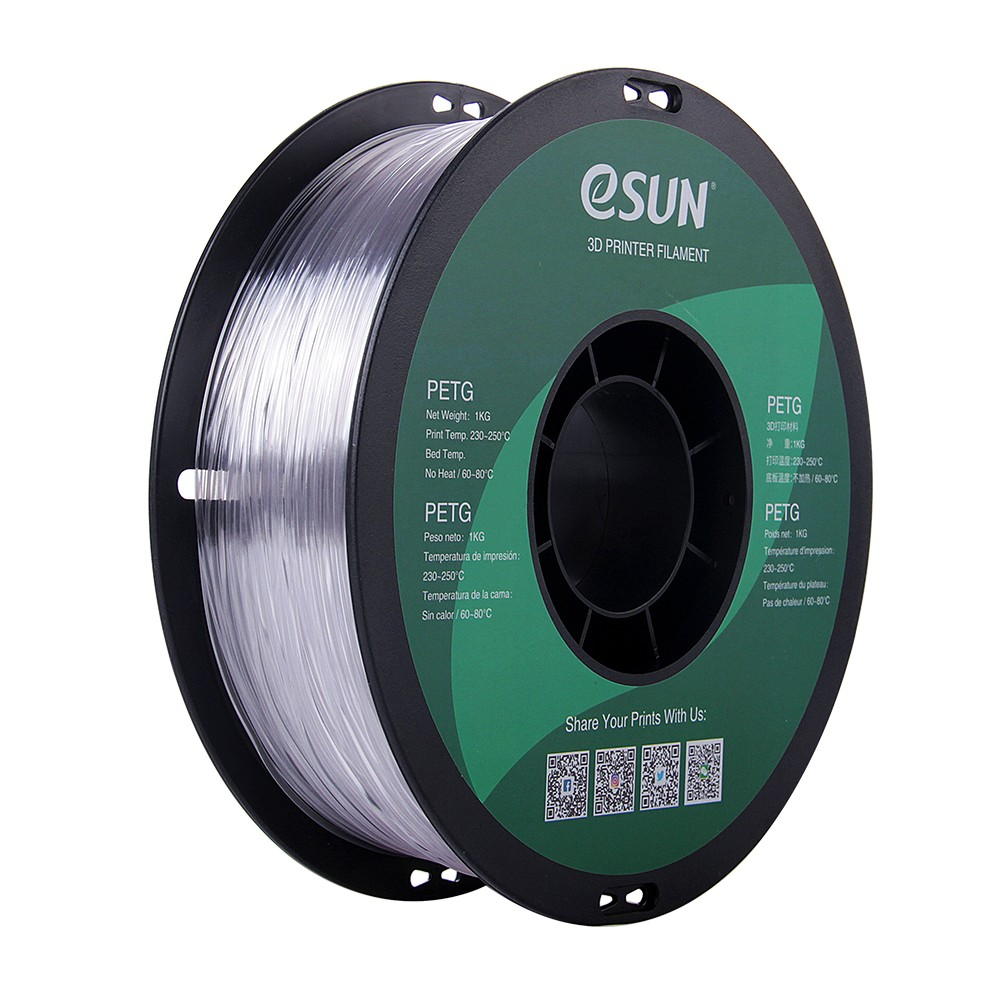
eSUN PETG 1.75mm 3D Printing Filament 1kg – Clear
PETG’s combination of toughness, impact resistance, and ease of printing makes it the ideal choice for robot arm structural parts. Strong enough for real loads, forgiving enough for beginners.
Assembly Guide: Putting the Arm Together
Assembly depends on the specific design you printed, but these general steps apply to most desktop robot arms:
Step 1: Prepare Printed Parts
Remove all support material carefully. Use a hobby knife for tight areas. Test-fit all mating parts before assembly — 3D printed tolerances can vary and some holes may need light sanding or drilling to fit M3 screws properly.
Step 2: Install Base Bearing (if applicable)
If your design uses a 608zz bearing at the base for smooth rotation, press it into the bearing pocket. Use a C-clamp or vice to press it flush — it should click in firmly with no wobble.
Step 3: Mount the Base Servo
The base servo (MG996R) mounts below or within the base platform. Connect the servo horn to the rotating upper plate. Apply thread-lock (or even a small drop of super glue) to the servo horn screw — vibration will loosen it otherwise.
Step 4: Assemble the Shoulder and Elbow
Mount the shoulder servo, connect the lower arm link via printed servo bracket. Repeat for the elbow joint with the upper arm link. Route servo cables carefully through the arm channels as you assemble — it is much harder to route cables after everything is assembled.
Step 5: Wrist and Gripper
The wrist assembly is usually the most delicate. SG90 servos are used here due to lower torque requirements. For the gripper, many designs use a rack-and-pinion or simple lever mechanism driven by an SG90.
Step 6: Final Mechanical Check
Before powering anything on, manually move each joint through its full range of motion. You should feel smooth movement with no binding or excessive play. Tighten or re-print any parts that don’t feel right — it is much easier to fix mechanical issues before electronics are connected.
Wiring the Servos to Arduino
The most common mistake beginners make with servo-based projects is powering servos from the Arduino’s 5V pin. An MG996R servo under load can draw 1–2A, and the Arduino’s 5V regulator is rated for about 500mA maximum. Connecting multiple servos this way will cause voltage brownouts, random resets, and potentially damage your Arduino.
Recommended Approach: PCA9685 Servo Driver
The PCA9685 is a 16-channel PWM driver IC on a breakout board. It communicates with Arduino via I2C (only 2 pins), has its own power input for servos (VCC and GND), and handles all servo PWM generation in hardware. This means:
- Arduino only needs to send I2C commands (very low CPU load)
- All 16 servos are powered from a separate 5V supply — no current through Arduino
- Smooth PWM pulses even when Arduino is busy with other code
Wiring Diagram (PCA9685)
Arduino → PCA9685:
  5V  → VCC (logic power)
  GND → GND
  A4  → SDA
  A5  → SCL

External 5V 3A PSU → PCA9685:
  +5V → V+
  GND → GND

Servos → PCA9685:
  Servo 0: Base rotation (MG996R)
  Servo 1: Shoulder (MG996R)
  Servo 2: Elbow (MG996R)
  Servo 3: Wrist pitch (SG90)
  Servo 4: Wrist roll (SG90)
  Servo 5: Gripper (SG90)
Programming the Arduino: Basic Control Code
Install the Adafruit PCA9685 library and the Adafruit PWM Servo Driver library from the Arduino Library Manager (Sketch → Include Library → Manage Libraries).
Here is a basic sketch that positions all servos at their centre positions on startup:
#include <Wire.h>
#include <Adafruit_PWMServoDriver.h>

Adafruit_PWMServoDriver pwm = Adafruit_PWMServoDriver();

// Servo pulse range (in microseconds)
#define SERVOMIN  150  // Minimum pulse length (0 degrees)
#define SERVOMAX  600  // Maximum pulse length (180 degrees)

// Joint angle limits (degrees)
int jointMin[] = {0, 30, 15, 0, 0, 0};
int jointMax[] = {180, 150, 165, 180, 180, 90};

void setup() {
  Serial.begin(9600);
  pwm.begin();
  pwm.setOscillatorFrequency(27000000);
  pwm.setPWMFreq(50);  // Analog servos run at ~50 Hz

  // Move all joints to center position
  for (int i = 0; i < 6; i++) {
    setServoAngle(i, 90);
    delay(200);
  }
  Serial.println("Robot arm ready.");
}

void loop() {
  // Add control logic here
}

void setServoAngle(int channel, int angle) {
  angle = constrain(angle, 0, 180);
  int pulse = map(angle, 0, 180, SERVOMIN, SERVOMAX);
  pwm.setPWM(channel, 0, pulse);
}
Advanced: Joystick or Potentiometer Control
To manually control the arm, add joystick or potentiometer input. Here is the joystick control approach that maps joystick X/Y to arm joints:
// Add to top of sketch:
const int joyPins[] = {A0, A1, A2, A3};  // 4 joystick axes
int jointAngles[] = {90, 90, 90, 90, 90, 90};

// Add to loop():
void loop() {
  for (int i = 0; i < 4; i++) {
    int joyVal = analogRead(joyPins[i]);
    // Map joystick (0-1023) to movement delta
    int delta = map(joyVal, 0, 1023, -3, 3);
    if (abs(delta) > 1) {  // Deadzone
      jointAngles[i] = constrain(jointAngles[i] + delta,
                                 jointMin[i], jointMax[i]);
      setServoAngle(i, jointAngles[i]);
    }
  }
  delay(15);
}
This approach gives smooth joystick control. Each joystick axis maps to one arm joint. With two joysticks (4 axes total), you can control 4 joints simultaneously.
Going Further: Inverse Kinematics Basics
Direct joint control works, but the really impressive feature of robot arms is Cartesian control — where you specify where you want the tip of the arm to go (X, Y, Z coordinates) and the software calculates the required joint angles automatically. This is called Inverse Kinematics (IK).
For a 2D simplification (shoulder + elbow moving in a plane):
// Simplified 2-DOF IK for shoulder + elbow
// L1 = upper arm length, L2 = forearm length
// target_x, target_y = desired tip position

void solve2DOF_IK(float target_x, float target_y,
                  float L1, float L2,
                  float &theta1, float &theta2) {
  float d = sqrt(target_x*target_x + target_y*target_y);
  float cos_theta2 = (d*d - L1*L1 - L2*L2) / (2*L1*L2);
  theta2 = acos(cos_theta2) * 180 / PI;  // Elbow angle

  float alpha = atan2(target_y, target_x) * 180 / PI;
  float beta = acos((d*d + L1*L1 - L2*L2) / (2*d*L1)) * 180 / PI;
  theta1 = alpha - beta;  // Shoulder angle
}
Full 6-DOF IK is significantly more complex but there are excellent open-source libraries (like AR3’s built-in IK solver) that handle it for you.
Troubleshooting Common Issues
- Servo jitter at rest: Usually caused by insufficient servo power. Upgrade your power supply to at least 5V 3A. Also check your common ground between Arduino and power supply.
- Arm overshoots positions: Reduce movement speed in code (smaller deltas per step) and add delay between updates. MG996R servos are fast but imprecise — use a slower movement profile.
- Base rotation is rough or jerky: Check that the 608zz bearing is properly seated. Also verify the base servo horn is tightly fastened and not slipping.
- PETG parts cracking at joint: Increase infill to 60% and perimeters to 5. Consider reprinting in a different orientation to avoid layer lines parallel to the stress direction.
- Arduino keeps resetting mid-operation: Servo current draw is browning out the Arduino. Ensure servos are powered from a separate supply. Add a 100μF capacitor across the servo power supply terminals to absorb current spikes.
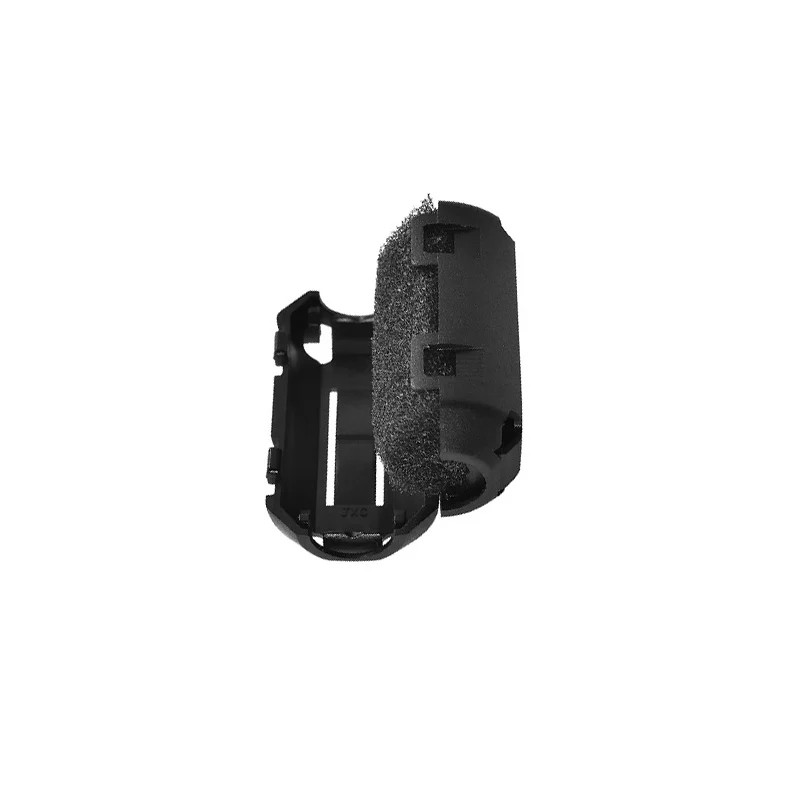
ABS PLA PETG 1.75mm Filament Filter Cleaner – Dust Removal for Ender 3, CR-10, Prusa i3
Long robot arm prints benefit from a filament dust filter. Keeps your hotend clean during the multi-hour prints needed to produce all the arm structural parts.
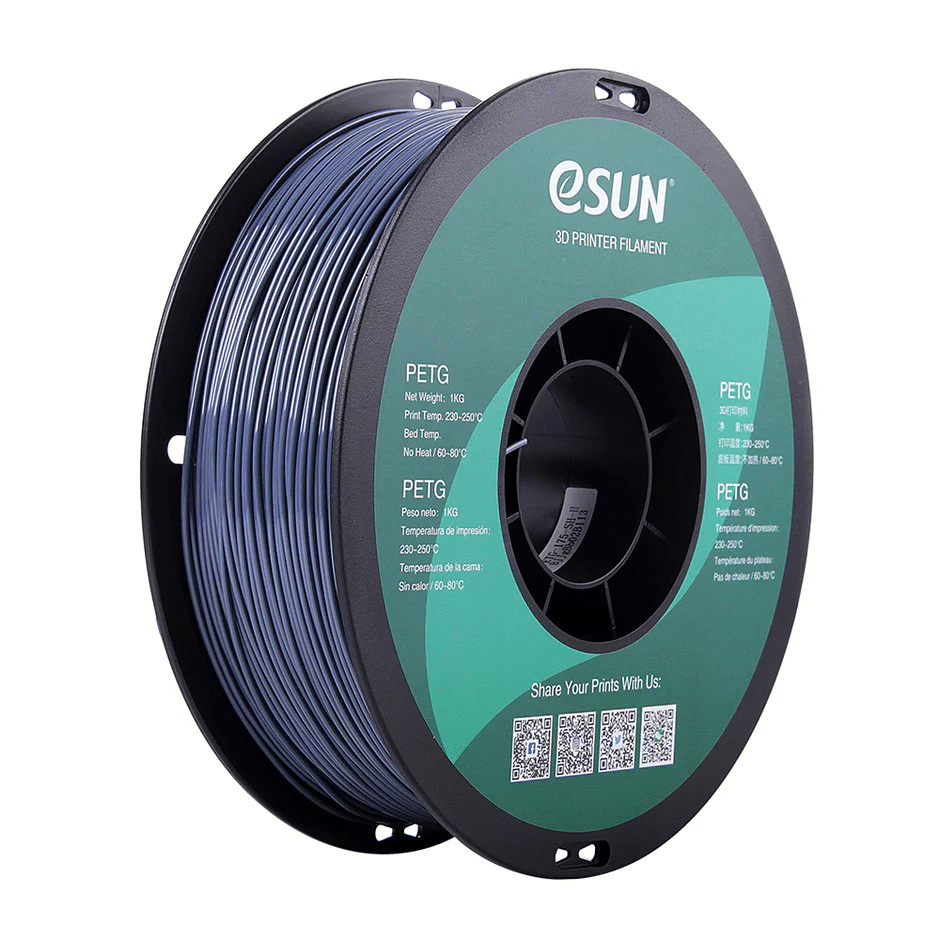
eSUN PETG 1.75mm 3D Printing Filament 1kg – Grey
Grey PETG is perfect for robot arm structural prints — professional appearance and excellent toughness for parts under repeated mechanical stress. eSUN’s consistent quality ensures reliable layer adhesion throughout long prints.
Frequently Asked Questions
How strong is a 3D printed robot arm?
A well-printed PETG arm with 50%+ infill and 4–5 perimeters is surprisingly strong for light-duty applications. Typical desktop arms can lift 200–500g at the gripper depending on the design and servo torque. For heavier payloads, consider metal servo horns and metal-reinforced joint designs.
Can I use PLA instead of PETG for the arm parts?
Yes, PLA works for initial prototyping and testing. However, PLA is more brittle than PETG and may crack under repeated stress at joints. If the arm will be used regularly, PETG or ASA is a better long-term choice. PLA is fine for learning and low-stress demonstrations.
What Arduino board is best for a robot arm?
Arduino Mega 2560 is recommended for 5–6 axis arms — it has more I/O pins, more UART ports, and more memory. For a 4-axis arm with a PCA9685 driver, an Arduino Uno is sufficient. Avoid Arduino Nano for servo-heavy projects as it has limited power regulation.
Can I control the arm via a smartphone?
Yes. Add an ESP8266 or ESP32 module alongside (or instead of) the Arduino. The ESP handles WiFi/Bluetooth communication and forwards commands to servo control. Many projects use an Android app built with MIT App Inventor to control arms over Bluetooth.
How long does it take to print all the parts?
A 4-DOF arm design typically requires 15–25 hours of printing at 0.2mm layer height. Split the prints across multiple sessions. Start with the base and lower arm first so you can begin assembly while the remaining parts print.
What is the best application for a desktop 3D printed robot arm?
Popular applications include: sorting objects by colour (with a colour sensor), pick-and-place operations, drawing/writing with a pen end-effector, demonstrating IK algorithms for engineering projects, and as a teaching tool for robotics and programming.
Build Your Robot Arm with Parts from Zbotic
From PETG filament for structural parts to nozzles and hotend components for reliable long prints — Zbotic.in has everything you need to complete your robot arm project. Fast shipping across India.







Add comment