
Robot mapping with LiDAR using the RPLIDAR A1 and Hector SLAM is one of the most accessible entry points into professional-grade mobile robotics. Unlike GMapping, Hector SLAM does not require wheel odometry — the LiDAR data alone is sufficient to build an accurate map, making it ideal for platforms without encoders. This tutorial covers everything from wiring the RPLIDAR A1 to tuning Hector SLAM parameters and saving a reusable occupancy grid map in ROS.
What Is Hector SLAM and Why Use It?
Hector SLAM is a 2D SLAM algorithm developed at TU Darmstadt, Germany, specifically designed for robots without reliable wheel odometry. It works by matching successive LiDAR scans to a probabilistic occupancy grid using Gauss-Newton optimization — essentially figuring out “how much did I move?” purely from how the scan shifted between frames.
Why choose Hector SLAM over GMapping?
- No odometry required — works on wheeled, legged, or even hand-carried platforms.
- Faster scan-to-map matching at high LiDAR rates (up to 40 Hz with RPLIDAR A2).
- Multi-resolution map approach reduces drift in feature-rich environments.
- Simpler to set up on platforms without encoder-capable motors.
The trade-off: Hector SLAM struggles in environments with few distinctive features (long corridors, open fields) and can drift if the robot moves very fast. For indoor rooms and corridors with furniture/walls, it excels.
RPLIDAR A1 Overview & Specifications
The Slamtec RPLIDAR A1 is the most popular entry-level 2D LiDAR for robotics hobbyists and students worldwide. Key specifications:
| Parameter | Value |
|---|---|
| Scan range | 0.15 – 6 m (12 m peak) |
| Field of view | 360° |
| Sample rate | 2000–8000 samples/sec |
| Scan frequency | 1–10 Hz (adjustable) |
| Interface | UART (via USB-TTL adapter) |
| Power | 5V, ~2.5W |
| Angular resolution | ~1° at 5.5 Hz |
The A1 uses a triangulation-based optical approach (not time-of-flight), which keeps the cost low while delivering sufficient accuracy for indoor SLAM. It comes with a USB-to-UART adapter board that handles motor speed control and data framing.
Hardware Setup & Wiring
The RPLIDAR A1 comes with its own USB adapter — plug it into the Raspberry Pi or laptop USB port. The adapter board controls the scanning motor via a separate 5V input. Here’s what to check during hardware setup:
- USB connection: Plug the USB adapter into your Linux machine. Run
ls /dev/ttyUSB*— you should see/dev/ttyUSB0. - Permissions:
sudo usermod -aG dialout $USERthen log out and back in, OR usesudo chmod 666 /dev/ttyUSB0for a quick fix. - Motor power: The USB adapter provides 5V to the LiDAR motor. Ensure your USB port (or powered hub) can supply at least 500mA.
- Mounting orientation: Mount the LiDAR level (horizontal), at the highest point of the robot. The connector/cable side indicates the “back” of the scan by convention — note this for your TF frame.
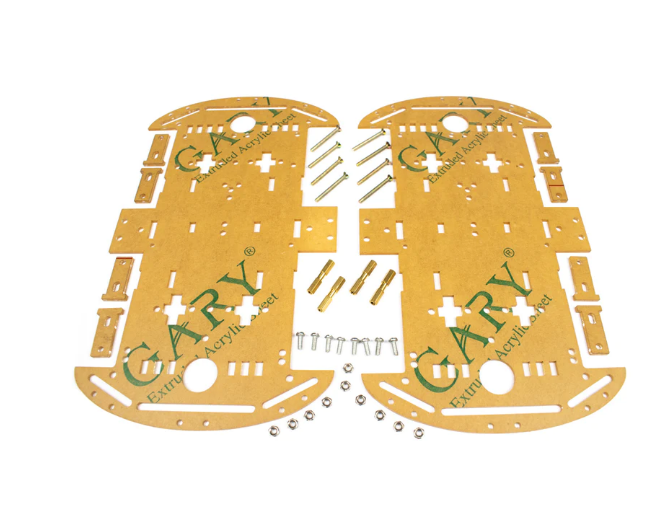
4 Wheels Car Chassis Acrylic Frame
Sturdy 4-wheel platform with flat acrylic top deck — provides an ideal level mounting surface for the RPLIDAR A1 at the correct height for wall detection.
ROS Installation & Package Setup
This tutorial uses ROS Noetic on Ubuntu 20.04 (Raspberry Pi 4 or x86 laptop). First, install the required packages:
# Install ROS Noetic (if not done)
sudo apt install -y ros-noetic-desktop-full

# Install RPLIDAR ROS driver
sudo apt install -y ros-noetic-rplidar-ros

# Install Hector SLAM
sudo apt install -y ros-noetic-hector-slam

# Install map server for saving maps
sudo apt install -y ros-noetic-map-server
Verify the RPLIDAR driver is working:
source /opt/ros/noetic/setup.bash
roslaunch rplidar_ros rplidar.launch
# In another terminal:
rostopic echo /scan | head -20
You should see sensor_msgs/LaserScan messages with 360 range values. If you see all zeros or NaN, check USB permissions and cable connection.
Writing the Hector SLAM Launch File
Create a ROS package for your robot and write a combined launch file:
cd ~/catkin_ws/src
catkin_create_pkg my_slam_bot std_msgs rospy
mkdir -p my_slam_bot/launch
Create ~/catkin_ws/src/my_slam_bot/launch/hector_slam.launch:
<launch>
  <!-- RPLIDAR driver -->
  <node name="rplidar" pkg="rplidar_ros" type="rplidarNode"
        output="screen">
    <param name="serial_port" value="/dev/ttyUSB0"/>
    <param name="serial_baudrate" value="115200"/>
    <param name="frame_id" value="laser"/>
    <param name="scan_mode" value="Sensitivity"/>
  </node>

  <!-- Static TF: base_link → laser -->
  <node pkg="tf" type="static_transform_publisher"
        name="base_to_laser"
        args="0 0 0.15 0 0 0 base_link laser 100"/>

  <!-- Hector SLAM -->
  <include file="$(find hector_slam_launch)/launch/tutorial.launch">
    <arg name="base_frame" value="base_link"/>
    <arg name="odom_frame" value="base_link"/>
    <arg name="pub_map_odom_transform" value="true"/>
    <arg name="map_resolution" value="0.05"/>
  </include>

  <!-- RViz for visualisation -->
  <node pkg="rviz" type="rviz" name="rviz"
        args="-d $(find hector_slam_launch)/rviz_cfg/mapping_demo.rviz"/>
</launch>
Build and run:
cd ~/catkin_ws && catkin_make
source devel/setup.bash
roslaunch my_slam_bot hector_slam.launch
Parameter Tuning for Better Maps
Hector SLAM’s behaviour is controlled by parameters in the hector_mapping node. The key parameters and their recommended starting values for indoor environments:
| Parameter | Default | Recommended | Effect |
|---|---|---|---|
| map_resolution | 0.025 | 0.05 | Coarser map, faster update |
| map_size | 1024 | 2048 | Larger map area |
| map_multi_res_levels | 3 | 3 | Multi-res scan matching |
| update_factor_free | 0.4 | 0.4 | Free space update rate |
| laser_min_dist | 0.4 | 0.15 | Include closer readings |
Tips for cleaner maps:
- Move slowly — Hector SLAM works best at <0.2 m/s. Fast movement causes scan blur.
- Avoid rotating in place unless necessary; lateral movement gives better scan registration.
- Ensure rigid LiDAR mounting — any vibration introduces noise in the scan.
- Run in well-lit environments only if using optical features; LiDAR is light-independent.
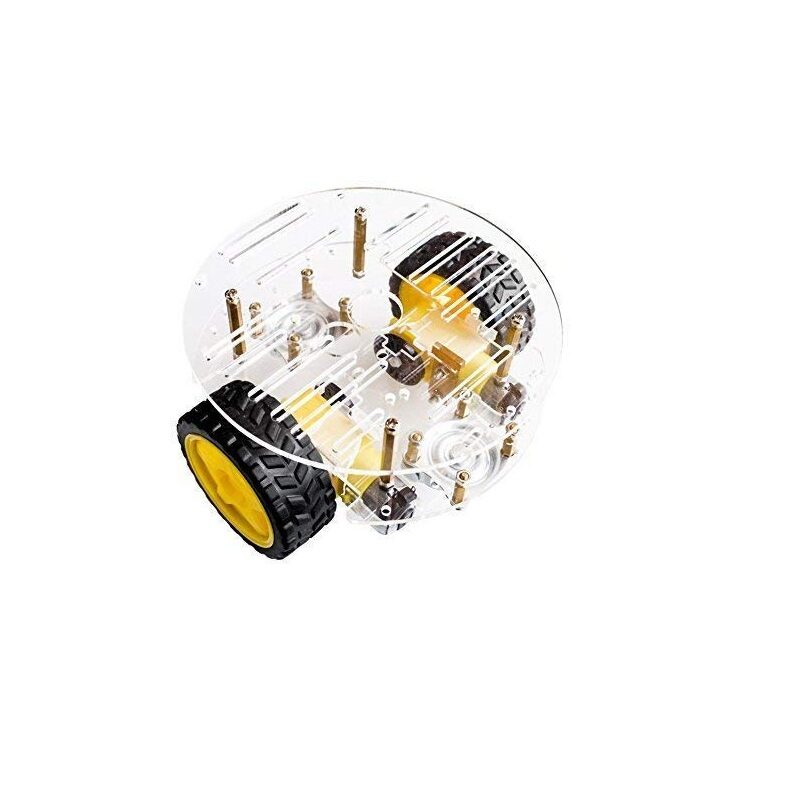
2WD Mini Round Double-Deck Smart Robot Car Chassis DIY Kit
Compact 2WD chassis kit — a great base for your Hector SLAM mapping robot. The round design minimises LiDAR blind spots from the chassis body.
Saving & Loading the Map
Once you’ve explored the environment and are satisfied with the map in RViz, save it using map_saver:
# While Hector SLAM is still running:
rosrun map_server map_saver -f ~/maps/office_map
# Creates: office_map.yaml + office_map.pgm
The .pgm file is a grayscale image where white=free, black=occupied, grey=unknown. The .yaml file stores resolution, origin, and threshold values. Load it for navigation:
rosrun map_server map_server ~/maps/office_map.yamlSwitch from Hector SLAM (SLAM mode) to AMCL (navigation mode) using the saved map for autonomous navigation.
Common Issues & Fixes
Map is blank / all grey
The LiDAR scan is not reaching hector_mapping. Check: Is /scan topic publishing? Run rostopic hz /scan — expect 5–10 Hz. Also verify the TF tree with rosrun tf view_frames; there must be a transform from base_link to laser.
Map drifts or loops badly
Reduce robot speed. Increase map_multi_res_levels to 4. Ensure walls are visible in the scan at all times — open featureless areas cause Hector SLAM to lose tracking.
RPLIDAR not detected
Check dmesg | tail -20 for USB errors. Try a different USB port or powered hub. Ensure the driver is set to the correct baud rate (115200 for A1, 256000 for A2/A3).
High CPU usage on Raspberry Pi
Set map_resolution to 0.05 or 0.1 and map_multi_res_levels to 2 to reduce computational load. Consider using a Raspberry Pi 4 (4GB) rather than 3B+ for this workload.
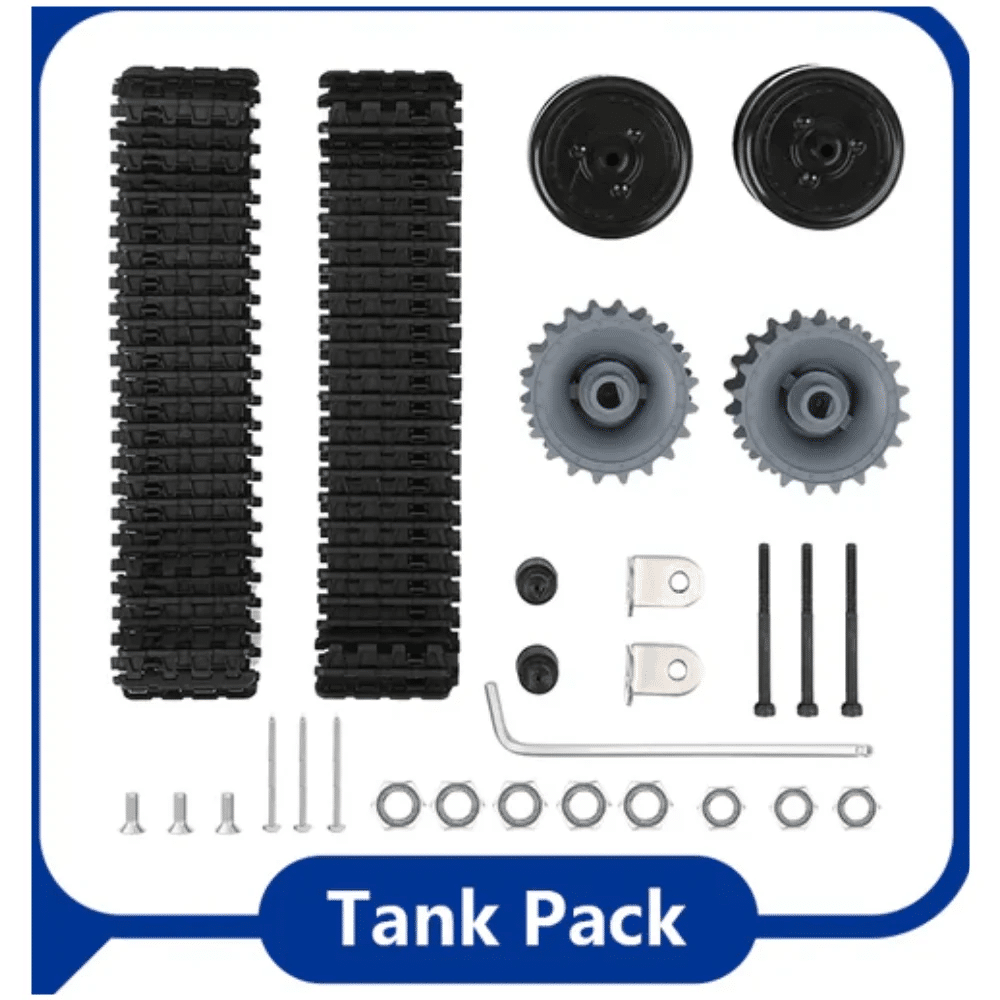
ACEBOTT ESP32 Tank Robot Car Expansion Pack
Tank-form robot expansion pack with ESP32 — build a rugged mapping platform that can carry the RPLIDAR A1 for corridor and room mapping.
Frequently Asked Questions
Does Hector SLAM work with RPLIDAR A2 or A3?
Yes. The ROS rplidar driver supports A1, A2, A3, and S1 models. Just change the scan_mode parameter and baud rate in the launch file to match your model.
Can Hector SLAM work without ROS?
Hector SLAM is implemented as a ROS package. Standalone ports exist (e.g., for ROS2), but ROS1 Noetic or Melodic are the most documented and supported environments for this algorithm.
What is the maximum room size Hector SLAM can map?
With default settings (map_size=1024, map_resolution=0.05), that gives a 51.2m × 51.2m map. Increase map_size to 4096 for larger environments (uses more RAM).
Is Hector SLAM suitable for outdoor mapping?
Outdoors with a single 2D LiDAR is challenging — no walls for scan registration. Use 3D LiDAR + NDT mapping or RTK-GPS fusion for outdoor environments.
How do I visualise the map without a monitor on Raspberry Pi?
Run RViz on your laptop via ROS over SSH. Set export ROS_MASTER_URI=http://raspberrypi.local:11311 and export ROS_IP=your_laptop_ip on your laptop before launching RViz.
Start Mapping with LiDAR Today
Get your robot mapping platform built with chassis kits and motor components from Zbotic.in. We stock everything from compact 2WD chassis to ESP32 robot kits — delivered across India.






Add comment