
Table of Contents
- Introduction
- Why Fusion 360 for 3D Printing?
- Setting Up Fusion 360
- The Design Workflow
- Step 1: Creating Your First Sketch
- Step 2: Turning Sketches into 3D Bodies
- Step 3: Designing for Print Tolerances
- Step 4: Adding Fillets and Chamfers
- Step 5: Wall Thickness and Infill Considerations
- Step 6: Designing for Overhangs and Supports
- Step 7: Exporting to STL or 3MF
- Common Beginner Mistakes
- Practice Projects
- FAQ
Introduction
3D printing is only half the story. The other half — the part that separates people who download files from Thingiverse from those who create genuinely useful custom objects — is 3D design. Fusion 360 by Autodesk is one of the best tools to learn this skill, and the good news is that it is free for personal use and hobby projects. It runs on Windows and Mac, and its parametric modelling approach is genuinely well-suited to designing parts for FDM (Fused Deposition Modelling) 3D printing.
This guide is written specifically for beginners in India who have a 3D printer (or access to one) and want to start designing their own parts rather than relying solely on downloaded models. We will walk through the complete workflow from installing Fusion 360 to exporting a print-ready file, with practical tips baked in at each step to help you avoid the mistakes that trip up most beginners.
Why Fusion 360 for 3D Printing?
Several free CAD tools exist — FreeCAD, TinkerCAD, OpenSCAD, Onshape — so why Fusion 360? Here is why it earns its recommendation:
- Parametric modelling: Every dimension is stored as an editable value. Change a wall thickness from 2 mm to 3 mm and the entire model updates automatically. This is essential for iterating on functional parts.
- Integrated simulation: Fusion 360 can simulate stress and deformation on your designed part before you print it, helping identify weak points.
- Built-in slicer preview: Fusion 360 has a 3D print workspace that can send files directly to slicers.
- Professional standard: Learning Fusion 360 builds a skill that is directly transferable to the engineering workforce — mechanical engineers, product designers, and CNC machinists use it professionally.
- Strong community: Thousands of YouTube tutorials, forums, and ready-made exercises exist specifically for beginners.
The one trade-off is that Fusion 360 is cloud-dependent — you need an internet connection for most features (though offline functionality is available once authenticated). For Indian users with reliable broadband, this is rarely a practical constraint.
Setting Up Fusion 360
Download Fusion 360 from the Autodesk website. Create a free Autodesk account (use an academic email if you have one — students get access to full professional features). During installation, select personal/hobby use to activate the free licence.
Once installed, configure these settings before you start designing:
- Set units to millimetres: Go to Preferences → Default Units → Design → Millimetres. FDM 3D printing works in millimetres universally.
- Enable grid display: In the sketch environment, enable the grid with snap enabled at 0.5 mm increments — it makes aligning sketch geometry much easier.
- Set material to plastic: In the Design workspace, right-click your body → Assign Material → ABS Plastic or PLA. This is important if you use the stress simulation tools.
- Configure auto-save: Set auto-save to every 2 minutes. Cloud save is reliable, but local auto-save prevents losing work during internet interruptions.
The Design Workflow
Fusion 360 uses a sketch-first, extrude-second workflow. Every 3D shape starts as a 2D sketch on a plane. You then use operations like Extrude, Revolve, Loft, and Sweep to turn those 2D sketches into 3D bodies. Additional operations (Fillet, Chamfer, Shell, Mirror, Pattern) refine the shape. This process is the foundation of parametric solid modelling and once it clicks, you can design almost anything.
The four planes you will use most are:
- XY Plane: The horizontal ground plane — good for top-view designs like phone stands or trays.
- XZ Plane: The front-facing vertical plane — good for profiles of things like brackets or clips.
- YZ Plane: The side-facing vertical plane.
- Face of existing geometry: You can sketch directly on any flat face of an existing body — used for cut-outs and features on top of base geometry.
Step 1: Creating Your First Sketch
Let us design a simple cable clip as our example part — a classic beginner project that is immediately useful.
- Click Sketch → Create Sketch, then click the XZ plane (the front vertical plane).
- Draw a rectangle using the Rectangle → Center Rectangle tool. Click the origin, then move the mouse and type 30 mm × 20 mm in the dimension fields.
- Add a circle at the centre of the top edge using the Circle → Center Diameter Circle tool. Set diameter to 8 mm — this will become the cable channel.
- Use Trim to remove the top arc of the circle that falls outside the rectangle (you want a U-shaped channel, not a full hole).
- Press D to add dimensions to all sketch entities. Confirm each measurement — a fully constrained sketch (all lines turn black) is a sign you have defined the geometry completely without ambiguity.
- Press Stop Sketch when the sketch looks correct.
Key habit: always fully constrain your sketches. Blue lines in Fusion 360 are unconstrained — they can be accidentally moved when you add other features. Black lines are fully constrained and locked. Fully constrained sketches prevent a huge class of downstream modelling problems.
Step 2: Turning Sketches into 3D Bodies
With the sketch complete:
- Press E (or Solid → Extrude) to open the Extrude dialog.
- Click inside the closed profile (the clip outline, excluding the cable channel opening).
- Set the extrusion distance to 12 mm — the clip depth.
- Click OK. You now have a 3D body.
Try different extrusion types: New Body creates an independent solid, Join merges with existing bodies, Cut subtracts geometry (for holes and pockets), and Intersect keeps only the overlapping volume. The Cut operation is how you add screw holes, cable channels, and mounting slots to existing shapes.
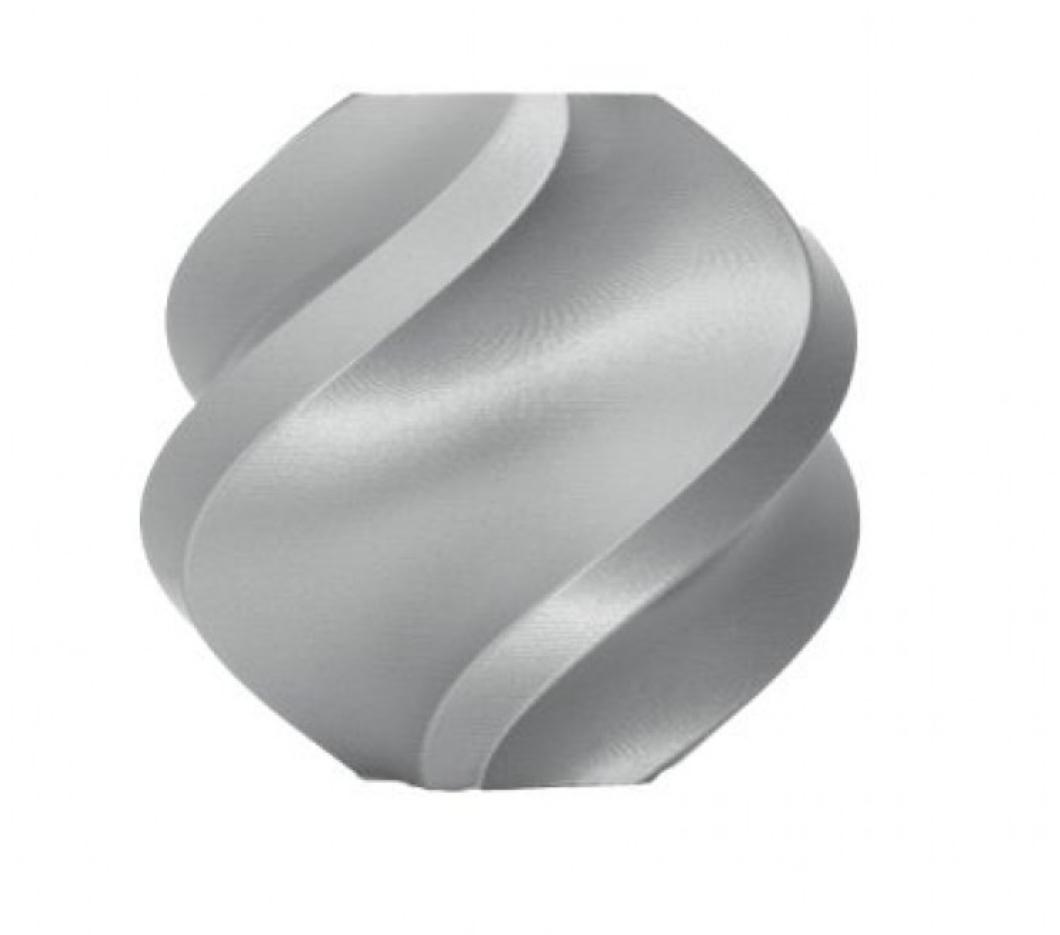
Bambu Lab PLA Filament Silver – 1.75mm with Reusable Spool
Print your Fusion 360 designs in Bambu Lab PLA — optimised profiles available in Bambu Studio for near-perfect first results every time.
Step 3: Designing for Print Tolerances
This is the most important — and most frequently overlooked — concept for beginners. 3D printing is not a precision manufacturing process. FDM printers deposit plastic in layers 0.1–0.3 mm thick, and the extruded lines have a physical diameter. This means your printed part will be slightly different from your CAD model:
- Holes print smaller: A 6 mm hole in CAD will print as approximately 5.7–5.85 mm. Always add 0.1–0.2 mm tolerance to hole diameters for moving or fitting applications.
- Outer dimensions print slightly larger: A 20 mm cube often prints as 20.1–20.2 mm. For precise fit, measure your printer’s dimensional accuracy first.
- Layer lines create anisotropy: Parts are stronger along the layer plane than perpendicular to it. Design critical features (like hinge pins, snap fits, or load-bearing ribs) to align stress with layer direction.
The correct approach for fitted parts (like a lid on a box, or a bearing seat) is to print a calibration test before your final part. Design a simple ring with your target hole diameter, print it, measure the actual hole, then adjust your CAD model accordingly. This calibration varies by printer, filament brand, and even ambient temperature.
For parts that need to slide or click together, start with a 0.3 mm clearance gap (0.15 mm on each mating surface) and adjust based on test prints. Tight snap fits typically need 0.2–0.4 mm of elastic deflection range, which depends on filament flexibility.
Step 4: Adding Fillets and Chamfers
Sharp corners are stress concentrators — they concentrate mechanical stress in a tiny area, leading to cracks. In 3D printing, sharp internal corners are also where delamination often begins. Adding fillets (rounded corners) and chamfers (angled cuts) addresses both issues.
- Press F for Fillet. Select one or more edges and input a radius. For general strength, a 1–2 mm fillet on internal corners is usually sufficient.
- Chamfers (45° cuts) are better than fillets for edges that will be printed on a build plate — round fillets can create support needs, while 45° chamfers are self-supporting.
- For aesthetic top edges, a 0.5–1 mm chamfer looks clean and eliminates sharp edges that catch on skin or fabric.
There is a printing-specific reason to use chamfers on bottom edges: if you add a fillet to the very bottom of a part where it meets the build plate, the slicer may generate a support structure for it. A 45° chamfer at the base avoids this.
Step 5: Wall Thickness and Infill Considerations
FDM printers extrude plastic in lines called perimeters (or walls). Standard nozzle diameter is 0.4 mm, meaning each perimeter line is approximately 0.4–0.48 mm wide (depending on slicer settings). Wall thickness should always be a multiple of your nozzle width to avoid gaps:
- Minimum functional wall: 0.8 mm (2 perimeters) — thin but rigid for small features.
- General-purpose wall: 1.2–1.6 mm (3–4 perimeters) — good balance of strength and material use.
- Structural wall: 2.0–3.0 mm (5–7 perimeters) — for parts under mechanical load.
In Fusion 360, design your wall dimensions explicitly. Do not rely on the slicer to figure it out — walls that are not multiples of nozzle width create narrow gaps that the slicer fills inconsistently, weakening the print.
For infill, this is controlled in the slicer, not Fusion 360. As a general rule: 15–20% infill for decorative parts, 30–40% for functional parts, 60%+ for structural parts that will bear loads. Design your part in Fusion 360 knowing what infill range you intend to use — thinner walls paired with higher infill can sometimes outperform thicker walls at lower infill for impact resistance.
Step 6: Designing for Overhangs and Supports
FDM 3D printing requires support material for overhangs greater than approximately 45–50 degrees from vertical. Supports add print time, use extra filament, and leave marks on the surface where they are removed. The best design strategy is to minimise support needs through clever geometry:
- Bridging instead of overhangs: Horizontal spans of up to 50–60 mm can bridge across two support points without drooping, using your slicer’s bridging mode.
- Teardrop holes instead of circles: Circular holes in vertical faces print well, but holes in horizontal (top-facing) planes may need supports. A teardrop shape (circle with a 45° pointed top) is self-supporting.
- Reorient the print: Often the best answer to support problems is rotating the part so the problematic overhang faces upward or becomes a bridgeable span.
- Split and print separately: Complex parts can be designed in two or more pieces that snap or glue together, each printed in its optimal orientation.
In Fusion 360, use the Analyse → Section Analysis view to look at cross-sections of your part and identify overhang regions before you export.
Step 7: Exporting to STL or 3MF
When your design is complete, go to the Design workspace → File → 3D Print. This opens the export dialog:
- Format: Choose 3MF over STL if your slicer supports it (Bambu Studio, OrcaSlicer, PrusaSlicer all do). 3MF preserves units correctly and supports multiple bodies and colours. STL is still universal and works everywhere.
- Refinement: Set to High for small detailed parts, Medium for large simple parts. Higher refinement = more triangles = larger file size but smoother curved surfaces.
- Units: Confirm millimetres. Importing an inch-unit STL into a slicer expecting millimetres will make your part 25.4× too large — a common beginner mistake.
After exporting, open the file in your slicer (Bambu Studio, OrcaSlicer, etc.) and measure key dimensions using the slicer’s ruler tool before slicing. This confirms the export worked correctly and the part is the right size.
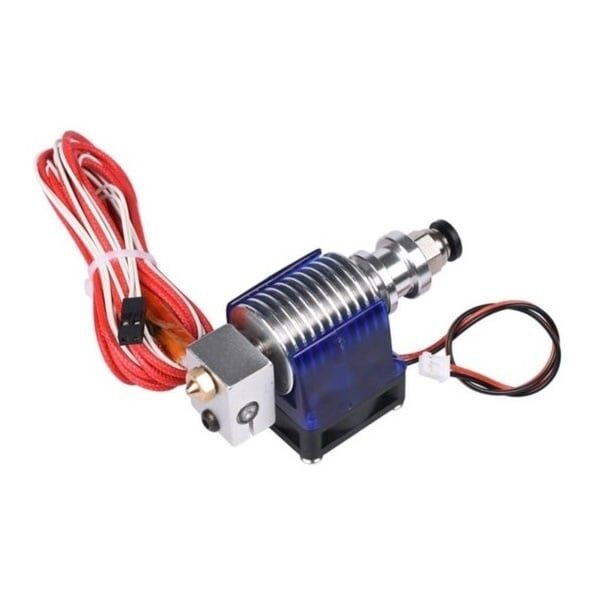
Complete Bowden V6 Hotend with Fan – 0.2 mm Nozzle
For fine-detail Fusion 360 prints, a 0.2 mm nozzle dramatically improves surface finish and small feature resolution compared to a standard 0.4 mm.
Common Beginner Mistakes
- Not constraining sketches fully: Blue sketch lines will shift when you add features later, causing geometry to break. Always aim for fully black sketches before extruding.
- Ignoring tolerances: Designing mating parts to exactly the same dimension in CAD and expecting them to fit in real life. Always add clearance (at minimum 0.2 mm per side for loose fit).
- Walls thinner than 0.8 mm: These print poorly or not at all with a 0.4 mm nozzle. The slicer may simply ignore them.
- Designing with sharp 90° internal corners: These are stress concentrators and adhesion points for delamination. Add fillets.
- Exporting in inches: Always check units before exporting. STL files have no unit metadata — the slicer has to guess.
- Making the part too thin in the Z direction: Parts with low Z height (less than 3–4 mm) are notoriously weak because they have very few layers and limited interlayer bonding area.
- Forgetting about print orientation: Designing without thinking about how the part will sit on the build plate — resulting in unavoidable supports or a part printed in a mechanically weak orientation.
Practice Projects for Beginners
The best way to solidify Fusion 360 skills is through graduated practice projects:
- Simple cable clip (covered in this guide) — introduces sketching, extrude, and basic constraints.
- Phone stand — introduces angles, multiple bodies, Boolean operations.
- Box with lid — introduces tolerance-aware design, snap-fit joints, Shell operation.
- Custom bracket or mount — introduces real-world measurement, hole placement, load path thinking.
- Gear (spur gear) — Fusion 360 has a built-in Spur Gear add-in; a great introduction to parametric design and mating parts.
For each project, follow this sequence: design → export → slice → print → measure → compare to design → iterate. This feedback loop is how you build intuition for print tolerances and material behaviour that no tutorial can fully replace.
Frequently Asked Questions
Is Fusion 360 completely free for hobby use?
Yes. The free personal licence allows full design, simulation, and export for non-commercial use. There are some limitations (reduced simultaneous active documents, no generative design), but none that affect typical hobby 3D printing workflows. Students get additional features with an educational licence.
What is the difference between STL and 3MF file formats?
STL is the legacy standard — it stores only surface geometry as triangles with no unit, colour, or multi-body information. 3MF is the modern replacement, storing units, materials, colours, and multiple bodies in a single file with smaller file sizes. Use 3MF where your slicer supports it.
How accurate can I make my Fusion 360 designs?
Fusion 360 itself can model to micron-level precision. The limiting factor is your printer. Budget FDM printers typically achieve ±0.2–0.4 mm dimensional accuracy. High-quality printers like the Bambu Lab A1 Mini can achieve ±0.1–0.2 mm consistently. Always calibrate your printer before dimensional-critical prints.
Do I need a powerful computer to run Fusion 360?
A modern mid-range laptop (8 GB RAM, discrete GPU recommended but not required) runs Fusion 360 adequately for most hobby-scale parts. Very large assemblies (hundreds of components) will slow down on lower-end hardware. Fusion 360 offloads simulation and rendering to Autodesk’s cloud, reducing local CPU load.
What YouTube channels are best for learning Fusion 360?
Lars Christensen’s official Autodesk channel, Product Design Online (Kevin Kennedy), and Hobbyist Maker are all excellent. The “Fusion 360 for Complete Beginners” series by Product Design Online is widely recommended as the best structured starting point.
Print Your First Fusion 360 Design
Once your design is ready, you need quality filament and well-maintained hardware to bring it to life. Shop Zbotic for Bambu Lab filaments, nozzles, and all the consumables you need — delivered fast across India.





Add comment