
Nothing is more frustrating than a Raspberry Pi that refuses to boot. Raspberry Pi troubleshooting for boot issues is one of the most common topics in the maker community — and for good reason. Boot problems can stem from a faulty SD card, insufficient power supply, a corrupt OS image, wrong configuration, or even a hardware failure. This comprehensive guide covers every common boot error, how to diagnose it, and exactly how to fix it. We cover Raspberry Pi 4, 4B, and the latest Raspberry Pi 5 with Bookworm OS.
Quick Pre-Boot Checklist
Before diving into deeper diagnostics, run through this quick checklist. Most Raspberry Pi troubleshooting cases are solved at this stage:
- Is the power LED lit? Red LED on = power OK. No LED = power supply or board issue.
- Is the SD card fully inserted? It should click in firmly on Pi 4; Pi 5 has a push-push slot.
- Are you using the official Raspberry Pi power supply? Third-party chargers are a leading cause of boot failures.
- Is the SD card formatted correctly? Must be FAT32 for boot partition, MBR partition table.
- Did you safely image the OS? Use Raspberry Pi Imager only — do not manually copy files.
- Is the HDMI cable connected before power-on? Pi must see the display at boot time on most models.
Power Supply Problems
Power is the single most common cause of Raspberry Pi boot failures, particularly in India where voltage fluctuations are common. The Raspberry Pi 5 requires a 5V/5A (27W) USB-C supply — many phone chargers output only 5V/2A or 5V/3A which is insufficient, especially when driving USB devices or GPIO peripherals.
Identifying Under-Voltage
On Raspberry Pi 4 and 5 with a connected display, an under-voltage warning appears as a lightning bolt icon in the top-right corner of the desktop. In the terminal, check with:
vcgencmd get_throttled
# 0x0 = No throttling (good)
# 0x50000 = Under-voltage occurred
# 0x50005 = Under-voltage + throttling currently active
Power Requirements by Model
| Model | Minimum Supply | Recommended |
|---|---|---|
| Raspberry Pi 3B+ | 5V / 2.5A | 5V / 3A |
| Raspberry Pi 4B | 5V / 3A | Official 5V/3A USB-C |
| Raspberry Pi 5 | 5V / 3A (limited) | Official 27W USB-C PD |
| Raspberry Pi Zero 2W | 5V / 1.2A | 5V / 2.5A |
India-specific tip: If using a UPS (inverter), make sure it provides clean, stabilised 230V AC output. Some modified sine wave inverters cause USB chargers to output incorrect voltages, leading to intermittent Pi boot failures.

Raspberry Pi 5 Model 16GB RAM
The Raspberry Pi 5 16GB is the most powerful Pi available. If you are experiencing boot issues on older Pi models due to RAM constraints or SD card corruption from heavy workloads, upgrading to Pi 5 with its improved storage subsystem resolves many chronic problems.
SD Card Issues and Fixes
SD card problems are the second most frequent Raspberry Pi troubleshooting topic. MicroSD cards have limited write cycles, and a Raspberry Pi writing logs continuously can wear out a cheap card within months.
Symptoms of SD Card Failure
- Pi boots to coloured splash screen and freezes
- Kernel panic messages during boot
- Filesystem errors at every boot (fsck runs)
- Files randomly disappearing or becoming corrupted
- SD card not detected at all (no activity LED)
Fix 1: Re-Flash the OS Image
The most reliable fix is to re-flash using Raspberry Pi Imager (download from raspberrypi.com/software):
- Download Raspberry Pi Imager on your PC/Mac/Linux
- Choose the correct OS (Raspberry Pi OS Bookworm recommended)
- Click the gear icon to pre-configure WiFi, hostname, SSH, and username
- Write to SD card (Imager verifies after writing)
Fix 2: Check and Repair Filesystem
If you can still access the Pi partially, run filesystem checks:
# Mount SD card on a Linux PC and check:
sudo fsck.ext4 -f /dev/sdb2  # Replace sdb2 with your partition

# Or force fsck on next Pi boot:
sudo touch /forcefsck
sudo reboot
Fix 3: Move Root Filesystem to SSD (Permanent Fix)
For Pi 4 and Pi 5, booting from a USB SSD or NVMe (Pi 5 only) completely eliminates SD card failure as a concern:
# On Pi 5, enable NVMe boot:
sudo raspi-config
# Advanced Options → Boot Order → NVMe/USB Boot First
Choosing a Reliable SD Card
For Indian makers, these guidelines apply:
- Use A1 or A2 class cards (application performance class) — not just Class 10
- Trusted brands: Samsung Endurance Pro, SanDisk Max Endurance — built for write-intensive use
- Minimum 16GB, recommended 32GB
- Avoid very cheap no-brand cards from local markets
Common Boot Error Messages
Rainbow Screen / Coloured Splash Screen Freeze
The rainbow test image appears briefly during normal boot. If it stays permanently, the Pi cannot find or read the kernel from the SD card.
Fix: Re-flash SD card. If it persists on a fresh card, the SD card slot may be damaged, or the SD card is incompatible.
Kernel Panic: VFS Unable to Mount Root FS
This error means the kernel loaded but cannot find the root partition:
Kernel panic - not syncing: VFS: Unable to mount root fs on unknown-block(179,2)Fix: The root partition (partition 2) is corrupt or missing. Re-flash the SD card. If using USB boot, check that the USB drive is properly cloned (not just the boot partition).
Error: /boot/config.txt Not Found
The boot partition exists but config.txt is missing or corrupt.
Fix: Mount the boot partition on a PC (it shows as a FAT32 volume) and restore a default config.txt. Minimum working config.txt can be blank — the Pi uses defaults.
HDMI Booting Without Display Connected
Some Pi models disable HDMI if no display is detected at boot. Fix in /boot/config.txt (mount on PC):
# Add to /boot/config.txt:
hdmi_force_hotplug=1
hdmi_drive=2  # 1=DVI, 2=HDMI (with audio)
SSH Not Working After Boot
On Raspberry Pi OS Bookworm, SSH must be explicitly enabled. With Raspberry Pi Imager, enable it in the configuration screen. Alternatively, create an empty file named ssh on the boot partition (no extension).
No Display / Blank Screen
A common Raspberry Pi troubleshooting scenario: the Pi appears to boot (activity LED flickers) but nothing appears on screen. Possible causes and fixes:
Wrong HDMI Port (Pi 4 and Pi 5)
Raspberry Pi 4 has two micro-HDMI ports. HDMI0 (closest to USB-C power port) is primary. Many users accidentally connect to HDMI1 and see nothing on boot. Pi 5 also has two mini-HDMI ports — same rule applies.
Display Not Supported / Wrong Resolution
Some older monitors or projectors reject Pi’s default HDMI signal. Fix by editing config.txt:
# /boot/config.txt
hdmi_force_hotplug=1
hdmi_group=2    # CEA=1, DMT=2
hdmi_mode=82    # 1920x1080 @ 60Hz
# Or for safe mode (640x480):
hdmi_safe=1
Display Over-Voltage Issue
Some displays draw power from the Pi’s HDMI port, causing voltage drop. Disconnect all USB devices and try again with just the display connected.
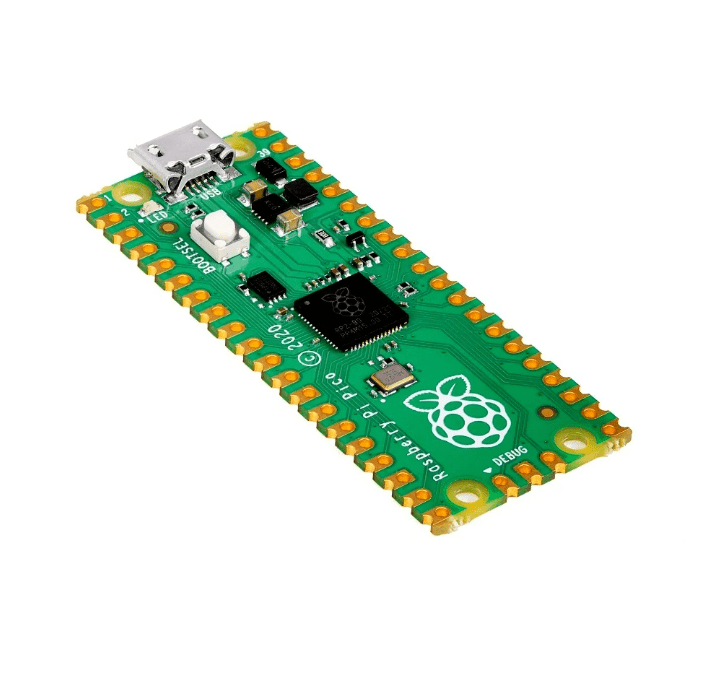
Raspberry Pi Pico
If your full Raspberry Pi project needs reliable always-on operation and SD card boot failures are a recurring problem, consider offloading sensor reading and GPIO tasks to a Raspberry Pi Pico — it has no OS, no SD card, boots instantly, and runs indefinitely on microcontroller firmware.
Network Boot and Recovery Mode
When SD card is unrecoverable, you can boot the Pi over a network (Pi 3B+ onwards). This is useful for headless recovery in production deployments:
# Enable network boot on Pi 4 via OTP:
sudo raspi-config
# Advanced Options → Boot Order → Network Boot

# Or via raspi-config in a working system:
echo 'program_usb_boot_mode=1' | sudo tee -a /boot/config.txt
sudo reboot
For Pi 5, use the bootloader configuration tool:
sudo rpi-eeprom-config --edit
# Set: BOOT_ORDER=0xf21  # Try SD, then USB, then Network
Preventive Measures
The best Raspberry Pi troubleshooting is avoiding problems in the first place. Follow these best practices:
- Always safely shut down:
sudo shutdown -h now— never just pull the power. Sudden power loss corrupts the SD card filesystem. - Use log2ram: Redirect logs to RAM to reduce SD card writes. Install with
sudo apt install log2ram. - Enable read-only root filesystem for kiosk/always-on deployments using
overlayfs. - Regular backups: Use
sudo dd if=/dev/mmcblk0 of=pi-backup.img bs=4Mperiodically, or use the SD card copier tool in the Pi GUI. - Use a quality power supply: Do not try to save ₹200 on the power supply and then lose ₹5000 of work to a corrupted SD card.
- Thermal management: Overheating causes random crashes that look like boot failures. Use a heatsink, especially in Indian summers (see our cooling guide).
Frequently Asked Questions
Why does my Raspberry Pi show a rainbow square and not boot?
The rainbow square (coloured splash test pattern) appears because the GPU initialised but the bootloader cannot find the kernel on the SD card. This means your SD card is either not detected, improperly imaged, or has a corrupt boot partition. Re-flash the card using Raspberry Pi Imager and try again. If the same card fails, try a different card.
My Raspberry Pi has a green light blinking but no HDMI output. What does the blink pattern mean?
On Pi 4, the green activity LED blink codes indicate: 3 blinks = start.elf not found (bad SD card image); 4 blinks = start.elf not launched (corrupt file); 7 blinks = kernel.img not found. Count the blinks carefully. In all cases, re-flashing the OS image with Raspberry Pi Imager resolves the issue.
My Pi boots but SSH is not working even though I enabled it. Help?
On Raspberry Pi OS Bookworm, the default username changed from pi to whatever you set during imaging. Make sure you are using the correct username. Also, ensure your Pi has an IP address (check your router’s DHCP list or connect a monitor). WiFi credentials must be set correctly during Raspberry Pi Imager configuration — there is no wpa_supplicant.conf method in Bookworm.
Can a cheap USB hub cause Raspberry Pi boot failures?
Yes. A bus-powered USB hub draws power from the Pi’s USB ports, which can cause voltage drop on the 5V rail. This triggers under-voltage protection and causes freezes or reboots. Always use a powered USB hub with its own power adapter.
How do I recover files from a Pi that won’t boot?
Remove the SD card and connect it to a Linux PC using a USB card reader. The root filesystem (second partition, ext4 format) is readable on Linux directly. On Windows, use Ext2explore or WSL (Windows Subsystem for Linux) to mount and copy files. On Mac, use Paragon extFS or mount via a Linux VM.
Get the Right Hardware for Reliable Raspberry Pi Projects
Most Raspberry Pi boot failures come down to three things: cheap power supplies, low-quality SD cards, and inadequate cooling. Zbotic stocks quality Raspberry Pi boards, cases, and accessories to help you build reliable projects that just work.





Add comment